
How to Set Up Windows Hello: Face, Fingerprint, or PIN
Published November 3, 2026

Quick answer: To enable Windows Hello, open Start > Settings > Accounts > Sign-in options. Under Ways to sign in, select PIN (Windows Hello), Facial recognition (Windows Hello), or Fingerprint recognition (Windows Hello). Choose Set up and follow the prompts. Face unlock needs a Windows Hello-compatible infrared camera, while fingerprint sign-in needs a compatible reader. You can use a Windows Hello PIN even if your PC has neither sensor.
If you are searching for how to set up windows hello, you do not need to download a separate program. The feature is built into Windows, and most of the process happens in the Settings app. This how to set up windows hello guide covers enrollment, testing, and troubleshooting without confusing PC sign-in with website verification codes.
Last updated: November 3, 2026. This guide focuses on Windows 11. Menus can differ according to your Windows version, PC hardware, and work or school policies.
What Is Windows Hello and What Do You Need?

Windows Hello is Microsoft’s built-in system for signing in with a device-specific PIN, your face, or your fingerprint instead of typing your account password every time. The PIN is not simply a shorter version of your Microsoft account password: it unlocks an authentication method associated with that computer. On supported hardware, Windows can protect the relevant cryptographic keys with a Trusted Platform Module (TPM).
Before learning how to set up windows hello, check Settings > Accounts > Sign-in options. A Windows Hello menu does not guarantee your PC has biometric hardware.
| Sign-in method | What you need | Practical benefit |
|---|---|---|
| PIN | A Windows account and the ability to complete account verification | A quick, device-bound sign-in without extra biometric hardware |
| Face recognition | A compatible infrared (IR) camera | Hands-free unlocking while sitting in front of the screen |
| Fingerprint recognition | A compatible built-in or external fingerprint sensor | A fast option when a camera is unavailable or your face is covered |
A normal webcam that works in Zoom does not necessarily support Windows Hello facial recognition. Look for explicit Windows Hello compatibility in your computer or camera specifications. Similarly, a touchpad is not a fingerprint reader unless its manufacturer advertises that feature.
For how to set up windows hello for beginners, install trusted updates and keep access to account recovery methods. On work devices, consult IT before changing managed settings.
How to Set Up Windows Hello PIN on Windows 11
A PIN is the easiest starting point, particularly on a desktop without specialized sensors. These steps to set up windows hello also give you a fallback if a camera fails to recognize you later. Do not choose a predictable PIN such as a birthday, repeated digits, or a short sequence.
Step 1: Open the sign-in menu
Press Windows + I to open Settings. Select Accounts, then Sign-in options. Under Ways to sign in, expand PIN (Windows Hello) and choose Set up. Windows may ask for your Microsoft account password or another identity verification step before it lets you continue.
Step 2: Create a secure PIN
Enter the new PIN and confirm it. The interface may offer an Include letters and symbols checkbox, depending on device policy. If you can comfortably remember a longer PIN, use one rather than the minimum permitted length. Avoid using the same code as your bank card PIN or phone unlock code.
Step 3: Finish and test the PIN
Select OK or the on-screen confirmation button. Lock the computer with Windows + L, select the PIN sign-in method if needed, and type your new code. You should reach the desktop without entering your Microsoft account password. If you use several computers, remember that a Windows Hello PIN is tied to the particular device, not automatically shared across them.
You can add biometrics later without removing your PIN. This is how to set up windows hello without purchasing extra hardware. For a more complete explanation of device credentials and account-level verification, see our internal overview of Microsoft Authenticator passwordless sign-in. The mobile authenticator and Windows Hello are related security concepts, but they are not the same product.
How to Set Up Windows Hello Face Recognition

If your laptop or webcam includes supported infrared hardware, face recognition lets you unlock Windows while looking at the screen. When researching how to set up windows hello for facial sign-in, the most important compatibility check is the IR camera, not the number of megapixels advertised for ordinary video calls.
Step 1: Find the face recognition option
Go to Settings > Accounts > Sign-in options and expand Facial recognition (Windows Hello). Select Set up, then Get started if that button appears. Confirm your PIN when prompted. If no compatible camera is detected, check the troubleshooting section.
Step 2: Enroll your face
Sit naturally in front of the screen and follow the on-screen camera instructions. Keep your eyes visible and avoid covering the IR sensor. You may need to adjust your position or remove an accessory that blocks part of your face. Windows creates local reference data for later matching.
Step 3: Test facial sign-in
Finish the prompts, press Windows + L, and look at the lock screen. Windows should attempt to recognize you; depending on your settings, you may still need to dismiss the lock screen. Keep your PIN available as a fallback. If glasses or a changed appearance make sign-in inconsistent, return to the face recognition settings and select Improve recognition rather than immediately deleting the original enrollment.
For people asking how to set up windows hello on a desktop, a compatible external IR camera may be an option. But check Enhanced Sign-in Security (ESS) first: some Windows 11 computers restrict third-party cameras or fingerprint readers under this protection. Microsoft notes that external camera modules do not support ESS. Do not switch off a security feature casually just to make a peripheral work. See Microsoft’s external-device guidance for version-specific behavior.
How to Set Up Windows Hello Fingerprint Recognition
Fingerprint sign-in may feel more convenient if you use a laptop dock, travel frequently, or work in a setting where face recognition is unreliable. To understand how to set up windows hello with a fingerprint, first identify the actual sensor. It might be integrated into a power button, next to the keyboard, or attached through USB.
Step 1: Start fingerprint enrollment
Open Settings > Accounts > Sign-in options. Expand Fingerprint recognition (Windows Hello), select Set up, and follow the identity check. On some computers you will need to create a PIN before Windows lets you register a fingerprint.
Step 2: Scan different parts of your finger
Place the selected finger on the reader, lift it, and repeat as prompted. Slightly change the angle so the scanner captures useful areas of the fingertip. Avoid pressing excessively hard or dragging your finger unless the device specifically has a swipe-style reader. A clean, dry finger and sensor can improve the process.
Step 3: Add another finger and test
After the first scan, Windows may offer Add another. Register a finger from your other hand if your device supports multiple prints and you want a backup for different working positions. Then lock the screen with Windows + L and confirm that the sensor recognizes you. If it fails, rescan the finger or update its driver.
Learning how to set up windows hello for fingerprints does not mean every application will accept that fingerprint directly. Windows first verifies the local sign-in gesture; the app or website must separately support Windows Hello or another compatible authentication flow. For related account-sign-in options, compare this with Microsoft Authenticator for PC Windows to understand the differences between device login and mobile-based authentication services.
How to Use Windows Hello for Passkeys and Online Accounts
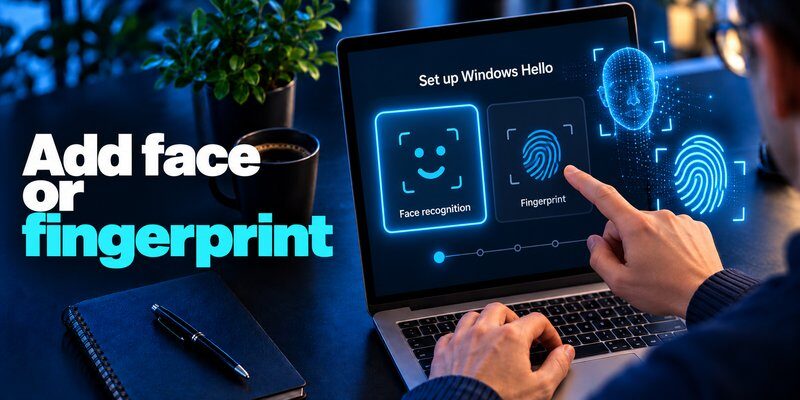
After figuring out how to set up windows hello, you can use the same face, fingerprint, or PIN gesture for certain website and app sign-ins. Support depends on the site, browser, account type, and where the credential is stored. Websites must support passkeys independently.
Sign in with a passkey
A passkey is a cryptographic credential that a compatible service uses instead of a traditional reusable password. When offered, choose Windows device / Windows Hello as the storage location and approve with your face, fingerprint, or PIN. You can then use the same method to sign in. Microsoft also supports other storage choices, including eligible password managers and security keys; select the location that matches your backup and device needs.
For a comparison of the different authentication methods, read Microsoft Authenticator passkeys. A passkey on your Windows PC and a passkey stored in an authenticator or credential manager may have different device and recovery behavior. Microsoft’s official passkey instructions explain the supported choices.
Add protection for accounts that still require codes
Not every service supports passkeys, and Windows Hello is not a general-purpose six-digit OTP app. An online account may still ask for an authenticator-generated code after you type its password. For that use case, see what is an authenticator app or our guide to a two factor authentication app.
Want a separate verification method for supported online accounts? Download the Authenticator App for iPhone on the App Store. It can serve as a mobile authentication option where the service supports compatible codes. It does not install Windows Hello, replace a Windows PC fingerprint reader, or guarantee compatibility with every website.
Once you understand how to set up windows hello, treat computer access, website passkeys, and mobile verification codes as related but distinct security layers. This makes it easier to choose the right recovery option if you change phones or lose access to a laptop.
How to Fix Windows Hello Setup and Sign-In Problems
If how to set up windows hello is blocked, identify the error first. Hardware, account policies, and PIN recovery require different fixes. Avoid unofficial drivers.
“This option is currently unavailable”
Confirm that the PC actually contains compatible biometric hardware. Open Device Manager and inspect camera or biometric-device entries. Check the PC manufacturer’s support page for the appropriate Windows 11 drivers and firmware, then restart. A normal working camera is not proof of Windows Hello IR support. On a managed PC, an administrator may have disabled enrollment or particular sign-in methods.
Face or fingerprint recognition stops working
Clean the sensor; adjust harsh side lighting for facial recognition; and remove accessories that obscure the face. For face unlock, use Improve recognition if the option is shown. For fingerprint issues, try another registered finger and rescan your preferred finger. If an external reader stopped working after an update, review its driver and your device’s Enhanced Sign-in Security configuration. Microsoft’s Windows Hello troubleshooting guide describes these checks.
You forgot your PIN
Open Settings > Accounts > Sign-in options > PIN (Windows Hello) and select I forgot my PIN, if available. Follow the account verification prompts to reset it. On the lock screen, the same recovery option may appear for supported Microsoft accounts. If you can still sign in and remember the original PIN, select Change PIN instead. The recovery steps may be different for local accounts or organization-managed computers. Refer to Microsoft’s PIN reset instructions.
An external device requires weaker settings
Some third-party sensors are blocked when Enhanced Sign-in Security is enabled. Microsoft documents differences between Windows 11 versions, including 23H2 and 24H2 or later. Before changing a toggle, determine whether the reader supports ESS, whether company policy permits it, and whether using a built-in sensor or a PIN would be safer. When revisiting how to set up windows hello after replacing hardware, keep the safest supported security configuration.
Is Windows Hello Secure? Privacy and Safety Tips

The reason many people investigate how to set up windows hello is to avoid reusable passwords during everyday PC sign-in. The approach can help because authentication credentials are associated with the device, and the face or fingerprint match happens locally. Microsoft says Windows Hello biometric data stays on the device and is not sent to external servers. TPM-backed setups further protect authentication keys against extraction and certain brute-force attacks.
Microsoft’s Windows Hello biometric requirements specify a false accept rate below 0.001% for compatible facial-recognition systems. That is a technical performance requirement, not a guarantee that a particular computer can never be fooled. Actual protection depends on the sensor, firmware, configuration, and physical security of the device.
A few habits make the feature more useful:
- Choose a strong, unique PIN. Someone who observes or guesses it could bypass biometric recognition on that device.
- Lock your computer when leaving. Press Windows + L, especially in offices and shared spaces.
- Keep Windows, firmware, and drivers updated. Use trusted update sources rather than unofficial driver sites.
- Protect account recovery. Check Microsoft account recovery methods and secure online accounts with suitable additional factors.
- Do not weaken ESS without a reason. A peripheral that requires disabling protection deserves a careful compatibility review.
- Treat unsolicited approval requests as suspicious. Windows Hello will not protect you from every phishing or social-engineering attack.
If your PC runs Windows 10, note that regular support for most Windows 10 editions ended on October 14, 2025. Eligible Extended Security Updates programs and some editions have separate arrangements. In 2026, an upgrade to supported Windows 11 hardware is usually preferable where feasible. Microsoft explains the timeline in its Windows 10 end-of-support notice.
When thinking about how to set up windows hello 2026, remember that secure PC access is only one part of identity protection. You can also explore how to use an authenticator app for services that still rely on time-based codes. Use each tool for the security problem it actually solves.
Frequently Asked Questions About Windows Hello

Is Windows Hello free on Windows 11?
Yes. Windows Hello is part of Windows 11, so no separate subscription is required for its built-in sign-in features. Compatible biometric hardware may cost extra, especially for desktop users who want an external infrared camera or fingerprint reader. When planning how to set up windows hello, try the free PIN option first.
Can I set up Windows Hello without a fingerprint scanner?
Yes. You can use a PIN without a fingerprint reader, and face recognition is available when a supported infrared camera is present. You do not need all three methods. Choose the method your hardware supports and that you can reliably use.
Does Windows Hello work with an ordinary webcam?
Usually not for face sign-in. A basic RGB webcam used for video meetings does not automatically meet Windows Hello’s infrared and security requirements. Check the device’s specifications for explicit compatibility before buying or troubleshooting it.
Do I still need my Microsoft account password?
You may still need it for account recovery, authentication on another device, or services that have not switched to passkeys. Windows Hello does not eliminate every online password.
Can different people use Windows Hello on one PC?
Yes. Each person should have their own Windows user account and enroll their own PIN or biometrics. When considering how to set up windows hello for a shared computer, do not share one Windows login among several users.
Can I use Windows Hello on a work laptop?
Often, yes, but your organization’s policy controls availability. A company may require Windows Hello for Business, enforce a minimum PIN length, or restrict external biometric devices. Contact your IT department if a sign-in option is disabled by policy.
Is Windows Hello the same as Microsoft Authenticator?
No. Windows Hello handles compatible device and passkey authentication through Windows. Microsoft Authenticator is a separate mobile app with supported account sign-in methods. A third-party authenticator app can also generate codes for services that support standard TOTP. To understand how to set up windows hello safely, separate local PC access from online account verification.
Bottom line: To complete how to set up windows hello, open Settings > Accounts > Sign-in options, enroll a PIN, and add a supported face or fingerprint sensor if available. Test your sign-in, keep recovery methods current, and use an authenticator or passkey where online accounts call for additional protection.
Download Authenticator App
Secure your accounts with fast, reliable two-factor authentication. Download now and protect your login in seconds.
Official sources: Configure Windows Hello | Windows Hello common issues | Biometric requirements | Create and save a passkey | Change or reset your PIN
