
How to Set Up Fingerprint Login on Any Device (2026 Guide)
Published November 3, 2026

Quick Answer: To how to set up fingerprint login on a supported device, open Settings, find Fingerprint, Touch ID, or Windows Hello, create a backup PIN or password, and follow the instructions to scan your finger. Once registered, enable fingerprint unlocking and test it on your lock screen.
On Android, fingerprint settings are generally under Security & privacy. On supported Apple devices, use Touch ID & Passcode or Touch ID & Password. On Windows 11, go to Settings > Accounts > Sign-in options.
Fingerprint authentication offers a convenient way to unlock devices, approve purchases, and access supported applications without repeatedly entering a password.
This how to set up fingerprint login guide explains the process across major platforms, including practical security tips and troubleshooting methods based on official manufacturer documentation.
What Is Fingerprint Login and How Does It Work?
Fingerprint login is a biometric authentication method that verifies identity by comparing a scanned fingerprint with previously enrolled fingerprint data.
Each time you place your finger on a supported sensor, the device captures information about the fingerprint pattern and checks it against its stored biometric template.
If the comparison succeeds, the device can authorize the requested action.
Fingerprint authentication commonly supports:
- Unlocking smartphones and tablets.
- Signing in to Windows and macOS.
- Accessing supported banking and financial applications.
- Approving online purchases.
- Unlocking password managers.
- Authorizing passkey-based account sign-ins.
Unlike a password, a fingerprint cannot simply be forgotten. However, fingerprints can still be copied or imitated, and biometric systems are not completely immune to attack.
The important distinction is that fingerprint login verifies a person locally, while account authentication may also require proof of device ownership or another security factor.
Modern systems commonly use fingerprint recognition to unlock a cryptographic credential stored securely on the device.
For example, Google’s passkey documentation explains that biometric information used for passkey authentication remains on the user’s device rather than being shared with Google.
Understanding this distinction is useful before learning how to set up fingerprint login for individual devices or online services.
What You Need Before Setting Up Fingerprint Login

Before enabling biometric authentication, check that your hardware and software support the feature.
This is especially important when configuring an older smartphone, a desktop computer, or an external fingerprint reader.
1. A compatible fingerprint sensor
Your device must have a functioning fingerprint scanner.
Depending on its design, the sensor may be located:
- Under the smartphone display.
- On the back of an Android phone.
- Inside a side or power button.
- In an iPhone or iPad Home button.
- On a supported Mac keyboard.
- On a laptop or compatible external USB reader.
Not every device supports fingerprint authentication. Some newer smartphones rely on facial recognition instead.
2. A secure backup authentication method
Most platforms require a PIN, password, pattern, or device passcode before fingerprint enrollment.
This backup protects access when biometric recognition is unavailable.
You may need it after restarting your device, changing security settings, or experiencing repeated fingerprint verification failures.
3. Updated operating system
Install available security updates before configuring biometric settings.
Older operating systems may use different menu names or lack newer authentication features.
4. Clean hands and sensor
Make sure your finger and the scanning surface are reasonably clean and dry.
For the best initial registration, use the finger you naturally place on the sensor when unlocking your device.
These preparation steps make learning how to set up fingerprint login easier and reduce avoidable enrollment problems.
How to Set Up Fingerprint Login on Android
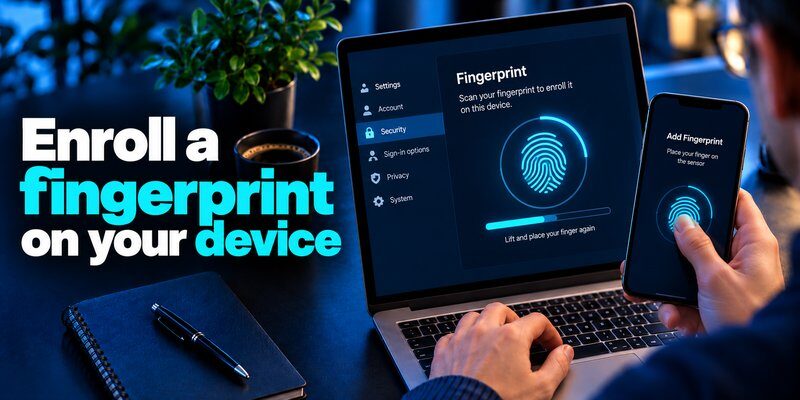
Android smartphones generally provide fingerprint authentication through their security settings, although menu names differ between manufacturers.
For this how to set up fingerprint login for beginners walkthrough, Google Pixel provides a useful reference because Google publishes detailed device instructions.
Step 1: Open Android Settings
Open the Settings application.
On supported Google Pixel phones, navigate to:
Settings > Security & privacy > Device unlock > Fingerprint
Other Android manufacturers may place this feature under Biometrics, Passwords & security, or similar menus.
Step 2: Create a backup screen lock
If you have not configured a secure screen lock, Android will ask you to create one.
Choose an appropriate PIN, password, or pattern.
Avoid easily guessed PINs, and ensure that you can remember your recovery method.
Step 3: Register your fingerprint
Select the option to add a fingerprint.
Place your finger on the scanner and follow the instructions.
For an under-display sensor, start with the center of your fingertip. Then adjust its position to capture the edges and surrounding areas.
For a rear-mounted or side-mounted sensor, hold the phone naturally while registering.
Step 4: Complete fingerprint enrollment
Continue scanning until the device confirms that registration is complete.
Avoid repeatedly touching the sensor at exactly the same angle.
Capturing several parts of your fingertip improves the chances of recognition during normal use.
Step 5: Test fingerprint unlocking
Lock your smartphone, wake the display, and place your registered finger on the sensor.
If recognition fails, try adjusting your finger position rather than pressing excessively hard.
According to Google Pixel Help, supported Pixel phones can register up to four fingerprints.
For additional convenience, consider registering another finger that you regularly use.
These steps to set up fingerprint login are broadly applicable to Android devices, but the exact settings and sensor behavior depend on the model.
How to Set Up Fingerprint Login on Samsung Galaxy

Samsung Galaxy smartphones use One UI, which provides dedicated fingerprint management options.
The following process reflects Samsung’s current support documentation, although the interface can differ by software version.
Step 1: Find fingerprint settings
Open:
Settings > Security and privacy > Lock screen > Fingerprints
On some older Galaxy devices, the feature may appear under Biometrics and security.
Step 2: Verify your screen lock
Enter your current PIN, password, or pattern.
If you have not created a screen lock, set one up before continuing.
Step 3: Register your fingerprint
Tap Continue, then Register, when prompted.
Follow the instructions displayed on your device.
Depending on the model, the sensor may be under the screen or integrated into the side button.
Important 2026 update: Samsung documents a swipe-style fingerprint registration process for devices running Android 16 with One UI 8. Follow the displayed scanning instructions rather than assuming that every model requires repeated stationary touches.
Step 4: Add an additional fingerprint
After registering your first fingerprint, return to the fingerprint settings and choose Add fingerprint.
A second registered finger can make unlocking more convenient when switching hands.
Step 5: Confirm successful unlocking
Lock the phone and test recognition several times.
If your fingerprint does not register reliably, remove it and repeat the enrollment process.
Samsung also notes that screen protectors, finger condition, and sensor cleanliness can affect recognition.
Refer to Samsung’s official fingerprint setup instructions for model-specific details.
Learning how to set up fingerprint login on Samsung also helps you prepare the device for applications that support biometric verification.
How to Set Up Fingerprint Login on iPhone and iPad

Apple calls its fingerprint recognition technology Touch ID.
It is available only on compatible iPhone and iPad models. Devices that use Face ID without a Touch ID sensor cannot enable fingerprint unlocking.
Step 1: Open Touch ID settings
On a supported device, navigate to:
Settings > Touch ID & Passcode
Enter your existing device passcode.
If you have not configured one, create it first.
Step 2: Select Add a Fingerprint
Tap Add a Fingerprint.
Identify the Touch ID sensor, which may be integrated into the Home button or, on certain iPads, the top button.
Step 3: Scan your fingertip
Rest your finger gently on the sensor.
Lift and replace your finger as instructed.
Do not press the Home button during the initial scanning process unless the onscreen instructions tell you to do so.
Step 4: Adjust your grip
When prompted, change the angle of your fingertip.
This allows Touch ID to capture more of the fingerprint.
Continue until the enrollment process finishes.
Step 5: Enable supported Touch ID features
Under Touch ID & Passcode, enable the functions you want to use, such as device unlocking, App Store purchases, or Apple Pay where supported.
Apple’s official Touch ID instructions state that supported iPhones and iPads can store up to five fingerprints.
You can also rename or remove registered fingerprints through the same settings screen.
Once you understand how to set up fingerprint login with Touch ID, you can use it for compatible apps and approved payment transactions without entering your passcode every time.
How to Set Up Fingerprint Login on Windows 11
Windows uses Windows Hello for fingerprint, facial, and PIN authentication.
To enable fingerprint recognition, your computer needs a compatible built-in or external fingerprint reader.
Step 1: Open Sign-in options
Press Windows + I to open Settings.
Navigate to:
Settings > Accounts > Sign-in options
Step 2: Find Windows Hello fingerprint recognition
Under Ways to sign in, select:
Fingerprint recognition (Windows Hello)
Click Set up.
If Windows does not show this option, check whether the computer has a recognized and compatible fingerprint sensor.
Step 3: Configure a Windows Hello PIN
Windows may require you to configure a Windows Hello PIN before enrolling a fingerprint.
The PIN acts as a backup sign-in method.
Step 4: Scan your fingerprint
Follow the Windows Hello enrollment instructions.
Touch the scanner repeatedly while adjusting your finger position until the process is complete.
Step 5: Test Windows sign-in
Lock your PC with Windows + L.
Place your registered finger on the fingerprint reader.
If successful, Windows signs you in without requiring your password.
Microsoft confirms this procedure in its Windows Hello setup documentation.
External reader warning: On Windows 11, some third-party fingerprint readers may not work with Enhanced Sign-in Security enabled. Check hardware compatibility before changing security settings.
If you searched how to set up fingerprint login 2026, the most important Windows requirement remains compatible hardware, correctly configured Windows Hello, and a working backup PIN.
How to Set Up Fingerprint Login on Mac
Supported Mac computers and Magic Keyboards feature Apple’s Touch ID technology.
The sensor is generally located near the top-right corner of the keyboard.
Step 1: Open System Settings
Choose:
Apple menu > System Settings > Touch ID & Password
Step 2: Add a fingerprint
Select Add Fingerprint.
Enter your Mac login password when prompted.
Step 3: Scan your finger
Place your fingertip on the Touch ID sensor.
Follow the instructions until the enrollment is complete.
Step 4: Choose Touch ID permissions
Enable the features you want, including:
- Unlocking your Mac.
- Authorizing eligible purchases.
- Using Apple Pay.
- Autofilling saved passwords.
- Accessing supported applications.
Step 5: Test your fingerprint
Lock the Mac and attempt to unlock it with Touch ID.
Remember that macOS still requires your password for certain security-sensitive situations, including after startup.
According to Apple’s Mac Touch ID guide, users can add up to three fingerprints per account, with a maximum of five fingerprints stored on the Mac.
These instructions explain how to set up fingerprint login on supported Mac hardware without installing a third-party fingerprint utility.
How to Enable Fingerprint Login for Apps and Online Accounts
Fingerprint recognition is not limited to unlocking a device.
Many applications support biometric verification, particularly banking apps, password managers, and services that use passkeys.
However, the operating system and each application must support the relevant feature.
Enable fingerprint authentication inside an app
A typical process looks like this:
- Open the application and sign in normally.
- Navigate to Settings, Security, or Privacy.
- Look for Biometric login, Fingerprint authentication, or Touch ID.
- Enable the feature if available.
- Confirm your identity with the existing authentication method.
- Close and reopen the app to test the new login process.
Enabling fingerprint unlock on your phone does not automatically enable biometric sign-in for every application.
Some apps require separate registration or restrict the feature to supported devices.
Use fingerprint authentication with passkeys
Passkeys let supported websites and applications authenticate users using cryptographic credentials rather than traditional passwords.
A fingerprint can unlock the credential stored on your device.
The general process is:
- Sign in to a website that supports passkeys.
- Open its account security settings.
- Choose the option to create or register a passkey.
- Follow the operating system’s instructions.
- Approve the registration using your fingerprint, face recognition, or device PIN.
- Test the new sign-in method.
Your fingerprint is not the passkey itself. It is commonly used to authorize access to the passkey.
For additional background, see our guide to Microsoft Authenticator passkeys.
Combine biometrics with account protection
When learning how to set up fingerprint login for online accounts, remember that biometric convenience and account recovery are separate considerations.
Where supported, configure phishing-resistant authentication and maintain an appropriate account recovery method.
You can also learn what an authenticator app is and how it works alongside other account security features.
How to Fix Fingerprint Login Not Working
Fingerprint recognition can occasionally fail even after successful registration.
Common causes include sensor contamination, changes in skin condition, software problems, incompatible accessories, or incorrectly enrolled fingerprints.
If you already know how to set up fingerprint login but cannot unlock your device, follow these troubleshooting methods.
1. Clean the fingerprint sensor
Gently clean the scanning surface using the device manufacturer’s recommended cleaning method.
Dirt, moisture, or residue may interfere with fingerprint capture.
Avoid abrasive cleaners or excessive moisture.
2. Check your finger condition
Wet, very dry, injured, or dirty fingertips may be difficult for the sensor to recognize.
Dry your hands and try again.
If one finger is injured, use another enrolled finger or your backup authentication method.
3. Remove and register your fingerprint again
Open the biometric settings and delete the fingerprint that is failing.
Register it again, making sure to capture multiple angles.
Re-enrollment is often more useful than repeatedly attempting recognition with a poorly registered fingerprint.
4. Inspect your screen protector
On smartphones with under-display fingerprint sensors, a thick, damaged, or incompatible screen protector can affect recognition.
Check the manufacturer’s compatibility recommendations.
If the problem began after installing a screen protector, that accessory is a reasonable place to investigate.
5. Restart and update the device
Restart your smartphone or computer.
Then check for available operating system and security updates.
For Windows devices, also check whether the fingerprint reader is recognized correctly and whether manufacturer-approved drivers are installed.
6. Check biometric permissions
If your device unlocks successfully but an application does not, examine the app’s biometric settings.
The application may require its own authentication setup or a fresh sign-in.
7. Use your backup method
Fingerprint recognition may be temporarily unavailable after restarting the device or following certain security events.
Use the configured PIN, password, or passcode.
If the biometric setting itself is missing, consult the manufacturer before attempting a factory reset.
For users who encounter recurring failures, the how to set up fingerprint login process should include a final test after re-enrollment.
Never disable your secure screen lock merely to bypass a fingerprint scanner problem.
Is Fingerprint Login Safe in 2026?
Fingerprint authentication can provide convenient access control when implemented correctly, but it has important security limitations.
The National Institute of Standards and Technology (NIST) emphasizes that biometric characteristics should not be treated as secret credentials on their own.
NIST’s digital identity guidance requires biometrics to be combined with a physical authenticator in its approved authentication framework.
What makes fingerprint login useful?
Local biometric verification: Supported devices can check a fingerprint without transmitting the raw biometric information to the website being accessed.
Convenient authentication: Users can authenticate without repeatedly typing their credentials.
Device-bound security: When biometrics unlock securely stored cryptographic credentials, authentication can involve both device possession and local user verification.
What are the limitations?
Fingerprint recognition is not completely resistant to spoofing.
Unlike a password, you cannot simply replace your fingerprint after its biometric information has been compromised.
Recognition accuracy may also vary with finger condition, sensor quality, and environmental factors.
For stronger protection, combine biometric device security with well-configured account authentication.
Our article on best account security practices covers additional methods for protecting sensitive accounts.
What do recent statistics show?
According to the FIDO Alliance’s State of Passkeys 2026 report, published May 7, 2026:
- 5 billion passkeys were reported to be in active use globally.
- 90% of surveyed consumers were familiar with passkeys.
- 75% of surveyed consumers had enabled passkeys on at least some accounts.
The consumer survey covered 11,000 adults across 10 countries in April 2026.
These statistics describe passkey adoption, not fingerprint recognition accuracy or the percentage of people using fingerprint sensors.
Nevertheless, they show the growing relevance of modern authentication methods that can use local biometrics.
Understanding how to set up fingerprint login is therefore a useful foundation for using supported passwordless authentication services.
Fingerprint Login vs. Passwords, Face ID, and 2FA
Different authentication methods address different security and usability needs.
| Authentication Method | Main Advantage | Main Limitation |
|---|---|---|
| Fingerprint login | Convenient local identity verification | Requires compatible hardware; can fail or be spoofed |
| Password | Works across many services | Can be stolen, reused, or phished |
| Face ID | Hands-free biometric recognition | Requires compatible hardware and conditions |
| PIN | Simple device authentication and recovery option | Weak PINs can be guessed or observed |
| Authenticator-based 2FA | Adds an account authentication factor | OTP-based methods are not inherently phishing-resistant |
| Passkey | Cryptographic, phishing-resistant sign-in | Requires service and authenticator support |
Is fingerprint login the same as 2FA?
Not necessarily.
Fingerprint recognition confirms a biometric characteristic. It does not automatically establish that two independent factors have been verified by an online service.
A secure device-based authentication flow can combine the biometric factor with possession of a cryptographic authenticator.
For accounts that still use passwords, a two factor authentication app can provide an additional verification mechanism.
Should you use fingerprint login or an authenticator app?
They serve different purposes and can complement each other.
Fingerprint recognition is useful for accessing your device and supported applications. An authenticator app may provide time-based one-time passwords for accounts that support them.
Read more about whether authenticator apps are safe before choosing your account protection methods.
The best solution depends on the service’s supported authentication options and your threat model.
Best Practices for Secure Fingerprint Authentication
Knowing how to set up fingerprint login is only the first step. Good security practices help preserve its benefits.
Register fingerprints carefully
Capture the center and edges of your fingertip during enrollment.
Register a second finger when appropriate, but avoid enrolling fingerprints belonging to people who should not have access to your device.
Maintain a strong backup credential
Choose a PIN or password that is difficult to guess.
A weak backup method can undermine the protection provided by biometric authentication.
Keep your device updated
Install operating system and security updates from trusted sources.
Avoid installing unknown fingerprint utilities or applications that request unnecessary permissions.
Protect sensitive accounts separately
Fingerprint device unlocking should not be your only account protection strategy.
Use supported passkeys, strong unique passwords, and suitable multi-factor authentication.
For accounts that require authenticator-generated codes, a compatible 2fa authenticator app may help protect access.
Review registered fingerprints
Periodically check which fingerprints are stored on your device.
Remove unfamiliar or unnecessary entries.
If you share a computer, use separate operating system accounts rather than giving everyone access to the same profile.
Finally, test your backup authentication method before relying on fingerprint unlocking for everyday access.
Frequently Asked Questions
1. Can I set up fingerprint login without a password?
Generally, no. Most major operating systems require a backup PIN, password, pattern, or passcode.
This ensures that you can access your device when fingerprint authentication is unavailable.
2. How many fingerprints can I register?
The limit depends on your device and operating system.
Google Pixel documentation specifies up to four fingerprints for supported models. Apple supports up to five fingerprints on compatible iPhones and iPads, while macOS supports up to three per user account and five total.
Check your manufacturer’s documentation for the exact limit.
3. Why is fingerprint login not available on my phone?
Possible explanations include unsupported hardware, unavailable biometric settings, software restrictions, or hardware problems.
Some smartphones use facial recognition instead of fingerprint scanning.
Check your exact model specifications before trying to enable the feature.
4. Can fingerprint authentication be used for banking apps?
Yes, many banking applications support biometric authentication.
However, availability depends on the bank, application version, country, and operating system.
You may need to enable biometric login separately inside the banking application.
5. Does fingerprint login work without an internet connection?
Local device fingerprint unlocking normally does not require internet access.
However, online applications may still need a network connection to communicate with their authentication servers.
6. Can someone steal my fingerprint data?
Biometric systems can be attacked, and fingerprints may be copied from physical surfaces.
However, established device platforms use security protections designed to restrict access to biometric templates.
Use updated devices and avoid untrusted applications.
7. Can I change my fingerprint after setting it up?
Yes. You can normally delete an enrolled fingerprint and register it again.
This does not change your biological fingerprint; it simply replaces the stored enrollment data.
8. Do I need an authenticator app for fingerprint login?
Not for ordinary device unlocking.
However, some online accounts require additional authentication methods, such as an authenticator-generated code or passkey.
Fingerprint authentication and account-based 2FA are related but distinct features.
9. How do I set up fingerprint login on a laptop?
For a supported Windows laptop, open Settings > Accounts > Sign-in options > Fingerprint recognition (Windows Hello).
For a supported Mac, open System Settings > Touch ID & Password.
Follow the enrollment instructions and retain your backup credential.
10. What is the easiest way to set up fingerprint login in 2026?
The easiest approach is to use your device’s built-in biometric enrollment feature.
If you want to learn how to set up fingerprint login, begin by locating the sensor, configuring a strong backup lock, registering your fingertip, and testing recognition.
Avoid third-party tools unless your hardware manufacturer specifically requires them.
Conclusion
Learning how to set up fingerprint login can make everyday device access more convenient while supporting modern authentication features.
Whether you use Android, Samsung Galaxy, iPhone, iPad, Windows 11, or Mac, the basic process is similar: enable a secure screen lock, enroll your fingerprint, activate the supported login options, and test the result.
For better protection, keep your device updated, retain a strong backup credential, and use appropriate account-level authentication.
Fingerprint login is most useful when it combines convenience with strong device security—not when it replaces every other security measure.
Download Authenticator App
Secure your accounts with fast, reliable two-factor authentication. Download now and protect your login in seconds.
