
What Is FIDO2? The Complete Guide to Passwordless Authentication
Published October 30, 2026
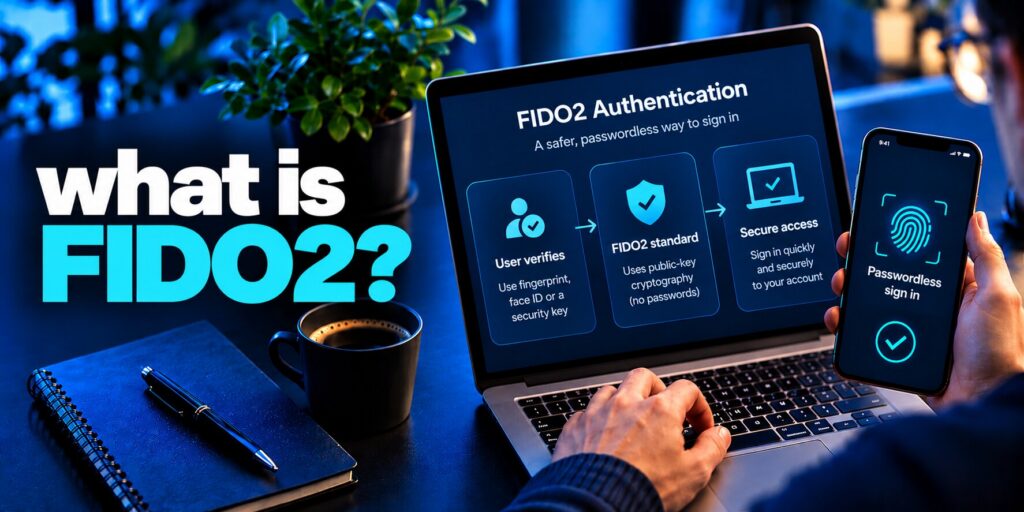
What is FIDO2? FIDO2 is an open authentication standard from the FIDO Alliance and the W3C that lets you sign in to websites and apps without a password. It combines the WebAuthn browser API with the CTAP2 protocol and relies on public-key cryptography: a private key stays on your device, the service stores only a public key, and you unlock the key with a fingerprint, face scan, PIN or security key. Because each login is bound to the real website domain, the standard resists phishing, credential stuffing and password database leaks.
Stolen and reused passwords are still one of the most common ways attackers take over accounts, which is why the industry is moving toward passwordless login. This guide explains what FIDO2 is, how it works step by step, which components it includes, and how it compares with passkeys, YubiKey, older FIDO protocols and multi-factor authentication (MFA). You will also see its benefits, its limits and how to start using it.
Quick facts
- Full name: Fast IDentity Online 2
- Created by: the FIDO Alliance together with the World Wide Web Consortium (W3C)
- Released: 2018
- Core parts: WebAuthn (web API) and CTAP2 (authenticator protocol)
- Works on: Windows, macOS, iOS, Android, and the Chrome, Edge, Safari and Firefox browsers
- Best for: passwordless sign-in and phishing-resistant multi-factor authentication
What Is FIDO2 and Where Did It Come From?
It is the second generation of the FIDO (Fast IDentity Online) standards. The specification is open and license-free, so any website, app, browser or device maker can adopt it. The goal is simple: replace shared secrets such as passwords with a cryptographic proof that only your own device can produce.
The FIDO Alliance, an industry group of technology, payment and government organizations, was formed in 2012 and launched publicly in 2013. Its first specifications, U2F and UAF, arrived in 2014. Work on FIDO2 began around 2016 together with the W3C, and the finished standard was published in 2018. The WebAuthn part became an official W3C web standard in 2019, and major browsers and operating systems added support in the years that followed.
FIDO2 is one of the technologies behind modern passwordless sign-in, but passwordless authentication is a broader concept that includes several methods. Read our guide on what is passwordless authentication to understand the different approaches and why FIDO2 is particularly important for phishing-resistant login.
| Year | Milestone |
|---|---|
| 2012–2013 | FIDO Alliance formed and launched |
| 2014 | FIDO U2F and FIDO UAF 1.0 published |
| 2018 | FIDO2 released (WebAuthn + CTAP2) |
| 2019 | WebAuthn becomes a W3C web standard |
| 2022 | Apple, Google and Microsoft announce wider passkey support built on the standard |
Read more: How to Set Up a Passkey: A Complete Step-by-Step Guide
Secure your accounts with fast, reliable two-factor authentication. Download now and protect your login in seconds.Download Authenticator App
What Are the Main Components of FIDO2?
The standard is an umbrella name for several pieces that work together. Understanding each one makes the whole flow much easier to follow.
- WebAuthn (Web Authentication): a JavaScript API built into modern browsers. It lets a website, called the relying party, ask the browser to create and use a credential.
- CTAP2 (Client-to-Authenticator Protocol): the protocol that lets a browser or operating system talk to an external authenticator, such as a security key or a phone, over USB, NFC or Bluetooth.
- Authenticators: the devices that check who you are and hold the private key. They verify you with a biometric, a PIN or a physical touch.
- Relying party: the website or app that wants to authenticate you and stores your public key.
- Passkeys: the credentials created through the standard. Each one is a key pair tied to your account and to one service.
How Does FIDO2 Authentication Work?
It uses public-key (asymmetric) cryptography. Two keys are created together: a private key that never leaves your authenticator, and a public key that the service keeps. Anything signed with the private key can be checked with the public key, but the public key cannot be used to sign.
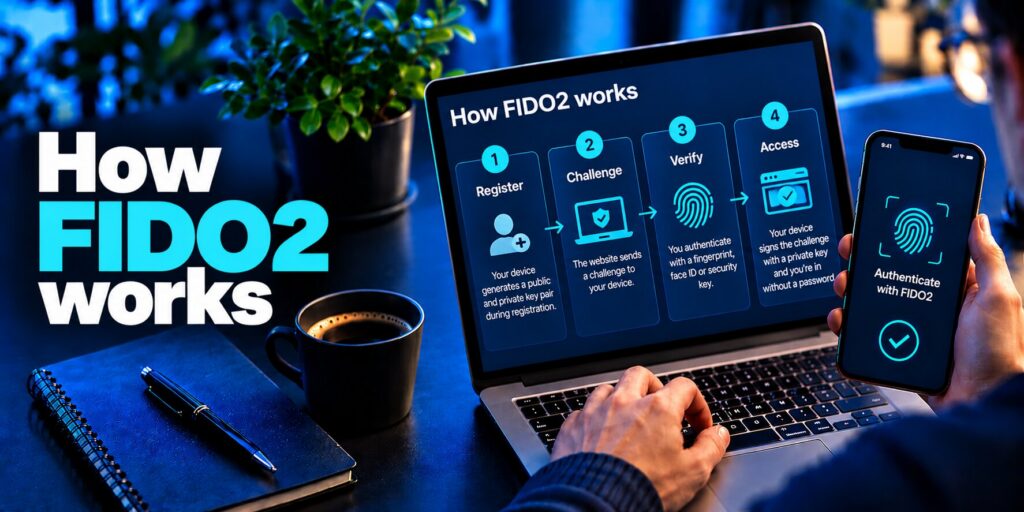
Step 1: Registration
- You choose to add a passkey or security key to your account.
- You confirm with a gesture, such as a fingerprint, face scan, PIN or a tap on a key.
- The authenticator generates a unique key pair for that account and that website.
- The private key stays on the device. The public key and a credential ID are sent to the service.
Step 2: Sign-in
- The service sends a random, one-time challenge to your browser.
- Your authenticator asks you to verify yourself locally.
- The device signs the challenge with the private key, after checking the website’s domain.
- The service verifies the signature with your stored public key and lets you in.
No password, biometric template or private key crosses the network. Each challenge is different, so a captured login cannot be replayed later.
Read more: How to Use Passkeys on iPhone: Save, Sign In, and Recover
Why Is FIDO2 Phishing-Resistant?
What is FIDO? Phishing works because passwords and one-time codes can be typed into a fake page. A passkey credential cannot be used that way, for three reasons:
- Domain binding: a credential is created for one exact domain. If you land on a look-alike site, the browser finds no matching credential and nothing is sent.
- Asymmetric keys: intercepted traffic contains only a signed challenge, which is useless for a new login.
- No shared secrets: a breach of the service exposes public keys only, so there is nothing valuable to sell or reuse on other sites.
Biometric data adds to the privacy story. Your fingerprint or face scan is checked on your own device and is never sent to the website.
Read more: What Is a Credential Leak? Passwords, Tokens, and Recovery Secrets
What Is the Difference Between FIDO2, U2F and UAF?
It grew out of two earlier protocols and combines their strengths in one standard that also works in the browser.
| Standard | Year | What it does | Main limit |
|---|---|---|---|
| FIDO U2F | 2014 | Adds a hardware second factor after a password | Still needs a password |
| FIDO UAF | 2014 | Passwordless login, mostly with biometrics | Limited to specific apps, little browser support |
| FIDO2 | 2018 | Passwordless login or strong MFA, using WebAuthn and CTAP2 | Needs modern devices and service support |
After its release, U2F was renamed CTAP1, and CTAP2 became its successor.
What Types of Authenticators and Passkeys Exist?
What is FIDO? There are two kinds of authenticators and two kinds of passkeys. Which you pick depends on convenience versus control.
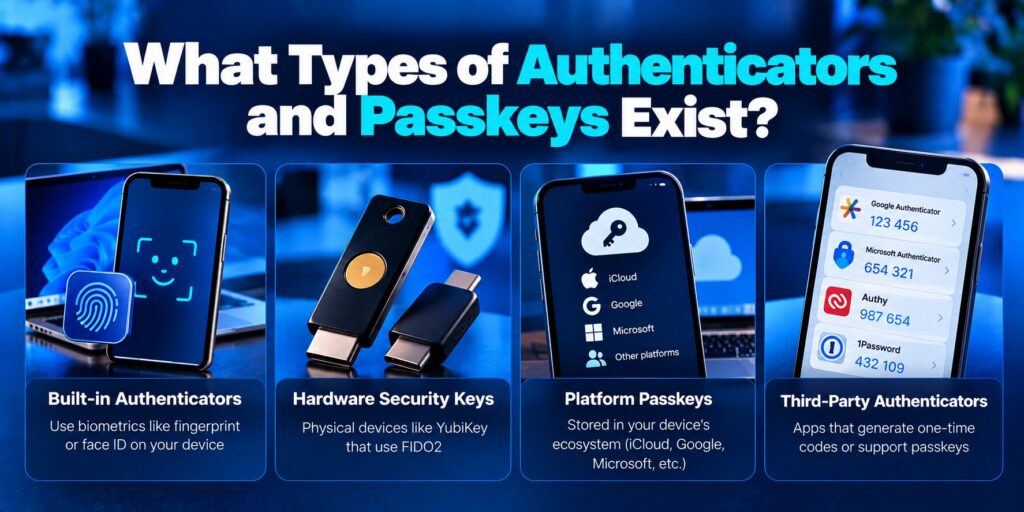
Platform authenticators are built into your device, for example Windows Hello, Touch ID, Face ID or Android biometric unlock. They need no extra hardware and are the easiest way to start.
Roaming authenticators are portable devices such as USB, NFC or Bluetooth security keys, and also phones used to approve a login on another device. They are well suited to shared computers and high-risk accounts.
Synced passkeys are stored in a credential manager such as Apple Passwords, Google Password Manager or Windows Hello and are available on all of your devices. They are convenient and easy to recover.
Device-bound passkeys stay on a single piece of hardware, usually a security key. They give the highest assurance but are harder to move or recover, so you should register a backup key.
Do Biometrics Leave Your Device?
No. When you use a fingerprint or face scan, the check happens locally inside the secure hardware of your phone, laptop or key. The biometric only unlocks the private key on that device. The website never receives your fingerprint, your face data or even a copy of it, so a breach at the service cannot expose your biometrics. If you prefer, you can unlock the same credential with a PIN or passcode instead.
Read more: Best Apps That Support Passkeys: Which Manager Should You Choose?
Which Browsers and Devices Support It?
Support is now broad. Windows, macOS, iOS and Android all include the necessary building blocks, and Chrome, Edge, Safari and Firefox implement WebAuthn. Older operating systems and some smart TVs, game consoles or IoT devices may not, so check each service before you remove your existing login options.
What Are the Benefits of FIDO2?
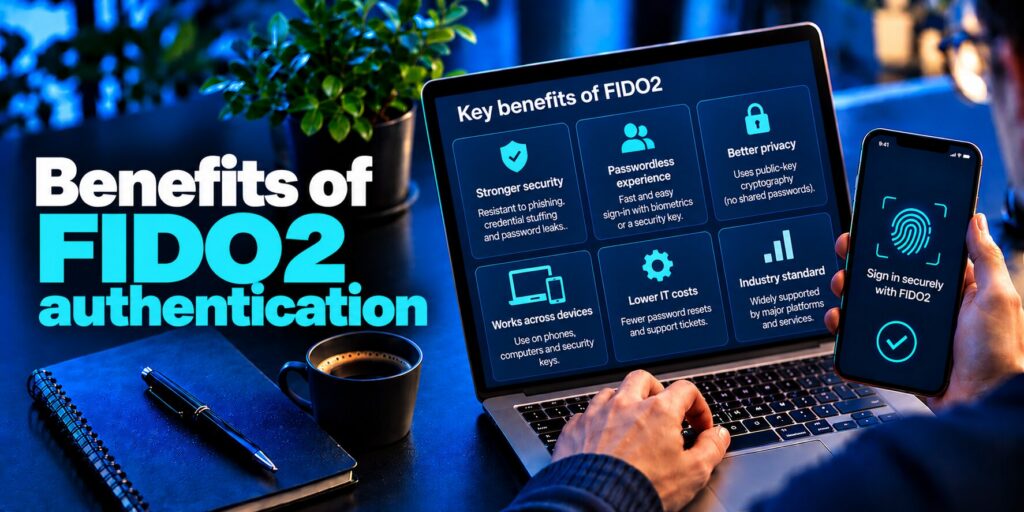
- Stronger security: unique keys per site stop phishing, credential stuffing, password spraying and most man-in-the-middle attacks.
- Better privacy: each site gets a different key, so services cannot link your accounts, and biometric data never leaves your device.
- Faster sign-in: a touch or a glance replaces typing and resetting passwords.
- Fewer support costs: companies see fewer password resets and help desk tickets, and need fewer password rules.
- Broad support: the same standard works across major browsers, operating systems and device types.
- Compliance help: strong, phishing-resistant authentication supports rules such as PSD2, HIPAA and GDPR security requirements.
What Are the Limitations of FIDO2?
No security method is perfect. Before rolling out passwordless login, keep these trade-offs in mind:
- Device loss: if you lose your only security key and have no backup, you can be locked out.
- Weak recovery paths: an account is only as safe as its fallback. If recovery uses SMS codes or security questions, attackers can target that route instead.
- Uneven support: some older devices, apps and services still do not accept it.
- User habits: many people are used to passwords, so setup guides and training help adoption.
- Implementation effort: organizations need compatible identity systems, pilots, enrollment and a recovery plan.
- Stolen devices: a stolen laptop may still hold active sessions, so lost authenticators should be removed and sessions revoked quickly.
What Happens If You Lose Your Authenticator?
What is FIDO? Recovery is where passwordless setups succeed or fail. If your passkeys are synced, signing in to your credential manager on a new device restores them. If you use a hardware key, you need a second key or another approved recovery method. Register at least two authenticators, store recovery codes safely, and avoid weak fallbacks such as security questions. Organizations should also verify identity carefully at the help desk before issuing a new authenticator.
How Does FIDO2 Compare With Passwords, SMS Codes and Authenticator Apps?
| Method | Phishing-resistant | You type a code | Main weakness |
|---|---|---|---|
| Password | No | No | Easy to steal, reuse and guess |
| SMS one-time code | No | Yes | SIM swapping and interception |
| Authenticator app (TOTP) | No | Yes | Code can be entered on a fake site |
| FIDO2 passkey or security key | Yes | No | Needs supported device; recovery planning |
Authenticator apps are still a big improvement over passwords and are widely supported, so they remain a good choice where passkeys are not offered. When a service supports it, the newer standard is the stronger option because nothing can be handed to a fake site.
Where Is FIDO2 Used?
- Consumer accounts: email, social media, shopping and banking apps that offer passkeys.
- Enterprise single sign-on: passwordless access to company apps, with policies that limit which authenticator types are allowed.
- Financial services: strong customer authentication and transaction approval, including PSD2 requirements in Europe.
- Shared workstations: call centers, airline crews and factory floors where employees share devices and use security keys.
- Privileged and admin accounts: the highest-risk logins are usually moved first.
- Emerging uses: physical access control, IoT onboarding, travel identity checks and customer onboarding (KYC).
Read more: What Is a Password Manager? A Plain-English Guide to Vaults and AutoFill
How Can You Start Using FIDO2?
For individuals
- Check that your device and browser are up to date.
- Open the security settings of an important account, such as your email, and choose to add a passkey or security key.
- Register a second authenticator as a backup.
- Keep your authenticator app or recovery codes as a fallback for services that do not support the standard yet.
For organizations
- Confirm that your identity provider supports WebAuthn.
- Start with high-risk apps and privileged users.
- Pilot with a small group, then expand with training.
- Require a primary and a backup authenticator, and design secure recovery with identity checks.
- Monitor adoption and refine the process over time.
Frequently Asked Questions About FIDO2
What is FIDO2 the same as a passkey?
No. The standard is the framework, while a passkey is the credential that the standard creates. Think of it as the rulebook and a passkey as the key you use to sign in. Passkeys can be synced across devices or bound to one device, and both types are built on the standard.
How much does a FIDO2 key cost?
Using a passkey on your phone or laptop is free, because platform authenticators are already built in. Dedicated hardware security keys typically cost about $25 to $90, depending on the model and features such as NFC, USB-C or fingerprint readers. Prices vary by brand and retailer, and it is wise to buy two keys so that one can be a backup.
Is FIDO2 better than MFA?
They are not direct rivals. MFA means using two or more factors, and FIDO2 is one way to do it. A passkey login combines something you have (the device or key) with something you know or are (a PIN or biometric) in one step. Compared with SMS codes and authenticator app codes, it is the more phishing-resistant form of MFA, though standard MFA is still better than a password alone.
Is FIDO2 the same as YubiKey?
No. FIDO2 is an open standard, while YubiKey is a brand of hardware security key made by Yubico. Many YubiKey models support the standard, but so do keys from other makers, such as Google Titan and Feitian, and so do built-in options like Windows Hello and Touch ID. Some YubiKey models also support older or different protocols, so check the specifications before you buy.
Conclusion
So, what is FIDO2? It is the open standard that turns your phone, laptop or security key into a phishing-resistant login credential. By pairing WebAuthn with CTAP2 and keeping private keys on your device, it removes passwords from the equation and blocks the most common account takeover tricks. Start with a passkey on your main email account, add a backup, and keep an authenticator app handy for services that have not caught up yet.
