
How to Switch to Passwordless Login Without Losing Access
Published October 30, 2026
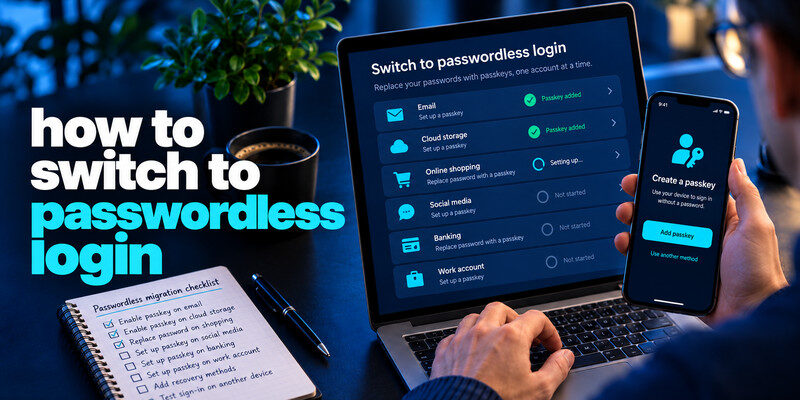
How to switch to passwordless login: Sign in to an account that supports passwordless authentication, open its security settings, and enable a passkey or another supported passwordless method. Verify your identity, test a fresh login, and confirm your recovery options before disabling your old password, if the service allows it.
Switching to passwordless login helps reduce password-related security risks while making everyday sign-ins faster and easier. However, not every website supports fully passwordless accounts, so the safest approach is to migrate your accounts gradually.
This guide explains how to switch to passwordless login, choose the right authentication method, and avoid losing access during the transition.
What Is Passwordless Login?
Passwordless login is an authentication method that allows you to access an account without entering a traditional password.
Instead of typing a password, you verify your identity using a supported authentication method, such as:
- Passkeys: Cryptographic credentials unlocked using a fingerprint, facial recognition, or device PIN.
- Security keys: Physical authentication devices that support passwordless sign-in.
- Magic links: One-time sign-in links sent to your registered email address.
- Passwordless authenticator approval: Sign-in confirmation through a supported authentication application.
These methods offer different levels of security and convenience.
Passkeys are particularly useful because they use public-key cryptography and are resistant to phishing attacks involving fake login websites.
However, adding a passkey does not always disable your existing password. Some services continue to offer password-based login or account recovery.
For a closer look at the technology, read our guide to Microsoft Authenticator passwordless sign-in.
Read more: How to Set Up a Passkey: A Complete Step-by-Step Guide
Secure your accounts with fast, reliable two-factor authentication. Download now and protect your login in seconds.Download Authenticator App

How to Switch to Passwordless Login in 5 Steps
If you’re ready to move away from traditional passwords, follow these steps to switch to passwordless login without risking account lockout.
Step 1: Check Whether Your Account Supports Passwordless Login
Start by signing in to the website or application you want to update.
Open its account settings and look for a section labeled:
- Security
- Sign-in options
- Authentication methods
- Passkeys
- Passwordless sign-in
If the service supports passwordless authentication, it should provide an option to add or enable an eligible method.
Popular platforms such as Google and Microsoft offer passwordless sign-in options, although availability and setup requirements vary by account type.
Tip: Start with a lower-risk account to familiarize yourself with the process before updating your primary email or financial accounts.
Step 2: Choose a Passwordless Authentication Method
Before switching to passwordless login, decide which authentication method works best for your account and devices.
| Method | How It Works | Best For |
|---|---|---|
| Passkey | Unlock a saved credential using device verification | Everyday secure sign-ins |
| Security key | Authenticate with a compatible physical key | High-security accounts |
| Magic link | Open a temporary login link sent by email | Convenient supported sign-ins |
| Authenticator approval | Approve a sign-in request on a trusted device | Supported work and personal accounts |
For most users, passkeys are a strong choice because they provide phishing-resistant authentication without requiring a memorized account password.
You can store passkeys using Apple Passwords, Google Password Manager, or another compatible credential provider.
Step 3: Enable Passwordless Login in Account Settings
Once you’ve selected a supported method, return to your account’s security settings.
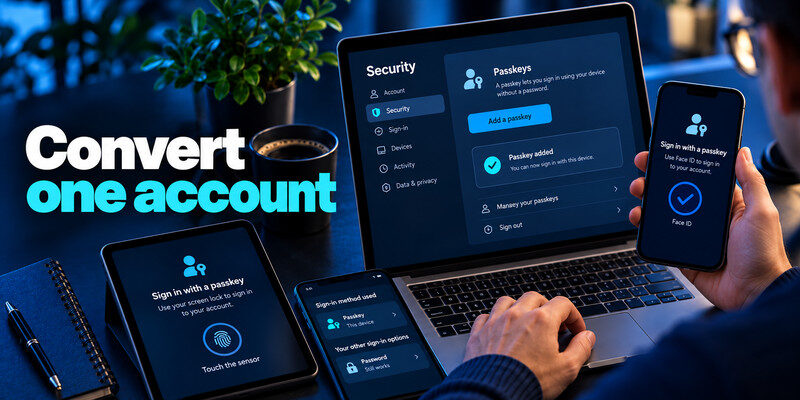
For passkey-based authentication, the typical process is:
- Sign in using your existing credentials.
- Open Security or Sign-in options.
- Select Create a passkey or Add passkey.
- Choose a compatible credential manager or device.
- Confirm using your fingerprint, face recognition, or device PIN.
- Wait for the account to confirm successful registration.
Other passwordless methods may require you to register a security key, verify your email address, or approve a sign-in request through a supported application.
The exact steps depend on the service.
Important: Do not delete your password immediately after enabling a passkey. First, confirm that your new authentication method works correctly.
Step 4: Test Your New Passwordless Sign-In
After setup, sign out of your account and try logging in again.
If you’re using a passkey:
- Open the official website or application.
- Select Sign in with a passkey.
- Choose your saved credential if prompted.
- Verify your identity using your device.
- Confirm that you can access the correct account.
Repeat the process on another device if you regularly switch between your phone and computer.
A successful sign-in confirms that the new method works, but it does not necessarily mean your account is fully passwordless.
Step 5: Review and Disable Your Old Password If Supported
The final step in switching to passwordless login is reviewing which authentication methods remain enabled.
Return to your account’s security settings and check whether password-based login is still available.
If the service explicitly supports removing your password, make sure you have a working passwordless method and reliable recovery options before proceeding.
Some services allow passkey sign-in but continue to require a password for account recovery or sensitive security changes.
In these cases, keep a strong, unique password and enable additional authentication protection where available.
Remember: Using a passkey for everyday sign-ins and completely removing password authentication are not always the same thing.
Read more: How to Use Passkeys on iPhone: Save, Sign In, and Recover

How to Switch to Passwordless Login on Popular Accounts
Although the general process is similar, each platform has its own passwordless authentication settings.
Google Account
Google supports passkey authentication for eligible accounts.
To enable it:
- Open Google Account Security.
- Sign in to your account.
- Find Passkeys and security keys.
- Select the option to create a passkey.
- Confirm the request using your device.
- Test your next sign-in using the saved passkey.
Creating a Google passkey does not necessarily remove your Google Account password.
Microsoft Account
Microsoft supports several passwordless authentication methods, including passkeys and Microsoft Authenticator approval.
For a personal Microsoft account:
- Visit your Microsoft account’s security settings.
- Open the advanced security options.
- Review the available passwordless sign-in methods.
- Register a supported method and verify it.
- Test your sign-in before changing existing authentication options.
Microsoft also provides a passwordless account option for eligible personal accounts. Work and school accounts may follow organization-specific policies.
For related instructions, see our guide to Microsoft Authenticator passkeys.
Other Websites and Applications
For other services, check whether passkeys, security keys, or another passwordless option are available.
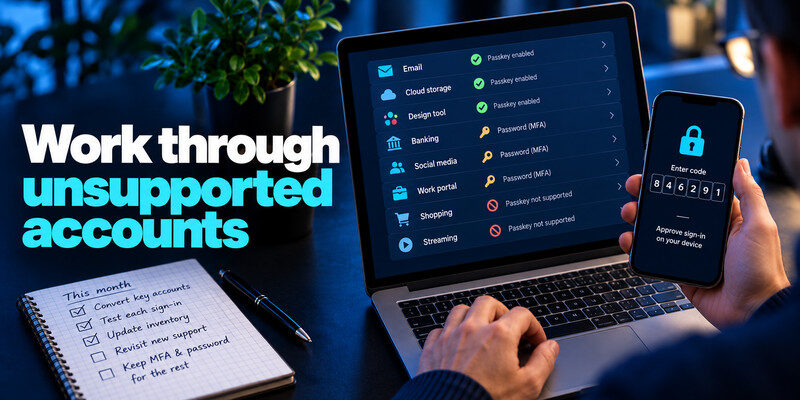
If no supported method exists, continue using a unique password and strong multi-factor authentication until the service introduces passwordless support.
Read more: How to Use Passkeys on Android: Create, Sign In, and Move Devices
What Happens If You Lose Your Passwordless Login Device?
Before completely switching to passwordless login, it’s important to understand how account recovery works.
If your primary device is lost, stolen, or damaged, you may need another registered credential or the service’s official recovery process.
Use a Synced Passkey
If your passkey is stored in a compatible synchronized credential manager, it may be available on another approved device.
For example, passkeys saved through supported Apple or Google credential managers can synchronize across eligible devices.
Register a Backup Authentication Method
Where supported, register another passkey, hardware security key, or trusted recovery method.
Avoid relying on a single phone for every important account.
Keep Recovery Information Secure
Store backup codes separately from your primary device and protect your recovery email account.
Never share recovery codes, device PINs, or authentication approvals with someone claiming to provide account support.

Is Passwordless Login More Secure Than a Password?
Passwordless authentication can reduce common password-related risks, but its security depends on the method used.
Passkeys and compatible FIDO2 security keys provide strong phishing resistance because authentication credentials are tied to legitimate services.
Magic links and email-based codes eliminate the need to type an account password, but their security depends heavily on the protection of the associated email account.
| Security Feature | Traditional Password | Passkey |
|---|---|---|
| Requires account password | Yes | No |
| Vulnerable to password reuse | Yes | No |
| Resistant to fake-domain credential phishing | No | Yes |
| Requires compatible device or manager | Not necessarily | Yes |
| Account recovery needed | Yes | Yes |
Passwordless login also does not eliminate risks involving stolen devices, compromised recovery accounts, or fraudulent support requests.
For services that still require passwords, enabling two-factor authentication can provide additional protection.
A compatible authenticator app can generate time-based verification codes for services supporting TOTP authentication. These codes are different from passkeys and do not automatically convert a password-based account into a passwordless one.
Read more: How to Create a Strong Password Policy People Can Follow
Common Problems When Switching to Passwordless Login
Passwordless Option Is Missing
Check whether your account supports passwordless authentication.
Update your browser or application and review the provider’s official setup instructions.
Some work or school accounts may require administrator approval.
Passkey Sign-In Is Not Working
Verify that you’re using the correct credential manager, account, and website.
Check your device’s screen lock and try another supported browser if necessary.
Password Is Still Required
Some websites retain password authentication even after a passkey has been registered.
Check whether the service offers a separate password removal option. Do not assume a successful passkey login means the password has been disabled.
Cannot Access Your Registered Device
Try another approved device, a backup security key, or the service’s official account recovery process.
Avoid deleting existing credentials until you have restored access successfully.
Frequently Asked Questions
Can I switch to passwordless login on every website?
No. Passwordless authentication is available only on websites and applications that support it. Some services offer passkeys but still require a password for certain account operations.
Can I remove my password after creating a passkey?
Only if the service supports password removal. Many accounts allow passkey sign-in while retaining a password as an alternative authentication or recovery method.
Is a passkey the same as passwordless login?
A passkey is one type of passwordless authentication. Other methods include hardware security keys, magic links, and supported authenticator-based approvals.
Do I need an authenticator app for passwordless login?
Not always. Passkeys can work through compatible device credential managers without a separate TOTP authenticator app. Some services also support passwordless approval through dedicated authentication applications.
What if my phone is lost after switching to passwordless login?
Use another synchronized device, a backup passkey, a registered security key, or the service’s official recovery method.
Final Thoughts
Learning how to switch to passwordless login is an important step toward simpler and more secure account authentication.
Start by checking which accounts support passwordless methods, choose a suitable option such as a passkey, and test your new sign-in before removing any existing credentials.
Remember that not every website allows passwords to be disabled completely. For accounts that still rely on passwords, use strong, unique credentials and enable additional security measures.
If a service supports TOTP-based verification, a two-factor authenticator app can help protect the remaining password-based login process.
