
Windows Hello vs Password Login: Which Should You Use?
Published November 3, 2026 · Updated November 4, 2026
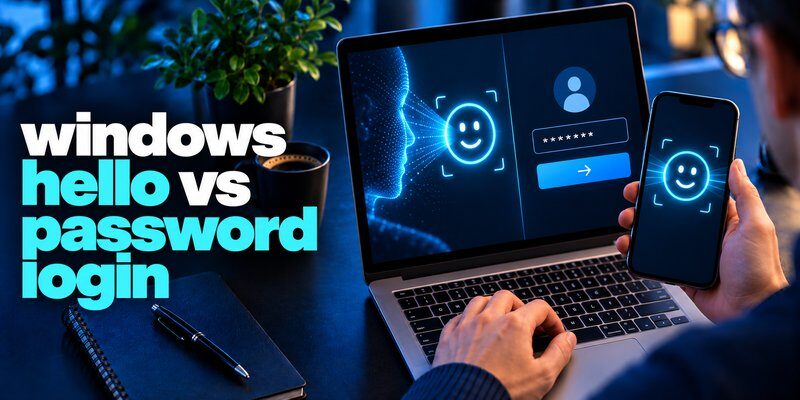
Quick answer: In windows hello vs password login, Windows Hello is generally the safer everyday sign-in choice on a properly configured, supported Windows 11 device. It uses a device-specific PIN, fingerprint, or face recognition to unlock local credentials instead of repeatedly entering a reusable account password. With Microsoft accounts or supported work identities, key-based authentication can reduce exposure to password theft and phishing. A strong device PIN, current software, and a reliable recovery method still matter.
The comparison is not simply a four-digit code against a long password. The two methods rely on different security designs. Windows Hello can offer a faster sign-in and make remotely stolen credentials less useful; traditional passwords remain widely supported and may still be needed for recovery, older applications, and some accounts. At its core, windows hello vs password compares device-bound proof with a reusable secret.
Windows Hello vs Password Login: Quick Comparison
The clearest windows hello vs password login comparison starts with what a stranger would need to steal or reproduce. A password can be reused remotely; a Hello credential normally requires the enrolled device and unlock method.
| Factor | Windows Hello | Traditional password login |
|---|---|---|
| What you enter | Device PIN, supported fingerprint, or face scan | Account password |
| Typical credential | Device-bound key for Microsoft or supported organizational identities | Reusable secret checked against account information |
| Remote reuse | A stolen PIN alone cannot normally sign into another PC | A stolen account password may work remotely |
| Hardware | PIN works without biometric sensors; secure hardware improves protection | No biometric sensor needed |
| Phishing exposure | Key-based flows reduce reusable-password phishing | Password may be entered into a fake page |
| Offline access | Supported local sign-in can work without constant internet access | Cached or local password sign-in may also work offline |
| Fallback | PIN, account verification, and managed recovery options | Password reset and account recovery |
| Main caution | Device theft, weak PIN, malware, and unsafe recovery remain concerns | Credential theft, reuse, stuffing, and phishing |
The winner depends on the account type. Microsoft warns that Hello used for a local Windows account does not necessarily provide the same public/private-key authentication properties as Hello for a Microsoft account or enterprise identity. Its Windows Hello for Business overview explains this distinction. A fair windows hello vs password login decision must consider the complete sign-in configuration, not just the lock-screen appearance.
How Windows Hello and Traditional Passwords Work
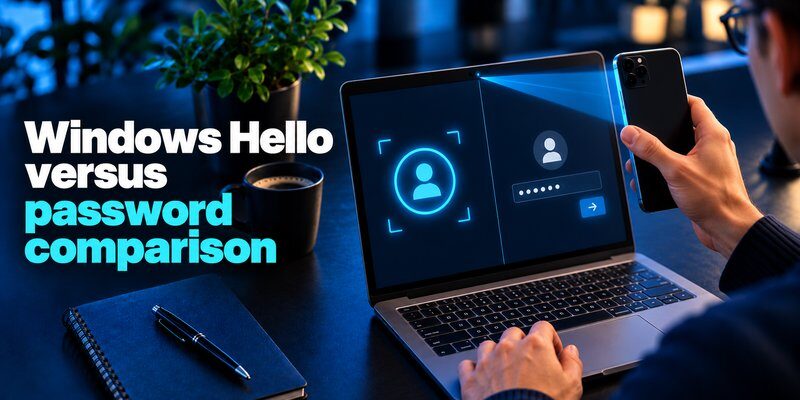
Traditional sign-in: a secret you remember
The traditional side of windows hello vs password login begins with a reusable secret associated with an account. You type it to prove that you know it; a service verifies it using its authentication system. Good services protect stored passwords with appropriately salted password hashes, but the user may still reveal the original password to a convincing phishing page.
Verizon’s 2025 Data Breach Investigations Report research reports that compromised credentials were an initial-access vector in 22% of the breaches reviewed. The statistic concerns studied breaches, not an individual’s personal risk.
Hello sign-in: a gesture that unlocks a credential
Windows Hello lets you approve sign-in using a PIN, fingerprint, or compatible infrared face camera. In its key-based configurations, the PC establishes a cryptographic credential with an identity provider. The private key remains associated with the device and can be protected by a Trusted Platform Module (TPM); the corresponding public key is registered with the provider. Your PIN or biometric gesture authorizes use of the private key. The provider verifies a cryptographic response rather than receiving the PIN.
The key-based side of windows hello vs password login avoids submitting your PIN to the service. Microsoft’s technical explanation details this process for Windows Hello for Business. Biometric reference data stays on the device. In windows hello vs password login, that separation is a major security advantage when properly implemented.
Important limitation: Hello does not automatically turn every legacy website into a passwordless service. Signing into Windows with your fingerprint and signing into an unrelated website are two different actions. The site must support Windows Hello-compatible passkeys or another appropriate protocol to get the same cryptographic benefit.
Windows Hello vs Password Login: Security and Real-World Risks
Phishing and stolen credentials
In a windows hello vs password login threat model, a criminal can send a fake login page and ask for your reusable password. If you submit it, the attacker may try it from another location, especially where MFA is absent. A supported Hello key is bound to a device and participates in a cryptographic exchange, reducing the usefulness of simply capturing what the user types.
A careful windows hello vs password login comparison cannot assume Windows Hello blocks every attack. Malware, stolen session tokens, and unlocked devices create different risks. Phishing-resistant authentication protects the authentication ceremony; it does not make the whole PC immune to compromise.
A stolen laptop and a shoulder-surfed PIN
Someone may watch you enter a PIN or steal your laptop. A Hello PIN is valuable to the attacker mainly when combined with access to the enrolled device. TPM protection and anti-hammering controls can make repeated guessing more difficult, but do not justify using an obvious PIN such as 123456. Enroll only trusted biometric profiles, lock the screen when away, and enable full-disk protection where appropriate.
A strong password may still be necessary for recovery or for an older application. The correct windows hello vs password login strategy therefore combines secure local access with account-specific safeguards, rather than removing every other sign-in option without a plan.
Evidence, not marketing percentages
Microsoft’s Digital Defense Report 2025 describes MFA as blocking more than 99% of unauthorized access attempts in the report’s framing and identifies phishing-resistant MFA as the stronger goal. That statistic is about MFA broadly, not a measured success rate for Windows Hello alone. Microsoft also recommends phishing-resistant methods, including Windows Hello for Business and passkeys, for managed identities.
Windows Hello PIN vs Password: Why a Shorter PIN Can Be Safer

The PIN debate in windows hello vs password login can sound counterintuitive. At first glance, windows hello pin vs password sounds counterintuitive. A six-digit PIN contains fewer possible combinations than a long random password. But the comparison is not only about length; it is about where an attacker can use the secret and what protects the credential behind it.
A traditional account password can be typed into another computer or a fraudulent website. A Hello PIN is tied to a specific enrolled device, is not sent to the identity provider as the password-equivalent secret, and is used to unlock protected key operations. Microsoft’s Windows Hello FAQ emphasizes that the security benefit does not come from the PIN having more entropy than a long password.
If an attacker steals an online password, they may try it remotely. A watched Hello PIN without its enrolled device is not a portable account password. This device binding is the practical reason windows hello vs password login often favors Hello.
Still, a weak PIN can put a stolen laptop at risk. Use a longer, unpredictable PIN when your device allows it, avoid reusing the same code for banking and phone unlock, and follow workplace policy. Also distinguish the Windows PIN from a password on a local Windows account; Microsoft’s documentation makes clear that not every local-account configuration has the full server-side key model of organizational Hello.
Windows Hello vs Windows Hello for Business and Passkeys
Personal Windows Hello versus managed enterprise authentication
Another dimension of windows hello vs password login is enterprise policy. The difference between windows hello and windows hello for business is primarily the account, deployment, and management context. Consumer Hello supports convenient PIN and biometric sign-in and key-based authentication for supported identities. Windows Hello for Business extends those technologies with enterprise registration, management policies, device trust, and support for Microsoft Entra ID or Active Directory scenarios. Organizations can configure requirements through tools such as Microsoft Intune.
In windows hello vs hello for business, there is no need to install two competing products on the same device. The organization chooses the appropriate enrollment and policy model. With Hello for Business, the user’s device-bound credential and a PIN or biometric form a multi-factor sign-in mechanism. That is different from assuming a fingerprint alone counts as independent two-factor authentication.
Read our Microsoft Authenticator passwordless sign-in guide to see how another Microsoft account-sign-in method fits into a broader identity strategy. The mobile app and Windows Hello are related but are not interchangeable.
Hello and passkeys solve overlapping, different jobs
The windows hello vs passkey comparison is not strictly either-or. Windows Hello can unlock a passkey stored on a Windows device, while a passkey is the cryptographic credential used to sign in to a participating website or app. A compatible browser and service complete the FIDO2/WebAuthn flow; the site verifies the cryptographic response rather than receiving the user’s PIN or fingerprint.
Microsoft’s Entra passkey on Windows documentation also distinguishes a user-created FIDO2 passkey from the Windows Hello for Business credential used for managed device sign-in and single sign-on.
windows hello passwordless authentication uses a biometric or PIN to activate a key, while the protocol determines what the service trusts. If a website offers only a password field, installing Hello by itself does not make that website passwordless.
How to Set Up Windows Hello and Go Passwordless

For most Windows 11 owners, the next step in windows hello vs password login is setting up Hello correctly. Microsoft’s configuration guide describes the three supported sign-in choices. Here is the practical sequence:
- Open Start > Settings > Accounts > Sign-in options.
- Under Ways to sign in, expand PIN (Windows Hello) and select Set up. Complete any account-verification prompts, then create an unpredictable PIN.
- If your PC has a supported infrared camera, select Facial recognition (Windows Hello) and follow the enrollment instructions.
- If it has a compatible fingerprint reader, select Fingerprint recognition (Windows Hello) and register one or more fingers.
- Press Windows + L, then test signing in with your chosen method and the PIN fallback.
A normal webcam may not support Hello face sign-in; a PIN requires no biometric sensor. A managed work device may require organization approval. The windows hello vs password login choice is also affected by camera compatibility, accessibility, and whether you share the computer.
Remove password sign-in from a personal PC
For windows hello passwordless login, Microsoft documents an optional Windows setting: Settings > Accounts > Sign-in options > Additional settings > For improved security, only allow Windows Hello sign-in for Microsoft accounts on this device. When available and enabled, this removes the password option from supported sign-in experiences on that PC. The Microsoft passwordless Windows guide notes that the toggle applies to Microsoft account sign-in, not every local or enterprise configuration.
Do not confuse hiding the password sign-in button with deleting every account password everywhere. Even if the Windows sign-in screen hides passwords, other websites and account-recovery processes may still require them.
Recovery, Troubleshooting, and Additional Account Protection
Forgot your PIN or changed hardware?
Windows Hello PIN recovery is not identical to resetting your Microsoft account password. At the Windows sign-in screen, I forgot my PIN may appear for Microsoft accounts. Select it and follow the identity verification prompts. If that option is absent, choose Sign-in options and use an available password or recovery method; local accounts have different procedures. While signed in, check Settings > Accounts > Sign-in options > PIN (Windows Hello) to change or reset the PIN.
A search for windows hello password reset can mix up three tasks: changing the Hello PIN, resetting the online account password, and recovering a work-managed Hello for Business credential. Choose the process that matches the actual problem. Work devices may require IT assistance and fresh MFA verification.
Camera, fingerprint, and configuration problems
In windows hello vs password login, hardware compatibility is a real limitation. For camera problems, confirm hardware compatibility and drivers. For fingerprints, clean the reader and try another enrolled finger. External sensors may conflict with Enhanced Sign-in Security; avoid weakening it casually. Microsoft’s Windows Hello troubleshooting guidance provides step-by-step checks.
In windows hello vs password login, remember that recovery is part of security. A convenient unlock method is not helpful if you lose access to all recovery options. Also, Windows 10 reached the end of regular support for most editions on October 14, 2025; eligible Extended Security Updates or different lifecycle editions are separate cases.
Complement Windows Hello with account-level verification
Windows Hello protects supported PC and passkey authentication, but many unrelated websites still ask for a separate verification code. A time-based one-time password (TOTP) is distinct from your Hello PIN. Read what is authenticator app or our two factor authentication app guide if a service requires standard TOTP verification.
For supported accounts, Begamob’s authentication app on iPhone can be a separate place to manage verification codes. It does not replace Windows Hello on your PC. Get the app: Download authenticator app 2fa for iPhone. Review the App Store listing, available features, terms, and backup options before adding important accounts.
Frequently Asked Questions About Windows Hello and Passwords

Is Windows Hello actually safer than a password?
For a supported, properly configured Microsoft or enterprise identity, windows hello vs password login usually favors Hello because the sign-in credential is device-bound and avoids repeatedly exposing a reusable online password. That advantage does not erase device theft, malware, a guessed PIN, or compromised account recovery.
Can I use Windows Hello without a fingerprint reader?
Yes. In windows hello vs password login, PIN sign-in works without a biometric sensor. Face recognition requires compatible infrared hardware, while fingerprints require a supported reader. Biometric methods are optional additions to the PIN-based experience, not requirements for every computer.
Does Windows Hello replace my Microsoft account password everywhere?
No. Hello can replace password entry for supported device sign-ins and passkeys, but some services and recovery paths still need passwords.
Can I use the same Windows Hello PIN on multiple PCs?
Avoid reusing digits. Hello registration is device-specific, so enroll each PC separately with a unique PIN.
Is Windows Hello for Business required for personal users?
No. Hello for Business supports managed identities. Personal PCs can use consumer Hello; workplace devices follow IT policies.
Can I still use a password if Windows Hello stops working?
It depends on policy and account type. I forgot my PIN may help with a Microsoft account; other users may require a password or IT support. Set up recovery in advance.
Bottom line: In windows hello vs password login, prefer Windows Hello on supported, updated Windows 11 hardware when you can protect the device and recover the account. Use a strong PIN, add biometrics if convenient, and enable passkeys or separate account MFA where supported. A password-only workflow remains more exposed to credential reuse and phishing, but good recovery planning is essential whichever method you choose.
Download Authenticator App
Secure your accounts with fast, reliable two-factor authentication. Download now and protect your login in seconds.
