
Best Authenticator App Android: 6 Free Apps Reviewed and Setup Guide
Published August 28, 2026 · Updated October 2, 2026
Choosing an authenticator app for Android is not only about finding an app that displays six-digit codes.
The most useful Android authenticator should also make it easy to add accounts, protect your codes, transfer them to another device, and recover safely when you replace your phone.
For most Android users, the important features to compare are:
- TOTP support
- Offline code generation
- Backup or synchronization
- Import and export
- App lock or biometric protection
- Ease of moving to a new Android phone
This guide compares six popular Android authenticator apps and explains which type of user each one suits.
Quick answer: If you are short on time, the short answer is YES, authenticator apps are completely free, and you should never pay to generate 2FA codes. The best free authenticator app for Android depends on your specific needs:
- Best for Beginners: Google Authenticator – Simple, features Google account cloud sync.
- Best Overall & Corporate: Microsoft Authenticator – Includes a password manager and excellent cross-platform support.
- Best for Privacy (Open-source): 2FAS or Aegis – Offline storage with secure, private backup options.
- Best for PC/Mac Users: Ente Auth – Seamless multi-device syncing across Android, desktop, and iOS.
All of these apps provide enterprise-grade security at zero cost. Scroll down for our complete setup guide and detailed reviews.
1. What is a Free Authenticator App?
If you are new to cybersecurity, you might be asking: what is a free authenticator app?
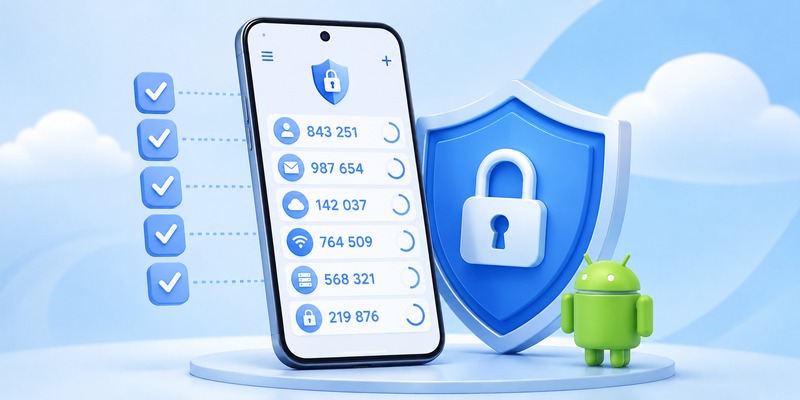
An authenticator app is a mobile application that generates a time-based one-time password (TOTP)—usually a 6-digit code that refreshes every 30 seconds. When you log into an account, you enter your standard password and then open the app to get this temporary code.
Unlike SMS text messages (which can be intercepted by hackers), a 2FA app generates codes locally on your device, making it a highly secure, offline way to prove your identity.
Download Authenticator App
Secure your accounts with fast, reliable two-factor authentication. Download now and protect your login in seconds.
🗺️ Browse How-To Guides:App Authenticator: Complete Guide to 2FA, OTP Codes, Setup & Recovery
2. Are Authenticator Apps Free?
A common concern among users is hidden costs. People frequently ask: is authenticator app free, or are authenticator apps free?
The short answer is YES. A genuine, highly secure app authenticator is free.
Is there a free authenticator app without ads or subscriptions? Absolutely. The tech industry standardizes 2FA as a free security measure. You should never pay a monthly fee just to generate 2FA codes. The apps developed by tech giants and open-source communities provide enterprise-grade security at zero cost to you.
3. Best Authenticator Apps for Android Compared
Here are six strong options for Android users.
| Authenticator | Best suited for | Backup / sync | Open source | Core TOTP |
|---|---|---|---|---|
| 2FAS | General Android users | Backup/export options | Yes | Yes |
| Aegis | Privacy and local control | Encrypted local backups | Yes | Yes |
| Ente Auth | Cross-device users | Encrypted synchronization | Yes | Yes |
| Google Authenticator | Simple setup | Google Account sync/transfer | No | Yes |
| Microsoft Authenticator | Microsoft users | Microsoft backup options | No | Yes |
| 2Stable Authenticator | Multi-device users | Multi-device ecosystem | No | Yes |
The best option depends mainly on how you balance simplicity, privacy, backup, and cross-device access.
2FAS
2FAS is a strong choice for Android users who want an authenticator that combines a simple interface with backup and migration features.
Its Android functionality includes:
- TOTP codes
- QR scanning
- Offline authentication
- PIN or biometric protection
- Backup options
- Export
- Browser integration
The app is also open source.
This combination makes 2FAS suitable for people who want more flexibility than a basic code generator without making everyday authentication complicated.
One important point is that backup needs to be configured before the phone is lost.
An authenticator cannot recover authentication secrets that were stored only locally and never backed up or exported.
Good fit for: users who want a balanced, general-purpose Android authenticator.
Aegis Authenticator
Aegis is designed specifically with Android users in mind and is popular among people who prefer strong control over local authentication data.
It provides:
- An encrypted vault
- Biometric protection
- Import and export
- Local backup options
- Custom organization
- Offline TOTP codes
Aegis is also open source.
Its biggest advantage is control.
Users can keep authentication information inside an encrypted local vault and decide how backups are handled.
That makes Aegis particularly attractive to Android users who do not want their authenticator to depend heavily on a cloud account.
The trade-off is that Aegis is more Android-focused than some alternatives.
Good fit for: Android users who prioritize privacy and local control.
Ente Auth
Ente Auth takes a different approach by focusing strongly on encrypted synchronization across devices.
This is useful if your authentication workflow extends beyond a single Android phone.
It is suitable for users working across:
- Android
- Desktop
- Multiple phones
- Other supported platforms
The advantage is convenience.
Instead of thinking of your authenticator as something tied to one Android device, Ente is designed around access across a wider device ecosystem.
This can make it particularly attractive for users who regularly switch devices or want easier continuity.
Good fit for: users who value encrypted cross-platform synchronization.
Google Authenticator
Google Authenticator remains one of the simplest choices for Android.
The basic workflow is familiar:
- Install Google Authenticator.
- Scan an account’s QR code.
- The service appears in the app.
- Use the generated verification code when signing in.
Google Authenticator can also synchronize supported verification codes through a Google Account.
Users who prefer not to sync can also use it without a Google Account and keep codes locally.
Its biggest strength is simplicity.
There are fewer decisions to make, so it works well for someone setting up an authenticator for the first time.
Google Authenticator is officially available for Android and remains one of the most widely used authenticator applications.
Good fit for: beginners and users who want a straightforward authenticator.
Microsoft Authenticator
Microsoft Authenticator is particularly relevant if your Android phone is used with:
- Microsoft accounts
- Microsoft 365
- Outlook
- Work or school accounts
- Microsoft Entra environments
It supports standard authentication codes as well as Microsoft-specific sign-in workflows.
Microsoft also supports adding compatible third-party accounts to Authenticator, so the app is not limited only to Microsoft services.
For someone whose work and personal accounts already depend heavily on Microsoft’s ecosystem, keeping authentication in the same environment can simplify account management.
However, users should understand Microsoft’s backup and recovery rules before relying on them.
Good fit for: users heavily invested in Microsoft services.
2Stable Authenticator
2Stable Authenticator is another option for users who want authentication to work across more than one device or platform.
Its wider ecosystem includes features such as:
- Android support
- Account imports
- QR-based setup
- Browser integration
- Multiple-device workflows
For someone who only wants basic TOTP codes on one Android phone, a simpler option may be sufficient.
Its main appeal is broader multi-device usage.
Good fit for: users who want their authenticator integrated into a multi-device workflow.
🗺️ Browse How-To Guides: TOTP Authenticator App Guide 2026: How to Use & Compare the Best Options
While the options above are great, finding an app that perfectly balances advanced security with an incredibly user-friendly interface can be tricky.
If you are looking for a reliable, all-in-one 2FA solution tailored specifically for your Android device, check out the Authenticator App by Begamob.
Why choose Begamob’s Authenticator?
-
Military-Grade Security: Generates secure TOTP tokens entirely offline to protect against hacking and phishing.
-
Universal Compatibility: Works seamlessly with all your favorite services, including Facebook, Instagram, Google, Amazon, PayPal, and ID.me.
-
User-Friendly Interface: Designed for both beginners and tech-savvy users with a quick QR-code scanner for instant setup.
-
Privacy First: Your data stays on your device, ensuring maximum privacy.
Don’t leave your accounts vulnerable to data breaches. Upgrade your online security in just a few taps!
4. What to Look for in the Best Android Authenticator App
| What to Look For | Key Features | Why It Matters |
| Backup and Recovery | Encrypted backups, local export, cloud backup, account synchronization, easy migration to a new phone | Prevents losing authentication tokens when you lose or replace your phone |
| App Lock | PIN protection, fingerprint unlock, Android biometric authentication | Adds an extra layer of protection if someone gains physical access to your phone |
| Offline Access | TOTP code generation without an internet connection | Allows authentication while traveling, during connectivity issues, or during service outages |
| Privacy | Local storage of authentication secrets or optional cloud synchronization | Lets users choose between maximum local control and the convenience of automatic synchronization |
| Import and Export | Easy token import, export, and account migration | Makes switching to a new authenticator app easier, especially when managing many accounts |
| Ease of Use | Clear account names, search, icons, folders, and easy QR code scanning | Makes managing and accessing 2FA accounts faster and less frustrating as the number of accounts grows |

3. Which Android Authenticator App Is Right for You?
Rather than choosing based only on brand recognition, choose based on how you actually use your Android phone.
If you want a straightforward Android authenticator, Google Authenticator provides a simple setup experience.
If privacy and local control matter most, Aegis provides encrypted local storage and flexible backup options.
If you want open-source software with a mix of usability, backup, and browser integration, 2FAS is worth considering.
If you frequently switch between Android and desktop devices, Ente Auth provides a stronger cross-platform workflow.
If your accounts are heavily connected to Microsoft 365 or Microsoft work environments, Microsoft Authenticator may integrate more naturally with those services.
If you want authentication across a wider device ecosystem, 2Stable is another option to consider.
There is therefore no need to treat one Android authenticator as universally superior.
Choose based on these four questions:
Do I need cloud synchronization?
If yes, focus on products with a clear synchronization system.
Do I prefer authentication secrets stored locally?
If yes, look at Android-focused solutions with encrypted local vaults and exports.
Will I use authentication on several platforms?
If yes, cross-platform support matters more.
How will I recover my codes if my Android phone disappears tomorrow?
This is the most important question.
If you cannot answer it, configure your backup or recovery process before adding more accounts.
💡 Discover Helpful Guides: Facebook Authentication App: Setup, Login Codes, and Recovery Guide
4. How to Set Up an Authenticator App on Android
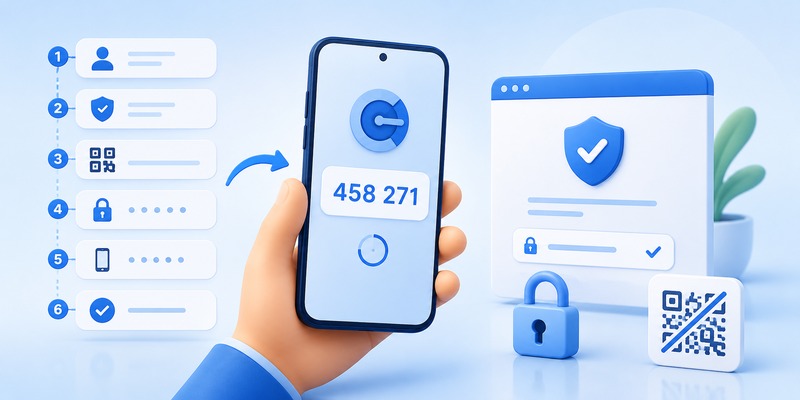
Most authenticator apps follow roughly the same setup process.
Step 1: Install an Authenticator
Download the authenticator from Google Play or another official distribution channel provided by the developer.
Because an authenticator stores sensitive authentication information, avoid random APK downloads from unknown websites.
Check:
- App name
- Developer
- Official website
- Store listing
before installing.
Step 2: Open the Account You Want to Protect
The QR code does not normally originate from the authenticator app.
It comes from the account you want to secure.
For example, open the website’s:
Settings → Security → Two-Factor Authentication
The exact menu varies by service.
Look for options such as:
- Authenticator App
- Two-Factor Authentication
- 2-Step Verification
- MFA
Step 3: Scan the QR Code
The website should display a QR code or setup key.
Open your Android authenticator and choose an option such as:
Add account → Scan QR code
Point the Android phone at the QR code.
A new account should then appear inside the authenticator.
Step 4: Confirm the Verification Code
Your Android authenticator should now generate a temporary code.
Enter that code into the website that you are setting up.
This confirms that the account and authenticator have been successfully connected.
Step 5: Save Recovery Codes
If the service provides recovery or backup codes, save them.
Do not store your only recovery method solely inside the Android phone that also contains your authenticator.
If that device is lost, both methods would disappear together.
Step 6: Configure Backup
If your authenticator provides synchronization, encrypted backup, or export functionality, configure it before you need it.
The best time to prepare for a phone replacement is before the old phone stops working.
💡 Discover Helpful Guides: Authenticator App Code: How to Get Verification Codes and Fix Common Problems
5. How Android Authenticator Apps Work Without Internet
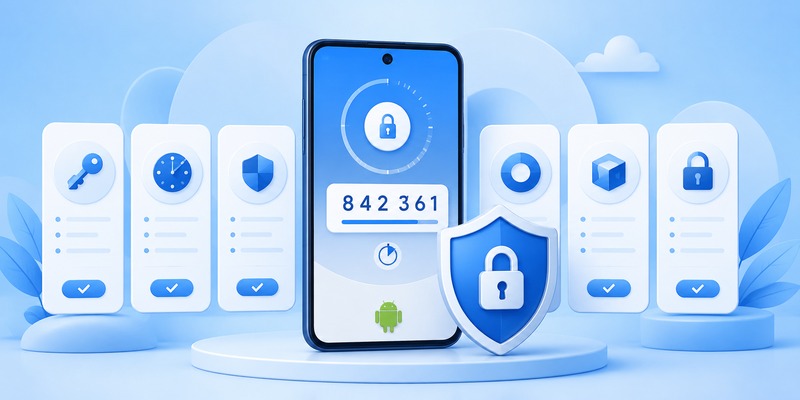
One useful feature of many Android authenticator apps is offline code generation.
A standard TOTP authenticator does not need to contact the website every time it creates a new code.
During initial setup, the website and authenticator establish a shared authentication secret.
The authenticator then combines this secret with the current time to calculate a temporary code.
This is why authenticator codes usually change regularly.
Google specifically states that Google Authenticator can generate verification codes without an internet connection or mobile service.
This means you can often:
- Put your Android phone in airplane mode.
- Open the authenticator.
- Still see a current verification code.
However, the website you are logging into obviously still needs connectivity.
Why Device Time Matters
Because TOTP authentication depends on time, incorrect Android date or time settings can cause a valid-looking code to be rejected.
Keeping automatic date and time enabled is usually the safest approach.
If an authenticator suddenly generates codes that no service accepts, checking your phone’s time settings is one of the simplest troubleshooting steps.
💡 Discover Helpful Guides: Authenticator App Code: How to Get Verification Codes and Fix Common Problems
6. FAQs About Authenticator Apps for Android
What is the best free authenticator app for Android?
Several strong Android authenticator apps offer free TOTP functionality, including Google Authenticator, Microsoft Authenticator, 2FAS, Aegis, and Ente Auth.
The better choice depends on whether you prioritize simplicity, local storage, synchronization, or Microsoft integration.
Does Android have a built-in authenticator app?
Android supports multiple authentication technologies, but users commonly install a dedicated authenticator such as Google Authenticator, Microsoft Authenticator, Aegis, 2FAS, or Ente for TOTP codes.
Can an Android authenticator work without internet?
Yes. Standard TOTP codes can normally be generated locally after setup.
Google confirms that Google Authenticator can produce verification codes without internet connectivity.
Can I use Google Authenticator on Android?
Yes. Google Authenticator is officially available for Android and supports standard verification codes, account transfer, and optional synchronization through a Google Account.
Can I use Microsoft Authenticator on Android?
Yes. Microsoft Authenticator is available on Android and supports Microsoft accounts, work and school accounts, and compatible third-party authentication accounts.
Are authenticator apps safer than SMS?
Authenticator apps and SMS use different verification mechanisms.
A standard authenticator generates codes on the configured device rather than sending each code through the mobile network.
The security of either method also depends on account recovery settings, device security, phishing resistance, and how the user manages credentials.
What happens if I lose my Android phone?
Use the backup, synchronization, export, or recovery methods you configured beforehand.
You may also need the recovery codes supplied by each individual service.
This is why backup should be configured when you set up the authenticator rather than after the phone has already been lost.
Should I download an authenticator APK?
For an authenticator, prefer Google Play or the developer’s verified official distribution channel.
Authenticator apps store sensitive authentication information, so installing unknown APK files creates unnecessary risk.
7. Final Thoughts
The best authenticator app android is not necessarily the application with the biggest brand name. Recovery options, backups, privacy, migration, and everyday usability matter much more once you start protecting dozens of accounts.
For most Android users, 2FAS offers the strongest overall balance. Aegis is an excellent alternative for privacy-conscious Android users, while Ente Auth is especially compelling for anyone who wants codes synchronized across multiple platforms.
Google Authenticator remains a practical beginner-friendly choice, and Microsoft Authenticator makes sense for users already invested in Microsoft accounts. 2Stable is another option for users who want a broader multi-device workflow.
Whichever authenticator app android you choose, configure backups before you need them, keep important recovery codes somewhere separate from your phone, and test your recovery process after moving to a new device.
A good authenticator app android should make two-factor authentication easy enough that you actually keep it enabled—and reliable enough that stronger security does not become a barrier to accessing your own accounts.
Download Authenticator App
Secure your accounts with fast, reliable two-factor authentication. Download now and protect your login in seconds.
