
MFA Token Types and How to Use the Right One
Published November 11, 2026
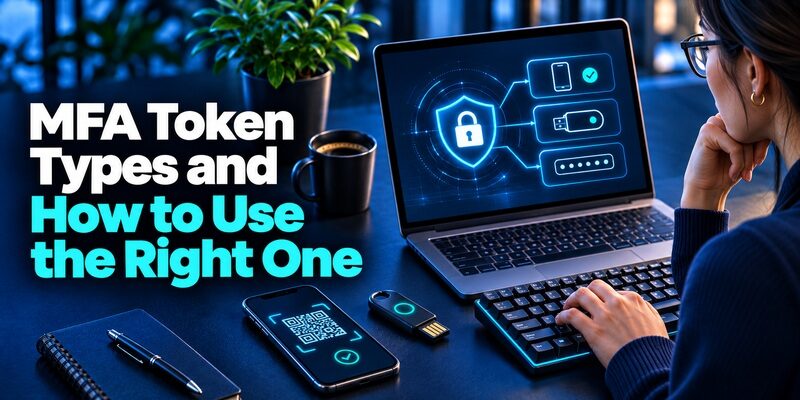
An MFA token is an authenticator, such as an app or hardware device, that a service can verify during multifactor sign-in. People also use the term for the temporary number displayed by that authenticator. Check the exact prompt before you act. A request for an authenticator code expects the current value from a registered app or fob. A security key prompt expects you to use the enrolled key.
If you are setting up a token, start from the provider’s security settings or your employer’s approved enrollment. If the MFA token is already missing, keep any working session and try the provider’s supported recovery route before removing a factor.
What an MFA Token Can Mean
Separate the Authenticator From Its Output
An MFA token can refer to a device or software entry that generates a one-time password. It can also refer informally to the short value the user submits. The distinction matters in a support request. If someone asks you to replace the token, find out whether the registered device was lost, whether its code was rejected, or whether the account needs a new enrollment. Each problem has a different resolution.
Understand Why a Token Is Registered
The service must associate the relevant credential with the account before it can verify it. A standard TOTP enrollment shares setup material with the app. A hardware security key or passkey uses a cryptographic credential tied to the provider. A push method can associate a device with the account. In each case, the MFA token is useful because the service can verify proof from a particular enrollment.
Check Whether the Term Refers to a Session Credential
Developers may call an access or session credential a token too. An access token is generally used by software to access a resource under its authorization. A person signing in normally uses an enrolled authenticator to answer the service’s challenge. If a support page says a token expired, check whether the message concerns login proof, a session, or an application integration. Refreshing the rotating MFA code does not necessarily fix a software authorization issue.
Distinguish a Backup Code From the Ordinary Factor
A recovery code may provide a supported path when the primary method is unavailable. It is issued and checked by the service, often with one-time use. It can be saved separately. A backup code for a work account may be restricted by policy, so ask the official help desk which recovery method applies before assuming your personal recovery workflow will work there.
If the support message says a token expired immediately after a successful sign-in, check whether the application is referring to its own session credential. The user may need to refresh the sign-in session through the approved client. Changing an app enrollment is a separate action and can remove a valid recovery route if done unnecessarily.
For accounts that support standard TOTP enrollment, a compatible authenticator app such as Authenticator App by Begamob is an option to evaluate. Use the QR code or manual setup key provided by the official service, and confirm the first verification code before completing enrollment.
Secure your accounts with fast, reliable two-factor authentication. Download now and protect your login in seconds.Download Authenticator App
Find the Token Your Sign-In Actually Expects

| Prompt | Proof to use | What to check |
|---|---|---|
| Enter an authenticator code | Current value from an enrolled app or fob | Account label, code timer and current enrollment |
| Approve or match a number | Registered app responding to the service | You initiated the request and the details match |
| Use a security key or passkey | Registered device or credential | Provider and operating-system prompts are genuine |
| Use a recovery code | Unused code saved for the service account | Backup route is selected and the value belongs to that account |
Use the Correct Entry for a Rotating Code
Open the app or token assigned to the account. If you have multiple similar entries, compare the signed-in email or account label first. For an MFA token that displays a time-based code, wait for the next value if the timer is nearly finished. Enter it into the official page. A physical fob can have a device-specific display or button, so follow the issuer’s directions for that model.
Use the Registered Device for an Approval
A provider may send an approval to a registered phone rather than ask for a code. Verify the action and any number or session details the official prompt shows. An unexpected request should stay unapproved. If you did not initiate a sign-in, open the service independently and review the account. An app that displays other accounts’ rotating values does not necessarily contain the approval enrollment you need. Not every MFA authenticator app uses rotating verification codes. Some applications support push approvals, number matching, or organization-managed authentication. The available method depends on the service and the device registered to the account.
Follow the System Prompt for a Security Key
The key or passkey normally completes a cryptographic operation rather than revealing digits for you to type. Use it through the operating system or browser prompt triggered by the official service. Confirm which account and service requested it. If several credentials are listed, choose the one that matches the login. For a managed MFA token, use the approved browser and connection type.
For example, a work account can offer a security key and a mobile app as alternatives. Read the challenge label before reaching for the key. If the browser asks for a one-time passcode, select the security key option separately when the provider offers it. One service can use both types of authenticator while the selected challenge accepts only one.
Read more: Best MFA Solutions for Business in 2026: Top 7 Tools Compared
Enroll a Software or Hardware Token
Start at the Provider or Authorized Administrator
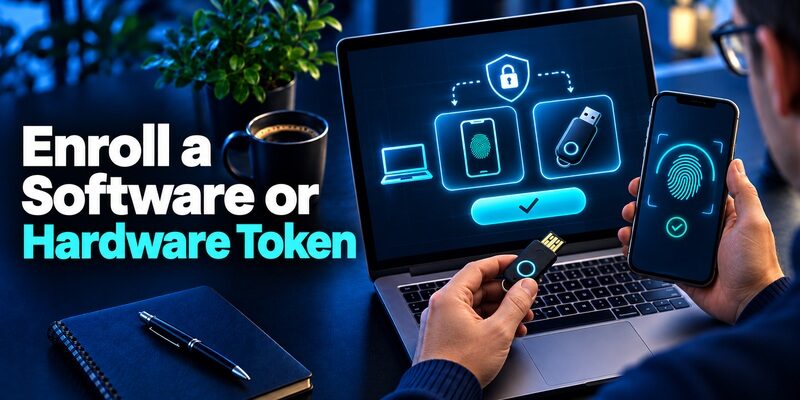
Use a known official link or your organization’s verified enrollment instructions. Select the method it supports. If the MFA token was issued by an administrator, confirm how it is assigned and how replacement works. Do not transfer a hardware token between users without the issuer’s approved reassignment process. The service still needs to associate the right credential with the right identity.
Set Up a Standard App From Its Own QR
When the service offers a QR or manual key for a standard time-based code, add it to an approved app and submit its first value to the service. Begamob’s is an option to review for compatible TOTP accounts. Keep the secret private and label the entry. If the provider refreshes the QR because enrollment expired, use the entry that came from the current screen.
Register a Hardware Token by Its Actual Type
A hardware OTP fob may be provisioned and assigned by an administrator. A supported security key may be enrolled directly by selecting the corresponding method and completing a device prompt. Both can be called an MFA token, but their setup and sign-in behavior differ. Verify what the issuer expects before scanning anything or entering a serial number into an external site.
If you are enrolling a TOTP account for the first time, follow our guide on how to use an authenticator app. It explains QR code enrollment, manual setup keys, temporary verification codes, and recovery preparation before you rely on the new authentication method.
Test From a Separate Session
Keep the first session open and try an ordinary sign-in in a trusted test browser. Confirm that the expected method appears and that the proof is accepted. If you manage more than one account for the service, check that the final session opens the intended identity. Save an approved backup method before removing the old factor. A visible entry or detected key alone does not confirm that enrollment succeeded.
When a managed fob is issued, test it with the employee using the work account it was assigned to. Confirm the device can be used in the expected browser or app. If the test fails, have the administrator verify the account assignment before blaming the code. Record the successful setup without retaining a live value.
Choose a Token Based on Where You Use It
| Token type | Good fit when supported | Recovery detail |
|---|---|---|
| Mobile TOTP | You can use a phone and type a short code | Verify transfer, backup or service recovery |
| Hardware OTP fob | You need a separate code device or phones are restricted | Ask the issuer about assignment and replacement |
| Managed mobile approval | The employer requires provider-specific verification | Confirm device registration and help desk process |
| Passkey or security key | The provider supports phishing-resistant verification | Check spare credential, device compatibility and recovery |
Decide Whether the Method Fits Your Workstation
A factory floor, classroom, or secure workstation may restrict phone use or require a particular connection for keys. Test the MFA token in the environment where it will be used. An administrator can run a controlled check with the expected browser, device, and role. If a shared station is involved, keep user enrollments tied to individual accounts. Confirm the authorized way to sign out and recover each one.
Compare Exposure and Recovery Together
Manually entered OTP can be relayed by a phishing site. NIST’s digital identity guidance distinguishes that from phishing-resistant verification tied to the legitimate service. If an account supports a security key or passkey, check whether a user can access a spare or another approved credential. An MFA token that provides strong protection still needs a workable replacement process.
Identify Hidden Dependencies
A phone backup can rely on a cloud login. A password vault can need its own second factor. A hardware key may be left at a site you cannot access on a weekend. Write down how you would get into the account under those conditions. A useful test is whether you can reach the registered backup method without the same device that failed.
A spare hardware key can help if the main key is unavailable. Register it through the official security settings and test a normal login with it before storing it separately. For an employee who works off site, verify that the spare is reachable during travel or that the authorized help desk can handle a replacement.
Read more: New Phone 2FA Setup: How to Transfer Authentication Codes Safely in 2026
Fix an MFA Code That Keeps Getting Rejected
Check the Prompt, Identity, and Time
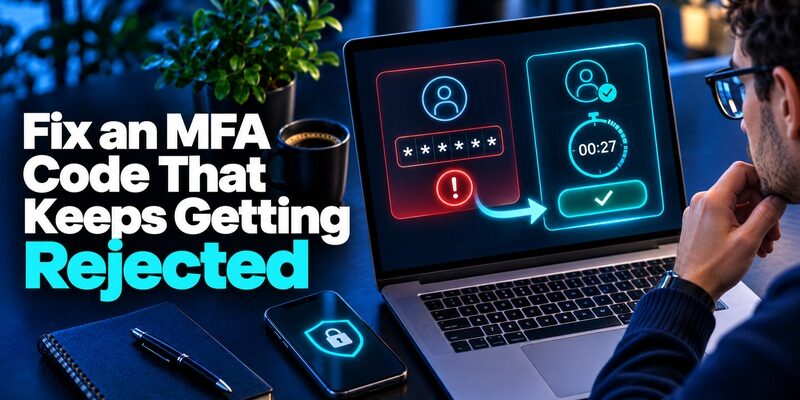
Read the method name and compare it with the MFA token you are using. An app value cannot answer an unrelated push or passkey prompt. For time-based values, check automatic date and time and try a fresh number. If you recently changed devices, compare the entry and service enrollment. A code can look normal while being derived from an old secret.
Use the Issuer’s Process for Counter-Based Tokens
Some hardware or software tokens use a counter instead of a clock. RFC 4226 documents a standard counter-based OTP scheme. A counter mismatch can require an authorized resynchronization or replacement. If you have a managed fob, do not keep pressing the button to guess the expected value. Check the device and provider instructions and ask the issuer which enrollment is active.
Investigate a Missing Push Separately
Check whether the phone is still registered and can receive the provider’s approval request. Verify the account in the app and the supported notification settings. A different MFA token may be accepted if the official prompt lists it as an alternate. Avoid reinstalling a managed app until you know whether it would remove a working enrollment. Ask the help desk for the supported procedure if the old phone still works. To understand why a verification app must be connected to an account before its codes can work, read our guide on how do authenticator apps work. It explains how enrollment secrets, device time, and server-side verification work together during TOTP authentication.
Record the Useful Error Without Sharing Codes
Note the account, method, timestamp and exact error. Tell support whether you are enrolling, signing in, or replacing a device. Do not include a current MFA code, setup QR, recovery value, or password. These details help the administrator distinguish an expired value from an unassigned or stale factor. Follow any attempt limit the service displays.
If a user reports that an MFA token failed after a shift or browser update, test the official sign-in from a supported client with the same account. A browser permission problem can look like a missing device. Check the available alternate method and keep the user’s valid enrollment until the organization verifies the actual cause.
Read more: How Do Authenticator Apps Work From Setup to Sign-In
Replace a Lost Token Without Losing Access
Use an Already Verified Backup Route
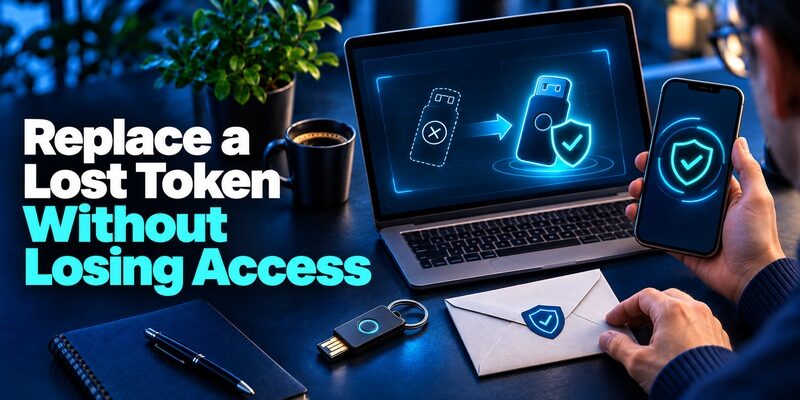
Open the official sign-in page and check the alternatives the service offers. Use an enrolled backup method or a saved recovery value when allowed. If a trusted device is still signed in, keep it open while you check security settings. Some providers require additional proof before you can remove or add an MFA token. The administrator can explain how the approved identity check works.
Revoke a Lost or Exposed Enrollment
Use the service’s current security settings or notify the issuer to revoke the lost token. If you suspect someone has a copy of a setup secret, have the service replace that enrollment, then confirm a new value. Removing an entry from one phone does not invalidate copies. If the device was also signed in, review active sessions and revoke any access the provider identifies as unauthorized.
Test the Replacement and Save Recovery Material
Verify the new MFA token with a real sign-in before discarding the remaining alternative. If you manage work accounts, document which method is assigned and which official person can revoke it. If you manage personal accounts, keep recovery material where you can reach it separately. Test your first account before replacing tokens on the rest of the services that rely on the same device.
Manage Tokens for a Team
Make Issuance and Revocation Traceable
Track each managed enrollment by account, method, issue date, and current status. Keep actual secrets out of that record. When a user changes roles or leaves, remove their access through the applicable account controls. If an MFA token is assigned again, use the issuer’s approved reassignment process and verify that the previous account cannot use it.
Practice the Support Scenario Before Rollout
Test a case where the employee’s phone is missing, the service is reachable, and another approved method is available. Have the authorized support team walk through the replacement without requesting a live value. Repeat the test for an administrator account and for a site that restricts phones. Confirm that the fallback aligns with the policy for each account. Record who approved the change and whether the replacement sign-in succeeded.
Review What the Service Logs
Check that the service logs method registration, successful challenges, and revocations where available. It should not need to retain the live code for ordinary troubleshooting. Use the outcome to verify that the intended account used the new enrollment. If you see a sign-in after a lost token was reported, review the method and session before drawing conclusions about how access was obtained.
Read more: Step Up Authentication vs Multi Factor Authentication
Questions About an MFA Token
Is an MFA Token the Same as an MFA Code?
An MFA token can be the registered authenticator itself, while an MFA code is often the value it generates. Read the provider’s wording. If it asks for a code, use the current value from the matching enrollment.
Do I Need a Phone for Every Token?
No. Services may support hardware OTP fobs, security keys, or passkeys on other supported devices. Check what the account offers and how the organization handles recovery. Test that the token works where you need to sign in.
Can I Use My Old Token After Replacement?
The provider decides which credential is active. If it revoked the old enrollment, its values or responses should no longer be accepted. Keep a working alternate method while verifying the replacement. Remove old app entries after you identify the ones you no longer use.
What if a Site Asks Me to Paste a Setup Secret?
Use setup data only in the provider’s approved enrollment workflow or authenticator. A long-lived secret can generate future codes. If you already exposed it, replace the factor through the provider and review active access.
Can a New MFA Token Restore My Account Automatically?
A new device needs an approved restore of the original enrollment or new registration with the provider. If you cannot use either, choose an existing alternate method or official recovery. A new app or fob cannot retrieve the active secret from your username.
Final Thoughts
Identify the MFA token by what the official prompt asks you to prove. Use a current app or fob code, a registered approval, or the supported security key as required. Keep a working session and independent recovery route while you replace a device.
If a code is rejected, check the account, method, and current enrollment first. If a token is missing or exposed, use the provider or authorized issuer to replace it and confirm that the replacement works in an ordinary sign-in.
