
How to Remove an Account From an Authenticator App
Published August 18, 2026 · Updated October 20, 2026
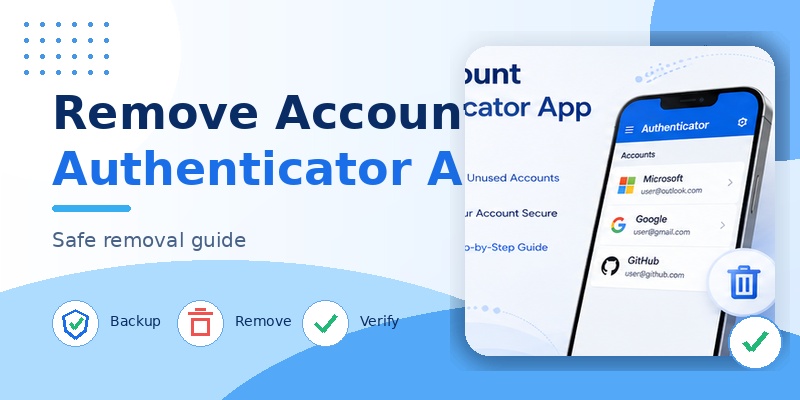
Want to remove an old account from your authenticator app? Whether you use Google Authenticator, Microsoft Authenticator, Authy, or another two-factor authentication app, the process usually takes only a few steps. However, deleting an authentication code without preparing a replacement can lock you out of the associated website.
Quick Answer: To remove an account from an authenticator app, open the app, find the account or verification code you want to delete, and select its Remove or Delete option. In Google Authenticator, swipe right on the code and confirm deletion. In Microsoft Authenticator, select the account, tap the Settings gear, and choose Remove account. Before deleting anything, confirm that you have another working sign-in method, recovery codes, or that 2FA has been safely reconfigured on the website.
Important: Removing an account from an authenticator app does not automatically delete your online account or turn off two-factor authentication on the website. The service may continue requesting a code you can no longer generate.
This guide explains how to delete authenticator account entries safely, what happens to synced codes, and how to recover if you accidentally remove an account.
What Happens When You Remove an Account From an Authenticator App?
An authenticator app stores information used to generate temporary verification codes or approve sign-ins.
When you remove an account entry, you may lose access to the authentication method associated with that entry.
The exact consequences depend on the application, whether synchronization is enabled, and how the website handles authentication.
Removing an Account vs Deleting the App vs Disabling 2FA
| Action | What happens | Does it disable website 2FA? |
|---|---|---|
| Remove an account entry | Deletes or unregisters that entry in the authenticator | Usually no |
| Uninstall the authenticator app | Removes the app and potentially its locally stored credentials | No |
| Delete a synced TOTP code | Removes the code from the synced collection | No |
| Disable 2FA on a website | Changes the website’s authentication requirement | Yes, for the method being disabled |
| Replace an authenticator | Registers a new verification method | No, if another 2FA method remains active |
| Delete the online account | Closes the service account through its own process | Not the same as deleting an authenticator entry |
For example, deleting a Facebook or Google verification code from an authenticator app does not delete your Facebook or Google account.
Before You Delete an Authenticator Account
Complete this checklist:
- Sign in to the website associated with the code.
- Confirm that you still control the account.
- Save any unused recovery codes.
- Add another approved authentication method if possible.
- If switching apps, register and test the replacement.
- Check whether the authenticator synchronizes deletions across devices.
- Only then remove the old entry.
Never delete your only working authentication method before establishing a recovery path.
If you are changing phones, see our guide to transferring authenticator accounts to a new phone.
Download Authenticator App
Secure your accounts with fast, reliable two-factor authentication. Download now and protect your login in seconds.
💡 Discover Helpful Guides: Microsoft Authenticator Passwordless Sign-In: Complete Guide
How to Remove an Account From Google Authenticator
Google Authenticator lets you delete individual verification codes.
You can remove outdated accounts without deleting the entire Google Authenticator app.
Delete a Google Authenticator Account on Android
- Open Google Authenticator.
- Find the account code you want to remove.
- Swipe right on the code entry.
- Select the displayed delete option.
- Confirm the deletion.
Google’s current help documentation describes this swipe gesture for Android.
If your app interface differs, check for an updated version or follow Google’s latest instructions.
Delete a Google Authenticator Account on iPhone
- Open Google Authenticator.
- Find the account you no longer need.
- Swipe right on its code entry.
- Select Delete.
- Confirm your choice.
Do not delete the entry if you still need it to sign in to the associated service.
What Happens When You Delete a Synced Google Authenticator Code?
If you have enabled Google Account synchronization, deleting a code can remove it from every device where that code is synced.
This is important if you are trying to remove the code from only one phone.
Deleting a synchronized entry is not the same as signing out of Google Authenticator or choosing to use the app without a Google Account.
Before deleting a synced code, confirm that it is no longer needed anywhere.
Does Removing a Code Delete Your Google Account?
No.
Deleting a Google Authenticator code does not delete your Google Account.
It also does not automatically disable 2-Step Verification on the associated website.
For more information about Google verification, see our Google Authenticator guide.
How to Remove an Account From Microsoft Authenticator
Microsoft Authenticator supports personal Microsoft accounts, work or school accounts, and third-party TOTP accounts.
Removing an account from the app may affect both code generation and approval-based authentication.
Remove a Microsoft Authenticator Account on Android or iPhone
Microsoft’s official instructions are:
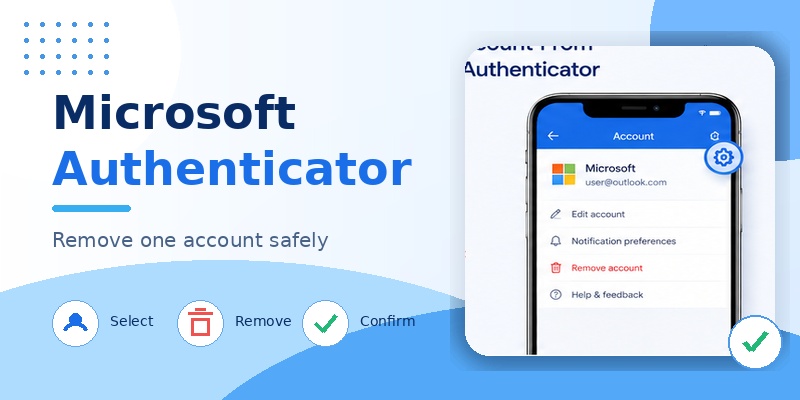
- Open Microsoft Authenticator.
- Select the account you want to remove.
- Tap the Settings gear.
- Select Remove account.
- Confirm the removal.
After removing the account, that device can no longer be used to verify sign-ins through the removed registration.
Does Removing a Microsoft Authenticator Account Disable MFA?
No, not necessarily.
The account provider may still require multifactor authentication.
For a personal Microsoft account, review the registered sign-in methods at Microsoft Account Security.
For a work or school account, review Microsoft Security Info.
If you are replacing an old phone, register and test the new device before removing the previous Authenticator method.
How to Remove an Old Microsoft 365 Work Account
If the account belongs to your employer or school:
- Sign in to Microsoft Security Info.
- Review your registered authentication methods.
- Add an approved replacement method if needed.
- Verify that the new method works.
- Remove the obsolete registration if your organization permits it.
- Remove the old account entry from the mobile app when appropriate.
An administrator may control which methods you can remove.
If the option is unavailable, contact your IT department.
How to Remove All Microsoft Authenticator Accounts
Microsoft documents device-level methods for clearing all Authenticator account information.
However, this is a high-risk action because it may remove every authentication credential from that installation.
Do not clear app data or reset the application unless you have verified backup and recovery methods for all important accounts.
For a more detailed tutorial, read our Microsoft Authenticator remove account guide.
How to Delete Accounts From Authy and Other Authenticator Apps
Other authenticator apps have their own deletion, synchronization, and recovery rules.
How to Delete an Account From Authy
For standard removable Authy tokens, Twilio documents the following steps.
On Android:
- Open Authy.
- Press and hold the token you want to remove.
- Select Remove.
- Confirm the deletion notice.
You can also open Settings → Accounts, find the token, and choose Remove from its menu.
On iPhone:
- Open Authy.
- Go to Settings → Accounts.
- Find the token.
- Swipe left on the entry.
- Select Delete.
Twilio states that certain deleted tokens remain recoverable during a 48-hour deletion window.
Some Authy-powered tokens are managed by the connected service and may require changes on that service’s website.
Do not assume every Authy token can be removed or restored in the same way.
How to Remove a Proton Authenticator Account
If you use Proton Authenticator:
- Open Proton Authenticator.
- Find the code entry you want to remove.
- Open the entry’s available management options.
- Choose the supported delete or remove action.
- Review the confirmation carefully.
- Verify whether synchronization or backup settings affect other devices.
Menu labels can vary by platform and app version.
If the code is synchronized, review Proton’s current documentation before deleting it.
For more information, see our Proton Authenticator guide.
How to Remove an Account From Other TOTP Apps
Applications such as 2FAS, Aegis, and other authenticator tools generally provide account-management controls.
The safe process is:
- Open the authenticator.
- Locate the relevant account.
- Open its settings or contextual menu.
- Choose Delete or Remove.
- Confirm only after securing another authentication method.
If the app supports encrypted backups, exports, or synchronization, check whether the deletion also affects those copies.
How to Remove an Authenticator Without Losing Access
If you are removing an authenticator because you want to switch devices or apps, the safest method is to replace the registered authentication method first.
Option 1: Change to a New Authenticator App
To switch from one TOTP app to another:
- Keep the original authenticator available.
- Sign in to the website.
- Open its security or 2FA settings.
- Choose the option to replace or reconfigure the authenticator.
- Scan the new setup QR code using the replacement app.
- Enter the new verification code to complete enrollment.
- Save updated recovery codes.
- Test a fresh sign-in.
- Delete the old entry only after the new method works.
Some services allow multiple authenticators, while others require replacing the existing TOTP credential.
Do not assume that scanning the original QR code is always possible or that a service supports direct token migration.
Option 2: Disable 2FA on the Website Before Removing the Code
If you no longer want authenticator-based 2FA:
- Sign in to the website.
- Open the account security settings.
- Find the 2FA or authenticator app option.
- Follow the official process to disable or replace that method.
- Complete any required verification.
- Confirm that the website’s security settings have changed.
- Remove the obsolete code from your authenticator.
Disabling 2FA reduces account security.
Whenever possible, replace the old method with a strong alternative rather than removing all additional verification.
Option 3: Remove an Old Authenticator After Changing Phones
If you have already moved to a new phone:
- Verify that all important codes work on the new device.
- Check whether any entries remain local-only on the old phone.
- Confirm that push approvals are registered to the correct device.
- Remove obsolete server-side registrations where necessary.
- Delete old local entries.
- Erase the old phone only after completing the migration.
Remember that some authenticator apps synchronize code deletions across devices.
For more help, read our authenticator app new phone guide.
Can You Delete an Authenticator App After Transferring Accounts?
Yes, once the new authentication method is fully working and you have suitable recovery options.
However, uninstalling the app does not automatically unregister the old authentication method from each website.
For Microsoft work or school accounts, review server-side device registration separately.
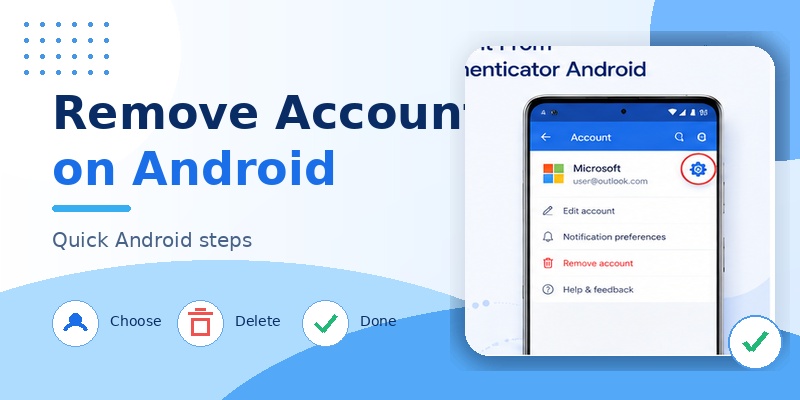
How to Recover an Accidentally Deleted Authenticator Account
If you deleted an authenticator entry by mistake, avoid making further changes until you know which recovery methods remain available.
Step 1: Check for Another Trusted Device
If you have another device that already contains the required code, check whether it is still accessible.
Be aware that synchronized deletions may have removed the code from other devices as well.
Step 2: Review Available Backups
Some authenticator apps support cloud backups, encrypted exports, or account synchronization.
Check whether a valid backup exists and whether it can restore the deleted credential.
Do not assume that a backup will always preserve an entry after a synchronized deletion.
Step 3: Check for an Undo or Recovery Window
Some applications provide a temporary undo or recovery option.
For example, Authy documents a 48-hour recovery window for certain deleted tokens when the required conditions are met.
If you use Authy, check its official recovery instructions immediately.
Step 4: Use Website Recovery Codes
If you saved recovery codes when enabling 2FA:
- Open the website’s official sign-in page.
- Choose a recovery or backup code option.
- Enter an unused recovery code.
- Sign in.
- Register a new authenticator method.
- Save fresh recovery codes if the service provides them.
Recovery codes are usually issued by the website, not by the authenticator app itself.
Step 5: Contact the Account Provider
If you have no valid code, backup, or recovery method, contact the service that owns the protected account.
For a work or school Microsoft account, contact your IT administrator.
For third-party accounts, use the website’s official recovery process.
The authenticator app provider generally cannot disable 2FA on an unrelated service.
What if You Accidentally Deleted a Google Authenticator Code?
Check whether the code still exists on a trusted device or in an independently preserved backup.
If the deletion was synchronized, the code may be gone from all synchronized devices.
Use the website’s recovery methods or register a new authenticator after regaining access.
For Google Account-specific issues, read our Google Authenticator lost guide.
What if You Accidentally Deleted a Microsoft Authenticator Account?
If you removed a personal or work account from Microsoft Authenticator, you may need to register the authentication method again.
Use another working sign-in method to access the account’s security settings.
If a work or school account has no alternative method, ask the administrator about a supported MFA reset or re-registration process.
For further help, see our Microsoft Authenticator recovery guide.
Frequently Asked Questions
How do I remove an account from an authenticator app?
Open the authenticator, find the account entry, choose its Delete or Remove option, and confirm the action. First verify that you can still access the associated website.
How do I delete an account from Google Authenticator?
Open Google Authenticator, swipe right on the code entry, select Delete, and confirm.
How do I remove an account from Microsoft Authenticator?
Select the account in Microsoft Authenticator, tap the Settings gear, and choose Remove account.
Does deleting an account from an authenticator app disable 2FA?
No. The website may continue requiring a verification code until you change its 2FA settings.
Does removing an authenticator account delete my Google or Microsoft account?
No. Removing an entry from the authenticator does not delete the underlying online account.
What happens if I delete a Google Authenticator code that is synced?
Google states that the code will also be deleted from devices where that code is synchronized.
Can I remove only one account from an authenticator app?
Yes. Most authenticator apps let you delete individual account entries without removing every code.
Can I recover a deleted authenticator account?
Sometimes. Recovery depends on the app’s backup or undo features and the website’s available recovery methods.
Can I recover a deleted Authy token?
Certain Authy tokens can be recovered during a 48-hour deletion window if the required conditions are met.
Will uninstalling the authenticator app turn off two-factor authentication?
No. The website’s 2FA requirement remains active unless it is changed through the website’s security settings.
Can I delete an old authenticator after moving to a new phone?
Yes, after confirming that the replacement authenticator works and that you have suitable recovery methods.
Why does Microsoft Authenticator still appear in my security settings after I remove it from the app?
Removing the local account entry does not necessarily remove the registration stored by Microsoft or your organization.
How do I remove an authenticator account I no longer use?
If the associated website is still active, first update its security settings. Then remove the obsolete code from the app.
Can I remove an account from Authy without deleting my Authy account?
Yes. Authy supports token management separately from deletion of the overall Authy account.
Is it safe to delete old authenticator codes?
Yes, when they are no longer needed and you have confirmed that the associated accounts do not depend on them.
Conclusion
Knowing how to remove an account from an authenticator app helps you clean up outdated codes, replace authentication methods, and manage your security settings.
For Google Authenticator, you can delete an individual code using the app’s swipe gesture. For Microsoft Authenticator, select the account and choose Remove account. Authy and other authenticator apps have their own deletion and recovery rules.
The most important rule is to verify your alternative sign-in method before removing an authentication credential.
Deleting an authenticator entry does not automatically disable two-factor authentication or delete the associated online account.
For additional guidance, explore our Google Authenticator guide, Microsoft Authenticator remove account tutorial, and authenticator transfer guide.
