
Does Microsoft Authenticator Work Offline? What Works Without Internet
Published August 18, 2026 · Updated October 6, 2026
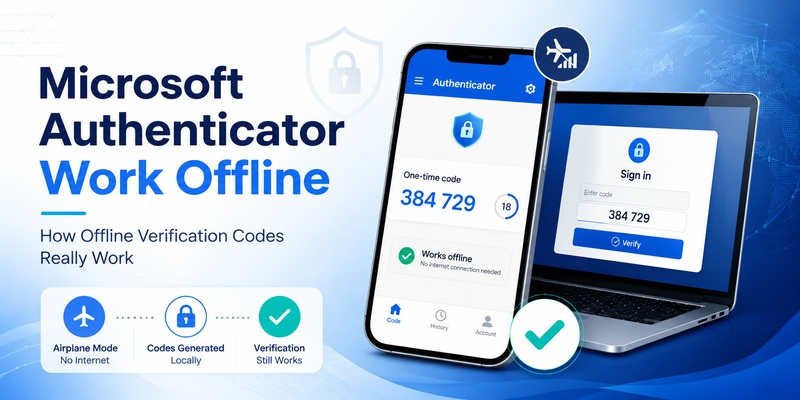
Yes, Microsoft Authenticator can work offline for verification codes that are generated directly on your device. Once a compatible TOTP account has been set up, Microsoft Authenticator can generate its rotating one-time codes without Wi-Fi, mobile data, or cellular service.
However, not every Microsoft Authenticator feature works offline.
Push notifications, number matching, online sign-in approvals, account setup, backup and recovery, and other server-based features require an internet connection.
Quick answer: If a website asks you to manually enter a six-digit authenticator code, Microsoft Authenticator can usually generate that configured TOTP code offline. If the website sends an approval request to your phone, your phone needs internet access to receive and respond to it.
1. Does Microsoft Authenticator Work Offline?
Microsoft Authenticator has both offline and online authentication functions.
The difference depends on what the service asks you to do.
Verification codes can work offline
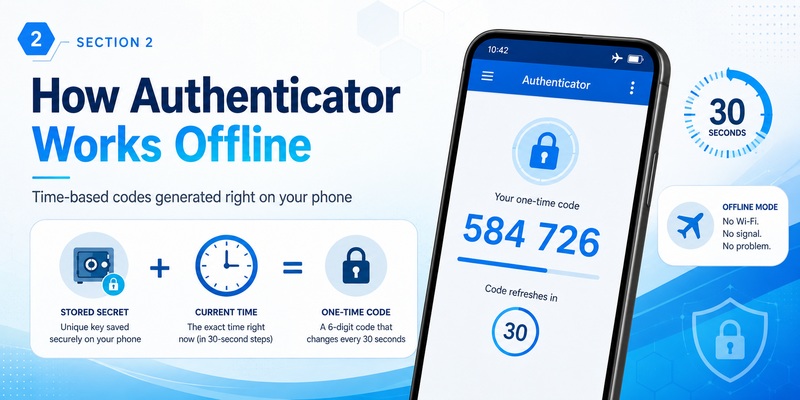
A standard time-based one-time password, or TOTP, is generated locally on your device.
After the account has been correctly configured, Microsoft Authenticator uses the stored authentication secret and the current device time to calculate the temporary code.
The app does not need to contact Microsoft or the website every time it generates that code.
That means you can potentially open Microsoft Authenticator and retrieve a verification code while:
- Wi-Fi is turned off
- Mobile data is disabled
- Your phone has no cellular signal
- You are using Airplane Mode
- You are traveling without roaming
- The phone is otherwise offline
The device displaying the login page still generally needs connectivity to communicate with the service, but the phone generating the TOTP code does not.
Push authentication does not work fully offline
Push authentication works differently.
When you attempt to sign in, the authentication service sends a request to Microsoft Authenticator on your phone.
Your phone must receive that request and communicate your response back to the service.
Without a network connection, that communication cannot take place.
Therefore, an offline phone will not be able to complete a normal push-approval flow.
Download Authenticator App
Secure your accounts with fast, reliable two-factor authentication. Download now and protect your login in seconds.
2. Microsoft Authenticator Offline: What Works and What Does Not?
Here is the simplest comparison.
| Authentication method | Works offline? | Why |
|---|---|---|
| TOTP / OATH verification code | Yes | Code is generated locally on the phone |
| Push approval | No | The sign-in request must reach the phone over the internet |
| Number matching | No | Part of online push authentication |
| Passwordless notification sign-in | No | Requires communication with Microsoft’s authentication service |
| Passkey in Authenticator | No | Microsoft requires an internet connection |
| Cross-device passkey | No | Requires internet on both devices plus Bluetooth |
Microsoft documents Authenticator as supporting passkeys, passwordless sign-in, push MFA, and OATH verification codes, but these methods do not have the same connectivity requirements.
Use Case 1: You Have No Wi-Fi or Mobile Data but Need a 6-Digit Code
This is the main situation where Microsoft Authenticator works well offline.
If the account is configured to use a time-based verification code, open Microsoft Authenticator and look for the rotating code.
You can then enter that code into the login screen.
You do not need:
- Wi-Fi
- mobile data
- cellular service
- push notifications
The code is generated locally on the device.
Microsoft confirms that verification codes can be generated even when the phone has no signal.
Example
Imagine you are:
- on an airplane,
- traveling abroad without roaming,
- inside a building with poor reception,
- using a phone with no SIM card.
If the login screen allows you to enter a verification code from Microsoft Authenticator, the code can still be generated offline.
The only caveat is that the device’s clock must be reasonably accurate because time-based codes depend on time synchronization.
Use Case 2: You Receive a “Approve Sign-In” Prompt
This does not work offline.
Push-based authentication requires the Authenticator app to receive a sign-in request from Microsoft’s servers.
That means the phone needs:
- Wi-Fi, or
- mobile data.
Microsoft says that to receive sign-in notifications and send a response, the device must be connected to the internet.
What Happens If You Are Offline?
You may see the website waiting for approval, but the notification never reaches the phone.
If the sign-in screen offers another method, choose something like:
Use a verification code
or:
Use another verification method
If a TOTP code has already been configured for that account, that method may work offline.
Use Case 3: Number Matching Does Not Work Without Internet
Microsoft commonly uses number matching with Authenticator push notifications.
For example:
- The sign-in screen displays
42. - Microsoft Authenticator sends a notification.
- You open the app.
- You select or enter
42. - The approval is returned to Microsoft.
Because this process depends on a live authentication request, it is not an offline method.
No network means:
- no incoming request,
- no number-matching prompt,
- no approval response.
So even though Authenticator is installed and the account appears in the app, that does not mean every sign-in method is available offline.
Use Case 4: Microsoft Authenticator Verification Codes Work Offline
This is the most useful offline feature.
Microsoft Authenticator can act as a software OATH token and generate verification codes that are entered manually into the sign-in interface.
These codes are generated based on:
- a secret stored on the device,
- the current time.
They do not need to be downloaded from Microsoft each time.
How to Use an Offline Code:
- Open Microsoft Authenticator.
- Select the account.
- Find the current verification code.
- Enter the code on the sign-in screen.
- Submit before the code expires.
Most time-based codes rotate periodically.
If the code fails repeatedly while offline, check the device’s date and time settings before assuming the account is broken.
Use Case 5: Can Microsoft Authenticator Passkeys Work Offline?
No.
Microsoft currently states that passkeys in Microsoft Authenticator cannot be used without an internet connection.
For same-device use, the phone containing the passkey needs internet access.
For cross-device authentication:
- the phone containing the passkey needs internet,
- the device being signed into needs internet,
- Bluetooth is also required between the devices.
This is an important distinction because passkeys themselves are device-bound credentials, but the overall authentication ceremony still requires communication with the online service.
Use Case 6: Signing In With a Passkey on the Same Phone
Microsoft Authenticator can store device-bound passkeys for supported Microsoft Entra scenarios.
For same-device authentication, the phone still needs an internet connection to complete the sign-in.
So this is different from a locally generated TOTP code.
The credential may be stored on the device, but the authentication process is still online.
Use Case 7: Using a Passkey From Your Phone to Sign In on a Computer
This requires even more connectivity.
Microsoft’s cross-device passkey flow requires:
- internet on the phone,
- internet on the computer or other device,
- Bluetooth enabled.
A QR code may be used to initiate the flow, but scanning it does not make the authentication offline.
If you expect to be somewhere with no network access, do not rely on a cross-device Authenticator passkey as your only fallback.
Use Case 8: No Cell Signal, but Wi-Fi Is Available
Microsoft Authenticator push authentication can still work.
You do not need cellular service specifically.
A working Wi-Fi connection is enough for Authenticator to receive and send authentication requests.
Microsoft also notes that Authenticator notifications can work over both cellular and Wi-Fi connections.
So:
No SIM signal + Wi-Fi = push can work
but:
No SIM signal + no Wi-Fi = push will not work
TOTP codes can still work in both cases.
Use Case 9: Airplane Mode
Airplane mode is a good way to understand the difference between these methods.
If airplane mode disables all connectivity:
Usually still works
- opening Microsoft Authenticator
- viewing existing accounts
- generating supported TOTP verification codes
Will not work
- receiving push approval requests
- sending push responses
- passwordless push sign-in
- passkey authentication requiring internet
- cloud backup or restore
If you manually re-enable Wi-Fi while airplane mode is on, online features can work again through Wi-Fi.
Use Case 10: Traveling Internationally Without Roaming
This is a common real-world scenario.
You can still use Microsoft Authenticator for TOTP codes without paying for roaming.
The app does not need a mobile network connection to generate supported verification codes.
However, push notifications will require another internet connection such as:
- hotel Wi-Fi,
- airport Wi-Fi,
- local SIM,
- travel eSIM.
For frequent travelers, having a code-based fallback can be valuable if the account permits it.
💡 Discover Helpful Guides: Microsoft Authenticator Passwordless Sign-In: Complete Guide
3. Why TOTP Works Offline but Push Does Not
The technical difference is simple.
TOTP
A time-based one-time password is generated locally.
The phone already has the secret needed to calculate the code.
Conceptually:
Secret + current time → verification code
The phone does not have to ask a server for the code.
Push authentication
Push is a live communication flow.
Conceptually:
Login request → Microsoft server → phone → user approval → Microsoft server
Without an internet connection, that chain breaks.
This is why two features inside the same Authenticator app behave very differently offline.
4. Does Microsoft Authenticator Need Internet During Setup?
Usually, yes.
Even though TOTP codes can later work offline, the initial account setup generally requires you to access the online account and configure MFA.
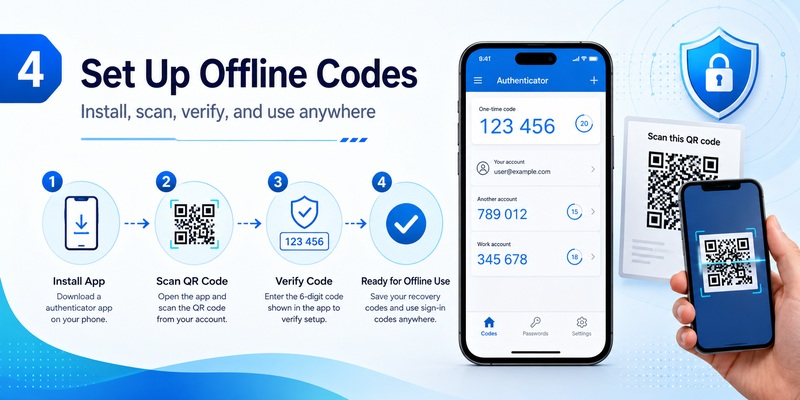
The normal workflow is:
- Sign in to the service.
- Open its security settings.
- Enable an authenticator method.
- Scan a QR code or enter a setup key.
- Confirm the first code.
Once a supported TOTP credential is saved locally, future code generation does not require an active network.
This article is focused on offline use. For complete setup instructions, use the site’s dedicated Microsoft Authenticator setup guide.
🧭 Explore Guides: Microsoft Authenticator Extension: Safe Browser Guide
4. Why Is Microsoft Authenticator Not Working Offline?
If you expected Authenticator to work without internet but it does not, first identify which authentication method you are using.
You Are Waiting for a Push Notification
Push requires internet.
Connect to Wi-Fi or mobile data, or select another authentication method if available.
The Verification Code Is Rejected
A TOTP code can be generated offline, but the code must match the server’s expected time window.
Check:
- automatic date and time,
- correct time zone,
- device clock accuracy.
Microsoft’s troubleshooting guidance recommends checking the device clock when verification codes fail.
You Are Trying to Use a Passkey
Passkeys in Microsoft Authenticator require an internet connection.
Offline TOTP behavior does not apply to passkeys.
You Are Using a Work or School Account
Your organization may enforce a specific authentication method through Microsoft Entra policies.
For example, an administrator might require:
- push authentication,
- passwordless sign-in,
- passkeys,
- device compliance.
In that case, the existence of an offline verification code does not guarantee the organization will accept it for that particular sign-in
💡 Discover Helpful Guides: Microsoft Authenticator Passwordless Sign-In: Complete Guide
5. Best Authentication Method for Different Offline Situations
| Situation | Best option if configured |
|---|---|
| No cellular signal | TOTP or Wi-Fi push |
| No internet at all | TOTP verification code |
| Airplane mode | TOTP |
| International travel without roaming | TOTP or Wi-Fi push |
| Need push approval | Internet required |
| Passkey sign-in | Internet required |
| Cross-device passkey | Internet + Bluetooth required |
| Work account with enforced push | Connect to internet |
The key point is that offline capability depends on the authentication method, not simply whether the Microsoft Authenticator app opens.
Should You Configure an Offline Backup Method?
If your account permits multiple authentication methods, it can be useful to understand which ones still work when connectivity fails.
For example, an account might support:
- Microsoft Authenticator push,
- TOTP code,
- security key,
- recovery code,
- another approved method.
The available methods depend on the service or your organization’s security policy.
For work and school accounts, an administrator may restrict which authentication methods are allowed.
Do not disable a stronger authentication method solely to gain offline access. Instead, configure approved fallback methods where the service or administrator permits them.
Microsoft Authenticator Offline vs Google Authenticator
Both apps can generate standard time-based verification codes locally.
The important distinction is that Microsoft Authenticator also supports Microsoft-specific sign-in flows such as:
- push approvals,
- passwordless authentication,
- Microsoft Entra passkeys.
Those online features should not be confused with offline TOTP code generation.
This is why simply asking “Does Authenticator work offline?” can produce an incomplete answer.
The correct answer depends on which authentication function you are using.
💡 Discover Helpful Guides: Microsoft Authenticator: Complete Setup, Login, Backup & Troubleshooting Guide
10.Frequently Asked Questions
Does Microsoft Authenticator work without Wi-Fi?
Yes, for supported verification codes.
Push approvals and passkeys still require an internet connection, which can come from mobile data instead of Wi-Fi.
Does Microsoft Authenticator work without mobile data?
Yes.
TOTP codes work without mobile data, and push approvals can work over Wi-Fi.
Does Microsoft Authenticator work with no phone signal?
Verification codes can still work.
Microsoft states that Authenticator can generate verification codes even when the device has no signal.
Can I approve a Microsoft Authenticator notification offline?
No.
The phone must have an internet connection to receive the request and return the approval.
Can I use Microsoft Authenticator codes in airplane mode?
Yes, supported locally generated verification codes can still be displayed.
If Wi-Fi is also disabled, push and passkey functions that need the internet will not work.
Do Microsoft Authenticator passkeys work offline?
No.
Microsoft states that Authenticator passkeys require internet access.
Does cross-device passkey sign-in work without internet?
No.
Both devices need internet, and Microsoft also requires Bluetooth for the cross-device flow.
Why does my code work offline but approval does not?
Because the code is calculated locally, while approval is a live server-to-device interaction.
Download Authenticator App
Secure your accounts with fast, reliable two-factor authentication. Download now and protect your login in seconds.
