
Google Authenticator for iPhone: Download, Setup & Apple Guide
Published August 12, 2026 · Updated October 20, 2026
Looking for Google Authenticator for iPhone to secure your Google Account, email, social media, or other online services? Google’s official authenticator app helps protect supported accounts with temporary verification codes that work even when your phone has no internet connection.
If you are searching for Google Authenticator in the App Store or wondering whether it works with other Apple devices, this guide covers installation, setup, daily use, account synchronization, phone transfers, and troubleshooting.
Quick Answer: Google Authenticator is available for supported iPhone and iPad devices through Apple’s App Store. Search for Google Authenticator, verify that the developer is Google LLC, and install the free app. To set up 2FA, open the security settings of the account you want to protect, select an authenticator app, and scan its QR code using Google Authenticator. Save your backup codes and test a login before finishing.
The official Google Authenticator app supports temporary verification codes, optional Google Account synchronization, manual code transfer, and local-only storage.
How to Download Google Authenticator for iPhone from the App Store
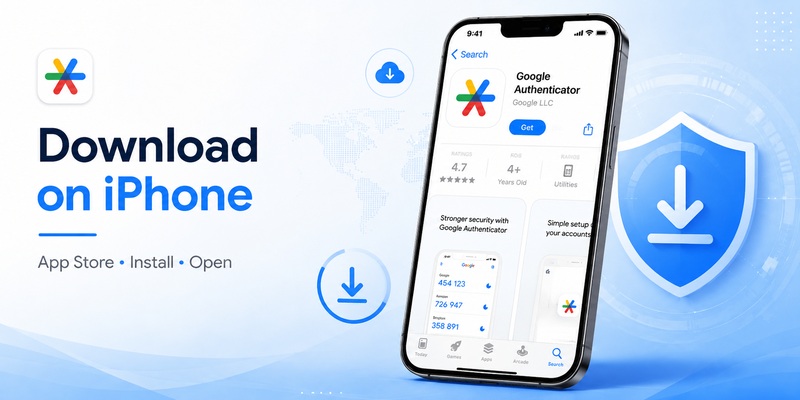
The safest way to download Google Authenticator for iPhone is through the official Apple App Store.
Google Authenticator is published by Google LLC and is available as a free application.
Step 1: Open the Apple App Store
Unlock your iPhone and open the App Store.
Tap Search and enter:
Google Authenticator
You may see several authenticator apps with similar names.
Do not select an app based only on its icon or title.
Step 2: Find the Official Google Authenticator App Store Listing
Before installing, verify these details:
| Item | What to check |
|---|---|
| App name | Google Authenticator |
| Developer | Google LLC |
| Platform | Supported iPhone and iPad devices |
| Price | Free |
| Primary function | Two-step verification codes |
| Official download | Google Authenticator on the App Store |
Check the current App Store listing for the minimum supported iOS or iPadOS version, because compatibility requirements can change.
Step 3: Install Google Authenticator
- Open the official listing.
- Tap Get or the download icon.
- Confirm the installation with Face ID, Touch ID, or your Apple Account credentials if prompted.
- Wait for the installation to finish.
- Tap Open.
Google Authenticator is now installed, but your accounts are not yet protected until you complete the 2FA enrollment process.
Step 4: Choose Whether to Use a Google Account
When you first open Google Authenticator, you may be able to sign in with a Google Account or use the app without one.
These options affect how your codes are stored and transferred.
With Google Account synchronization:
- Supported codes can synchronize between devices.
- Signing in on a new device can restore synchronized codes.
- Your Google Account becomes an important part of your recovery plan.
Without a Google Account:
- Codes remain stored locally on the device.
- You can use the app without enabling Google Account sync.
- Moving codes to another phone requires a supported transfer process.
- Losing the phone may require recovery through individual account providers.
Choose the option that best fits your security and recovery preferences.
Secure your accounts with fast, reliable two-factor authentication. Download now and protect your login in seconds.Download Authenticator App
How to Set Up Google Authenticator on iPhone
After downloading Google Authenticator for iPhone, you need to connect the app to each website or service you want to protect.
Google Authenticator works with many services that support standard authenticator-based two-factor authentication.
Method 1: Set Up Google Authenticator Using a QR Code
This is the most common setup method.
On the website or app you want to protect:
- Sign in to your account.
- Open Account Settings or Security Settings.
- Find Two-Factor Authentication or Two-Step Verification.
- Select the authenticator app option.
- Follow the instructions until a setup QR code appears.
On your iPhone:
- Open Google Authenticator.
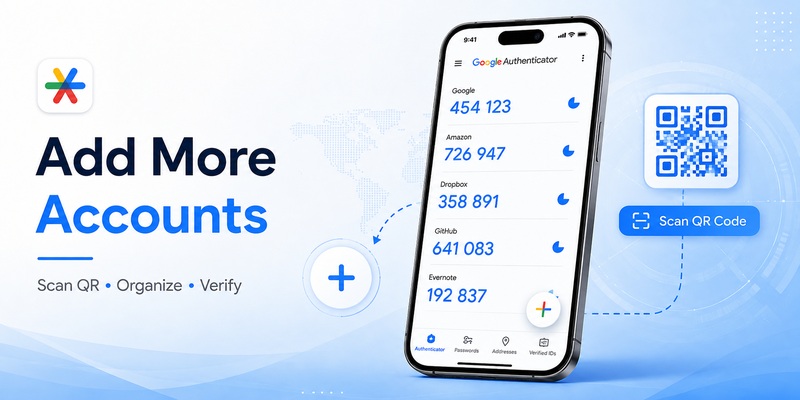
- Tap the + button.
- Select Scan a QR code.
- Allow camera access if requested.
- Scan the QR code displayed by the account provider.
- Confirm that the new account appears in Google Authenticator.
Return to the website and enter the current verification code to finish setup.
Do not close the security settings page until the service confirms that 2FA is active.
Method 2: Add an Account Using a Setup Key
If you cannot scan a QR code, some services provide a manual setup key.
To use it:
- Open the service’s official 2FA setup page.
- Choose the manual setup option if available.
- Copy or carefully record the setup key.
- Open Google Authenticator.
- Tap +.
- Select Enter a setup key.
- Enter the account name and secret key.
- Select the appropriate key type when prompted.
- Save the account.
- Enter the generated code on the service’s verification page.
Most modern services use time-based codes.
Never share a setup key. It can allow someone else to generate the same verification codes.
How to Set Up Google Authenticator for Your Google Account
To enable Google Authenticator for a personal Google Account:
- Open Google Account Security.
- Sign in.
- Find the section for 2-Step Verification.
- Complete any required verification.
- Locate the Authenticator option.
- Follow Google’s current setup instructions.
- Add the account to Google Authenticator.
- Enter a verification code if requested.
- Save any available backup codes.
Google may offer several verification methods, including prompts, passkeys, security keys, and authenticator codes.
You do not need to replace a stronger authentication method simply to add Google Authenticator.
For more details, see our Google Account two-step verification guide.
Save Your Recovery Codes After Setup
Many account providers issue backup codes when you enable 2FA.
Store these codes securely outside your everyday iPhone.
Useful options include a protected password manager or another secure offline location.
Avoid keeping your only recovery codes in an unprotected screenshot on the same phone.
How to Use Google Authenticator Codes on iOS
Once your accounts are registered, using Google Authenticator on iPhone is straightforward.
Where to Find Your Google Authenticator Code
- Open Google Authenticator.
- Locate the service or account you want to access.
- Read the current verification code.
- Return to the legitimate sign-in page.
- Enter the code.
- Complete the login.
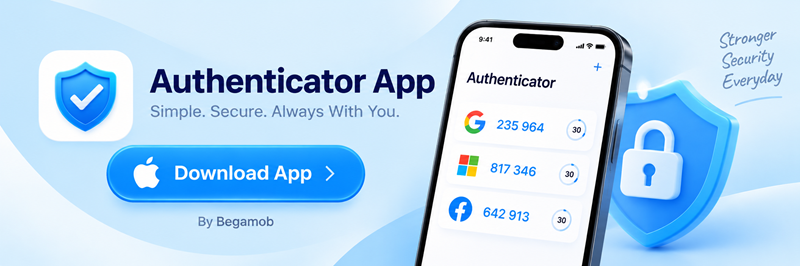
Most TOTP services use six-digit codes that refresh approximately every 30 seconds.
If a code is about to expire, wait for the next one.
Does Google Authenticator Work Without Internet?
Yes.
Google Authenticator can generate standard verification codes without Wi-Fi, cellular data, or mobile reception after an account has been configured.
This is possible because the app calculates codes locally using the stored authentication secret and your device’s time.
However, you may still need internet access to:
- Download the app.
- Enable 2FA on a website.
- Synchronize codes through a Google Account.
- Access the website where you are signing in.
- Complete certain recovery operations.
Offline code generation does not mean every part of the authentication process works offline.
How to Protect Google Authenticator With Face ID
Google Authenticator includes a Privacy Screen feature that can require device authentication before displaying codes.
Depending on the current app version:
- Open Google Authenticator.
- Open its settings.
- Find Privacy Screen.
- Enable the available protection.
- Confirm the setting using Face ID, Touch ID, or another supported device authentication method.
Also protect your iPhone with a strong passcode and current software.
Is Google Authenticator Safer Than SMS?
Authenticator-generated codes avoid several risks associated with SMS delivery, including certain phone-number takeover attacks.
They also work without waiting for a text message.
However, traditional TOTP codes are not completely phishing-resistant.
A fake website can trick someone into entering a current code.
Always verify the sign-in website and consider passkeys or FIDO2 security keys for accounts that support stronger phishing-resistant authentication.
Google Authenticator for Apple: iPhone, iPad, Mac and Apple Watch
People searching for Google Authenticator for Apple often want to know whether the same official app works across the Apple ecosystem.
The answer depends on the device.
Google Authenticator Apple Device Compatibility
| Apple device | Official Google Authenticator support | How to use it |
|---|---|---|
| iPhone | Yes, on supported iOS versions | Install from the App Store |
| iPad | Yes, on supported iPadOS versions | Install from the App Store |
| MacBook Air / Pro | No official native macOS app | Use codes generated on iPhone or iPad |
| iMac / Mac mini | No official native macOS app | Use the mobile app during Mac sign-in |
| Apple Watch | No official watchOS companion app | Use the iPhone or iPad instead |
The official App Store listing identifies the supported Apple mobile platforms.
Do not assume that a similarly named Mac or Apple Watch authenticator is Google’s official application.
Google Authenticator for iPad
Google Authenticator can be installed on supported iPads through the App Store.
To get started:
- Open the App Store on your iPad.
- Search for Google Authenticator.
- Verify Google LLC as the developer.
- Install the app.
- Sign in with the Google Account used for synchronization, if applicable.
- Confirm that the expected codes appear.
- Test a sign-in.
If your codes were stored only on another device, you may need to transfer them manually.
Can You Use Google Authenticator on Mac?
There is no official native Google Authenticator application for macOS.
However, you can still use Google Authenticator while signing in on a Mac.
For example:
- Open a protected website in Safari or Chrome on your Mac.
- Enter your account credentials.
- Wait for the verification code prompt.
- Open Google Authenticator on your iPhone.
- Find the correct account.
- Enter the current code on your Mac.
If you specifically need verification codes directly on macOS, evaluate a trusted authenticator that officially supports Mac.
Is Google Authenticator Available on Apple Watch?
Google does not currently provide an official Google Authenticator watchOS companion application.
Some third-party authenticator apps may support Apple Watch, but those are separate products with their own security and backup models.
Do not depend on an Apple Watch as the only device holding your Google Authenticator credentials.
Google Authenticator vs Apple Passwords
Apple Passwords can also generate verification codes for supported accounts.
The main differences are:
| Feature | Google Authenticator | Apple Passwords |
|---|---|---|
| Standard TOTP codes | Yes | Yes |
| iPhone support | Yes | Yes |
| Android support | Yes | No native Android app |
| Google Account sync | Optional | No |
| Apple ecosystem integration | Standard iOS app | Deep integration |
| iCloud Keychain integration | No | Yes |
| Mac verification codes | Via mobile device | Available directly on supported macOS versions |
Choose Google Authenticator if you want a dedicated app with Android compatibility and optional Google Account synchronization.
Apple Passwords may be convenient if you primarily use Apple devices and prefer integrated AutoFill.
For a broader comparison, see our best authenticator app guide.
How to Transfer Google Authenticator to a New iPhone
If you are upgrading to a new iPhone, transfer your authentication credentials before erasing your old device.
Google Authenticator supports Google Account synchronization and manual QR code transfer.
Method 1: Restore Synced Codes on a New iPhone
If your Google Authenticator codes were synchronized with your Google Account:
- Install Google Authenticator on your new iPhone.
- Open the app.
- Sign in with the same Google Account.
- Wait for synchronized codes to appear.
- Check that all expected accounts are present.
- Test important sign-ins.
- Keep your old iPhone until the transfer is verified.
If some codes are missing, confirm that you selected the correct Google Account.
Codes stored in local-only mode may not appear automatically.
Method 2: Transfer Google Authenticator Using QR Codes
If you use Google Authenticator without account synchronization, transfer codes manually.
On your old iPhone:
- Open Google Authenticator.
- Open the menu.
- Select the code transfer option.
- Choose Export codes.
- Unlock your device if prompted.
- Select the accounts to transfer.
- Display the transfer QR code.
On your new iPhone:
- Install Google Authenticator.
- Open the menu.
- Select the code transfer option.
- Choose Import codes.
- Scan the QR code from your old iPhone.
- Repeat if multiple QR codes are generated.
- Verify the imported accounts.
Transfer QR codes contain sensitive authentication information.
Never share them through screenshots, messages, or public websites.
Can You Transfer Google Authenticator From iPhone to Android?
Yes.
Google Authenticator supports both iOS and Android.
You can use supported Google Account synchronization or manual QR transfer between compatible devices.
Verify the codes on the destination device before removing the old installation.
What If You Lost Your Old iPhone?
If you lose the phone containing Google Authenticator:
If synchronization was enabled:
- Install Google Authenticator on a new device.
- Sign in with the Google Account used for synchronization.
- Check whether your codes appear.
- Test account access.
If synchronization was not enabled:
- Find saved backup codes.
- Try another registered verification method.
- Use each account provider’s official recovery process.
- Register a new authenticator after regaining access.
Google Authenticator cannot recreate unsynchronized authentication secrets from your email address alone.
Read our Google Authenticator lost phone recovery guide for additional instructions.
Google Authenticator Not Working on iPhone: Common Fixes
Even after successful installation, Google Authenticator for iPhone may occasionally show invalid codes, missing accounts, or download problems.
Google Authenticator Not Showing in the App Store
If you cannot find Google Authenticator:
- Search for the exact app name.
- Confirm that you are using Apple’s official App Store.
- Check the current iOS compatibility requirements.
- Review any device or regional restrictions.
- Use the official App Store link rather than an unknown download website.
Avoid unofficial installation packages or apps impersonating Google LLC.
Google Authenticator Code Not Working on iPhone
If a code is rejected:
- Confirm that you selected the correct account.
- Enable automatic date and time on your iPhone.
- Wait for a fresh code.
- Enter it before it expires.
- Verify that the service still uses the same authenticator registration.
On iPhone, automatic time is available through Settings > General > Date & Time > Set Automatically.
If the code remains invalid, the website may expect a different authentication secret because 2FA was reset or reconfigured.
Use an approved recovery method before changing the authenticator registration.
Google Authenticator QR Code Not Scanning
If your iPhone cannot scan a setup QR code:
- Allow camera access for Google Authenticator.
- Make sure the entire QR code is visible.
- Adjust screen brightness or distance.
- Generate a new QR code if the old one expired.
- Use a manual setup key if the service supports it.
Only scan codes displayed by the legitimate account provider.
Google Authenticator Accounts Missing on iPhone
If accounts disappear after a phone change:
- Check whether you are signed in to the correct Google Account.
- Look for another Google Account that may contain the codes.
- Confirm whether the original codes were stored locally.
- Use the old phone to export codes if it is still available.
- Recover individual accounts if no synced or transferable copy exists.
Do not delete or reinstall the app until you understand where the credentials are stored.
Google Authenticator App Not Opening
If the app crashes or fails to open:
- Restart your iPhone.
- Update iOS.
- Check for a Google Authenticator update.
- Confirm that your device has enough available storage.
- Review the app’s official support information.
Reinstalling should not be the first troubleshooting step because it may remove locally stored authentication credentials.
Google Authenticator Codes Disappeared After Deleting the App
Deleting an authenticator app can remove locally stored credentials.
If your codes were synchronized, they may be available after reinstalling and signing in to the correct Google Account.
If they were local-only, recovery may require backup codes or the account provider’s recovery process.
For more troubleshooting information, see our Google Authenticator verification code guide.
Frequently Asked Questions
Is Google Authenticator available for iPhone?
Yes. Google Authenticator is available for supported iPhone models through Apple’s App Store.
How do I download Google Authenticator on iPhone?
Open the App Store, search for Google Authenticator, verify that Google LLC is the developer, and tap Get.
Is Google Authenticator free on the Apple App Store?
Yes. Google’s official Authenticator application is free to download.
What is the official Google Authenticator App Store link?
You can find the official app at https://apps.apple.com/app/google-authenticator/id388497605.
Does Google Authenticator work on iPad?
Yes. Google Authenticator supports compatible iPads and iPadOS versions.
Can I install Google Authenticator on Mac?
Google does not currently provide an official native macOS version. You can use the iPhone or iPad app to generate codes when signing in on a Mac.
Does Google Authenticator work on Apple Watch?
No official Google Authenticator watchOS companion application is currently listed.
Can I use Google Authenticator without a Google Account?
Yes. Google Authenticator supports local-only use without Google Account synchronization.
Does Google Authenticator sync between iPhones?
It can synchronize supported codes when you sign in with the same Google Account inside Authenticator.
Can I transfer Google Authenticator to a new iPhone?
Yes. Use Google Account synchronization or the app’s supported QR code transfer process.
Does Google Authenticator work without internet on iPhone?
Yes. Standard authentication codes can be generated offline after setup.
Why is my Google Authenticator code invalid?
Possible causes include incorrect device time, expired codes, selecting the wrong account, or an outdated authenticator registration.
Can I use Google Authenticator for Facebook and other websites?
Yes. Google Authenticator can generate codes for many services that support standard TOTP authentication.
Is Google Authenticator the same as Apple Passwords?
No. Both can generate verification codes, but they use different apps, synchronization systems, and platform integrations.
Is Google Authenticator safer than SMS?
It avoids some SMS-related risks, but traditional authenticator codes can still be phished. Passkeys and FIDO2 security keys provide stronger phishing resistance when supported.
What happens if I lose my iPhone with Google Authenticator?
If your codes were synchronized, you may restore them on another supported device. Otherwise, use backup codes, another registered authentication method, or the account provider’s recovery process.
Conclusion
Google Authenticator for iPhone is a free and straightforward way to protect compatible online accounts with two-factor authentication.
Download the official application from Apple’s App Store, verify Google LLC as the developer, and connect your accounts using their official QR codes or setup keys.
For users searching for Google Authenticator for Apple, the official application supports compatible iPhone and iPad devices. There is no official native Mac or Apple Watch application.
Before replacing your iPhone, decide whether to use Google Account synchronization or local-only storage, save account recovery codes, and test your authentication setup.
For additional guidance, explore our Google Authenticator guide and authenticator transfer tutorial.
