
How to Back Up Authenticator Codes Before You Change Phones
Published November 9, 2026
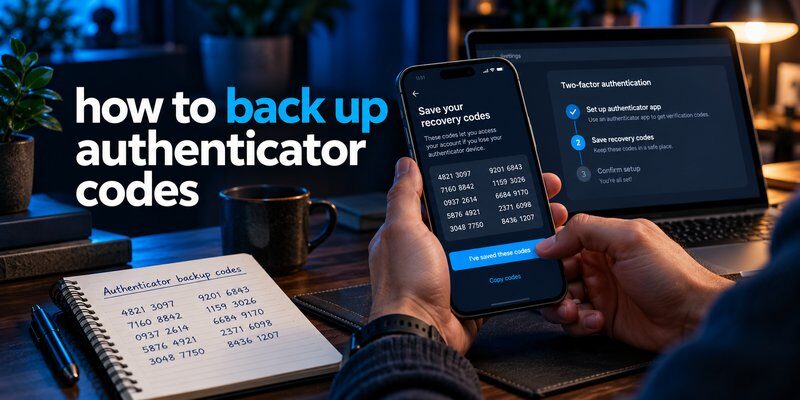
To back up authenticator codes, enable your app’s supported cloud backup or synchronization feature, securely transfer your accounts to another trusted device, and save the recovery codes provided by each account. Always verify that your backup works before replacing or resetting your phone.
Learning how to back up authenticator codes helps prevent losing access to email, banking, social media, and business accounts when your phone is lost, damaged, or replaced.
The safest approach usually combines three protections:
- Authenticator backup: Preserve your authentication accounts using the app’s supported backup or synchronization method.
- Recovery codes: Store emergency sign-in codes separately from your phone.
- Alternative authentication: Register an additional trusted authenticator or security key when supported.
This how to back up authenticator codes guide explains the process for Google Authenticator, Microsoft Authenticator, Apple devices, and other authentication apps in 2026.
1. Why Should You Back Up Authenticator Codes?
Two-factor authentication (2FA) protects online accounts by requiring an additional verification step beyond your password.
Most authentication apps generate time-based one-time passwords (TOTP). These codes typically change every 30 seconds, following the default interval described in RFC 6238, the technical standard for time-based one-time passwords.
However, the security of these codes creates a challenge: if the device containing your authentication credentials disappears, accessing your accounts can become difficult.
Understanding how to back up authenticator codes prepares you for situations where your normal authentication method becomes unavailable.
What happens if you lose your authenticator?
Without an available backup or recovery method, you may experience:
- Email lockouts: You know your password but cannot complete two-step verification.
- Social media access problems: Instagram, Facebook, or other services require an unavailable authentication code.
- Business account disruption: Workplace applications demand verification through a registered device.
- Account recovery delays: Support teams may require identity checks before resetting authentication settings.
- Permanent access loss: Certain services may not provide recovery when all authentication methods are unavailable.
These problems become especially serious when your authenticator protects the email account needed to recover other services.
What is actually being backed up?
An authenticator generally stores a secret authentication key associated with each protected account.
The application combines that secret with the current time to generate verification codes.
Saving a screenshot of a temporary six-digit code does not create a usable long-term backup. That code expires quickly.
A proper backup must preserve the underlying authentication setup, provide a supported transfer mechanism, or offer another way to regain access.
According to NIST Special Publication 800-63B, account recovery methods can include saved recovery codes, issued recovery codes, and other established recovery mechanisms.
The important lesson is simple: plan account recovery before an emergency happens.
Download Authenticator App
Secure your accounts with fast, reliable two-factor authentication. Download now and protect your login in seconds.
2. How to Back Up Authenticator Codes: Step-by-Step Guide
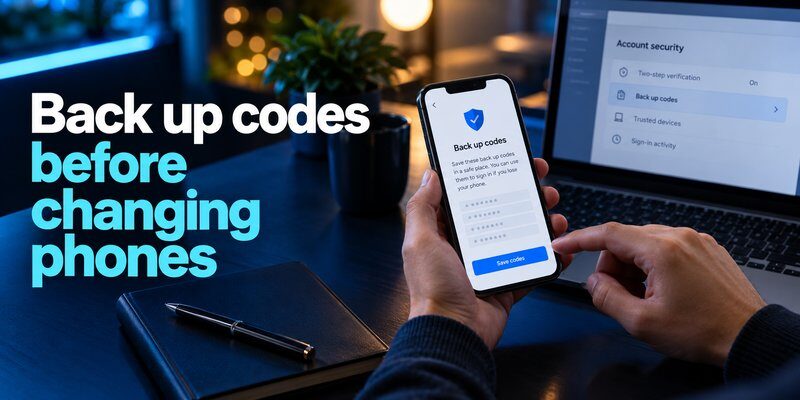
Before working with a specific application, follow a general process that applies to most authentication services.
These steps to back up authenticator codes help you avoid accidental lockouts.
Step 1: Identify your authenticator application
First, check which application generates the verification codes for your accounts.
You may use Google Authenticator, Microsoft Authenticator, Apple’s Passwords app, or another third-party Authenticator app.
Some people use several authenticators across personal and work accounts.
Do not assume that backing up one application automatically protects accounts stored in another.
Create a simple inventory of your important services, such as email, banking, cloud storage, and professional applications.
Step 2: Check the available backup options
Open your authenticator settings and look for features such as:
- Cloud Backup
- Account Synchronization
- Transfer Accounts
- Export Accounts
- Recovery or Restore
Available features vary by application, device, and software version.
When researching how to back up authenticator codes, always follow the instructions for your actual application instead of assuming every authenticator uses the same process.
Step 3: Enable a supported backup method
If the application supports secure cloud backup, enable it and confirm which account stores the information.
If cloud backup is unavailable, check whether the service supports transferring authentication credentials to another trusted device.
Some applications also support encrypted backup files.
Never export sensitive authentication secrets into an unprotected document or ordinary cloud folder.
Step 4: Save recovery codes separately
Visit each important service’s account security settings.
Look for options named Backup Codes, Recovery Codes, Emergency Codes, or similar.
Save these codes in an encrypted password manager or another secure location.
Avoid keeping your only recovery method on the same phone that contains your authenticator.
Step 5: Verify your backup
A backup is useful only when it can restore access.
Before switching devices, confirm that your authentication accounts are present on the new phone and that you can successfully complete a sign-in.
Keep your original authenticator available until verification is complete.
For anyone searching how to back up authenticator codes for beginners, this final verification step is among the most important.
3. How to Back Up Google Authenticator Codes
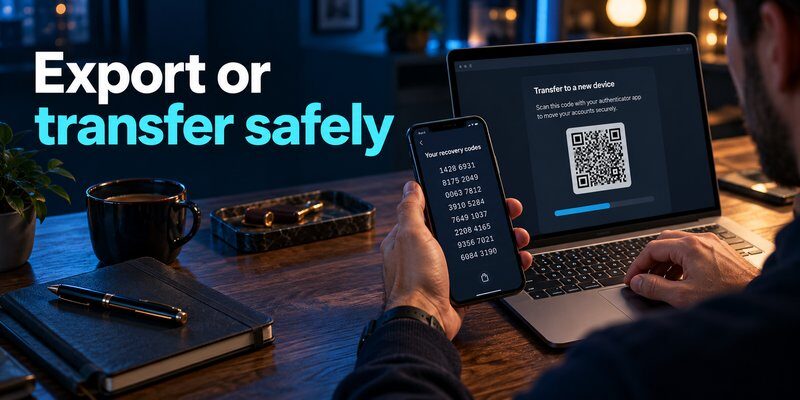
Google Authenticator supports account synchronization and manual transfers, making it possible to preserve authentication credentials when moving between devices.
The correct method depends on whether you use the application with a Google Account.
Method 1: Back up with Google Account synchronization
If you use Google Authenticator with Google Account synchronization enabled, supported verification codes can synchronize across your devices.
Follow these instructions:
- Open Google Authenticator on your existing phone.
- Check whether you are signed in to your Google Account.
- Sign in if you want to use Google’s account synchronization feature.
- Confirm that your accounts are synchronized rather than stored only locally.
- Install Google Authenticator on your replacement device.
- Sign in with the same Google Account.
- Check whether the expected authentication accounts appear.
Google Account Help explains that verification codes synchronize when users sign in to their Google Account inside Google Authenticator.
Important: Google Authenticator can also operate without Google Account synchronization. In that mode, codes are not automatically restored through your Google Account.
Anyone learning how to back up authenticator codes should verify their actual synchronization status before relying on cloud recovery.
Method 2: Transfer codes manually with QR codes
If you prefer not to use cloud synchronization, Google Authenticator provides a manual transfer feature.
You need access to your existing phone and another compatible device.
On your old phone:
- Open Google Authenticator.
- Open the application menu.
- Select Transfer codes.
- Choose Export codes.
- Unlock your device if prompted.
- Select the accounts you want to transfer.
- Generate the transfer QR code.
On your new phone:
- Install and open Google Authenticator.
- Select the transfer or import option.
- Choose Import codes.
- Scan the QR code displayed on the old phone.
- Confirm that your accounts appear correctly.
Google notes that transferring several accounts may require scanning multiple QR codes.
Never share transfer QR codes publicly. Anyone who obtains their authentication secrets may be able to reproduce your verification codes.
After transferring, test important accounts before deleting information from your old device.
What if Google Authenticator is already lost?
If you no longer have your phone, recovery depends on whether synchronization was enabled and which alternative authentication methods you registered.
Possible recovery options include:
- Signing in to the synchronized Google Authenticator account.
- Using previously saved recovery codes.
- Authenticating through another registered device.
- Following the service’s official account recovery process.
For a detailed explanation, read the internal guide on google authenticator lost.
If you want to use authentication tools on a computer, the guide to google authenticator for mac explains relevant desktop options. Do not assume that installing a desktop application automatically restores credentials from your phone.
The key to how to back up authenticator codes in Google Authenticator is understanding the difference between account synchronization and local-only storage.
4. How to Back Up Microsoft Authenticator Codes
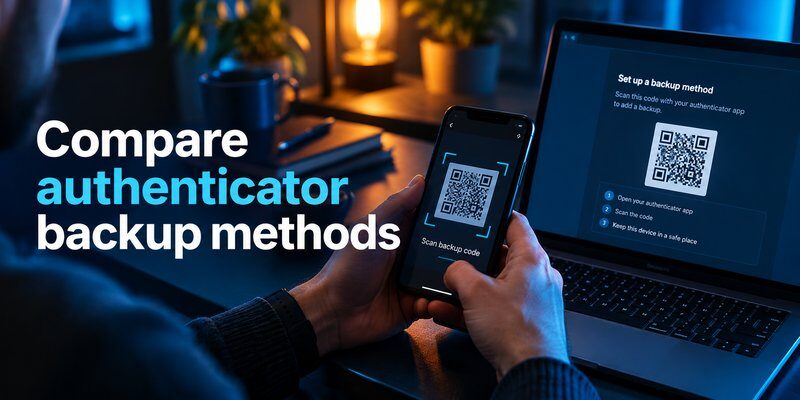
Microsoft Authenticator provides backup functionality, but recovery differs depending on whether you use Android or iPhone.
Microsoft also distinguishes between ordinary one-time-password accounts and work or school accounts.
Back up Microsoft Authenticator on Android
Microsoft’s current guidance for eligible one-time-password accounts describes the following process:
- Open Microsoft Authenticator.
- Navigate to Settings.
- Find Cloud Backup.
- Enable cloud backup.
- Select the Microsoft personal account that will store the backup.
- Confirm your recovery account information.
Keep the recovery account protected with a strong password and additional authentication methods.
After configuring backup, review the accounts associated with your authenticator.
For additional help, see microsoft authenticator backup.
Back up Microsoft Authenticator on iPhone
On iOS, Microsoft uses Apple iCloud services for supported backup and recovery operations.
To prepare your iPhone:
- Open your iPhone settings.
- Verify that iCloud Drive is enabled.
- Enable iCloud Keychain.
- Enable iCloud Backup.
- In the list of applications saved to iCloud, locate Microsoft Authenticator.
- Enable its backup permission.
- Open Microsoft Authenticator and confirm that the application is updated.
Before moving to another phone, check that your iCloud account remains accessible.
Microsoft Authenticator backups cannot be restored across iOS and Android. An iPhone backup must be restored on a compatible iOS device, while an Android backup requires Android.
Can Microsoft Authenticator restore every account?
Not necessarily.
Microsoft Support explains that eligible personal and third-party one-time-password accounts can be included in backup.
Work and school account credentials are not fully backed up. Their account names may be retained, but the authentication setup generally needs to be registered again on the replacement device.
This is especially important when how to back up authenticator codes involves company-managed applications or Microsoft Entra accounts.
Before replacing a company phone, check your organization’s authentication and device enrollment requirements.
If a restore fails, consult microsoft authenticator recovery.
5. How to Back Up Authenticator Codes on iPhone and Apple Devices
Apple provides a built-in way to create and manage verification codes through the Passwords app.
Its integration with iCloud Keychain offers another option for Apple users who want authentication information available across approved devices.
Back up verification codes with Apple Passwords
On supported Apple devices, you can store verification codes alongside website and application credentials.
To configure synchronization:
- Open Settings on your iPhone.
- Tap your Apple Account name.
- Select iCloud.
- Find Passwords or Passwords & Keychain, depending on your operating system.
- Enable synchronization for your device.
- Confirm that your Apple Account uses two-factor authentication.
- Open the Passwords app and review your saved accounts.
Apple Support explains that iCloud Keychain can synchronize security codes and other account information across approved Apple devices.
For additional information, read apple authenticator.
How do you add verification codes?
To configure a supported account:
- Open the Passwords app.
- Select the relevant website or application account.
- Choose the option to set up a verification code.
- Scan the service’s authentication QR code or enter its setup key.
- Confirm the generated verification code through the service.
- Verify that synchronization works on another approved Apple device.
Only codes saved in Apple’s supported password and keychain system are covered by this synchronization.
Codes stored in an unrelated third-party authenticator do not automatically become Apple Passwords entries.
What about third-party authenticator apps on iPhone?
For third-party apps, follow the developer’s own backup and export instructions.
For example, Begamob Global Limited offers an iOS authentication application that generates time-based one-time passwords.
You can Download authenticator app to set up supported two-factor authentication accounts.
Before changing phones, check which backup, transfer, or recovery features are actually available in your installed version. Do not assume that iCloud automatically restores every third-party application’s authentication secrets.
This distinction is essential when deciding how to back up authenticator codes across different iPhone applications.
6. How to Save and Protect 2FA Recovery Codes
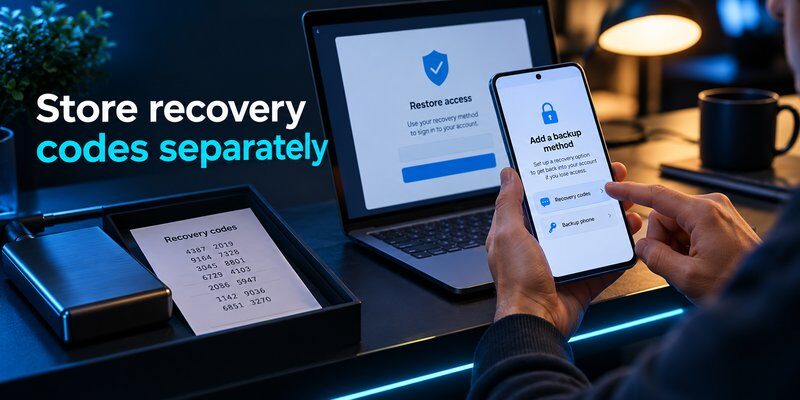
Recovery codes are one of the most important protections against authentication lockouts.
They provide an alternative method of account verification when your normal authenticator becomes unavailable.
However, recovery codes and authenticator backup files are not the same thing.
An authenticator backup preserves the ability to generate verification codes, while a recovery code provides an alternative account access method.
How to generate backup codes
Many services allow users to create recovery codes in their security settings.
For a Google Account:
- Sign in to your Google Account.
- Open Security & sign-in.
- Select 2-Step Verification.
- Find Backup codes.
- Generate your backup codes.
- Download or print the codes.
- Store them somewhere secure.
Google Account Help states that users can generate 10 backup codes, each containing 8 digits.
Each code is valid for one successful use. Generating a replacement set invalidates the previous set.
These are service-specific recovery codes, not permanent copies of the changing verification codes displayed in Google Authenticator.
For background on authentication methods, read google account two step verification.
Where should recovery codes be stored?
Choose a secure storage method that remains accessible if you lose your phone.
Recommended options include:
- Encrypted password manager: Store codes in a protected vault with reliable recovery options.
- Printed backup: Keep a physical copy in a locked and secure location.
- Encrypted offline storage: Use a protected storage device kept separately from everyday devices.
NIST SP 800-63B recognizes securely saved recovery codes as an established account recovery method.
Avoid storing recovery codes in ordinary notes, unencrypted cloud folders, or screenshots automatically shared across devices.
Also avoid sending them through messaging applications or email conversations.
Should you keep multiple backups?
Having more than one independent recovery method is useful.
For example, you might use cloud synchronization for your authenticator accounts and keep printed recovery codes in a secure location.
This reduces dependence on a single device or account.
When planning how to back up authenticator codes, consider what happens if both your phone and primary email account become inaccessible.
A second recovery method should not depend entirely on the first.
How often should recovery codes be checked?
Review your recovery options whenever you:
- Replace your phone.
- Change authentication applications.
- Reset account security settings.
- Receive a warning about unauthorized access.
- Use or regenerate a recovery code.
- Update your primary email address.
If you suspect that someone accessed your recovery codes, revoke or regenerate them through the relevant service as soon as possible.
7. How to Restore Authenticator Codes on a New Phone
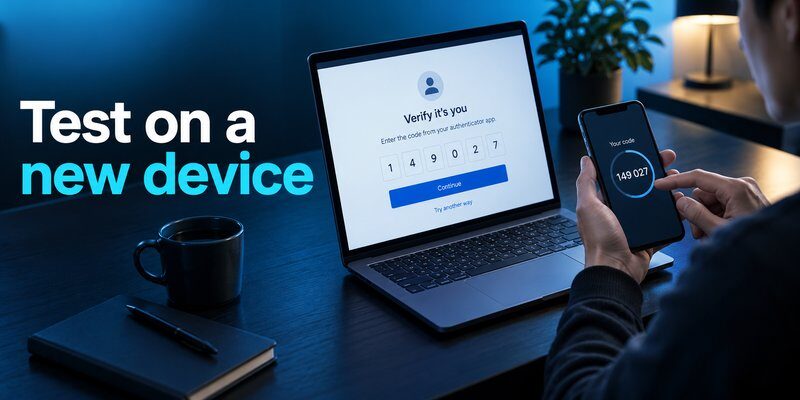
Creating a backup is only the first part of protecting your accounts. The next step is ensuring the information can be restored.
The restoration process depends on the original application and its backup method.
Scenario 1: You still have your old phone
This is the safest time to transfer authentication credentials.
Follow this sequence:
- Install the supported authenticator on your new phone.
- Enable the appropriate account synchronization or transfer process.
- Restore or import the authentication entries.
- Confirm that your important accounts appear.
- Sign in to at least one protected service using the new device.
- Repeat testing for essential accounts.
- Keep your old phone until the entire transfer is verified.
Do not factory reset your old phone before confirming successful authentication on the new one.
When learning how to back up authenticator codes, remember that a successful transfer screen is not always proof that every account can be used.
Some services require additional registration or approval.
Scenario 2: Your old phone is lost or broken
If you cannot access the original device, your options become more limited.
Start by checking whether your authenticator had an existing supported backup.
If cloud synchronization was enabled, sign in through the appropriate recovery account.
Otherwise, try:
- An unused recovery code.
- Another trusted device.
- A previously registered security key.
- An alternative authentication method supported by the service.
- The service’s official account recovery procedure.
You can also read authenticator app restore from backup for additional recovery considerations.
Scenario 3: You switch from Android to iPhone
Cross-platform migration requires extra attention.
Not all authentication backups support restoration between different operating systems.
Google Authenticator can support transfers between compatible Android and iOS installations through its transfer process.
Microsoft Authenticator does not support restoring an Android cloud backup directly to iPhone or the reverse.
For unsupported transfers, the practical alternative is to register a new authentication method separately for each service while you still have access to the old phone.
Scenario 4: Restored codes do not work
If an account appears in your authenticator but its verification codes are rejected:
- Enable automatic date and time settings.
- Confirm that the account entry belongs to the correct service.
- Wait for a fresh verification code.
- Check whether the service recently reset its authentication settings.
- Verify that you transferred the correct credential.
- Try an authorized alternative authentication method.
Because time-based verification codes depend on synchronized clocks, incorrect device time can produce invalid results.
Never delete your last working authenticator entry while troubleshooting an unsuccessful migration.
This is one of the most useful precautions in any how to back up authenticator codes process.
8. Common Backup Mistakes and Frequently Asked Questions
Even when backup tools are available, several mistakes can undermine account recovery.
Common mistakes to avoid
Mistake 1: Saving screenshots of temporary codes
Most TOTP codes expire after a short period. A screenshot of one does not preserve the authentication secret needed to generate future codes.
Mistake 2: Assuming cloud backup is always enabled
Some applications require explicit sign-in, synchronization, or backup configuration. Check the actual setting.
Mistake 3: Keeping every recovery method on one phone
If that phone disappears, both your authenticator and recovery information may become unavailable.
Mistake 4: Sharing authentication QR codes
Setup and export QR codes may contain sensitive authentication secrets. Anyone who obtains them could potentially generate valid codes.
Mistake 5: Deleting the old application too early
A transferred account may still require re-registration or confirmation. Verify access before removing the original.
Mistake 6: Confusing recovery codes with authenticator synchronization
Recovery codes help regain account access. They do not automatically reconstruct your original authenticator configuration.
How to Back Up Authenticator Codes 2026 Checklist
Use this how to back up authenticator codes 2026 checklist before changing devices:
-
Confirm which authenticator stores each account.
-
Check whether supported cloud synchronization or backup is enabled.
-
Save recovery codes for important accounts.
-
Protect your recovery or synchronization account.
-
Register an alternative authentication method where available.
-
Transfer credentials to your replacement device.
-
Test successful sign-ins before resetting your old phone.
-
Review recovery information after migration.
Frequently Asked Questions
Can I back up authenticator codes without cloud storage?
Yes, when your authenticator supports manual transfer or another secure export method.
For example, Google Authenticator allows users to transfer verification codes between devices using QR codes.
You should still save independent recovery codes for important services.
Can I recover authenticator codes after losing my phone?
Possibly. Recovery depends on the application, available backups, and alternative sign-in methods.
If synchronization was previously enabled, you may be able to restore your entries. Otherwise, you may need to recover each protected account separately.
A new authenticator installation does not automatically recreate missing authentication secrets.
Can I use the same authenticator on two phones?
Some services support multiple authenticators or synchronization across devices.
However, availability depends on the app and the service being protected.
When adding a second device, use official enrollment or supported synchronization methods.
Does backing up codes reduce two-factor authentication security?
Backup can introduce additional risks if authentication secrets are exposed.
For example, an attacker who obtains an exported secret may be able to generate the same verification codes.
Use trusted devices, protect synchronization accounts, and secure exported information.
NIST SP 800-63B also clarifies that manually entered OTPs are not phishing-resistant. Where available, phishing-resistant passkeys or security keys may provide stronger protection against credential phishing.
How often should I back up authenticator codes?
Review your backup configuration after adding important accounts, updating authentication settings, changing phones, or switching applications.
For manually managed backups, repeat the process whenever your protected account collection changes.
For synchronized applications, verify that newly added accounts appear on your other trusted devices.
The best how to back up authenticator codes routine is one that stays current as your accounts change.
Final Thoughts
Understanding how to back up authenticator codes is essential for protecting long-term access to your online accounts.
The most reliable approach combines supported authenticator backup or synchronization, securely stored recovery codes, and an independent alternative authentication method.
Google Authenticator offers account synchronization and manual transfers. Microsoft Authenticator provides platform-specific backup options, while Apple’s Passwords app can synchronize supported verification codes through iCloud Keychain.
Whichever application you choose, always test recovery before removing your original authentication method.
If you need an app for generating time-based two-factor authentication codes, explore the Authenticator app for iPhone by Begamob Global Limited and verify its supported backup features before relying on it for recovery.
Back up your authentication access today—before a lost or damaged phone turns into an account recovery problem.
Download Authenticator App
Secure your accounts with fast, reliable two-factor authentication. Download now and protect your login in seconds.
