
How to Add Facebook to Microsoft Authenticator Safely
Published August 14, 2026
Learning how to add facebook to microsoft authenticator means connecting Facebook’s standard authentication-app method to a TOTP account inside Microsoft Authenticator. Facebook displays a QR code or setup key, the mobile app stores the secret, and Facebook verifies one generated six-digit code before enabling the method.
This is different from Microsoft push approval and number matching. For Facebook, Microsoft Authenticator normally acts as a third-party TOTP generator. Facebook controls enrollment, login challenges, recovery codes, method removal, and account recovery. Microsoft Authenticator generates the changing code after successful registration.
This guide covers prerequisites, Accounts Center navigation, QR scanning, code verification, recovery codes, testing, maintenance, and troubleshooting. Keep the current Facebook session and every working recovery route until the new authenticator completes a real login.
1. How to Add Facebook to Microsoft Authenticator: Prerequisites
Confirm access to Facebook and a second screen
Facebook says a third-party authentication app can only be added while the owner already has access to the Facebook account. Sign in through the official Facebook app or type facebook.com directly into a trusted browser. Update the password first if it is weak, reused, or potentially exposed.
Use a computer or tablet to display the setup QR while the phone scans it. If only one phone is available, Facebook may offer a manual key that can be copied into the authenticator. Never send the QR or key through ordinary chat, email, or an online decoder.
Prepare recovery before changing security
Confirm the Facebook account has a current recovery email and other approved access method. Keep any existing two-factor option active during setup. A recognized logged-in device can be valuable if the new code fails or the phone is lost.
Before following how to add facebook to microsoft authenticator, review active sessions and remove devices you do not recognize. Turn on alerts for unrecognized logins through Facebook Security Checkup where available. Secure the email account connected to Facebook with its own strong authentication.
Use a strong phone screen lock and accurate automatic time. TOTP values depend on the device clock. Preparation prevents a straightforward security upgrade from becoming an account-recovery emergency. Write down the prerequisites for how to add facebook to microsoft authenticator before opening the enrollment page.
Download Authenticator App
Secure your accounts with fast, reliable two-factor authentication. Download now and protect your login in seconds.
2. Install and Prepare Microsoft Authenticator
Verify the official mobile app
Install Microsoft Authenticator from the Apple App Store or Google Play and confirm Microsoft Corporation as the publisher. Avoid similarly named copies, APK mirrors, configuration profiles, and desktop extensions. The app will hold the Facebook enrollment secret, so publisher verification matters.
Update the phone operating system and enable a strong PIN, password, Face ID, Touch ID, or trusted Android biometric. Review App Lock to require local authentication when opening the app. Automatic date and time should remain enabled.
Understand the Facebook account type
Facebook is added using Other account, not Personal Microsoft account or Work or school account. The entry will show a rotating six-digit code. Facebook does not send Microsoft number-matching approvals through this TOTP registration.
When users ask can i use microsoft authenticator for facebook, the answer is yes because Facebook supports a third-party authentication app and Microsoft Authenticator supports standard TOTP. The provider and authenticator interoperate through the shared standard.
Open the app and confirm the add-account menu is available, but do not create a blank entry. Facebook must first issue the unique QR or setup key. The correct sequence for how to add facebook to microsoft authenticator starts on Facebook’s own security page. This order keeps how to add facebook to microsoft authenticator tied to the intended profile.
💡 Discover Helpful Guides: Microsoft Authenticator Passwordless Sign-In: Complete Guide
3. Open Facebook Two-Factor Settings
Navigate through Accounts Center
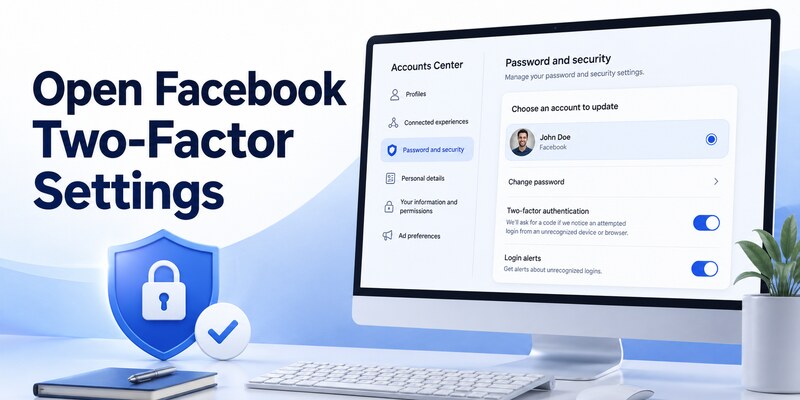
In Facebook, select the profile picture or menu, then Settings & privacy and Settings. Open Accounts Center, choose Password and security, and select Two-factor authentication. Pick the correct Facebook account when Accounts Center shows multiple Meta profiles.
Facebook may ask for the account password again. Choose Authentication app as the security method and follow the on-screen instructions. Some interfaces still route through Security and Login settings; Facebook documents that fallback when Accounts Center is unavailable.
Verify the page before continuing
Check that the domain is facebook.com and the account name is correct. Phishing pages can copy the security-settings appearance and ask for passwords or current codes. Do not begin from an unsolicited message claiming that Facebook requires immediate two-factor verification.
The official flow will display the facebook microsoft authenticator qr code or a manual setup key. The image is not a generic Facebook QR. It represents a secret issued for that particular account and enrollment attempt.
Keep the page open. Do not click Next until Microsoft Authenticator has scanned or received the key. If the page is refreshed or the setup is canceled, Facebook may issue a different secret, making the earlier entry invalid. Restart how to add facebook to microsoft authenticator if the browser changes the enrollment secret.
🧭 Explore Guides: Microsoft Authenticator Extension: Safe Browser Guide
4. Scan the Facebook QR Code
Add Facebook as Other account
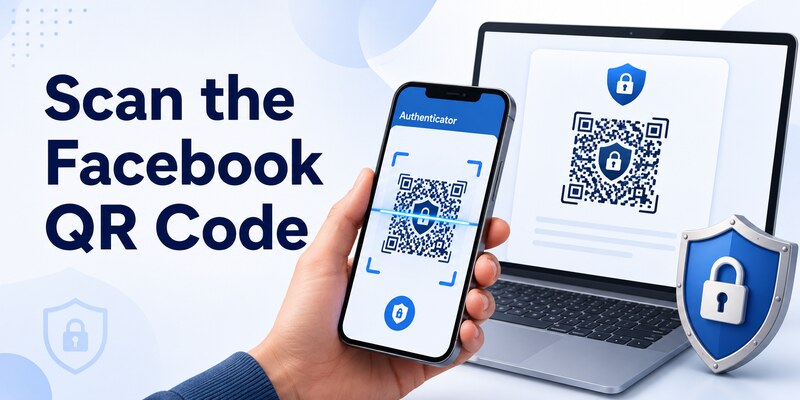
On the phone, open Microsoft Authenticator, tap plus, and choose Other account. Allow camera access when requested. Point the camera at the facebook qr code for microsoft authenticator on the trusted second screen until the app recognizes it.
A Facebook entry should appear with an account label and a six-digit value. Confirm that the label matches the intended Facebook profile. If several profiles have similar names, rename the entry carefully without exposing private information.
Use the manual key only when necessary
If scanning fails, use Facebook’s official manual setup option and Authenticator’s manual account entry. Enter the account name, secret key, and time-based setting exactly as displayed. Never guess the algorithm or paste the secret into an online converter.
| Setup item | Correct source | Security rule |
|---|---|---|
| QR code | Facebook two-factor settings | Scan only inside the official app |
| Manual key | Same Facebook setup screen | Treat as a password-equivalent secret |
| Account label | Owner-selected identifier | Make profiles distinguishable |
| Six-digit code | Microsoft Authenticator entry | Enter only back into facebook.com |
| Recovery codes | Facebook Accounts Center | Store separately from the phone |
Do not screenshot the QR for later. If another person or app could have captured the facebook microsoft authenticator qr code, cancel the enrollment and start how to add facebook to microsoft authenticator again so Facebook issues a new secret.
5. Verify the Six-Digit Code
Complete server-side enrollment
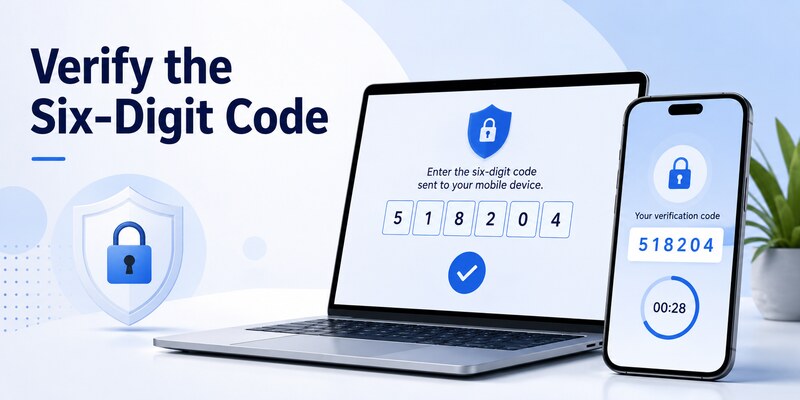
Return to Facebook and click Next when instructed. Enter the current six-digit value displayed for the Facebook entry in Microsoft Authenticator. Submit it before the timer expires. If only a few seconds remain, wait for a fresh value.
Facebook must accept this test before the authenticator method is active. A code appearing in the app is not enough. If the page reports success, return to Two-factor authentication and confirm Authentication app appears as an enabled method.
Perform a controlled login test
Keep the original Facebook session open. In a private browser window or another trusted device, sign in and complete the new authenticator challenge. Select the Facebook entry, enter its current value, and verify that the new session opens.
This controlled test is a critical step in how to add facebook to microsoft authenticator. It confirms the account label, clock, stored secret, and Facebook registration all agree. Do not log out of the original session until the test passes.
If Facebook offers to save or trust the browser, do so only on a private device protected by a strong login and disk encryption. Never save a public or shared computer. Private browsing or automatic cookie deletion may cause Facebook to request a code every time. Record the successful how to add facebook to microsoft authenticator test before closing the original session.
🧭 Explore Guides: Microsoft Authenticator App for Android: Setup in 5 Minutes
6. Save Recovery Codes and Backup Methods
Generate Facebook recovery codes
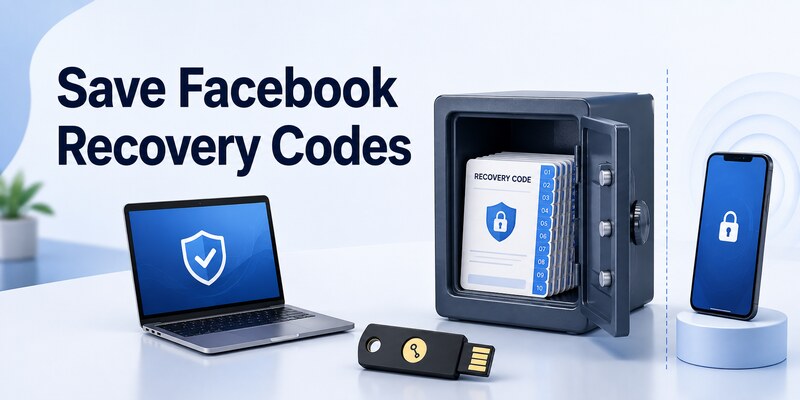
Facebook provides ten recovery login codes for accounts with two-factor authentication. In Accounts Center, open Password and security, Two-factor authentication, the correct Facebook account, Additional methods, and Recovery codes. Request a current set.
Each code is single use. Print or write them and store them somewhere separate from the phone. Do not keep the only copy in the same passwordless device or an unprotected screenshot. Generate a new set if the codes are lost, exposed, or exhausted.
Add an independent factor when available
Facebook can support a security key, SMS, an authentication app, recognized-device approval, recovery codes, and passkeys in appropriate contexts. Availability varies. A hardware security key can provide phishing-resistant backup; SMS is more broadly accessible but depends on the phone number and carrier.
| Recovery option | Strength | Main limitation |
|---|---|---|
| Recovery code | Works without phone or network | Single use and must be stored safely |
| Security key | Phishing-resistant | Physical key must be available |
| Recognized session | Fast emergency approval | Session can expire or be revoked |
| SMS code | Familiar and accessible | SIM and delivery risks |
| Account recovery | Last resort | Identity review can take time |
A resilient how to add facebook to microsoft authenticator plan includes at least one route that survives phone loss. Authenticator cloud backup can help with app migration, but Facebook recovery codes remain provider-controlled and independently useful. Keep this how to add facebook to microsoft authenticator recovery plan with the account inventory.
7. Test and Maintain the Setup
Verify routine and emergency access
Test one normal login, then confirm where recovery codes and any security key are stored. Do not consume every recovery code during testing; mark the used code and retain the rest. Review Facebook’s Where you’re logged in list and remove the temporary test session if unnecessary.
Turn on unrecognized-login alerts and use Facebook Security Checkup. Review sessions periodically, especially after travel, password changes, device loss, or a suspicious message. A TOTP code protects only the login flow; it does not prevent session theft after successful authentication.
Plan phone replacement
Before replacing the phone, confirm Microsoft Authenticator backup and independent Facebook access. Keep the old phone until the new device generates a code that Facebook accepts. A platform change may require account-by-account re-enrollment rather than direct cloud restore.
Never remove the existing Facebook authenticator method first. If restore does not reactivate the entry, use a recovery code or recognized session to open Accounts Center, remove the old authentication-app credential, and issue a fresh QR for the new phone.
Document when how to add facebook to microsoft authenticator was completed and which recovery methods were tested. Review how to add facebook to microsoft authenticator after major Facebook or phone security changes. Reliable two-factor authentication is maintained, not merely enabled once.
📖 Read More Guides: Microsoft Authenticator for PC Windows: Full Setup Guide From A-Z
8. Troubleshoot Facebook Code Problems
Fix rejected or missing codes
Enable automatic date and time, open the correct Facebook entry, and wait for a fresh value. Check for duplicate entries with similar labels; the older one may use a secret Facebook has replaced. Do not retry rapidly until Facebook rate-limits the login.
If the QR will not scan, clean the camera lens, enlarge the code, increase screen brightness, and allow camera permission. Use a second screen. When manual entry is offered, copy the key exactly from Facebook into the official app.
Recover without the authenticator
Facebook lists several alternatives: an SMS code when configured, a security key, a recognized device, a printed recovery code, or additional identity-help steps. At login, choose another way to authenticate and follow the official options. Do not pay a stranger promising to bypass two-factor authentication.
If the account is still open elsewhere, use that trusted session to add a new authenticator, phone number, or security key. Replace the compromised password, review active sessions, and turn on alerts. Facebook controls this recovery; Microsoft cannot reset a Facebook identity.
When a suspicious app or person saw the enrollment secret, delete the Facebook method server-side and follow how to add facebook to microsoft authenticator again with a fresh QR. Removing only the mobile tile does not invalidate a copied secret. Complete a clean how to add facebook to microsoft authenticator login test afterward.
9. Frequently Asked Questions

Can Microsoft Authenticator generate Facebook codes?
Yes. Facebook supports third-party authentication apps, and Microsoft Authenticator can store its standard time-based TOTP credential. Add Facebook through Other account and verify the current six-digit code on Facebook.
Where is the Facebook QR code?
Open Facebook Settings, Accounts Center, Password and security, Two-factor authentication, select the Facebook account, and choose Authentication app. Facebook then shows the setup instructions, QR, or manual key.
Does Facebook use Microsoft number matching?
Not for the standard authentication-app setup described here. Microsoft Authenticator generates a rotating six-digit TOTP value for Facebook. Enter that value into the Facebook prompt.
Can I add Facebook on the same phone?
Yes, but the QR may be difficult to scan from the same screen. Use Facebook’s manual key when officially offered, or display the QR on a trusted computer or tablet. Never use an online QR decoder.
What if I lose the phone?
Use a Facebook recovery code, configured security key, SMS method, recognized session, or official account-recovery process. Remove the lost registration and add the replacement only after access is restored.
Should I disable SMS after adding Authenticator?
It depends on available recovery. A security key and stored recovery codes can be stronger alternatives. Do not remove SMS or any working method until the authenticator and independent fallback are tested.
10. Final Thoughts
The safe answer to how to add facebook to microsoft authenticator is to begin inside Facebook Accounts Center, choose Authentication app, scan the unique QR as Other account, and enter the generated six-digit value back into Facebook. Repeat the how to add facebook to microsoft authenticator check after any credential reset.
Download only the Microsoft Corporation mobile app and protect the phone with a strong lock and accurate time. Treat the Facebook QR and manual key as password-equivalent secrets. Never share them, upload them, or store an unprotected screenshot.
Keep the original Facebook session open until a controlled login succeeds. Then generate Facebook recovery codes, store them away from the phone, and add another approved factor when appropriate. Turn on login alerts and review active sessions.
For migration, retain the old phone until the new one generates a code Facebook accepts. Backup can reduce effort but does not replace Facebook’s own recovery controls. If a secret is exposed, replace the server-side authenticator method rather than merely deleting the tile.
For other compatible services, use a reputable Authenticator App with verified publisher, secure backup, and clear recovery. Revisit how to add facebook to microsoft authenticator whenever the phone changes, recovery codes are used, or Facebook security settings are updated.
Download Authenticator App
Secure your accounts with fast, reliable two-factor authentication. Download now and protect your login in seconds.
