
How to Add Email to Authenticator App: Gmail, Outlook and QR Setup
Published September 22, 2026 · Updated October 13, 2026
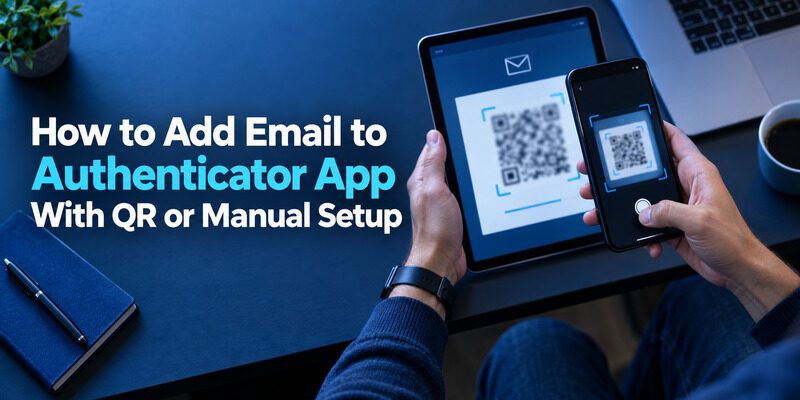
Want to know how to add email to authenticator app for more secure sign-ins? You can connect supported Gmail, Outlook, and work email accounts to an authenticator app by enabling two-factor authentication (2FA) through your email provider’s security settings.
Quick Answer: Sign in to your email account, open its security or 2FA settings, and select an authenticator app. Scan the provided QR code or enter the setup key, then complete the verification step required by your email provider.
You cannot connect an email account simply by typing its address into an authenticator app. The account must first be registered using a method supported by the provider.
This guide walks you through Gmail, Outlook, work email accounts, manual setup, and common problems when connecting an email account to an authenticator.
How to Add Email to an Authenticator App Using a QR Code
Most email providers that support authenticator-based verification use a QR code to connect your account to an authenticator app.
Here’s the general process.
Step 1: Install an Authenticator App
Choose a trusted authenticator app that supports the authentication method required by your email provider.
Common options include:
- Google Authenticator
- Microsoft Authenticator
- Other compatible TOTP authenticator apps
Download your chosen application from an official app store.
If you haven’t installed one yet, read our guide on how to download an authenticator app.
Step 2: Open Your Email Account’s Security Settings
Sign in to your email account through its official website.
Find the section labeled Security, Two-Factor Authentication, Two-Step Verification, or Sign-in Methods.
Select the option to add an authenticator app.
You may be asked to confirm your password or complete another security check before proceeding.
Step 3: Scan the Setup QR Code
When the email provider displays a QR code:
- Open your authenticator app.
- Tap Add Account or the plus icon.
- Choose Scan QR Code.
- Point your phone’s camera at the QR code displayed on your computer.
- Confirm that the new account appears in your authenticator app.
For standard TOTP accounts, the app should begin generating temporary verification codes.
A setup QR code contains sensitive enrollment information. Do not share it or upload screenshots to public websites.
Step 4: Enter the Verification Code
Return to your email provider’s setup page.
Enter the current verification code displayed by your authenticator app.
Most standard TOTP codes contain six digits and refresh approximately every 30 seconds.
Select Verify, Confirm, or Finish.
Your email provider should confirm that the authentication method has been successfully registered.
Step 5: Save Your Recovery Codes
If your email provider offers backup or recovery codes, save them in a secure location.
These codes may help you regain access if you lose your phone or cannot open your authenticator app.
Do not remove an existing working authentication method until you have tested the new one.
Download Authenticator App
Secure your accounts with fast, reliable two-factor authentication. Download now and protect your login in seconds.
💡 Discover Helpful Guides
Email Authenticator: Complete Guide to Secure Email Authentication
How to Add Gmail to an Authenticator App
Gmail accounts use Google Account security settings.
To add Gmail to an authenticator app, you must configure authentication for the Google Account associated with your Gmail address.
Set Up Google Authenticator for Gmail
- Open Google Account Security.
- Sign in to the Google Account associated with your Gmail address.
- Find 2-Step Verification under the sign-in or security settings.
- Enable 2-Step Verification if it isn’t already active.
- Find the option to set up an authenticator.
- Follow the instructions displayed by Google.
- Open Google Authenticator or another supported authenticator app.
- Scan the QR code if prompted.
- Enter the generated verification code to finish setup.
Google may require additional verification before allowing you to add an authenticator.
The available options can depend on your account’s security status and existing sign-in methods.
Can You Use Another Authenticator App for Gmail?
Google supports standard authenticator-based verification for compatible apps.
If your chosen application supports the required TOTP setup, you may be able to register it using Google’s setup process.
Always confirm that Google accepts the generated verification code before closing the setup page.
For more information, see our Google OTP app guide.
What About Google Workspace Email?
Google Workspace accounts may have additional security requirements controlled by an administrator.
For example, an organization may require security keys, enforce particular authentication policies, or restrict certain sign-in methods.
If your work Gmail account does not display the expected authenticator option, contact your Workspace administrator.
Read our guide to Google Workspace email authentication for more information.
How to Add Outlook Email to Microsoft Authenticator
If you use Outlook.com, Hotmail, or another personal Microsoft email account, you can register Microsoft Authenticator through your Microsoft account security settings.
Microsoft personal accounts and work or school accounts use different registration processes.
Add a Personal Outlook or Microsoft Account
- Open Microsoft Account Security.
- Sign in using your Outlook, Hotmail, or Microsoft account.
- Open the section for managing sign-in methods.
- Choose Add a new way to sign in or verify.
- Select the option to use an authenticator app.
- Follow the setup instructions shown by Microsoft.
- Open Microsoft Authenticator on your phone.
- Select Add Account, then choose Personal Account.
- Scan the QR code if prompted.
- Complete Microsoft’s verification process.
Depending on your account settings, Microsoft Authenticator may support a verification code, push approval, or passwordless sign-in.
These methods are not interchangeable.
For more details, see our guide to Microsoft Authenticator account management.
Can You Add Outlook to Google Authenticator?
Some Microsoft account authentication flows support registering another compatible authenticator application.
When Microsoft offers a setup option for a different authenticator app, follow that flow and complete the required verification.
However, a third-party TOTP app cannot automatically replace Microsoft-specific push approvals or passwordless sign-in methods.
Use the authentication method supported by your Microsoft account.
How to Add a Work or School Email Account to Authenticator
Business email accounts may use Microsoft Entra ID, Google Workspace, or another identity provider.
In these environments, the administrator may control which authentication methods are available.
Add a Microsoft Work or School Account
For a Microsoft work or school account:
- Visit Microsoft Security Info.
- Sign in with your work or school credentials.
- Select Add sign-in method.
- Choose Microsoft Authenticator if available.
- Follow the instructions to display a setup QR code.
- Open Microsoft Authenticator on your phone.
- Tap Add Account.
- Select Work or School Account.
- Choose Scan QR Code.
- Complete the registration and test the authentication method.
Your organization may require number matching, device registration, or another verification step.
If the option is unavailable, contact your IT administrator rather than attempting to bypass the organization’s authentication policy.
For additional guidance, read our article about Microsoft Authenticator for business.
Can You Add a Work Email to Any Authenticator App?
Not always.
Some organizations allow standard TOTP apps, while others require a specific authentication application or phishing-resistant method.
If your company uses Microsoft Entra ID, the required sign-in process may depend on administrator settings.
Follow your organization’s official onboarding instructions.
How to Add Email to Authenticator App Without a QR Code
If your email provider supports manual TOTP setup, you may be able to connect your account without scanning a QR code.
Use a Manual Setup Key
- Open your email provider’s authenticator setup page.
- Look for an option such as Can’t Scan the QR Code? or Enter Key Manually.
- Copy the setup key provided by the email service.
- Open your authenticator app.
- Select Add Account.
- Choose Enter Setup Key or a similar option.
- Enter the account label and setup key.
- Select time-based authentication if the service specifies TOTP.
- Save the account.
- Enter the generated code on the email provider’s verification page.
The setup key is not your email password.
It is a sensitive secret used to generate matching authentication codes.
Never share it through email, screenshots, public documents, or support chats.
What If You Only Have One Phone?
If you’re setting up your email account on the same phone that runs your authenticator, look for a manual setup key or another supported setup method.
Some services allow you to copy a setup key into your authenticator without using a second screen.
Do not use an untrusted QR code reader or third-party website to process your authentication secret.
Why Can’t I Add My Email to an Authenticator App?
If you’re having trouble connecting your email account, the issue may involve account settings, QR code scanning, verification codes, or organization policies.
| Problem | Possible cause | Recommended solution |
|---|---|---|
| No authenticator option | Provider or admin restrictions | Check supported security methods |
| QR code won’t scan | Camera permission or expired QR code | Retry setup or use manual entry |
| Verification code is incorrect | Expired code or inaccurate device time | Wait for a new code and sync device time |
| Email account doesn’t appear | Registration wasn’t completed | Repeat the official enrollment process |
| Microsoft work account fails | Organization policy | Contact IT support |
| Changed phones | Authentication data wasn’t transferred | Use backup or official recovery |
1. Authenticator App Does Not Recognize My Email
Authenticator apps do not automatically connect accounts based on an email address alone.
You must obtain a setup QR code or supported registration method from the email provider.
If you manually create an account entry without the correct secret key, the generated codes will not be valid.
2. My Six-Digit Verification Code Is Invalid
Try the following:
- Select the correct account in your authenticator.
- Wait for the next code.
- Enable automatic date and time on your phone.
- Check that setup was completed with the correct QR code.
- Restart the registration process if necessary.
Do not repeatedly submit expired codes.
3. I Can’t Scan the Email Authenticator QR Code
Check camera permissions and ensure the QR code is clearly visible.
If the code has expired, request a new one through the provider’s security settings.
If manual setup is supported, use the setup key provided by the service.
4. My Work Email Requires a Different Authentication Method
Some organizations require Microsoft Authenticator push approval, a passkey, or a hardware security key.
A standard TOTP app may not satisfy these requirements.
Contact your administrator to determine which methods are approved.
5. I Lost My Authenticator Phone
If you no longer have access to your registered authenticator, try:
- Using a saved recovery code.
- Signing in with another registered authentication method.
- Restoring a supported authenticator backup.
- Using your provider’s official account recovery process.
- Contacting your IT administrator for a managed work account.
Never remove a working authenticator registration until your replacement method has been tested.
How to Keep Your Email Authenticator Secure
Email accounts are particularly important because they often control password resets and security notifications for other services.
After setting up authenticator-based verification, follow these practices.
Protect Your Setup Key
Treat your authenticator QR code and setup key like sensitive credentials.
Anyone who obtains the underlying secret may be able to generate the same TOTP codes.
Save Recovery Codes Securely
Store recovery codes in a protected location that remains accessible if you lose your phone.
Avoid saving unencrypted screenshots in shared photo libraries.
Never Approve Unexpected Login Requests
If your authenticator displays a push approval request you did not initiate, deny it.
An unexpected request may indicate that someone knows your password or is attempting to access your account.
Consider Phishing-Resistant Authentication
Traditional TOTP codes add valuable protection, but they can still be stolen through sophisticated phishing attacks.
Where supported, passkeys and FIDO2 security keys offer stronger resistance to phishing.
Read our article on whether 2FA can stop hackers to understand the limitations of different authentication methods.
Frequently Asked Questions
How Do I Add My Email Address to an Authenticator App?
Open your email provider’s security settings, enable authenticator-based 2FA, and follow the QR code or setup key instructions. Complete the required verification to activate the method.
Can I Add Gmail to Microsoft Authenticator?
Yes, when Google provides a compatible TOTP enrollment method. Configure it through your Google Account’s 2-Step Verification settings.
Can I Add Multiple Email Accounts to One Authenticator App?
Yes. Many authenticator apps support multiple accounts. Each account must be registered separately using the corresponding provider’s official setup process.
Do I Need My Email Password to Add an Authenticator?
You may need to sign in using your password or an existing authentication method before registering a new authenticator. The authenticator itself should not require your email password to generate standard TOTP codes.
Can I Add Email Without a QR Code?
Yes, if your email provider supports manual setup keys. Use the key supplied by the provider rather than entering your password or email address as the secret.
Why Does My Work Email Require Microsoft Authenticator?
Some organizations enforce specific authentication methods through their identity and security policies. A standard TOTP app may not support the push approval, number matching, or device registration required by the organization.
Final Thoughts
Learning how to add email to authenticator app is straightforward once you understand that the connection must begin in your email provider’s security settings.
For Gmail, use Google Account 2-Step Verification. For personal Outlook accounts, use Microsoft Account Security. For work or school accounts, follow your organization’s approved authentication process.
After registration, verify that your authenticator works, save recovery codes, and protect your setup key.
If you’re new to app-based verification, you can also read our guide to authenticator login to learn how to use temporary codes when signing in to your email and other online accounts.
