Email Authenticator: Complete Guide to Secure Email Authentication
Published August 10, 2026 · Updated September 23, 2026
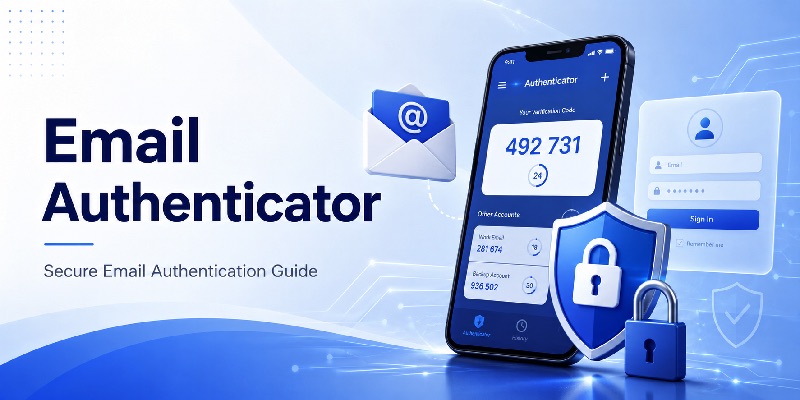
Email remains one of the most important digital identities people use every day. It is connected to social media profiles, financial services, cloud storage, work accounts, shopping platforms, gaming services, and password reset systems. Because so many services depend on an email address, protecting that inbox with more than a password has become increasingly important.
An email authenticator adds an additional layer of identity verification to an email account or an email-based login system. Depending on the service, the authenticator may generate temporary verification codes, approve login requests, verify a device, or participate in a passwordless sign-in process.
Using an email authenticator is different from relying only on a password. A password can be guessed, reused, leaked in a breach, or exposed through phishing. An authenticator introduces a second factor that an attacker would normally need in addition to the password.
Modern authentication systems may combine an email authenticator with time-based one-time passwords, push approvals, device biometrics, security keys, passkeys, or recovery methods. Businesses can also use email authentication technologies such as SPF, DKIM, and DMARC to verify whether messages claiming to come from their domains are legitimate.
This guide explains how an email authenticator works, how to configure popular services, what common authentication errors mean, and what security practices can help users and administrators protect email accounts.
1. What Is an Email Authenticator?
An email authenticator is a security mechanism used to verify that a person attempting to access an email account or email-connected service is authorized to do so.
In many cases, the term refers to an authentication application that generates temporary verification codes. These codes are commonly based on the Time-Based One-Time Password protocol, or TOTP.
Authentication Beyond the Password
Traditional login systems ask for two pieces of information:
- An email address
- A password
Although passwords remain common, relying on them alone can create security risks. If someone obtains the password, that person may be able to access the account immediately.
An email authenticator changes this process.
After entering the password, the user may need to provide a six-digit verification code generated by an authentication application. The code normally changes every 30 seconds or after a similarly short interval.
This means a stolen password alone may not be sufficient.
An Authenticator App can therefore act as the second factor during sign-in.
Authentication App vs Email Verification Code
Users sometimes confuse authenticator codes with verification codes sent by email.
They are not necessarily the same.
A verification email sends a temporary code or link to the user’s inbox. An email authenticator based on TOTP generates codes directly on a trusted device, even when that device does not have an internet connection.
This distinction is important because an attacker who already has access to the email inbox could potentially see email-delivered verification codes.
A properly configured email authenticator keeps the second authentication factor separate from the mailbox itself.
💡 Discover Helpful Guides: Email Authentication Outlook: Setup and Recovery
2. Why Email 2FA Is Important for Account Security
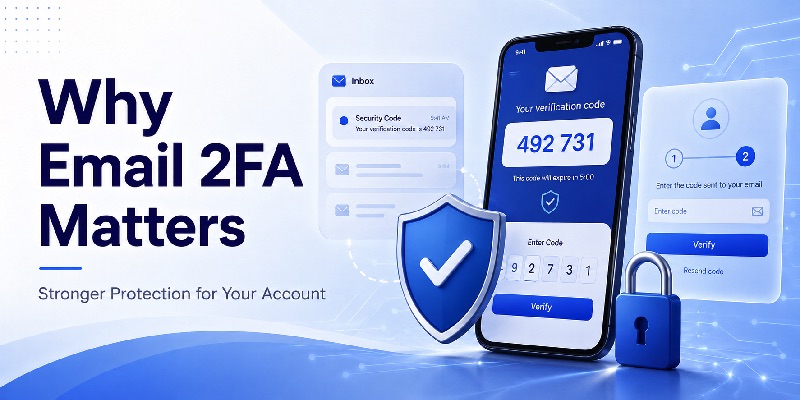
Email 2FA means two-factor authentication is used when accessing an email account or another account associated with an email address.
The purpose is simple: require two independent forms of verification instead of one.
Why Passwords Are Not Enough
People often reuse passwords across multiple websites. If one website suffers a data breach, reused credentials may be tested against email providers and other services.
Phishing presents another risk. A fake login page can trick a user into entering a real password.
An email authenticator significantly reduces the usefulness of a stolen password because the attacker may still need access to the second authentication factor.
For example, a login flow could require:
- Email address
- Password
- Temporary code from an email authenticator
Without the third step, the login remains incomplete.
Advantages of Email 2FA
The major benefits of email 2FA include stronger account protection, reduced dependence on passwords, additional protection against credential stuffing, and better visibility when unexpected login attempts occur.
Businesses also use multi-factor authentication to protect corporate mailboxes because compromised business email accounts can expose confidential conversations, files, customer data, and internal systems.
However, not every second factor provides the same level of protection.
SMS codes can be convenient, but authentication applications and security keys can provide stronger protection in many circumstances.
For everyday users, an email authenticator offers a practical balance between security and convenience.
📘 Find the Right Guide: Email 2FA: Protect Your Inbox and Understand Email Codes
3. How an Email Authenticator Works
Most authenticator applications use a shared secret established when the account is configured.
The service usually displays a QR code. When the user scans it with the email authenticator, the application stores the secret associated with that account.
TOTP Code Generation
The email authenticator uses the stored secret together with the current time to calculate a temporary code.
Because the service knows the same secret, it can calculate the expected code independently.
If the code entered by the user matches the expected value within the permitted time window, authentication succeeds.
The secret itself normally does not need to travel across the network every time a code is created.
That is why an email authenticator can often generate codes while a phone is offline.
Login Approval Systems
Not every email authenticator depends on six-digit codes.
Some platforms support push authentication.
Instead of typing a number, users receive a notification asking whether they are attempting to sign in. After reviewing the request, the user approves or rejects it.
Newer systems may also combine an email authenticator with biometrics or device-based credentials.
Recovery Is Part of Authentication
A secure setup should include a recovery strategy.
Users should consider storing recovery codes in a safe location when the service provides them. Without recovery options, losing the device containing the email authenticator could make account recovery more difficult.
The goal is to create strong security without making legitimate access impossible.
📖 Read More Guides: Email Authentication Failed Fixes for Login and Sending
4. Microsoft and Outlook Email Authentication
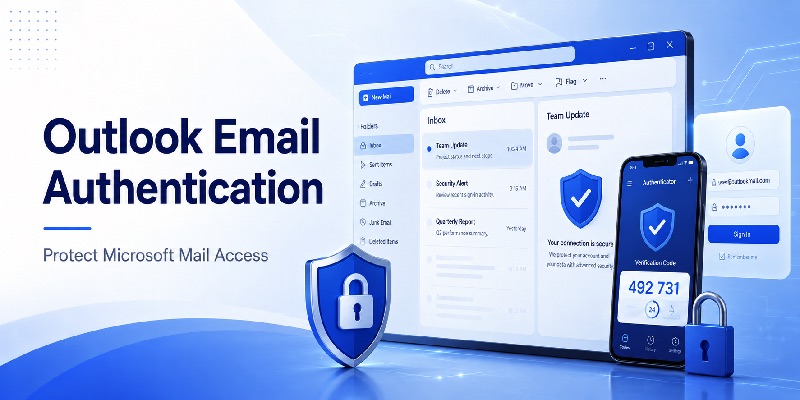
Microsoft provides several authentication options for Microsoft accounts and organizational Microsoft 365 accounts.
People searching for email authentication outlook are usually trying to secure an Outlook mailbox, resolve sign-in problems, or configure multi-factor authentication.
Using Microsoft Authenticator
The microsoft email authenticator most users mean is Microsoft Authenticator.
When a Microsoft account is connected, the app may support verification codes, login approvals, and certain passwordless sign-in methods depending on the account configuration.
A typical setup involves opening the security settings for the Microsoft account, enabling two-step verification or an appropriate authentication method, and pairing the account with the authenticator.
Users asking how to add email to microsoft authenticator should understand that the exact process depends on whether they are adding:
- A personal Microsoft account
- A work account
- A school account
- Another service using TOTP
For many Microsoft environments, the service displays a QR code that is scanned through Microsoft Authenticator.
Outlook Authentication Problems
If Outlook repeatedly requests authentication, the problem is not always the email authenticator.
Possible causes include expired credentials, organizational security policy changes, device registration issues, network problems, outdated applications, or account configuration changes.
Users should verify that the login request is legitimate before approving it.
Unexpected authentication notifications should never be approved automatically. Repeated unexpected prompts can indicate that someone else knows the account password and is attempting to sign in.
An email authenticator is most effective when users carefully review every authentication request.
📖 Read More Guides: Email Authentication SPF Checks and Domain Setup Explained
5. Google and Google Workspace Email Authentication
Google accounts support multiple methods for protecting access to Gmail and other Google services.
Google email two factor authentication typically refers to enabling Google’s two-step verification system and adding a second authentication method.
Protecting a Personal Google Account
After enabling two-step verification, users can select supported verification methods.
An email authenticator that supports TOTP may be used to generate verification codes after the account has been configured.
This approach can be useful because the temporary codes are generated on the device instead of being delivered through the mailbox.
For users who manage several accounts, an email authenticator can also help centralize TOTP codes for different websites and applications.
However, each account should be labeled clearly to avoid entering a code for the wrong service.
Google Workspace Email Authentication
Google workspace email authentication can refer to two different security areas.
The first is account login security. Workspace administrators may require multi-factor authentication for employees.
The second is domain-level message authentication. Organizations can configure mechanisms such as SPF, DKIM, and DMARC to improve protection against spoofed outgoing email.
These technologies solve different problems.
An email authenticator verifies the person attempting to access an account, while domain authentication mechanisms help receiving mail systems verify whether a message is authorized to represent a specific domain.
Businesses should consider both layers.
Protecting employee accounts with an email authenticator helps reduce unauthorized logins, while correctly configured domain authentication helps protect the company’s email identity.
📖 Read More Guides: Google Email Two Factor Authentication Setup for Gmail
6. Email Authentication SPF and Domain Protection
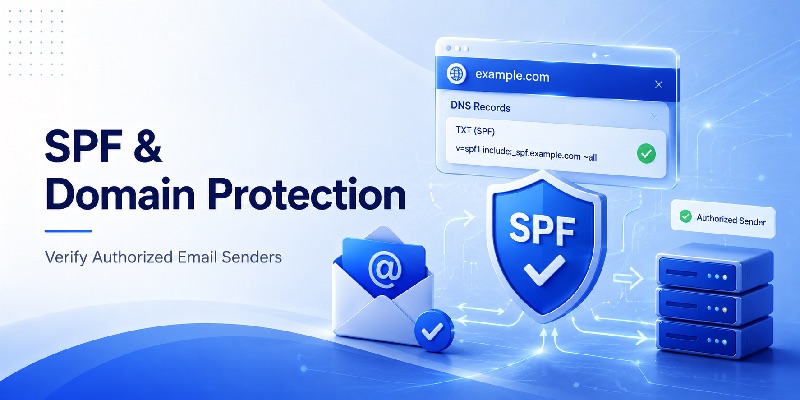
The phrase email authentication spf refers to Sender Policy Framework, a domain-level email authentication mechanism.
SPF is not an email authenticator application.
Instead, it helps receiving mail servers determine whether a server sending email is authorized to send messages for a particular domain.
How SPF Works
A domain owner publishes an SPF policy through DNS.
That policy identifies the mail servers or services that are authorized to send email on behalf of the domain.
When a receiving system gets a message, it can evaluate whether the sending infrastructure is consistent with the domain’s published SPF policy.
This can help reduce certain types of sender spoofing.
SPF Is Only One Layer
SPF should not be treated as the complete solution to email authentication.
Organizations commonly combine SPF with DKIM and DMARC.
DKIM uses cryptographic signatures to help verify that a message was authorized and has not been modified in certain ways during transport.
DMARC creates a policy framework that works with SPF and DKIM alignment and can provide reporting.
These mechanisms protect email domains, while an email authenticator protects account access.
A strong email security strategy often uses both.
For example, a company could require every employee to use an email authenticator while also configuring SPF, DKIM, and DMARC for the corporate domain.
One approach protects the user account. The other protects the legitimacy of messages associated with the organization’s domain.
💡 Discover Helpful Guides: Google Workspace Email Authentication for Business Domains
7. Passwordless Email Authentication Explained
Passwordless email authentication allows a person to access an account without entering a traditional reusable password.
Several different technologies can provide passwordless access.
Magic Links and One-Time Codes
One approach sends a temporary login link to an email address.
The user opens the link, and the service verifies control of the inbox.
Another approach sends a one-time code.
These methods are convenient because the user does not need to remember another password.
However, the security of the login becomes strongly connected to the security of the email account.
If an attacker controls the inbox, that attacker may also be able to use passwordless login links delivered there.
This is one reason protecting the mailbox itself with an email authenticator remains valuable.
Download Authenticator App
Secure your accounts with fast, reliable two-factor authentication. Download now and protect your login in seconds.
Passkeys and Trusted Devices
More advanced passwordless systems use passkeys or cryptographic credentials stored on trusted devices.
These systems can reduce phishing risks because the credential can be bound to the legitimate service.
Passwordless authentication and an email authenticator are therefore not necessarily competing technologies.
They can work together in a broader identity security strategy.
For example, a service might use a passkey as the main authentication method and keep an email authenticator or recovery method available for account management.
Organizations designing passwordless systems should carefully evaluate account recovery because weak recovery procedures can undermine otherwise strong authentication.
🗺️ Browse How-To Guides: Passwordless Email Authentication With Magic Links and Codes
8. Firebase and PHP Email Authentication
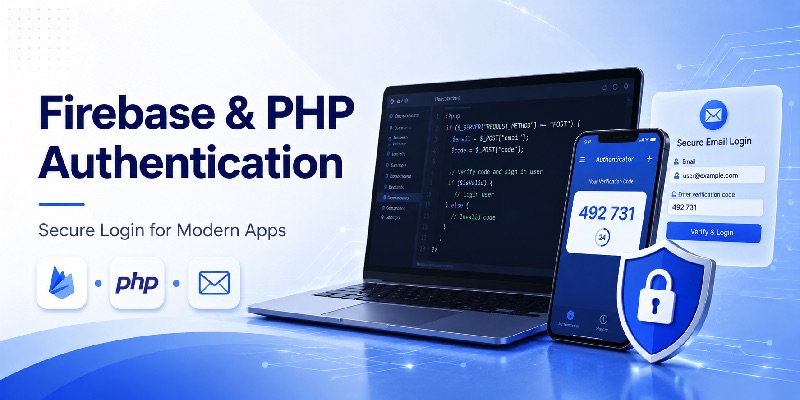
Developers building websites and applications often need to add authentication without designing every security component from scratch.
Two common search topics are email authentication firebase and php email authentication.
Firebase Email Authentication
Firebase Authentication provides developers with tools for implementing user identity features in applications.
Depending on the chosen configuration, developers may support email-and-password accounts, email links, social providers, and other authentication flows.
An application using Firebase can also introduce additional verification logic where appropriate.
The important point is that an email authenticator should not be treated as a substitute for secure backend design.
Authentication tokens must be validated correctly, session management should be protected, and authorization rules should determine what an authenticated user is actually allowed to do.
Authentication answers the question, “Who is the user?”
Authorization answers the question, “What is this user allowed to access?”
Both are essential.
PHP Email Authentication
A basic PHP authentication system often includes account creation, secure password storage, login sessions, email verification, and account recovery.
Passwords should never be stored in plain text.
Developers should use established password hashing functions and secure session handling rather than inventing custom encryption schemes.
When adding an email authenticator or TOTP-based second factor, developers should also protect the shared authentication secret.
The system should verify temporary codes on the server and enforce sensible retry limits.
Security-sensitive applications should additionally consider recovery codes, session expiration, audit logs, suspicious login detection, and rate limiting.
An email authenticator can improve the login layer, but secure software still requires protection across the entire authentication lifecycle.
📘 Find the Right Guide: Email Authentication SPF Checks and Domain Setup Explained
9. Zoho CRM and Keycloak Email Authentication
Authentication requirements become more complex in business platforms because administrators must protect many users rather than a single personal mailbox.
Email Authentication in Zoho CRM
People searching for email authentication in zoho crm may be referring to user login security, email integration, or domain authentication for messages sent through connected services.
These should be treated as separate configuration areas.
User authentication determines whether an employee can access CRM data.
Email sending authentication helps verify legitimate messages associated with a domain.
If an organization uses an email authenticator for administrator and employee accounts, the risk of an attacker entering the CRM with only a stolen password is reduced.
Administrators should also review user permissions.
A compromised account with broad administrative access can create significantly more damage than a limited user account.
For this reason, an email authenticator should be combined with least-privilege access controls.
Keycloak Authentication
Keycloak 2FA email authenticator is a search phrase commonly associated with organizations that want to customize authentication flows in Keycloak.
Keycloak can be used as an identity and access management platform for applications.
Organizations may configure multi-factor authentication methods based on their security requirements and available extensions.
When designing such systems, administrators should distinguish between sending codes through email and using a dedicated email authenticator application.
Sending a second-factor code to the same mailbox involved in account recovery may provide less separation than using an independent TOTP application or security key.
The best architecture depends on the organization’s threat model, user experience requirements, and recovery strategy.
💡 Discover Helpful Guides: Email Authentication in Zoho CRM With DKIM SPF and DMARC
10. How to Add Email to an Authenticator App
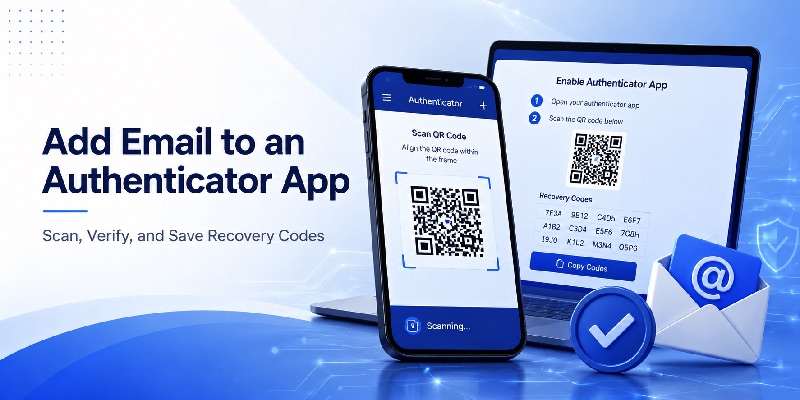
One of the most common questions is how to add email to authenticator app software.
Although the exact interface varies between services, the general process is similar.
Step 1: Enable Two-Factor Authentication
First, open the account’s security settings.
Look for an option such as:
- Two-factor authentication
- Two-step verification
- Multi-factor authentication
- Verification app
- Authenticator application
The service may ask the user to confirm the account password before making security changes.
Step 2: Choose an Authenticator Method
Select the authentication application option.
The website typically displays a QR code.
Open the email authenticator on the trusted phone and choose the option to add a new account.
Then scan the QR code.
The email authenticator should begin generating temporary verification codes for the account.
Step 3: Verify the Setup
Most services ask the user to type the current code generated by the authenticator.
This confirms that the pairing process worked correctly.
The account should not be considered fully configured until this verification step succeeds.
Step 4: Save Recovery Options
If recovery codes are provided, save them securely.
Do not store recovery codes somewhere that would automatically become accessible if the main email account were compromised.
Users who want to know how to add email to an authenticator app should also confirm whether their chosen service supports cloud backup or account transfer.
An email authenticator containing codes for many important services can become critical to account recovery, so migration planning matters when replacing a phone.
💡 Discover Helpful Guides: How to Add Email to Authenticator App With QR or Manual Setup
11. How to Fix Email Authentication Failed Errors
An email authentication failed message can have several meanings depending on where it appears.
It may indicate an incorrect password, invalid verification code, expired session, unsupported login method, server configuration problem, or email domain authentication issue.
Authenticator Code Not Accepted
If an email authenticator code is rejected, check the device time first.
TOTP systems rely on accurate time.
A device with significantly incorrect time settings may generate a code that does not match the server’s expected value.
Also confirm that the code belongs to the correct account.
Users managing many accounts in one email authenticator can accidentally enter a code for a different service.
If the service recently reset two-factor authentication, an older authenticator entry may no longer be valid.
Repeated Authentication Prompts
Repeated prompts can be caused by expired sessions, application configuration problems, changed security policies, or suspicious login attempts.
Users should avoid repeatedly approving requests without reviewing them.
If an unexpected request appears in an email authenticator, reject it and review the account’s security activity.
SMTP or Domain Authentication Errors
An email authentication failed message can also appear when configuring mail servers.
In that case, the issue may relate to SMTP credentials, application passwords, OAuth configuration, SPF policies, or other server settings rather than a TOTP email authenticator.
The correct solution depends on whether the failure occurs during account login, second-factor verification, or mail delivery.
Identifying the exact stage where authentication fails is therefore the first troubleshooting step.
🗺️ Browse How-To Guides: How to Add Email to Microsoft Authenticator
12. Special Email Authentication Cases and Common Questions
Different platforms use the word authentication in different ways, which can make troubleshooting confusing.
Two searches that illustrate this are email account without verification and steam turn off email authentication.
Email Account Without Verification
Some users look for an email account without verification because they want faster registration or do not want to provide an additional phone number.
However, removing verification can reduce account recovery options and make abuse prevention more difficult for service providers.
Users should not attempt to bypass verification systems that a provider requires.
Instead, choose reputable services whose privacy and recovery policies match your requirements.
If the goal is privacy, consider minimizing unnecessary personal information while still following the platform’s legitimate verification process.
Even an email account without verification requirements should still use strong security protections where available.
A unique password and email authenticator can make a significant difference.
Steam Email Authentication
Users searching steam turn off email authentication may be trying to change the security method associated with a gaming account.
Disabling authentication can reduce login friction, but it may also weaken account protection.
Before removing any authentication method, verify that another strong method is available and that recovery information is current.
Gaming accounts can contain purchased content, stored value, inventories, personal information, and years of account history.
Using an email authenticator or another strong second factor can therefore be worthwhile even when an account does not appear financially important.
Convenience should be balanced against the consequences of losing access.
💡 Discover Helpful Guides: Steam Turn Off Email Authentication: Settings and Alternatives
13. Email Authenticator Security Best Practices
Installing an email authenticator is only part of securing an account.
How the authenticator is configured and used matters just as much.
Use Unique Passwords
Two-factor authentication should not become an excuse for weak passwords.
Every important account should use a unique password.
A password manager can make this easier because users do not need to memorize dozens of complex passwords.
The email authenticator then adds another layer on top of those credentials.
Never Approve Unexpected Requests
Push-based authentication is convenient, but it can create a habit of quickly tapping “Approve.”
That is dangerous.
If an email authenticator displays a login request that the user did not initiate, the safest response is to reject it.
The user should then review recent account activity and change the password if there is evidence that the credential may have been exposed.
Protect the Device
The phone containing the email authenticator should have a strong screen lock.
Biometric protection can improve convenience, but a secure device passcode is also important.
Users should also keep the operating system and important applications updated.
Store Recovery Codes Safely
Recovery codes can provide access when the primary email authenticator is unavailable.
That makes them extremely valuable.
They should be stored securely and separately from everyday login credentials.
Avoid leaving screenshots of recovery codes in an easily accessible photo library.
Review Old Authenticator Entries
Over time, an email authenticator can become filled with accounts that are no longer used.
Periodic cleanup helps reduce confusion.
Before deleting an entry, however, confirm that the account no longer depends on it.
Deleting the authenticator entry without first disabling or transferring two-factor authentication could create an account recovery problem.
🗺️ Browse How-To Guides: Microsoft Email Authenticator: Outlook Sign-In Explained
14. How to Choose the Right Email Authenticator
There are many authentication applications available, and the best option depends on the user’s devices, security requirements, and backup preferences.
Look for Standard TOTP Support
A useful email authenticator should support widely adopted authentication standards.
TOTP support allows the application to work with many services that provide QR-code-based two-factor authentication.
This flexibility is especially helpful for users who want one authentication application for email, social media, cloud platforms, and other accounts.
Consider Backup and Migration
Losing a phone should not automatically mean losing access to every account.
When evaluating an email authenticator, consider how account migration works.
Some applications support encrypted cloud synchronization, while others emphasize local storage and manual export.
Each approach involves tradeoffs between convenience and control.
Users should understand those tradeoffs before storing dozens of important accounts in one application.
Evaluate Device Compatibility
Someone using multiple phones, tablets, or desktop devices may want authentication access across more than one platform.
Others prefer to keep the email authenticator only on one trusted device.
There is no single correct solution.
The right choice depends on the individual’s risk model.
Prioritize Security Over Visual Features
An authentication application does not need dozens of unnecessary features.
Reliability, transparent security practices, account backup options, privacy controls, and support for standard protocols are more important.
An email authenticator becomes part of the security infrastructure for every account added to it.
Choosing one should therefore be treated more seriously than choosing an ordinary utility application.
15. Final Thoughts
An email account is often the gateway to a person’s digital life. If someone gains access to the inbox, that person may be able to request password resets, view private messages, access documents, and take control of other connected services.
Using an email authenticator creates an additional barrier between a password and complete account access.
For personal accounts, an email authenticator can generate temporary verification codes or participate in login approvals. For business environments, multi-factor authentication can help protect employees, administrators, and sensitive corporate systems.
At the same time, account-level authentication should not be confused with technologies such as SPF, DKIM, and DMARC. These domain authentication tools protect the identity of email senders, while an email authenticator verifies users attempting to access accounts.
Microsoft users may rely on Microsoft Authenticator, Google users can enable multi-factor authentication for personal and Workspace accounts, and developers can integrate authentication into systems built with tools such as Firebase, PHP, Keycloak, and other identity platforms.
Whatever platform is being used, the most important principle remains the same: do not rely on a password alone when stronger authentication is available.
A well-configured email authenticator, strong unique passwords, protected recovery methods, careful review of login requests, and properly configured email-domain security can significantly strengthen the overall security of an email environment.
As phishing, credential theft, and automated login attacks continue to target online accounts, an email authenticator provides a relatively simple way to add a meaningful additional layer of protection.
For users and organizations that depend heavily on email, enabling an email authenticator should be considered a fundamental security step rather than an optional extra.