
GMX 2FA Setup, Secret Key Recovery, and Mail Clients
Published November 20, 2026
By the Authenticator App Team
Last updated: November 2026
Enable GMX 2FA in your GMX Account under Security Options. Verify the mobile number requested by the setup assistant, pair a compatible code app with the QR or manual setup code, and enter a fresh six-digit value. Download the emergency secret-key PDF before you select the final activation button.
The PDF is important if you lose access to the code app or need to recover the mailbox. GMX also treats browser sign-in and external mail clients differently. If the website works after activation but a mail program stops syncing, check its connection and application-specific password before changing your account’s two-factor settings.
Start GMX 2FA With the Mailbox and Phone You Control
Open the Account’s Security Options
Sign in through the official GMX website. Confirm the mailbox address shown in your profile, especially if a browser has saved more than one GMX login. Open Account, choose Security Options, and select the activation option for two-factor authentication. GMX Help’s Setting up two-factor authentication article describes using a setup assistant from there.
Have the current mailbox password, a mobile phone that can receive the required SMS, and the code app you intend to use. Keep the browser session available during enrollment. The assistant will ask for the mailbox password before it proceeds. Use the password for the account displayed in the profile.
Verify the Mobile Number in the Setup Assistant
GMX Help says the setup asks you to verify your mobile number by text. Check whether the number shown still belongs to you. If the assistant offers Change, update an outdated number before requesting a code. Submit the confirmation value from the current message and continue.
That text verifies the number used in the GMX 2FA setup and recovery process. A successful phone verification leads to a separate app enrollment screen. If you request another message, use the latest value that corresponds to the active request and check the number again before trying to pair the app.
Decide Where the Emergency PDF Will Live
Prepare a protected location for the GMX 2FA secret-key PDF before you begin. You should be able to reach it even if the phone is lost and the mailbox cannot be opened. GMX suggests keeping the file securely and printing it. If you use a printed copy, put it somewhere private and accessible only to the account owner.
A password manager or protected storage system can work if it has independent recovery. Check that unlocking it does not depend on receiving a message in the same GMX mailbox. If your emergency copy is stored only behind the account it protects, it may be inaccessible exactly when you need it.
If you use GMX as the recovery address for other services, check what will happen to those accounts during setup. A mail client can briefly need a new sign-in while the browser still has access. Confirm you can read new messages from the official browser before moving on. That gives you a route to account recovery mail during the transition.
Pair the App With the QR or Manual Setup Code
Scan the QR on a Trusted Screen
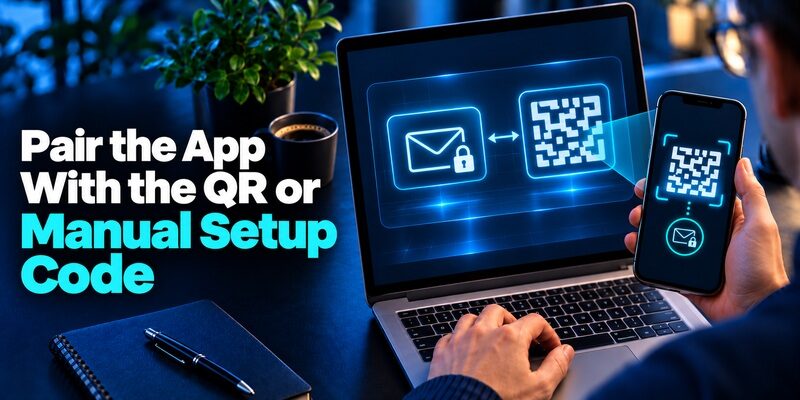
Choose an authentication app that supports the enrollment GMX offers. GMX Help’s app selection page lists examples such as Google Authenticator, Microsoft Authenticator, and FreeOTP. For a compatible QR enrollment, can also store the GMX rotating code. Open the app’s add-account scanner and point it at the official setup screen.
Treat the QR as sensitive. It contains enrollment data that another generator could use. Use a browser you control and close the QR after setup. Avoid taking a photo for later, sending it to a second device, or leaving the setup page open during a screen share.
Use the Manual Option When You Have One Device
If the QR is on the same phone as the app, GMX’s setup instructions describe using the copy option beneath the QR. Add a manual entry in the app and paste the full value into the setup key field. Choose the time-based mode if the app asks. Clear the clipboard after the pairing.
The manual setup value and the GMX 2FA recovery PDF serve separate purposes. The first is the secret used by the app to produce rotating values. The second is issued later for emergency access. Give the app entry an account label so you can identify it without exposing either credential.
Submit a Fresh Value and Finish Activation
Open the GMX entry and type its current six-digit value in the browser. Wait for the next value if the countdown is nearly finished. Follow the setup assistant through the download and personal-information screens. GMX describes a final Activate now step. Seeing digits on the phone alone does not show that activation finished.
Reopen Security Options while your current session remains available and check the status. For GMX 2FA, the useful confirmation is an active account setting and a successful fresh sign-in. A saved app entry from a stopped setup can still generate digits. Verify through GMX before depending on it.
When enrolling two GMX mailboxes on the same phone, finish and test one before creating the next entry. A useful local label is the mailbox name and the date you linked it, provided the label contains no secrets. Keep the GMX 2FA emergency document for each mailbox separate. Match the current key to the mailbox before following the official recovery route for that specific account.
Save and Test the Emergency Recovery Record
| Item | Where it comes from | When to use it |
|---|---|---|
| Phone confirmation code | A GMX text message during setup | Verify the registered mobile number |
| Enrollment QR or manual key | The setup assistant before app confirmation | Add the account to a compatible code app |
| Current six-digit app value | The paired authenticator entry | Answer the website’s app challenge |
| Emergency secret-key PDF | The setup assistant after pairing | Follow GMX’s official recovery procedure |
| Application-specific password | GMX Security Options for external apps | Connect the named mail, calendar, or contact client |
Confirm That the PDF Opens Outside GMX
Download the secret-key PDF through the setup assistant. Open your secure copy on a trusted device to confirm it is readable. If you print it, check that the full value is legible and store the copy in a protected place. Do not share a screenshot with anyone offering to fix GMX 2FA.
Give the record a name that identifies the mailbox and enrollment date without revealing the secret. If you keep several protected accounts, this makes it easier to select the correct file. Locate the current copy using the same device or process you would use if your phone were unavailable.
Test Browser Sign-In Without Closing the Working Session
In a second trusted browser profile, open the official GMX site and sign in to the same mailbox. Enter a current value from the newly enrolled entry when GMX asks. Verify the expected messages are visible after sign-in. Leave the first session open until you know the account and app pairing work.
If a different account opens, check saved addresses and labels before editing GMX 2FA again. A correct value for another mailbox can still lead to the wrong inbox. Run the browser test before reconnecting an external program. That gives you a working baseline if the mail client prompts for a password.
A printed record can be useful when access to your phone and cloud drive are both lost. If you move it to a new location, update your private inventory. Before discarding a superseded copy, confirm that the current GMX 2FA enrollment is working and that the newer recovery document opens on an independent trusted device.
Reconnect GMX Mail, MailCheck, and External Clients

Reauthenticate Official GMX Clients
GMX Help’s two-factor authentication overview says users of the GMX Mail app and GMX MailCheck may need to sign in again after activation. Update the client if required and follow its own prompt for the intended mailbox. A current browser session may continue working while the client needs a new authorization.
If the client fails, check the version, account, and exact message. Verify in the browser before removing a mailbox from an app that may contain unsynced changes. A working browser sign-in narrows the issue to the device, client, or connection. You can keep GMX 2FA active while you investigate those settings.
Verify POP3 or IMAP Access Where Needed
GMX says use of POP3 or IMAP requires activating or reactivating that access in the email settings. Check whether the external program uses POP3 or IMAP, then confirm the corresponding account setting in GMX. Avoid changing both the account password and mail settings at once if you can first identify what failed.
If an external program repeatedly reports a bad password even though the GMX website works, check whether it needs an application-specific password. The external client generally needs the credential assigned to its connection. A live six-digit GMX 2FA value belongs in the official verification challenge.
Create a Password for the Specific External Application
GMX Help’s application-specific password guide describes creating one from Security Options. Give it a clear name, such as the device and client, and copy it when GMX displays it. The guide says it appears only once. Enter it in the external program where it requests the mail account password.
GMX also describes use of application-specific passwords for supported calendar and contact integrations through CalDAV or CardDAV. Verify the program can fetch or send the intended data. Review the account’s application-specific passwords after you retire the client and remove obsolete access through the controls GMX provides.
When you reconnect an external client, send a harmless test message to an inbox you control and make sure you can receive its reply. Receiving mail alone may not prove the outbound settings work. Record which client, account, and connection type you tested so an app password error can be diagnosed without changing GMX 2FA again.
Multifactor Authentication Methods Compared by What They Prove
Fix an App Code That GMX Rejects
Check the Correct Entry and Device Time
Select the app entry for the exact GMX mailbox. Confirm automatic date and time on the device that generates it, then submit a fresh value. If a new number appears while you are typing, wait and enter that one from the beginning. Do not copy a value from a previous verification message.
GMX Help’s sign-in guide describes the account password followed by a temporarily valid code from the app. If you reach the code field, the password step has already succeeded for that attempt. If you cannot get beyond the password screen, check the account name and the account’s official password recovery instead.
Identify a Stale Enrollment or Wrong Sign-In Route
If an app restored after a phone change displays a GMX label and moving digits, compare it with the live account. An older entry may have come from before GMX 2FA was disabled and reenabled. Keep an existing session open and test the replacement through an official challenge before deleting an entry.
If the code works on the website but mail syncing fails, troubleshoot the external program separately. Record whether it can reach the server and what it asks you to enter. Reusing the setup key as a client password will not repair the connection. The external client needs its supported sign-in procedure.
If the code still fails after the time check, compare the browser address and mailbox with the entry. When reporting the issue, state whether the password step worked, whether the browser reached the challenge, and whether a fresh app value failed. Those details distinguish GMX 2FA from unrelated client authentication errors.
Coinbase QR Code for Authenticator Setup or Receiving Crypto
Recover a Mailbox With the GMX Secret Key
| What you lost | GMX route to check | What you may need |
|---|---|---|
| Mailbox password | Official password recovery | Verified ownership and the emergency secret key |
| Phone or access to the app | Official GMX recovery flow | The secret-key PDF from setup |
| The printed copy | Check protected storage and past downloads | A readable copy of the current PDF |
| Password and emergency key | GMX customer support | Ownership evidence as requested by GMX |
Follow the Official Recovery Procedure
GMX Help’s Lost login credentials for two-factor authentication guide directs users who lose the phone or app to start password recovery and enter the emergency secret key when asked. Use the recovery route opened from the official GMX site. Check the mailbox address before providing any proof.
GMX says the procedure deactivates two-factor authentication. If you also forgot the mailbox password, complete the reset requested by GMX. After access returns, reactivate GMX 2FA on the replacement device, confirm a fresh code, and save the newly issued emergency record. Recheck any apps that connect to the mailbox.
Look for the PDF Without Exposing the Account
Check the protected backup, your downloads folder, and the secure place where a printed copy would be stored. Search only on devices or storage you control. If you find more than one PDF, check the mailbox and date before attempting recovery. Avoid uploading the file to an unrelated website for inspection.
If no usable copy remains, contact GMX through its verified customer support. GMX says recovery may be unavailable when it cannot confirm the account owner. Provide the account and failure details requested in that process, and keep the mailbox password, current app codes, and unrelated credentials private.
2Factor Login for the Log2X Dashboard and OTP Troubleshooting
Replace a Phone and Review the Mailbox Afterward
Test the Replacement Before Retiring the Old Phone
If your code app supports transfer or restore, follow the app’s documented process with both devices available. Confirm a current value from the new phone works before clearing the old one. Save the GMX 2FA emergency file separately even if the code app can sync. A restored app and an account recovery document have different roles.
If the app cannot be moved, keep the old proof while you follow GMX’s documented deactivation and reactivation controls. GMX Help describes confirming deactivation with the password and app code when you still have both. Prepare the replacement first so you can promptly enroll it and verify access again.
Verify the Mail Clients and Recovery Contacts You Still Use
Reopen the GMX site on a trusted browser. Confirm the phone number, current enrollment, and secure location of the emergency record. Test the GMX Mail app and any POP3, IMAP, calendar, or address-book connections you actually use. Remove old application-specific access through GMX when you are done with a retired client.
If the phone was lost, check account sessions and recent security notices after recovery. Follow the provider’s official session controls for any activity you do not recognize. You can use the timestamp and device type from an alert to identify the affected session without including your GMX 2FA proof in a message.
Before trading in a phone, confirm that the replacement can generate a code after a restart. A phone can display a restored entry but still require a device unlock or a backup-account sign-in after reboot. Test that sequence while the old phone and a trusted browser session are still available.
Final Thoughts
Turn on GMX 2FA through Security Options, verify a fresh app value, and store the emergency PDF outside the mailbox and the enrolled phone. Test browser access before reconnecting mail clients. If you lose the authenticator, use GMX’s official recovery process and verify the replacement enrollment once you regain access.
Download Authenticator App
Secure your accounts with fast, reliable two-factor authentication. Download now and protect your login in seconds.
