
Roblox Authenticator Setup and 2-Step Verification Recovery
Published November 20, 2026
By the Authenticator App Team
Set up a Roblox authenticator from Account Settings, under Security. Verify the email address on the account first, enable the Authenticator App option for 2-Step Verification, and follow the enrollment screen. Scan the setup QR in a compatible app and confirm the current code when Roblox asks. Generate recovery codes and check your other recovery methods before you sign out of the device you already trust.
Roblox says that if you lose your primary 2-Step Verification method, you need two different verification methods in your account details to regain access through account recovery. Enhanced Protection also changes what the sign-in screen accepts. Its 2-Step Verification challenges use eligible passkeys or security keys, so the usual Roblox authenticator code is disabled in that mode.
Check Which Roblox Verification Flow You Opened
| What you see | What it does | What to use |
|---|---|---|
| Authenticator App setup in Security | Enrolls your app for rotating codes | The scanner in a compatible authenticator |
| An authenticator challenge during sign-in | Checks the current value from an enrolled app | The saved entry for that username |
| Quick Login on a new device | Starts a login from a device that is already signed in | The official Quick Login flow you started |
| Passkey or security key prompt | Uses a previously registered credential | The matching credential on a supported device |
| Recovery prompt | Checks ownership or uses a saved fallback | The verification methods Roblox offers there |
Verify Your Email and the Account Name
Sign in to the correct Roblox account and check the username in its settings. A shared computer or phone can have an active session for another family member. Verify that the registered email belongs to the account owner and that it is marked verified. Roblox requires a verified email address before 2-Step Verification can be turned on.
If you already have a Roblox authenticator entry, check the username and when the entry was created. An older value might belong to the same displayed name but a previous enrollment. Preserve the active session until you confirm which entry works and which recovery methods are registered.
Read the Security Mode Before You Change Methods
Roblox Support’s Add 2-Step Verification to Your Account article describes app-based, email, and security-key options. Its Enhanced Protection documentation describes a separate configuration that uses passkeys or hardware security keys for 2SV. Read the mode and request shown in your own account before following the setup steps.
A Roblox authenticator app code is intended for the standard Authenticator App challenge. If the page asks you to use a passkey or a security key, use the registered credential and follow the offered route. Reinstalling an app will not create that credential.
If a parent or guardian is helping with a young person’s account, use the verified account settings and the recovery options available to that account. Keep any separate parent account distinct. Confirm which username appears in Security and which person controls the registered email before enrolling a Roblox authenticator on any shared device.
OPay OTP Code Help for Missing, Rejected, or Unexpected Codes
Pair an App With the Roblox Authenticator QR Code
Find the Authenticator App Toggle
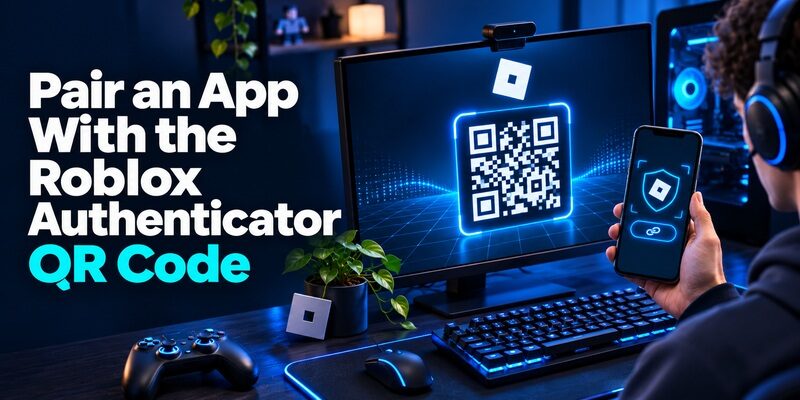
In a browser, open Settings from the gear icon. In the mobile app, open the More menu, then Settings. Go to Security and find the Authenticator App option in 2-Step Verification. Turn it on and follow any ownership check the official interface shows. Keep the browser or app open while you get the phone ready.
Roblox Support lists Google Authenticator, Microsoft Authenticator, Duo, and Authy as examples. Install a compatible app from an official store and make sure you can unlock it before you start. A separate authenticator entry is needed for each Roblox account you enroll.
Scan the Setup QR From the Official Page
Open the add-account or scan option inside the authenticator and scan the Roblox authenticator app QR code displayed by the enrollment screen. If you are using only one device and the interface offers a manual setup key, follow the app’s manual-entry flow. If the QR is your only option, show it on a trusted second device.
Treat the setup QR like a credential. A Roblox staff response on the Developer Forum explains that the QR contains the shared enrollment information used to verify the app’s output. Keep that information out of messages, shared galleries, and screen recordings. Close the setup screen once verification completes.
Confirm a Current Code and Check the Setting
Open the new Roblox authenticator entry and enter the value currently displayed when Roblox asks for it. Use a fresh code if it is about to change. Complete the on-screen prompts and return to Security to check the active method. Give the entry a recognizable label if your app allows it.
If the code fails during setup, check that you are using the newest entry from the open enrollment session. Correct the device time and retry with a fresh value. Avoid closing the original signed-in session until you have a working login and a separate way to recover.
A practical way to avoid picking the wrong entry is to put the browser and phone beside each other, verify the username, and use a distinctive local label. After the site accepts the first code, check which device stored the credential. If you used a borrowed device to display the page, close it and sign out of that browser.
Auth0 MFA Configuration for Universal Login and User Recovery
Save Recovery Methods Before You Test
Generate and Secure the Recovery Codes
In Roblox Security settings, find the recovery-code section and select Generate. The official instructions say you may need to enter your password. Save the codes securely when they are displayed. Roblox says each code works once and that generating a new set deactivates the earlier set.
Keep recovery codes somewhere you can access without the phone holding your Roblox authenticator. A private password manager or physically secured copy can work when it remains reachable. Label the set with the correct username and date so you can recognize the current set among older records.
Confirm Two Different Verification Methods
Roblox’s published recovery requirements say that after losing the primary method, you need two different verification methods in your account details. Its guide lists adding an eligible phone number, adding a passkey, and saving backup codes among the available ways to prepare. Phone number availability depends on eligibility, including age requirements in the guide.
Check what is actually registered and whether you can reach it without your usual phone. Two saved codes from the same list are part of one recovery method. If the Roblox authenticator and the only accessible copy of your fallback sit on the same handset, a lost device can take both away.
Test the Account Without Closing the Working Session
Open a separate trusted browser profile or private window. Go directly to Roblox, choose the intended account, and follow the official sign-in prompts. For the standard Authenticator App method, use the current code and check the username after access returns. If you sign in through a passkey, check the app method separately when Roblox offers that challenge.
For a child or shared household device, record who can access the verified email and the recovery record. Keep those methods under the legitimate account owner’s or authorized guardian’s control. Never send a live code in a chat or use a screenshot of a QR sent by another player.
Check whether the same phone controls both the authenticator and the verified email. If that phone were lost, would you still be able to reach the email on a trusted device? Confirm that the device that holds a passkey can be unlocked and that your backup record can be retrieved separately. Write down where each method lives without copying the secrets into the record.
Download Authenticator App
Secure your accounts with fast, reliable two-factor authentication. Download now and protect your login in seconds.
Tell Setup, Quick Login, and Other Prompts Apart
| Prompt or action | Where it starts | What to avoid |
|---|---|---|
| Pair a code app | Security settings on your own account | Scanning an enrollment QR shared by another person |
| Quick Login | A new device you are signing in to | Approving a request or code sent by somebody else |
| Second-device approval | An official Roblox login attempt | Approving a request with unrecognized details |
| Enhanced Protection | The account’s Security settings | Assuming the old app code will satisfy the new challenge |
Confirm That You Started Quick Login
Roblox Support’s Quick Login guide describes signing in on a new device with the help of another device that is already logged in. It documents a temporary code and QR troubleshooting. That flow can grant access to the new device. Read the request details and proceed only if you initiated it for the device you are holding.
The Roblox authenticator QR code enrolls a rotating credential from inside Security settings. A Quick Login QR belongs to a different action. The place where you found it and the instructions around it tell you whether it is pairing an authenticator or authorizing a login.
Review a Second-Device Approval Prompt
Roblox may offer 2-Step Verification with a second device. Its guide says the existing mobile session can show information such as device type, region, and time. Review that information. Deny an attempt you did not start and follow Roblox’s security guidance to review the account and change your password if needed.
If the approval expires for a request you did start, begin a fresh login. Use an alternative such as a saved backup code only if the official screen offers it. The Roblox authenticator code answers its own challenge when that method is active.
If a game chat or direct message asks you to scan a QR to claim an item, open the official Roblox service yourself and check the account independently. A QR login flow can grant a new device access when you approve it. A genuine recovery attempt starts with a device or official support page that you chose.
Fix Roblox Codes and Phone Change Problems
Use a Fresh Value From the Correct Entry
Roblox Support’s Troubleshooting 2-Step Verification guide says the app code must be active when entered. Wait for a new value and submit it promptly. If that fails again, check that you selected the right username and that automatic date and time are enabled on the code-generating phone. A restored app can contain an older pairing.
If the current Roblox authenticator still fails, preserve any signed-in session and use a method Roblox offers. Record the exact challenge and whether it failed during initial enrollment or sign-in. Do not attach a screenshot of the full authenticator app to a support request.
Move the Entry While You Still Control the Old Phone
Follow your authenticator’s supported transfer or restore process if it offers one. Verify the resulting entry through an actual Roblox challenge before resetting the original device. If a supported transfer is unavailable, use the official Security controls to pair the replacement while you can still provide the requested proof.
Record the time of the successful test and confirm which phone and entry you used. Save a current recovery set if Roblox issues one and confirm another registered recovery route before the old phone leaves your possession. If you enroll a new Roblox authenticator, remove stale entries only after you verify the new pairing.
When comparing the old and new phones, look at the entry label, current values, and whether each device has accurate time. A disagreement can come from a clock or a different pairing. Verify the replacement through the official website. If it fails, keep the old Roblox authenticator available until you have a confirmed recovery method.
Passwordless Multi Factor Authentication With Passkeys and Security Keys
Recover Access After Losing Your Primary Method

Choose the Recovery Option Offered by Roblox
If the official screen offers Backup Code, use an unused code from the correct account. If it offers a verified contact or another registered method, follow the instructions displayed. The methods presented can vary with the account, its enabled security mode, and the specific challenge.
When the primary Roblox authenticator is unavailable, preserve any trusted session and review the recovery methods you can still use. For the enhanced recovery process, Roblox documents the need for two different proofs. A reset of the account password alone may leave the second-step requirement in place.
Contact Roblox Support When the Options Run Out
Open Roblox Support directly. Provide the username, the problem stage, and the available verification methods through its official account recovery process. State whether you have an existing session or a saved set without sending unused recovery codes. If you lack enough registered methods, Roblox warns that you may be unable to regain access.
Once access returns, verify that the account shown is the correct one before updating its security. Restore the Roblox authenticator if that is your selected method, or verify the passkey or security key you use under Enhanced Protection. Test and store the backup details again.
If you have a trusted session on a browser and a console that still works, preserve those sessions while you follow the provider’s recovery steps. Avoid removing working credentials during diagnosis. Once the intended method is restored, test the account from a separate device before clearing browser data or retiring old hardware.
Authenticator Website Options and How to Protect Your Setup Key
Check Enhanced Protection Before Relying on App Codes
Understand What Changes in a Sign-In Challenge
Roblox’s Enhanced Protection guide says that mode uses passkeys or supported hardware security keys for its 2SV challenges. Authenticator-generated six-digit codes are disabled for those challenges. Confirm your devices can use the required credential before enabling the mode. A code app can remain on the phone without being accepted at that screen.
Check the recovery requirements shown in Settings. The guide lists a passkey, verified email, and a secondary recovery layer such as an eligible verified phone or backup codes. If you lose a passkey, Roblox describes a multi-step ownership process, so establish the recovery route before depending on that one device.
Verify the Devices You Actually Use
Test a supported browser or phone before you remove access on another device. Roblox’s guide points users of devices without passkey support, such as Xbox, to its Quick Login feature. Review the official instructions for your console and use a session you control to authorize the sign-in.
If your account continues with standard 2SV, use the enrolled Roblox authenticator as instructed. For other compatible rotating-code accounts, you can explore the and pair each entry through its own official setup.
Common Questions About Roblox Verification
Do I Need the QR Code Each Time I Play?
The QR pairs the app during setup. Later, open the saved entry when Roblox asks for its code. If the prompt is for a new device through Quick Login, follow that separate flow. Always confirm the account and device before you approve access.
What If I Lose My Recovery Codes but Can Sign In?
Use Security settings to generate a new set and save it immediately. Roblox says this deactivates older sets. Confirm which other verification methods are registered as well. Keep the updated recovery record somewhere you can reach without the primary Roblox authenticator.
Why Does the App Show Digits When Roblox Asks for a Passkey?
The app can still display a rotating value for a stored enrollment. Roblox checks the method named on the screen. A passkey prompt uses the registered device credential, and Enhanced Protection disables app values for its 2SV challenges. Follow the allowed verification or recovery route for the current account mode.
Final Thoughts
A Roblox authenticator is ready when a fresh code verifies the correct account and you have independent recovery methods. Keep the setup QR private, test after a phone change, and follow the challenge shown by the current security mode. Use Roblox’s official account recovery process if you lose the primary method.
Download Authenticator App
Secure your accounts with fast, reliable two-factor authentication. Download now and protect your login in seconds.
