
Authenticator Garena Guide for Account Setup and Recovery
Published November 20, 2026
By the Authenticator App Team
Use the official Garena Authenticator for a Garena Account that offers two-step verification. Enable the feature through Garena’s account security controls, scan the setup QR in the official app, and confirm the code the app generates. The Garena Authenticator listings on the App Store and Google Play describe QR linking and offline code generation.
The authenticator Garena publishes serves Garena Account verification. A game profile can use a different sign-in provider, and its recovery options can differ from the Garena Account settings. Check which screen asks you to verify before choosing an app or filing a recovery request. For Free Fire, the bound sign-in provider and the game’s recovery email are especially important.
Find the Authenticator Garena Expects for This Sign-In
Read the Provider Name Before Opening a Code App
Check whether the login screen belongs to Garena Account or to a platform you selected inside the game. If the screen is Google’s or Facebook’s own sign-in page, the verification comes from the method you registered with that provider. The authenticator Garena offers can answer a Garena Account challenge after you link it through Garena’s official setup.
Open the account management page directly from Garena’s official route for your region. If you have both an older Garena Account and a separately bound game profile, identify the login used by each. A working code for the first account does not establish that the second account uses the same provider.
Check the Player Name and UID
Sign in to the game using your usual method and confirm your player name, UID, and region before making changes. If there are multiple profiles on the same device, note which one you want to protect. A player name can look similar across accounts, and the UID helps distinguish them.
Check whether the game profile is a guest profile or bound to another account. Garena Free Fire’s Account Protection guide explains that a guest profile may be lost with its device or data. Its guide recommends binding an eligible guest profile to a platform account you own. Verify the correct profile first.
If a friend helps you identify a game profile, ask them to compare the public player name and UID only. They do not need your account password or any proof from the authenticator Garena linked. Keep the device that can open account settings with you. If you are using a borrowed screen to read a public support page, finish the actual enrollment from hardware you can secure.
Install and Link Garena Authenticator
Use the Store Listing for Your Device
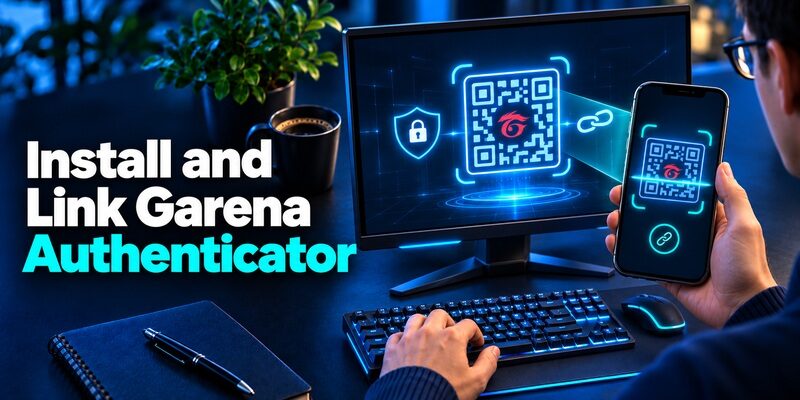
Find Garena Authenticator through the official App Store or Google Play listing. On Android, the publisher is listed as Garena Online. Check the listing reached from Garena or the official store before you install. The store descriptions confirm that the app supports time-based codes and can hold more than one Garena account entry.
Use the authenticator Garena distributes if the account names it in setup. A similar icon or app title is insufficient to establish that a download is official. If the listing is unavailable or incompatible with your device, use Garena support to check regional availability and the approved route for your account.
Enable Two-Step Verification and Scan the Setup QR
Sign in to the correct Garena Account and open its security controls. The store listings say to enable two-step authentication for the account first, then link it to the authenticator Garena provides. Start that process only if the option is shown. Menu wording and the verification requested can differ by account and region.
When Garena shows a setup QR, open the scanner in the official app and point it at the screen. Use a second trusted screen if you cannot scan the QR on the same device. Keep the QR out of chat, screenshots, and shared galleries. The code it carries is an enrollment credential.
Verify the Pairing and Keep the Working Session
Return to the official account screen and enter the current app value when requested. Wait for the next value if the one displayed is about to expire. Confirm the active account and save any recovery information the portal offers. Give the app entry a clear label where the app supports one.
If the authenticator Garena links shows several accounts, verify the username against the open browser before choosing an entry. When one value verifies, note which account and phone you used. Keep the original session available until you can confirm a fresh challenge for the intended account.
If the official account page has no two-step option, check whether you reached a different regional portal or the support site for a specific game. An app-store listing establishes what the app can do. The account’s live security screen establishes what you can enroll. Use the regional support route to clarify availability before moving a working login to another device.
Match Each Garena Prompt With the Right Proof
| What you see | Who handles it | What to use |
|---|---|---|
| Garena Account asks for the app value | Garena Account security | The paired Garena Authenticator entry |
| Google, Facebook, or another provider asks for MFA | The provider displayed | That provider’s registered method |
| Free Fire requests a recovery email code | Free Fire account recovery | The code sent to the bound recovery email |
| Free Fire asks for a security code during an email change | Free Fire email binding | The security code you set in the game |
| A guest profile disappears after a reset | The game and its saved data | Review Garena’s guest-account support guidance |
Separate Generated Codes From Delivered Codes
A rotating code is generated by the authenticator Garena paired with your account. An email or SMS code comes from the service that delivered it. If two fields both ask for a short numeric value, read the prompt before you enter anything. Match the account, destination, and purpose shown on the screen.
Garena Vietnam’s guide on verifying email and phone describes separate contact checks in Garena Account management. A verified number or address can help with ownership and password recovery according to the documented process. Treat the app code and contact verification as different account settings and keep both accurate when available.
Recognize the Free Fire Email Security Code
Garena Free Fire’s Bind/Change Recovery Email guide describes a security code used when changing or resetting the recovery email. The game can also send a verification value to the inbox for a specific operation. Read the labels so you can tell the saved security code from the newest message.
The authenticator Garena publishes for Garena Accounts serves its own challenge. If the game opens an email binding form, use the credentials that flow requests. Adding a new entry to a rotating-code app cannot create the game’s bound recovery email or recover access to it.
When you see two requests close together, compare the timestamps and destinations. For example, one message may verify the inbox on a Garena Account and another may verify the recovery address inside the game. Enter each value only in the flow that requested it. If the authenticator Garena distributes is already running on your phone, leave its changing value alone unless the screen explicitly asks for an app code.
Protect the Free Fire Account Behind the Login

Bind an Independent Recovery Email Where Eligible
Garena Free Fire’s Bind/Change Recovery Email guide says eligible players with a bound platform account can add a recovery email and set a security code. The published instructions list level 5 as an eligibility requirement. Open the intended game profile, check the email binding option in settings, and follow the verification sent to the chosen inbox.
Pick an email account you can open if the linked platform account becomes unavailable. The game’s guide calls for an address distinct from the one used for the bound platform. Check the player name and UID during setup. A confirmation for another profile will not protect the one you meant to keep.
Verify the Binding State and Keep the Security Code Private
If you change an existing recovery email, follow the game’s change process and read the buffer period shown. Garena’s guide describes a 15-day buffer before a new recovery email can be used. It says the previous address can still help during that period when you change the address directly.
Keep the authenticator Garena uses for the separate account sign-in available while you verify the game’s recovery controls. Record the expected new address and date the binding becomes active without exposing the security code. If you see an unrecognized pending change, use the game’s official settings and support instructions promptly.
Before switching phones, check which account signs in when you tap the usual provider button. If you have several Google accounts on the device, the phone can offer a list even though the game recognizes only one of them. Compare the resulting player UID against the one you recorded. Take care when the game offers to start a new profile, as that may mean you chose the wrong identity.
Diagnose a Code That Garena Rejects
Correct the Device Clock and Read the Current Value
Use automatic date and time on the phone running the authenticator Garena linked. Check the entry for the intended account and wait for a fresh value. Type it in the official challenge before it changes. The official store descriptions say the app generates time-based codes, so accurate time and a current value matter.
The phone can display a code offline. The browser or game still needs to reach its verifier. If the verification screen never loads or cannot submit, check service connectivity before changing the app. A working challenge that rejects a value calls for account, clock, and pairing checks.
Check for an Older Pairing or a Different Provider
If a restored entry shows digits but none verify, consider whether you set up a replacement pairing after that backup was made. The authenticator Garena accepted during the latest official enrollment is the one to test. Preserve any old phone or working browser session until you can confirm a replacement.
If the screen asks for a Google or Facebook value, follow that provider’s recovery options instead. For other accounts that explicitly support compatible TOTP enrollment, can hold their rotating entries. Verify each pairing with the service that issued the QR before depending on it.
If an error first appeared after a system update, write down the phone platform and whether the app still opens. A frozen app, a camera permission error, and a successfully generated value that Garena rejects are different symptoms. That distinction can help the regional team tell whether the issue is with the authenticator Garena distributes, the device, or the account enrollment.
Recover Access After a Lost Phone or Account
| Situation | Where to start | Check first |
|---|---|---|
| Garena Account and old phone still work | Official Garena account controls | Whether the current app code and recovery contacts are available |
| Garena Account password forgotten | Garena’s verified password recovery | Which confirmed email or number you still control |
| Free Fire platform sign-in lost with game recovery email bound | Free Fire Account Recovery | The displayed player name and UID |
| Free Fire platform sign-in lost without a bound recovery email | The original platform provider | Official ownership proof and recovery methods |
| Guest profile or game data lost | Garena Free Fire guest-account guidance | Whether the profile was bound before the loss |
Replace the App While the Previous Device Works
Keep the old phone available until you know whether the authenticator Garena linked can be replaced through the account controls. If the official portal offers a change or new enrollment option, follow the requested proof and verify a current value from the replacement. Check the account name and test before erasing the old phone.
If the old device is unavailable, check Garena’s official regional recovery options. Garena Vietnam’s password-recovery guidance describes verified contact methods for a password reset. The next screen determines what further proof you need for two-step verification. Keep an existing account session available while you check the route.
Use Free Fire Account Recovery When the Game Offers It
The official Free Fire Recover Lost Account article says a previously bound recovery email can allow you to connect the game profile to a new eligible platform account. Open the official game recovery option, verify the recovery inbox, and check the player name and UID before choosing the new platform. Make sure the new platform account is one you control.
If there was no game recovery email, the guide directs users who lost their platform login to that platform’s recovery process. It also explains that lost guest accounts cannot be recovered when the device or game data is gone. Installing the authenticator Garena publishes cannot recreate a lost guest profile.
Contact the Correct Regional Support Team
Garena Vietnam’s support guide describes a lost-account category and game-specific categories. If you cannot complete recovery yourself, use the official support team for the region and game involved. Include the account or player identifier, the verification step that failed, and the devices or contacts you still control.
Ask support which ownership evidence it needs. Keep live codes, passwords, enrollment QR images, and the game’s email security code out of ordinary support messages. If a screenshot helps, crop the credential fields while leaving the error and account context visible.
Where more than one support portal is available, start from the support link inside the official game or the regional account site. Check that the region and product match your account. Keep the ticket reference so you can follow up through the same portal without sharing the details in a public community.
What 2 Fatores Means and How to Set Up Two-Step Verification
Check the Account Before Leaving a Shared Device

Review Sessions, Recovery Contacts, and App Labels
If you play on a shared computer or use another phone temporarily, confirm the account is no longer signed in there when you finish. Avoid marking that device as trusted if the provider offers the choice. A stored session can continue to work while the authenticator Garena uses stays on your own phone.
Use the game’s login history and device controls when available. The Free Fire Account Protection guide advises reviewing unfamiliar login activity and securing the bound platform account. After confirming the platform account is safe, follow the game’s official option to end sessions you no longer recognize.
Review Both Recovery Routes After a Change
Verify the authenticator Garena pairs with your Garena Account and check the game’s separate recovery email if your profile uses one. Note which device and account manage each factor, without storing codes in the game or chat. Check the provider login separately before removing a phone or dropping access to an email address.
If the profile you open after recovery has an unfamiliar UID, pause before changing the binding. Recheck the login method used on the original device and contact the service that controls that identity. Confirm access to the intended profile before updating recovery contacts or deleting any existing entry.
If the old device still contains a guest profile, preserve the app and its data while you review the available binding options. Verify the account provider and recovery email before testing the same profile elsewhere. A successful first login on the replacement device should show the same UID and game region. Only then can you confirm that the intended profile is available without the old phone.
Auth0 MFA Configuration for Universal Login and User Recovery
Final Thoughts
Use the authenticator Garena provides for an eligible Garena Account and verify the pairing before changing devices. Check which provider controls your game login and keep its recovery options current. For Free Fire, verify the correct UID and the recovery email already bound to that profile before starting an account change.
Download Authenticator App
Secure your accounts with fast, reliable two-factor authentication. Download now and protect your login in seconds.
