
Multifactor Authentication Methods Compared by What They Prove
Published November 18, 2026
Multifactor authentication methods combine proof from at least two different factor categories. Common choices include a password plus an authenticator app code, a password plus an enrolled device approval, and a passkey or security key that requires local user verification. When comparing multifactor authentication methods for sensitive accounts, choose a supported phishing-resistant option and check that the recovery process maintains the required level of protection.
For ordinary accounts, first open the service’s security settings and see what it accepts. Use a passkey or compatible security key where appropriate, or use a standard code app when that is the supported method you can maintain. SMS can add a check to a password where stronger choices are unavailable. The right choice depends on the proof the service verifies, the devices you can use, and what happens if the primary method becomes unavailable.
See the Major Multifactor Authentication Methods Side by Side
| Method | What the service checks | Important limitation |
|---|---|---|
| Password plus TOTP | Password and a current code from a registered secret | A fake page can collect both values |
| Password plus push approval | Password and response from an enrolled app or device | Unexpected or repeated prompts can trick users |
| Password plus SMS | Password and a code delivered to the registered number | Depends on carrier access and can be relayed |
| Passkey with required user verification | Signed response from a registered credential and its verification result | Device, credential provider, and recovery policy matter |
| Security key with required user verification | Cryptographic response from a registered key and local proof when required | A spare or supported replacement route may be needed |
| Smart card or certificate-based sign-in | Cryptographic credential and any required local activation | Depends on compatible readers, certificates, and organizational policy |
Count Different Proofs Rather Than Different Screens
Knowledge is something a user knows, such as a password. Possession is access to something registered, such as a phone, code generator, or hardware key. Inherence is a characteristic such as a biometric used in an appropriate authentication design. A password and a second memorized answer are both knowledge. Two prompts of the same kind can make sign-in longer without adding an independent factor.
Some multifactor authentication methods put the proofs in one operation. A passkey can require the holder of the registered credential to verify locally with a PIN or biometric before it produces a signed response. What the service can count depends on whether the configuration requires and verifies the expected result. The number of buttons the user clicks is a poor way to judge assurance.
Check What the Account Can Actually Require
The service or organization decides which methods are eligible. An app can store a compatible entry without being able to enforce that everyone uses it. A provider may support security keys generally while a particular tenant or application requires a different method. Test the policy in the actual resource, using a fresh session and the intended account type.
For teams evaluating multifactor authentication methods, check both an ordinary role and a privileged role. A role that can change payment details or security settings may need stronger proof than a standard user. Document the method that actually passed and what it permitted. For services that support standard TOTP enrollment, a compatible authenticator app such as Authenticator App by Begamob is one option to evaluate. Check whether it accepts the service’s enrollment QR code, generates a valid verification code, and offers suitable backup or recovery options before relying on it.
Secure your accounts with fast, reliable two-factor authentication. Download now and protect your login in seconds.Download Authenticator App
Compare Passkeys and Hardware Security Keys
Use a Passkey When the Platform Supports Your Use Case
A passkey uses a registered cryptographic credential. The service sends a challenge and checks a signed response. A compatible implementation can bind the response to the legitimate origin, which makes it resistant to ordinary credential phishing. The authenticator may verify the person locally, for example with a PIN or biometric. The site generally receives the cryptographic result rather than the biometric template or local PIN.
Check whether the credential is synced by an approved provider or bound to a device. A synced passkey can be convenient when you replace a device, but then access to the sync account can affect recovery. A device-bound credential may require another registered method if the device is lost. Compare these properties separately from whether the passkey protects against phishing.
Use a Physical Key When You Need a Separate Device
A compatible security key can provide possession proof through USB, NFC, or another supported connection. Some services require a local PIN or biometric on the key. Others use the key as an additional step after a password. Follow the account’s instructions and confirm what it requires. A key touch alone may indicate physical interaction without providing a local knowledge or biometric factor. If you are enrolling an account in a verification app for the first time, follow our guide on how to use an authenticator app. It explains how to scan an official setup QR code, enter a manual key, verify the first TOTP code, and prepare recovery options before completing enrollment.
Among multifactor authentication methods for privileged roles, a dedicated key can fit policies that restrict syncing or require control over issued hardware. Verify the supported connector and platform before buying or deploying a key. Register a spare when allowed and test it from the device that would be used for recovery.
Verify the Actual Assurance With the Provider
NIST’s Digital Identity Guidelines distinguish manually entered OTP from cryptographic phishing-resistant authentication. Microsoft Entra’s authentication strength documentation describes how administrators can require a particular group of methods for eligible resources. Review the actual provider settings rather than relying on the device name printed on the prompt.
Test the enforcement from a device without the required credential. The application should behave according to policy, either declining access or offering an approved alternate. If a weaker route still works for the same sensitive task, document the exception and have the policy owner review it. The choice of multifactor authentication methods includes how the account handles that fallback.
Read more: Free Multi Factor Authentication for Personal Accounts and Small Teams
Understand When a Rotating Code App Fits

Enroll a Standard TOTP Entry From the Service
A time-based one-time password app calculates a changing value from its enrolled secret and the current time. The service checks the value alongside a password or other required proof. Start setup in the official account, scan the live QR in the approved app, and submit the current value to confirm. Keep the QR and any manual setup key private.
For services that support standard TOTP, is one option to evaluate. Check whether it handles the actual service’s enrollment and how its recovery fits your device. The ability to scan a QR is only the first check. Verify that a fresh login accepts the entry. A TOTP authenticator app generates temporary verification codes using an enrolled secret and the current time. This method can work without cellular service, although manually entered codes remain vulnerable to real-time phishing and require a supported account recovery process.
Consider Offline Code Generation and Online Phishing
The app can generate a value offline after enrollment, which helps when SMS or push delivery is unavailable. The browser or application still needs a connection to reach the service. The value expires quickly, yet it can be copied to a fake sign-in and relayed before expiration. Enter it only in the official flow for the challenge you started.
For users comparing multifactor authentication methods before a trip, test the login from the device and connection you intend to use. If you depend on a code app while traveling, verify the phone’s time and check that you can reach an independent fallback. A remembered session does not test the current factor.
Prepare for a Phone Change Before the App Disappears
Review the app’s documented transfer, backup, or sync behavior. If the original phone still works, move or replace an entry according to the approved procedure, then test one fresh sign-in on the replacement. A restored app can look familiar while its account entries or work registrations still need attention.
If the phone is lost, use another registered method or the service’s official recovery. Keep any recovery codes in a place accessible independently. Where an organization uses a managed app or phone, confirm who can re-enroll the user after a device is removed. Maintain the proof and its recovery with the same care.
Read more: Gusto Authenticator App Setup and Payroll Account Recovery
Evaluate Push Approval and Delivered Codes
Check the Context of Every Push Request
A push method sends a prompt to a registered app or device. The person verifies the request and approves it. Some providers require the user to match a number from the browser or show details about the sign-in. Those features can help people identify their own requests and make blind approval harder.
With repeated unsolicited requests, dismiss or deny prompts you did not start and open the service independently to review account activity. Ask the provider or employer how to report an unexpected approval. For teams that compare multifactor authentication methods, test what the user sees when a normal sign-in and a suspicious attempt occur close together.
Know What Access to a Phone Number Proves
An SMS code verifies access to messages delivered to the enrolled number at that time. It can provide additional proof after a password. Delivery can be affected by carrier coverage, number transfers, SIM changes, or a number being reassigned. NIST treats public telephone network delivery as a restricted authenticator and recommends evaluating relevant risk indicators.
If SMS is the available choice, keep the number current and use an approved alternate method where the service offers one. If your phone unexpectedly loses service and you suspect an account change, contact your carrier independently and review sensitive services through their official routes. For higher-impact accounts, test whether a stronger method is supported.
Read the Email or Voice Prompt in Its Own Context
A code sent by email or voice can belong to sign-in, contact verification, or recovery. Read which task started the challenge and what the service considers sufficient. Mailbox access can depend on the same account, device, or password that the process is meant to protect. Phone calls share some of the risks of number-based delivery.
When reviewing multifactor authentication methods for a team, record which delivered channels may be used for which actions. A recovery contact that can receive a code is one part of the design. The application still needs a rule about what that proof can authorize. For a deeper explanation of phishing-resistant authentication standards, learn what is FIDO2. FIDO2 combines WebAuthn and CTAP to support public-key authentication, helping services verify registered credentials without relying on manually entered one-time codes.
Fit the Method to the Account and the Working Device
| Situation | Method to evaluate first | What you should test |
|---|---|---|
| Personal account with passkeys | Passkey with eligible user verification | New-device sign-in and access after device loss |
| Site that only offers rotating codes | Password and a standard TOTP app | Current enrollment and independent recovery |
| Privileged work role | Organization-approved phishing-resistant credential | Enforcement for the actual admin resource and spare credential |
| Shared or restricted workstation | A method each authorized user can control | Sign-in without sharing credentials or leaving a session open |
| Users with unreliable cellular service | Approved offline code generation or hardware credential | Availability on the actual device and connection |
Prioritize Accounts That Control Recovery for Others
Start with your main email, password manager, and identity provider. They can affect access to many other accounts. Check which multifactor authentication methods they support and whether you can recover without the same phone. Confirm which service can reset another, then remove obvious dependency loops. Test the approved fallback before changing a method that currently works.
For financial, administrative, and other high-impact accounts, verify the strongest supported option you can maintain. Ask which actions require additional proof after sign-in. When evaluating multifactor authentication methods, a successful test of ordinary access cannot show whether that same method can approve a payment or account change. Different MFA authenticator app solutions may support rotating TOTP codes, push approvals, or provider-specific verification methods. Compare these options based on the proof they provide, phishing resistance, device requirements, and recovery procedures rather than assuming all MFA apps work identically.
Match Work Methods to Roles and Device Policies
Some users can register a managed phone, while others work at shared terminals or locations with limited mobile access. Test supported alternatives with the device and role they actually use. If a staff member cannot use the default proof, route them through the documented exception. Avoid asking people to approve another person’s request.
For a small deployment, pilot with an administrator, a regular user, and someone on a different device type. Have each use the actual protected application rather than only signing in to the identity portal. Confirm what happened when the correct proof was missing. That provides a more practical comparison of multifactor authentication methods than a feature list alone.
Read more: Coinbase QR Code for Authenticator Setup or Receiving Crypto
Measure How the Methods Work Under Everyday Constraints

Test Phone-Free or Restricted Workspaces
A service desk, production floor, or secure room may limit personal phones. Compare multifactor authentication methods on the actual workstations. If the organization permits hardware keys, test connector compatibility, browser support, and any local verification requirement. If a smart card is already issued, check whether its certificate, reader, and PIN can satisfy the application policy.
A phone restriction can also affect recovery. Ask what a person can do when the hardware credential is unavailable and the help desk needs to verify them. The supported fallback should fit the workplace rather than requiring the same missing device. Write down the multifactor authentication methods tested on each workstation so a user knows what is available before starting a shift.
Compare Accessibility and Replacement Burden
A short-lived code can be difficult to read or enter on some devices. A fingerprint unlock may be unavailable for a particular user or in an environment where gloves are required. A security key can have a connector or physical interaction that does not fit every workstation. Test the offered methods with the person and device that will use them.
Check whether a user can choose another approved method that meets the same policy. In a team’s comparison of multifactor authentication methods, record whether the alternative depends on a personal device, requires travel to an office, or needs a device from an administrator. A documented route helps users who cannot use the original method without encouraging them to share a credential. Even when an account uses MFA, attackers may attempt to steal passwords and temporary verification codes through fraudulent login pages. Learn how to avoid phishing scams to recognize suspicious sign-in requests and avoid entering authentication codes on untrusted websites.
Check the Experience Across Sites and Devices
A service may open from a phone app, a laptop browser, or a shortcut that routes through a different domain. Test the account at each legitimate entry point. Verify that a passkey can be found where it was registered, or that the alternate flow requests the correct code. If the account has several roles, check that each role still reaches the resource it is allowed to use.
For teams selecting multifactor authentication methods, the highest-friction point is often enrollment or device replacement. Collect evidence from authorized test users: how many steps they needed, whether the old device had to be present, and whether support could tell when a new method had actually enrolled. Use those outcomes to choose the method for each role rather than assuming one pattern fits everyone.
Review the trade-off with the people who own the application and the account policy. A method that is easy for a personal account may lack the control a privileged resource requires. Use the multifactor authentication methods your environment can verify and maintain over time.
Plan Enrollment, Recovery, and Removal Together
Register a Second Route While the First Works
Where supported, enroll a spare credential, an approved alternate device, or a recovery code you can store securely. Check the alternate from a separate session while the original method still works. Keep the setup material out of informal messages and notes. A protected offline copy of a recovery value may be appropriate when the service issues one.
If an organization is rolling out multifactor authentication methods, identify who can verify a user’s identity and approve a device replacement. Keep the support path available outside the main phone. Rehearse a loss using an authorized test account and check whether the new method needs separate activation.
Limit What a Recovery Route Can Do
Ask what happens after an approved recovery. Some services let the user resume ordinary access, while an administrative action may require re-enrolling a stronger method. Document the distinction. A permissive recovery or support process can make the normal sign-in policy less effective.
If the original device was lost or exposed, review the provider’s registration and session controls. Verify the replacement before removing the only working proof. Once safe, retire the obsolete device or credential and check the service’s activity. Handle a suspected compromise through the provider’s official procedure.
Record the Proof and Outcome Without Saving Secrets
For each test, record the account type, device, method, date, and result. Keep the PIN, QR, password, and live code out of the record. If the policy was changed, document which resource now requires the method and which alternate is permitted. That helps the next person trace a reported failure without exposing enrollment information.
Review the record when the organization adds a new service or changes its device policy. Multifactor authentication methods can behave differently across browsers, apps, and account tiers. Retest the path that matters when those conditions change.
Read more: Bitvavo 2FA Instellen With App Codes or Push Approval
Compare Results From Three Practical Sign-In Tests
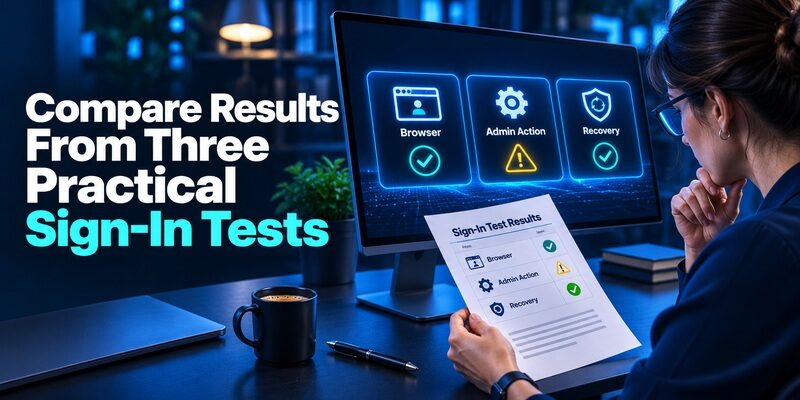
Test a Normal User on an Unfamiliar Browser
Use a controlled account and sign in on an approved browser that does not already hold a session. Record what the user sees, which proof the application accepts, and whether the expected account opens. Then repeat with the registered phone unavailable. The second test shows which recovery or alternate options appear.
For consumer accounts, look for instructions that identify the method clearly. A prompt asking for a delivered code should point to the destination. A prompt for a code app should identify that app entry. If you support users choosing among multifactor authentication methods, include the exact prompt they should expect.
Test a Privileged Action After an Ordinary Sign-In
Complete the approved login and then open a safe test path for an operation that requires more assurance. Determine whether the existing session already satisfies the policy, whether the service requests a stronger method, and which user role can continue. Check what happens when the user tries an alternate proof that policy is supposed to disallow.
A test result that says “logged in” is incomplete if the business goal is protecting a sensitive operation. Record the actual application, credential class, and action. This is where differences among multifactor authentication methods can become visible.
Test What an Authorized Support Person Can Reset
Ask a support agent to rehearse device loss with a test user. Verify which account details and identity proof they need, what they can change, and how the account owner is notified. Check that the replacement can finish the intended sign-in. Re-run the test after changing providers or plans, because the available recovery features may also change.
If the process relies on one administrator or one device, identify how an authorized backup handles the case. The test should show a working path for recovery without exposing a live code or granting access to someone who cannot prove their identity.
Read more: Square Authentication App Setup for Your Account and Team
Frequently Asked Questions About MFA Methods
Do Two Password Prompts Count as MFA?
Two passwords or a password and a security question are both knowledge proofs. Add possession or another distinct factor if the policy requires multifactor authentication methods. Identify the verifier and what it checks at each step. Separate prompts alone do not show that the account received two independent categories of proof.
Can One Passkey Satisfy a Multifactor Requirement?
A passkey can combine control of a registered credential with local user verification, depending on the authenticator and the service’s requirements. Check whether the service verifies the necessary response and whether the specific resource accepts it. A passkey configuration that works for a personal account may differ from a workplace requirement.
Is a Code App Better Than SMS?
A TOTP app can generate codes without carrier delivery and can avoid some phone-number risks. Someone can still relay a code typed into a fake sign-in page. If the service offers phishing-resistant multifactor authentication methods, compare those too. Consider the ability to recover and maintain the method you select.
What Is the Difference Between Approval and Number Matching?
A basic approval asks whether to accept a sign-in. Number matching can ask the user to confirm a number associated with the current request. This helps distinguish simultaneous prompts when the provider implements it. Always verify the account and the action you started. An approval you did not request should remain unused.
Which Method Works After I Lose My Phone?
Use the alternate proof the service already allows, such as another enrolled credential, an approved spare, or a recovery code. A provider may also offer identity verification. When comparing multifactor authentication methods, test the recovery path while the primary device still works. Confirm what the alternate can authorize afterward.
Final Thoughts
Choose multifactor authentication methods by checking what the service verifies and what an alternate route can authorize. Passkeys and compatible security keys can provide phishing-resistant proof. Code apps and push can fit supported accounts where their limitations and recovery are understood. SMS can be useful when it is the supported choice.
Test a fresh sign-in, an important action, and the loss of a device before depending on the method. Use the strongest approved proof you can maintain and keep the recovery material available through an independent route.
