
Coupa Authenticator App Setup for the Supplier Portal
Published November 20, 2026
Set up a Coupa authenticator app in the Coupa Supplier Portal by opening your account settings and the security and multifactor authentication area. Choose the authenticator app method, scan the official QR or enter its setup key, and verify a current code from the app. Save the backup codes Coupa presents before closing enrollment. Test a fresh sign-in and confirm you can reach the supplier account you intended to protect.
If you lose the device, use an available backup through the official challenge. Coupa also documents an administrator reset for another user on the same multi-user supplier account. A customer can require MFA to access its data, and a remembered browser can still ask for verification for a payment method or legal entity change.
Confirm the Supplier Account and Customer Requirement
| Where you are | What to verify | Who can help |
|---|---|---|
| Coupa Supplier Portal direct login | The intended supplier user and current verification method | Your supplier account administrator or official CSP support |
| Customer-specific resource after sign-in | Whether the customer requires MFA and which supplier role applies | The authorized supplier and customer contacts |
| An employer or customer-managed identity prompt | Which identity provider issued it | That organization’s help desk |
| Payment method or legal entity change | The separate verification and business authorization | The authorized supplier administrator |
| A missing or unavailable factor | Which backup or reset option the account supports | The relevant CSP administrator or official support |
Verify That You Are in the Coupa Supplier Portal
Open the official CSP sign-in and confirm the email and supplier account. A vendor can have several customer relationships, and a person can have a different account for buyer-side work. Use the instructions for the actual portal that issued the request. A Coupa authenticator app entry for the supplier account may not satisfy a separate company identity prompt.
If you are already signed in, check the intended customer and role before changing security settings. A browser may remember one supplier user. The fact that an invoice or order appears in that session does not identify which account your phone app should verify. Start the test using your own authorized credentials.
Check Which Customer Data Requires MFA
Coupa Compass says some customers require suppliers to enable MFA to access their data in CSP. If a particular customer prompts for verification, read the official portal message and confirm that your account is allowed to access the resource. Setting up a Coupa authenticator app can satisfy the account’s verification requirement where that method applies. It does not grant an unrelated permission.
Coordinate with your supplier administrator if a new customer or role appears at the same time as the verification requirement. Test the sign-in and the authorized resource separately. Record which part passed so support can distinguish an MFA problem from missing customer access. Supplier accounts may require additional verification before accessing sensitive customer information. Understanding how multi-factor authentication protects business accounts can help explain why successful identity verification and permission to access customer data are separate security controls.
Read more: Cisco Authenticator App Setup With Duo Mobile
Secure your accounts with fast, reliable two-factor authentication. Download now and protect your login in seconds.Download Authenticator App
Enroll the Coupa Authenticator App From Account Security
Open the MFA Settings and Choose the App
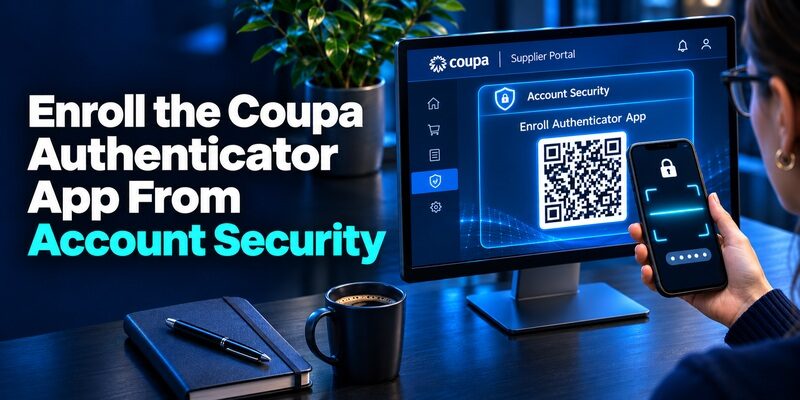
From your CSP profile, open Account Settings and the security and MFA section. Choose the authenticator app method. Coupa Compass describes the app as its recommended option and shows instructions in the setup window. Install an approved code app from the official publisher before you open the QR.
Confirm which device will hold the entry. For a company-managed phone, follow your organization’s app and backup policy. A Coupa authenticator app can generate codes after enrollment, but the account decides which value it will accept. Start setup only from the live CSP session for the intended user. Before registering your Coupa account, review how to use an authenticator app for secure account verification. This guide explains QR code enrollment, verification codes, and important recovery precautions for supported accounts.
Scan the Current QR or Enter the Setup Key
In the code app, add an entry and scan the QR displayed by CSP. Coupa documents using the security key shown in setup as a manual alternative. Treat that value as the secret that enrolls the app. Enter it directly in the app instead of sharing it with a colleague or saving it in an ordinary supplier folder.
Check the new app entry’s label and submit the current code in the Coupa window. Coupa’s guide says the Google Authenticator value is valid for a short interval. If the timer is near the end, wait for the next value and submit it promptly. Complete all steps Coupa presents.
Save the Backup Codes Before Closing the Window
Coupa’s setup guidance says to save the backup codes it provides during app enrollment. Use an approved protected place accessible without the phone. Keep the codes with the authorized account owner. For several supplier users, each person should save their own recovery material. Do not copy the codes into a shared invoice, purchase order, or support thread.
Start a fresh authorized sign-in and verify the new Coupa authenticator app code. Confirm that the intended supplier account and customer context appear. A successful enrollment and a successful sign-in are separate checks. Keep the first session available while you verify both.
Read more: What Is an Account Recovery Code? How to Use and Store Backup Codes Securely
Compare App Codes, Delivered Codes, and Passkeys Where Offered

Choose the Method the Portal Supports for Your Account
Coupa’s current MFA guide lists an authenticator app, SMS, and email routes. Its release notes also describe passkeys for eligible supplier MFA configurations. Use the methods shown in your live account and check the applicable policy. For an app code, confirm the entry and device time. For delivered proof, verify the registered phone or email and use the current value.
For standard code enrollment, is an option to evaluate alongside another compatible approved app such as Google Authenticator. Verify that it accepts the actual enrollment and that Coupa accepts the code. The right Coupa authenticator app is one the authorized user can keep available during a device change. Different verification methods have different security and recovery requirements. Our SMS vs authenticator app security comparison explains how text-message verification differs from app-generated codes in terms of offline access, phishing risks, and account recovery.
Test the Method for the Actual Supplier Workflow
Open the account from the device and browser you normally use. Verify the current proof and check the intended supplier and customer. If you use a passkey or another supported method, test the approved device and its replacement options. Do not assume that a factor configured for ordinary login can authorize every separate account change.
A delivered code can be useful where the registered contact remains available. An app can generate a rotating value without waiting for a text after setup. Check the fallback for each choice. A Coupa authenticator app and the account’s backup codes are separate parts of recovery.
Keep a Remembered Browser Separate From Sensitive Changes
Use Remembered Access Only on a Trusted Computer
Coupa documents a remember-browser option for CSP. Its guidance says the option can avoid repeated MFA for 30 days on that browser, while sensitive changes still require verification. Use it only on an approved device. A shared workstation or browser profile can leave an account session available to another person.
When you want to test the Coupa authenticator app, use a fresh approved session. A remembered browser can skip the challenge you need to verify. Check the email, supplier account, and customer. Keep the original route open until you know the fresh challenge works.
Check Payment and Legal Entity Changes Separately
Coupa’s MFA guide says payment method and legal entity changes still require MFA even when a browser is remembered. Open only the authorized workflow and verify which proof it requests. Follow your company’s separate approval process for changes to payment information. A successful sign-in does not authorize a sensitive business change on its own.
If a user says the Coupa authenticator app works for sign-in but cannot complete the operation, check the active account and the action’s requirements. Report the exact stage and whether the portal accepted the proof. Avoid editing payment details just to test a factor.
Read more: Authenticator App New Phone: How to Transfer It the Right Way
Restore Access When the Phone or App Is Missing
| What remains available | First route | What to verify afterward |
|---|---|---|
| The original phone or working app entry | Use the current proof and follow the approved change flow | The replacement passes a clean sign-in |
| Saved backup codes | Use the matching official backup option | The correct supplier account opens |
| A working CSP browser session | Review the registered method and recovery settings | Whether a new confirmation is required |
| Another active administrator on the supplier account | Ask for the authorized user reset if eligible | The account owner receives and completes the re-enrollment |
| No available backup or administrator | Use official Coupa support for the supplier account | The approved identity check and next steps |
Try the Backup and Preserve Any Working Session
If you have a saved CSP backup code, use it in the matching official recovery prompt. Confirm the supplier user it belongs to. If you can still open CSP in another browser, keep that session while checking the method and recovery settings. A change can require new verification even when a session remains open.
If you plan to move the Coupa authenticator app, follow its supported transfer or use the official re-enrollment flow. Test the new entry from a fresh session and save current backup material. Keep the old device until you know which enrollment works. If Coupa rejects a code generated by your authenticator, confirm that you selected the correct account entry and that your device clock is accurate. Our guide explains why an authenticator app may not work and how to troubleshoot rejected verification codes before resetting an existing enrollment.
Ask a Supplier Administrator to Use the Authorized Reset
Coupa’s current documentation describes an active administrator in the same multi-user supplier account temporarily disabling MFA for a locked-out user. Verify the person and the account under your approved procedure before making the change. Coupa says the affected user receives an email to reset and set up MFA again. Have the user follow that official process and verify the replacement.
If you are the only user or cannot reach an active administrator, use official CSP support for the situation. Explain which account and customer relationship are affected, which proof is unavailable, and whether a browser session still works. Do not send a current Coupa authenticator app code, setup key, or password in an ordinary support message.
Fix the First Stage That Fails
Check the App Code and Device Time
If the value is rejected, confirm that you selected the correct CSP account and active entry. Check automatic date and time on the generating device, wait for the next code, and try it in the active challenge. If you recently re-enrolled, an older entry can display a changing value that no longer matches Coupa.
If the screen asks for a delivered code, check the destination and use the proof Coupa sent for that request. A rotating app code cannot replace a delivered value. Record which method the screen requested and whether it reached the confirmation step.
Check the Supplier Role After Verification Passes
If sign-in succeeds but the customer data or invoice is not visible, verify the active supplier account and role. Ask the authorized owner to check the relationship or permission. A code that passes proves the expected verification. It does not create access to a different customer or account.
Once support resolves the case, run a clean sign-in and check the actual customer workflow. Record the method, date, and outcome without writing down verification values. Keep the recovery route available to the user who owns the account. Unexpected verification requests may indicate phishing or attempted unauthorized access. Learning what to do if you clicked a phishing link can help you respond appropriately if a suspicious message or fake supplier portal has exposed your login credentials or authentication codes.
Review Recent Login Activity After an Unexpected Prompt
Check the Official Activity List
Coupa Compass describes a recent login activity section under security and MFA settings. Open the official portal independently and review the time, browser, device, and verification type shown for recent logins. Compare those details with a sign-in you know you started. If an entry is unfamiliar, follow the organization’s approved incident and Coupa support process.
An unexpected Coupa authenticator app prompt or delivered code does not by itself establish that someone reached the account. Leave it unused and check the activity through the portal. If a caller or message asks for the current code, stop and use your authorized support route. Keep the verification proof and business details private.
Check the Authorized Workflow After Recovery
If an account was recovered or a device changed, test a fresh login and review the intended customer account. Ask the authorized business owner to verify whether any unexpected payment or legal entity changes occurred. Use the organization’s official process to investigate and correct them. A new Coupa authenticator app enrollment cannot reverse changes already made during another session.
Record the time of the suspected activity and the exact portal message without copying a live code or bank details into general notes. Confirm that the account owner has the current approved method and an independently reachable fallback. Keep the incident review separate from the decision about who can authorize business changes.
Read more: How to Back Up Authenticator Codes Before Changing or Replacing Your Phone
Prepare a Supplier Account for Device and Staff Changes
Test the Method Before an Invoice or Payment Deadline
If a supplier user changes phones, confirm that the current Coupa authenticator app still works and that the backup codes are available. Follow the app’s approved transfer or Coupa’s official re-enrollment procedure. Test the replacement in a clean session and verify the customer or invoice workflow. Do not make a financial change merely to test the account.
Check which authorized user can cover essential work while access is being recovered. Use their own account and role rather than sharing a password or verification proof. If the upcoming operation requires separate verification, ask the authorized business owner to confirm the approved process before the deadline.
Plan for the Administrator Who Can Reset a User
For a multi-user supplier account, document which active administrator can handle a user reset. Coupa’s guide describes reaching the user record from Setup and Users, editing the affected user, and using the MFA disable action for that person. Verify their identity and the intended account before following the documented reset. The email and re-enrollment belong to the affected user.
After the replacement is active, verify that the Coupa authenticator app passes and the intended customer or role is present. Record the authorized reset and outcome. Keep the account available through the approved fallback. If the only administrator is unavailable, use Coupa’s official supplier support rather than reusing someone else’s login.
Check Account Access During a Staff Handover
When an employee changes roles, verify which supplier users and permissions remain active. Use the company’s approved administration process to update access. A successor should use their own Coupa authenticator app registration or approved method. A code entry from the previous employee belongs to that person’s account.
Record which business tasks the successor can perform and who can recover access if their device is lost. Check the supplier profile, customer relationship, and security requirement for the real workflow. This separates a staff access issue from an authentication problem.
Verify That the Test Covered the Actual Portal
Keep a short record of the supplier account, customer, browser, and successful method. Include the date and whether the test was from a clean session. If you used a remembered browser, run a separate test that exercises the Coupa authenticator app. If a payment setting or legal entity change has its own policy, confirm the requirement without submitting an unauthorized change.
After an approved reset, check that the user can reach the expected workflow and the previous factor was handled under the account’s instructions. If something still fails, report whether the login, MFA challenge, or resource permission needs attention. Keep the backup codes and setup secret outside that support record.
When the supplier account uses a customer-specific requirement, check whether the same user can open the relevant customer record after a new login. A successful test for one relationship may not demonstrate access to another. If you work from more than one browser, verify which one is remembered and which one asks for proof. Keep each result attached to the corresponding device, approved browser profile, and authorized supplier role.
Final Thoughts
Set up the Coupa authenticator app through the Supplier Portal’s account security settings. Confirm a fresh app code, save the backup codes, and test the correct supplier and customer after sign-in.
If the device is unavailable, use the approved backup, supplier administrator, or official support route. Verify the new method before retiring the original device and check sensitive business actions separately.
