
Why Does My Authenticator App Not Work?
Published November 17, 2026
By the Authenticator App Team
Why does my authenticator app not work? If it shows a code that the site rejects, check the account label, set your phone’s date and time automatically, and try a fresh code before it rotates. If the account is missing from the app, check the old phone, the app’s sync account, or the service’s recovery options. If the site expects an approval notification, open the registered app and check which device the prompt was sent to.
Keep any signed-in browser session and the old phone until you can pass a new sign-in. Avoid deleting an entry, reinstalling the app, or resetting all your accounts at the start. Those actions can remove the only copy of an enrollment. The steps below separate the most common failures so you can fix the part that actually stopped working.
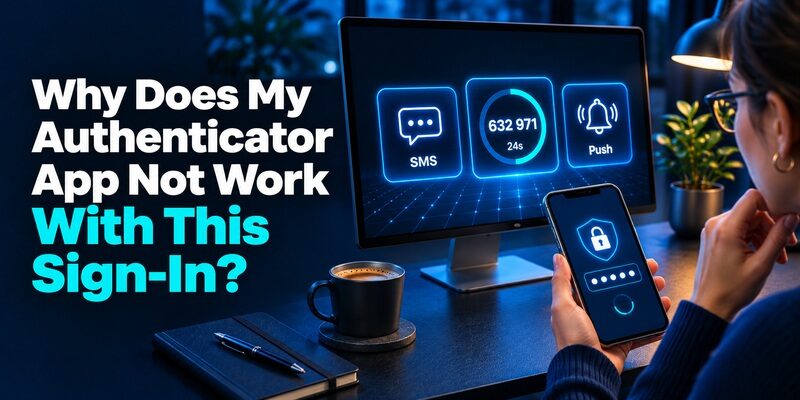
Why Does My Authenticator App Not Work With This Sign-In?
| First symptom | Most useful first check | Next step |
|---|---|---|
| Code displays but the site rejects it | Account, active entry, phone time, and current challenge | Use a fresh value for the correct entry |
| App opens but the account is missing | Old phone, sync identity, and transfer status | Restore or transfer through the app, or recover with the website |
| Expected approval does not arrive | Registered device, internet, and notification permission | Open the correct app or select an approved alternate method |
| Phone is unavailable or app will not unlock | Working session, alternate factor, or recovery code | Use the official service recovery flow |
| Only one account fails after a reset | Whether the site issued a new enrollment secret | Use the new entry or ask that service to restore access |
Read the Service’s Instructions Before Opening the App
Start at the official sign-in and check the method named on the screen. A field for a code delivered by email or SMS belongs to the message the service sent. A request for an authenticator code belongs to the enrolled entry. A number matching prompt asks you to compare or enter a number from the sign-in inside the approval app. These challenges can look similar until you read the full instruction.
If your first thought is “Why does my authenticator app not work?”, check whether the site has offered a different method on this attempt. A work account can ask for one verification method on a managed laptop and another on an unfamiliar device. The policy belongs to the provider or organization, and a valid code only helps where that challenge accepts it.
Confirm the Label and the Account Separately
Check the site name and the username on the sign-in screen, then compare the app’s entry. Some people keep several accounts for the same provider, such as a personal account, an employer account, and a second client tenant. Similar labels can hide distinct enrollment secrets. If the code fails for one account while the others work, check the affected account first.
“Why does my authenticator app not work?” can also mean “Why did I get a prompt for a different account?” Cancel a challenge you did not initiate and open the service from a known starting point. Use the official site to check recent activity when available. Keep the work or school account separate from an unrelated personal app profile.
Fix a Code That Appears but Keeps Getting Rejected
Check the Device’s Actual Time
TOTP codes depend on a shared secret and time. A phone clock that is out of sync can produce the right pattern for the wrong interval. Turn on automatic date and time in device settings where permitted, allow the phone to update, and reopen the authenticator. Google Account Help says current Google Authenticator versions rely on the device operating system’s time. Older instructions about a separate time correction setting may refer to a previous app version.
Try the next value when its countdown begins. If you were asking “Why does my authenticator app not work after travel?”, verify the phone’s date and time source as well as the displayed time zone. An unusual time zone by itself does not necessarily mean the system clock is wrong. On a managed device, ask the device administrator to check settings that you cannot change.
Make One Fresh Attempt in the Right Browser Session
Open a new challenge only if the current one has expired or the service directs you to restart. Check the account and enter the new code while it still has time left. If there are two tabs, submit in the one that shows the current sign-in for the intended service. Browser autofill or a copied value can leave an older code in the input.
A support ticket titled “Why does my authenticator app not work?” is easier to resolve if it records the exact symptom and stage. Write down whether the app shows a timer, whether other entries work, and whether the error occurred before or after changing phones. Keep the actual value and any setup QR private.
Check for a Stale Duplicate After Re-Enrollment
If you reset 2FA and scanned a new QR, your app may still list both the old and replacement entries. Both can generate values. Only the enrollment the service currently recognizes will pass its challenge. Use a recent label, the verified new device, or the service’s last enrollment record to identify the current entry.
If your question is “Why does my authenticator app not work after adding it again?”, start by testing the entry created in the most recent successful enrollment. Keep older entries until you know which one was replaced and whether an apparent duplicate belongs to a different account. Remove only entries you have verified are obsolete.
2Factor Login for the Log2X Dashboard and OTP Troubleshooting
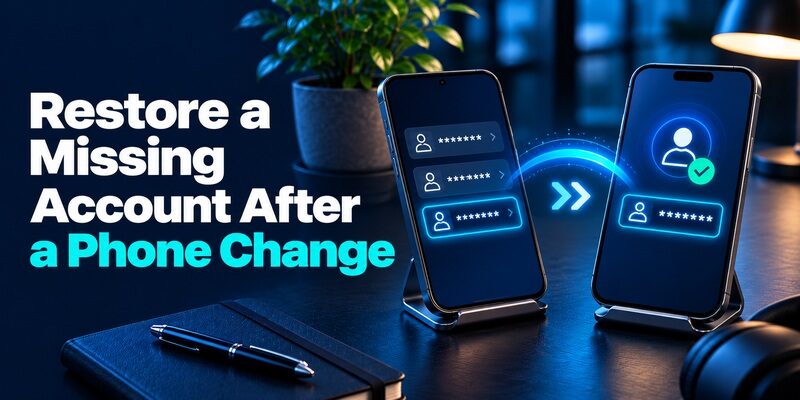
Restore a Missing Account After a Phone Change
Check the Original Phone While It Still Works
Open the old phone’s authenticator and locate the affected entry. If it still works, sign in through the official service and verify how that account supports transfer or replacement. Keep the old phone in your control until the new one passes a fresh sign-in. For a managed work account, follow the employer’s enrollment procedure.
When a reader asks “Why does my authenticator app not work on my new phone?”, first ask whether the entry exists on the original phone. The app may have reinstalled from a device backup without restoring its enrollment data. An old working device provides a test and may offer a supported transfer route.
Match the App’s Backup or Sync Identity
Google Account Help documents Google Authenticator sync when signed in to a Google Account and manual transfer from an old device when appropriate. Check the account used in the app. If you used local-only mode, signing into a Google Account on the replacement cannot recover an entry that was never synced.
Microsoft’s Authenticator support describes restoring accounts from a configured backup and explains that some accounts require additional sign-in or re-registration. Check its current recovery instructions and confirm device and account requirements. Each work account may have its own rules. “Why does my authenticator app not work after a restore?” can mean the app restored a label but still needs you to activate the underlying method.
Verify One Entry Before Moving the Rest
If you want to move your authenticator to a new phone, start with one account you can recover. Transfer through the documented method or enroll a new authenticator from the service’s own security settings. Open a separate sign-in using the new device. Once it works, repeat the process for other accounts individually, paying particular attention to email, finance, and work access.
For services that support standard TOTP, is an option to evaluate when you can enroll a replacement safely. Check the app’s backup and recovery options first. If the service uses a proprietary approval or activation flow, use its specified app and process.
Passwordless Multi Factor Authentication With Passkeys and Security Keys
Get a Push Approval to the Correct Device

Open the App and Check Its Connection
When the service asks for approval, check that the registered device has internet access. Open the authenticator and look for the request. Review notification permission and any organization rules about the device. Some apps can generate rotating values while offline, while a live push request needs a route to the registered app.
If you search “Why does my authenticator app not work?” because notifications stopped after a phone change, compare the new and old registered devices. The account may still send approvals to the old registration. Use the original phone if appropriate, or ask the identity administrator to help register the approved replacement.
Compare the Request With Your Sign-In
Only approve a prompt you initiated. If the browser displays a number, follow the number matching instruction inside the approved app and check the service and account shown. A matching name alone can be insufficient if you received several prompts. Cancel unexpected requests and review the account through its official sign-in.
When the login offers a code or another registered method, select it only if you can identify where the proof should come from. If the alternate method is missing, the account may not have enrolled one or policy may disallow it for this resource. An approved help desk can clarify which methods your organization accepts.
Break a Recovery Loop Without Losing Existing Access
| What you can still access | First route to try | What to verify afterward |
|---|---|---|
| An old device with a working entry | Use the existing factor and enroll or transfer to the replacement | New sign-in accepts the correct entry |
| An active browser session | Open security settings and check approved alternate options | You can complete any prompt required for a method change |
| A saved recovery code | Use the service’s official recovery code field | Account accepts the code and lets you restore security |
| An administrator for a work account | Request identity-verified factor re-registration | The correct account is enrolled and the target resource opens |
| Neither device nor alternate method | Follow the account provider’s identity recovery process | Access and security settings return for the right account |
Distinguish App Unlock From Website Recovery
If you forgot your authenticator password or PIN, first identify what is locked. A local PIN, biometric check, or device passcode can block the app. A website can also ask for the second factor while you know its password. Use the app or device’s documented recovery route for the first issue and the website’s alternate factor or recovery route for the second.
People sometimes describe the problem as “Why does my authenticator app not work when I need authenticator to login to authenticator?” If the account that syncs the app requires a code stored inside it, reach for an independent recovery option. A previously trusted device, an already enrolled key, or a saved recovery code may help if the provider offers it.
Keep the Last Working Session Open
If the service is still open in a browser, preserve that session while you verify what recovery routes are available. An account can require fresh authentication before letting you change a factor. Check the specific requirement before removing a device or signing out. A remembered session helps you identify the account and settings even if you still need a separate proof to make changes.
When you contact support, describe the exact point of failure. For “Why does my authenticator app not work after my old device was wiped?”, say whether the account label exists, whether you can still reach an alternate method, and whether you have an active session. Use an approved channel and leave codes, QR values, and passwords out of the request.
Test the Result and Record What Changed

Reproduce the Sign-In From a Clean Session
After resolving the issue, keep the original browser open and test a separate sign-in. Select the service and account, wait for its actual challenge, and verify that the expected method works on the replacement. Make sure you reach the intended dashboard or organization. An authentication success can be separate from the user’s permission to open a resource.
If a colleague later asks “Why does my authenticator app not work after the same migration?”, document the affected version, account type, and symptom you resolved. A note that says the old code remained registered or the work device needed re-enrollment is more useful than a copy of a recovery value.
Review the Fallback and the Previous Enrollment
Check the service’s recovery settings before wiping or returning the old device. Confirm that a separate recovery method is available and that the people authorized to use it can reach it. If the provider issued new recovery codes, save them as directed and remove older copies that are no longer valid.
Review any obsolete registrations through the service’s own settings. Remove entries or devices only when you know what each one belongs to. If you suspect a QR or shared secret was exposed, use the provider’s official replacement procedure and follow any incident instructions.
Questions to Ask When the App Still Fails
Why Does My Authenticator App Not Work When Only One Account Fails?
Focus on that service’s challenge, selected account, and current enrollment. Ask the service owner whether the entry was reset or a policy changed. Other working entries are a useful clue that the entire app may still be functioning normally.
Why Does My Authenticator App Not Work When the Phone Is Offline?
A time-based code can be generated offline if the app holds the enrolled secret and the device time is correct. Push approval needs a connection to receive the request, and the sign-in still needs a connection to the service. Read the prompt before switching methods.
Why Does My Authenticator App Not Work When Codes Keep Changing?
The changing value is expected for a time-based entry. Wait for a fresh value and submit it in the original challenge before it changes. If it still fails, check the time and account label or use a verified recovery route before changing the enrollment.
Match the Symptom to the Account You Need Most

If you need to regain access to several services, start with the email or identity account that controls other recovery routes. The broad question “Why does my authenticator app not work?” is easier to answer after you list which accounts show a code, which ask for a push, and which provide an independent recovery option. Mark the accounts that still have an active session before you make changes.
If you’re asking “Why does my authenticator app not work on this shared computer?”, check the browser profile and whether you are signing in to your own account. An app entry that works on your regular computer can still be correct when a work policy denies access from a shared device. If the error mentions device compliance or permission, report that detail to the administrator.
If the problem is “Why does my authenticator app not work for a finance login?”, use the institution’s own recovery route and check whether it supports the method you expected. A bank may deliver a code or require its own token. If the displayed prompt names a proprietary app, enroll that specific method through the bank.
If you’re asking “Why does my authenticator app not work when I have a new number?”, first check whether the site is actually using SMS. A change in phone number does not update the registered contact on a website. A time-based entry can continue to work if the same enrollment moved successfully.
For “Why does my authenticator app not work after an account reset?”, check whether the service changed the enrolled factor as part of the reset. Ask support which proof is now active. Use a fresh attempt to confirm the answer.
Final Thoughts
Why does my authenticator app not work? Start with what you can observe. A rejected code points to the account, time, or enrollment. A missing entry points to transfer, backup, or recovery. A missing push points to the registered device, network, or notification settings.
Keep your last working route until a clean sign-in succeeds. If you cannot recover the entry, use the service’s official alternate method or ask the authorized administrator to re-register it. Test the specific account and save a recovery option you can reach independently.
Download Authenticator App
Secure your accounts with fast, reliable two-factor authentication. Download now and protect your login in seconds.
