
How to Change Your Password After a Breach Without Losing Access
Published October 21, 2026
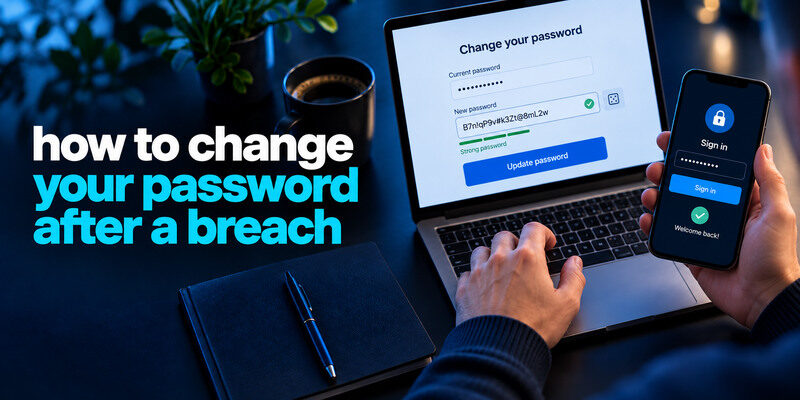
Change your password after a breach on the genuine affected website, then replace the same password everywhere else you used it. Generate a different strong credential for each account, save it in a trusted manager, and verify a fresh sign-in before deleting the old entry. Secure primary email first when it can reset other accounts. Afterward, revoke unfamiliar sessions, review recovery methods, and add MFA; the password update alone may not remove existing access.
Confirm what actually needs replacement
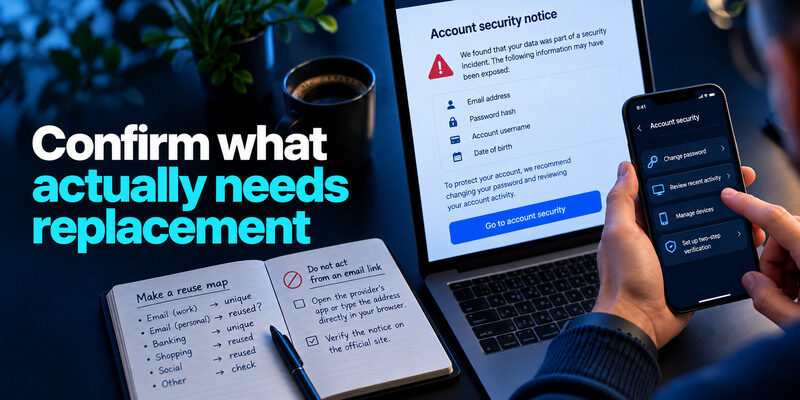
Read the affected provider’s official notice and the data fields it names. A leaked password, password hash, or confirmed credential exposure warrants replacement. If a checker found an email address in an old breach, determine whether the current password is the same one that could have been exposed. A suspicious successful login also warrants account containment even without a public breach listing.
Do not act from an email link
Open the provider’s app or type its address yourself. Breach-themed phishing pages can collect the new password immediately. Check the full domain and sign-in context. If the account is inaccessible, use the provider’s official recovery flow, not an “instant unlock” service in a social message.
A legitimate breach notification should be verified through the affected provider’s official website or app. Do not follow an unexpected message to a password-reset page without checking its destination. Our guide on how to respond to a data breach explains how to verify the incident, identify affected information, and prioritize the first actions safely.
Make a reuse map privately
List accounts that used the old password or a simple variation. Prioritize email, manager, work, financial, social, then less critical services. Do not copy the live secret into the list. A manager’s reused-password report can help, but old accounts stored outside it may need a separate review. The purpose is to replace every copy, not to count breached sites.
Step 1: secure the reset chain
Primary email and the password manager may unlock everything else. Change their exposed or reused credentials first from a trusted device, check current recovery details, and ensure MFA works. If your phone is lost or the device is suspected of malware, use another clean device and preserve a working backup route. An attacker with your mailbox can reset newly secured accounts.
Your primary email account should be protected before changing other critical passwords because it may control their reset links and recovery messages. Review successful sign-ins, recovery addresses, forwarding rules, and connected applications. Our guide on how to secure your email account explains how to protect the mailbox that other accounts depend on.
Check forwarding and recovery
In email, inspect unknown forwarding rules, filters, app passwords, signed-in devices, and recovery addresses. Remove unauthorized entries. Do not assume a password change clears them. For a manager, keep recovery material outside the vault it unlocks and test sign-in on another device.
If access is already gone
Follow official account recovery. Record case numbers and the last trusted device. Do not enter fresh credentials on a computer with a suspected malicious extension. For work accounts, contact the authorized security team so changes align with its incident process.
Step 2: generate a new independent password
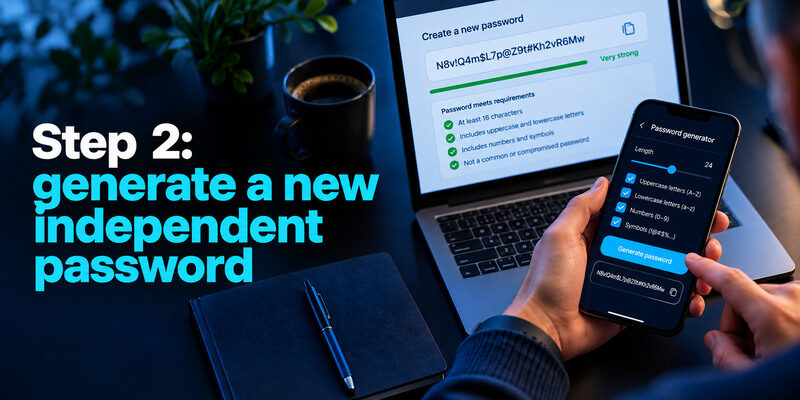
Use a trusted manager to create a long random credential that meets the site’s requirements. Avoid a familiar phrase plus the current year, a site-name suffix, or a password that differs by one character from another account. NIST guidance emphasizes length and checking against common or compromised choices. Unique generation addresses the cross-site reuse that makes a single breach spread.
A replacement password should be unrelated to the exposed credential and different from passwords used on other websites. Avoid predictable substitutions such as adding a symbol, year, or service name to the old password. Our guide on how to generate a strong password explains how to create long, unpredictable credentials that are practical to store and use.
| Weak replacement | Why it fails | Better choice |
| Old secret plus `!` | Predictable variation | New random generated string |
| Same new secret at all sites | One future breach spreads | Independent secret per site |
| Only update manager entry | Website still accepts old secret | Change on website, then save |
| Delete old entry first | May lose working access | Verify new sign-in before cleanup |
Use a passphrase for the few secrets you remember
A manager’s master login may need a long randomly assembled passphrase that you can type. Do not use a public quote or personal story. Keep a protected recovery copy according to the provider’s options. Website passwords can be random strings because the manager fills them.
Avoid unnecessary calendar changes
This breach supplies a reason to replace affected or reused secrets. Other unique passwords do not automatically need rotation if there is no evidence of exposure. Focus on account activity and recovery after the replacement. Repeated changes to a related pattern can reduce security.
Step 3: change it on the real service
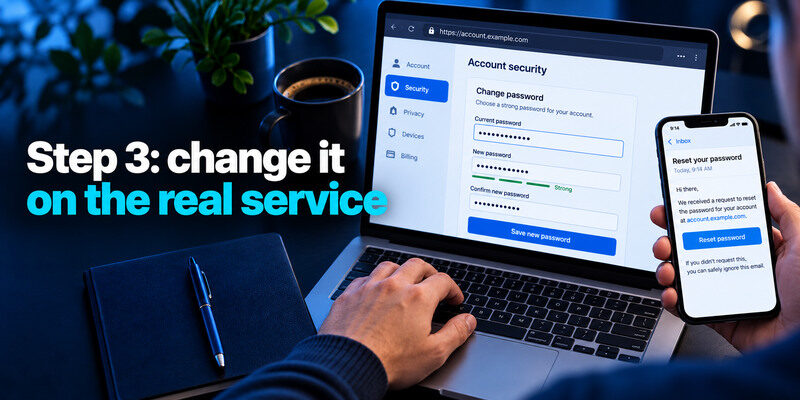
Sign in through the genuine site, find its account-security password-change flow, enter the current credential if requested, and save the new generated one. Some providers use a reset email rather than a settings screen; open that message only after initiating the reset yourself and confirming its destination. Do not read a current one-time code to a caller.
Save the correct entry
Make sure the manager associates the new password with the real domain and username. Sites with multiple subdomains can produce duplicate entries. Sign out of a noncritical session and sign back in once to verify. Then remove the stale saved password. If a site truncated or rejected a generated value, create a compatible independent one and test again.
After changing a password on the actual website, confirm that your password manager saved the new credential under the correct domain and username. Test a fresh sign-in before deleting the old entry. Our guide on use a password manager explains how to update saved logins, avoid duplicate entries, and verify that autofill uses the correct password.
Do not lose the only session too early
Before “sign out everywhere,” verify that the recovery email, MFA factor, and backup codes are accessible. An attacker may have changed them. Once the legitimate recovery path is secure, revoke unfamiliar sessions. For a hijacked account, follow the provider’s compromised-account sequence.
Step 4: replace the reused copies
Visit each other account on your private reuse map and generate another unrelated password. Update the real website, save it, verify it, and mark it complete. Do not skip an old shopping or gaming account if it still holds a card, personal details, or a reset path. Close an unused account through its official process when appropriate, but still replace the reused credential elsewhere.
Work through the highest impact first
A stolen email credential can reset many sites. A bank or work login can cause immediate harm. Social profiles can impersonate you. Prioritize by what the account can unlock or change, not by which site appears first in the breach announcement. If a team shares a password, move to individual roles or an approved managed vault.
Watch for a stale app retry
A phone client may keep using the old password and trigger repeated lockouts. Update its saved credential after the website change. Check the provider’s activity page to distinguish your own failures from a genuinely unknown successful session. Do not repeatedly guess if the service instructs you to wait.
Step 5: end unauthorized access and add MFA
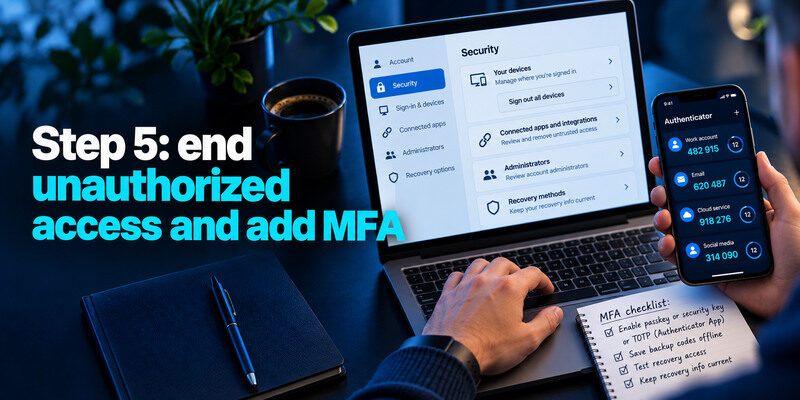
Changing a password may not revoke every browser session or connected-app token. Use explicit sign-out-all or device-removal controls and inspect integrations, administrators, and recovery factors. Enable a passkey or security key where supported and recoverable, or TOTP on compatible accounts. can generate the codes; save each service’s backup codes outside the phone and test sign-in.
A new password does not always invalidate an existing authenticated session. If an attacker already controls a valid session token, they may retain access until the session is revoked or expires. Our guide on what is session hijacking explains why reviewing active devices, connected applications, and session-revocation controls matters after a breach.
A TOTP code is not a cleanup button
MFA protects future sign-ins but cannot undo data already copied or payments made. Check messages, purchase history, forwarding rules, and account changes. Contact a bank or employer promptly if their systems were affected. A stolen active session requires session revocation in addition to a new password.
Keep recovery current
Replace an old phone number or email only after verifying the new one. Store backup codes in a protected location separate from the account. A strong new password with an inaccessible recovery route can lock out the owner after a device loss. Practice a fresh sign-in while the original phone works.
Verify the change over the next days
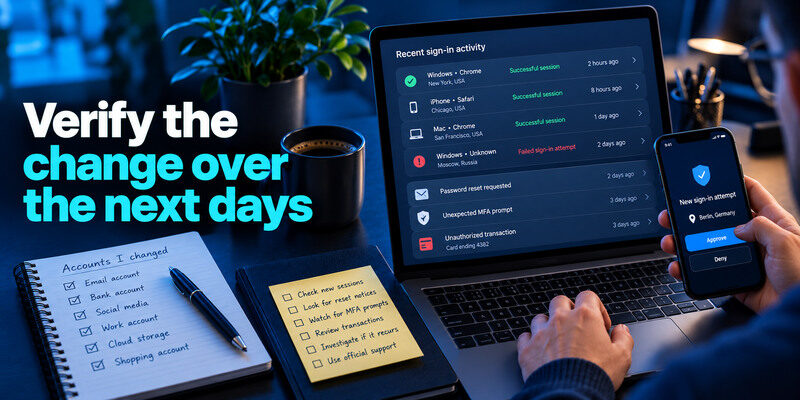
Look for new successful sessions, password-reset notices, unexpected MFA prompts, and unauthorized transactions. A breach dataset may continue circulating, so failed attempts can persist even after you replace the old secret. If an unknown successful login recurs, inspect devices for malware and extensions, recovery methods, and app tokens. Use official support for a persistent incident.
Record what you changed
Keep a private list of account names and completion dates, not passwords. Note whether you revoked sessions and updated recovery. This helps you finish a large reuse cleanup without duplicating work. Do not leave a screenshot of backup codes in the same cloud account they unlock.
Once the immediate breach response is complete, keep a simple record of which accounts were updated, whether old sessions were revoked, and whether recovery methods still work. Continue reviewing important account settings regularly. Our personal cybersecurity checklist
Do not mistake a manager alert for a failed change
Some managers retain an old compromised entry after the live website password is updated. Verify the new sign-in and remove the stale entry. If the warning refers to a different username, address that account separately. A clean vault screen is not evidence that no active session was abused.
Verify the replacement actually broke the old route
After saving a new password, sign in on a trusted device, review the service’s security page, and use “sign out other sessions” if available. Confirm that the password manager stored the new credential for the correct domain. Check whether an old app still holds the former password; repeated failures from your own device can otherwise look like an attack.
If you cannot reach the account
Use the genuine provider’s recovery flow and secure the recovery email first. Avoid support links from breach-themed messages. If a business account is involved, contact its administrator because central identity and device sessions may require a different revocation process.
If multiple accounts shared the secret
Treat each as a separate change. A new password at the breached service does nothing for the old password still accepted by another website. Keep a checklist of sites changed and mark session revocation separately from password replacement.
New login succeeds|Replacement was saved correctly|
Old sessions ended|Existing access is revoked where supported|
Recovery details correct|Reset channel remains yours|
Reused accounts changed|Old pair no longer works elsewhere|
Frequently Asked Questions
Should I change every password after one breach?
Change the exposed credential and every account that reused it. Other unique secrets do not need automatic rotation solely because another service was breached. Review important accounts for suspicious activity.
Can I just turn on MFA and keep the leaked password?
No. An exposed password should be replaced. MFA adds a barrier, but phished codes, stolen sessions, or weak recovery can still enable access. Use both unique credentials and a recoverable strong factor.
Does changing the password log out an attacker?
Not always. Use the service’s explicit session-revocation option and check connected apps. Review recovery methods and account actions. Providers vary in whether a reset automatically ends sessions.
What if I cannot remember where I reused it?
Use a manager’s reuse report and search your account inventory for sites you used before adopting unique passwords. Prioritize high-value services. Do not paste the old secret into a general search engine or untrusted website to find matches.
Final Thoughts
Changing a password after a breach is a sequence: verify the real service, secure email, generate a unique replacement, update every reused copy, revoke sessions, and test recovery. Take one account at a time and confirm the new login works. That removes the shared secret that lets one incident spread.
