
Best Security Settings for Social Media: What to Turn On First
Published October 9, 2026
The best security settings for social media are strong sign-in protection, alerts for unknown logins, a current recovery method, limited audience and contact permissions, and review of connected apps. The exact menu names change, but these five controls reduce account theft and unwanted exposure across major platforms. Set them deliberately for how you use each account: a private family profile needs a different audience from a public creator page.
Start with the account that can reset the others
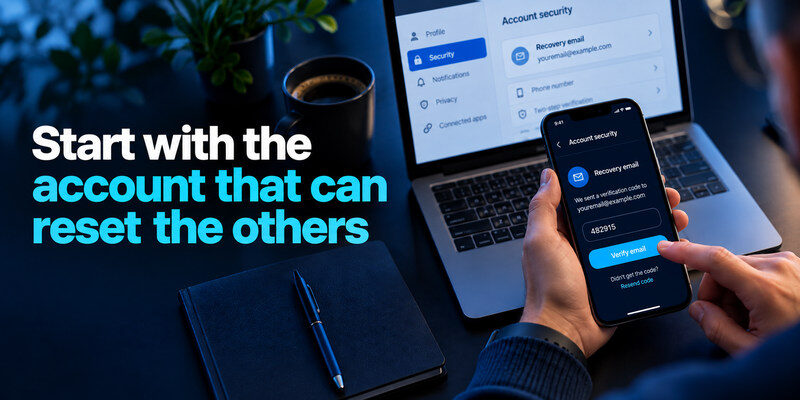
Before changing visibility, inspect the email address and phone number on each social profile. If an attacker controls the recovery mailbox, they can undo many social settings. Protect that email with a unique password and MFA. If you manage a public page with a team, identify who has owner or administrator access; securing only your personal profile may leave the page exposed.
Your recovery email is often more important than any single social media privacy toggle because it may be used to reset passwords and restore access. Our guide to the best account security practices explains how to prioritize high-impact accounts, protect recovery methods, and strengthen the authentication settings that prevent account takeover.
Find the genuine settings screen
Open the social app yourself, then enter its settings, account center, security, or privacy area. Do not follow a message that claims a policy violation and offers a login link. Menus vary by version and region, so use the platform’s own help center if a label has moved. Record what you changed, especially on a shared business account.
Review your recovery details
Remove an old number or email only after adding and verifying the replacement. Save backup codes in a protected place outside the social account. A recovery route you cannot access can turn a routine phone loss into a permanent lockout. Test the route while you can still sign in.
Secure your accounts with fast, reliable two-factor authentication. Download now and protect your login in seconds.Download Authenticator App
The five settings that deserve attention first
| Setting | Why it matters | First choice for most people |
| MFA or two-step verification | Blocks password-only takeover | Passkey or security key where supported; otherwise an authenticator |
| Login alerts and device history | Reveals an unknown session | Enable alerts and remove devices you do not recognize |
| Audience for new posts | Limits accidental disclosure | Friends or a chosen group for personal posts |
| Contact, tagging, and message controls | Reduces unsolicited contact | Restrict strangers and require tag review where available |
| Connected apps and page roles | Third parties may retain access | Remove unused integrations and former collaborators |
This is a priority order, not a universal preset. Someone whose work requires public posts should leave those posts public and tighten administrative access, private details, and direct-message permissions. A teenager or a person facing harassment may need stricter discovery and interaction controls immediately.
MFA choice depends on risk
A passkey or physical security key can resist phishing where the platform supports it. A time-based code from is a useful option when the service offers authenticator-based verification; keep the account’s recovery codes separately. SMS can still be better than password-only sign-in, but phone-number changes and interception are additional considerations. Never approve a prompt or share a code for a sign-in you did not initiate.
When a social platform does not support passkeys or physical security keys, an authenticator app is often a practical alternative to password-only sign-in. Our guide explaining how an authenticator app works covers temporary verification codes, account setup, recovery methods, and the security limitations of app-based two-factor authentication.
Login alerts need a response plan
Turn on available alerts for a new device or unusual sign-in and learn where the platform displays recent sessions. An alert about your own new phone, VPN, or travel may be harmless. If the device, time, and action do not fit, open the app directly, revoke the session, change the password, inspect recovery settings, and review connected apps. An alert alone does not prove the account was taken over.
Set post and profile visibility on purpose
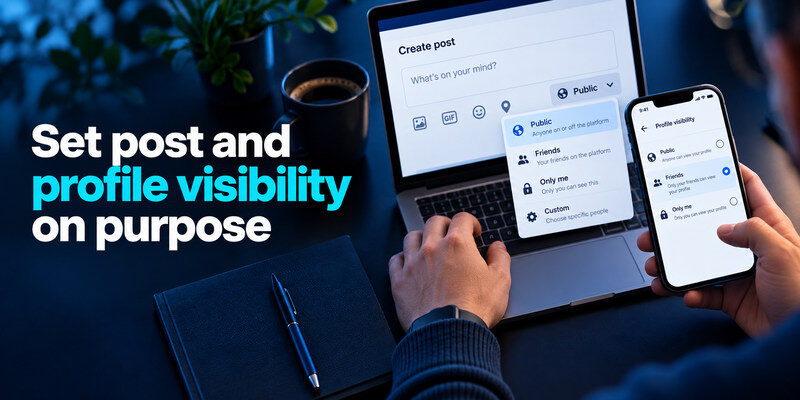
A private account often limits who can see posts, yet profile photo, username, comments elsewhere, and content shared by others may remain visible. Check each platform’s preview or “view as” option if offered. Decide separately who can see old posts, new posts, stories, followers, and personal information. A single private toggle does not erase copies or screenshots.
Audit the oldest public material
Look for phone numbers, home or school details, travel plans, and documents visible in photos. Restrict old posts using native controls when appropriate. Avoid mass deletion before exporting material you need. If you run a business, confirm public contact details are meant to be public and do not use the same personal number for account recovery and customer support if avoidable.
Check discoverability
Platforms may let people find you through a phone number, email address, search engines, or synced contacts. Turn off a discovery path you do not need, and review whether your phone contacts are uploaded. Restricting discovery may make it harder for legitimate friends or clients to find you; choose consciously. It does not guarantee that your profile disappears from search results already indexed.
Control messages, mentions, tags, and comments
Direct-message requests, tags, mentions, and comments have different settings. For a personal account, allow messages from known contacts or send unknown requests to a filtered inbox. Require approval before tagged material appears on your profile if available. Limit who can mention you or comment during harassment. Report abuse through the platform rather than trying to negotiate with an impersonator.
Avoid an overbroad block
A creator may need public comments for community work. Keep the public channel, but use filters, a moderation workflow, and limited direct messages. A private user can make a stricter choice. Review the result from a second account or a trusted friend’s view; settings sometimes apply to future posts but not earlier material.
Protect minors and shared accounts
For a young person’s profile, review platform age and family controls with them and explain why a setting is chosen. Do not assume a private profile prevents unwanted direct contact or location disclosure through a post. On a shared brand account, avoid passing around one password; use supported role-based access and remove departing collaborators promptly. Business social media accounts need controlled access rather than one password shared across employees or contractors. Our guide to choosing a password manager for small teams explains shared vaults, access permissions, employee offboarding, and ways to reduce the risks of unmanaged credentials.
Platform-specific places to inspect
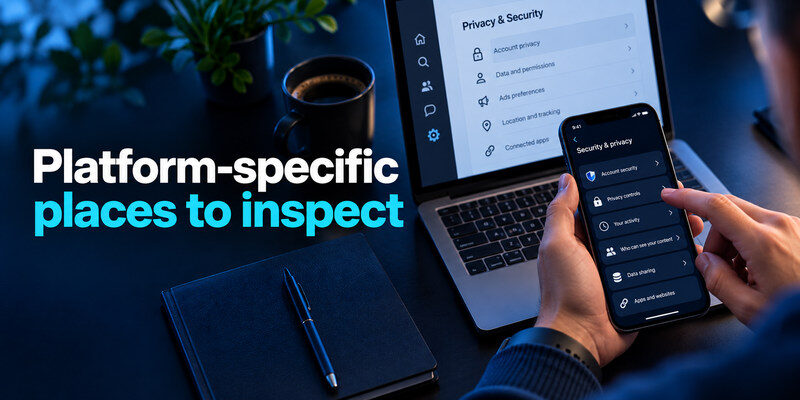
| Platform | Security area to look for | Privacy or interaction area to look for | Common oversight |
| Password and security, logged-in devices, two-factor authentication | Audience for posts, profile details, tagging, page access | Public older posts or leftover page roles | |
| Accounts Center sign-in settings and login activity | Account privacy, mentions, tags, messages, story audience | One public channel exposes personal details | |
| TikTok | Security and permissions, trusted devices, two-step verification | Privacy, downloads, direct messages, comments | Device list or downloads never reviewed |
Labels are illustrative; follow the current in-app wording. Meta and TikTok document these controls in their help resources, and some features differ by region, account type, and age. If you cannot find a setting, search the app’s official help rather than a third-party “fix” that asks for your login.
Facebook and Instagram accounts linked together
Review the Accounts Center relationship, cross-posting, and who can recover each account. A linked identity can be convenient, but a compromised administrator or recovery channel can affect more than one surface. Check business page roles independently of the audience of your personal posts. If your Facebook and Instagram accounts are connected through Meta’s Accounts Center, review their sign-in protection and recovery options carefully. For Facebook-specific instructions, our Facebook authenticator setup guide explains how to enable app-based two-factor authentication, connect a compatible authenticator, and prepare recovery methods.
TikTok and short-form content
Review who can download or reuse content, comment, duet or stitch where those options appear, and message you. Public reach can be a deliberate choice. The key is to avoid granting interactions you cannot reasonably moderate. Recheck the trusted-device list after changing phones.
Remove integrations and excessive permissions
A social account may connect to scheduling software, games, shopping tools, or old login-with-social sites. Remove apps you no longer use and inspect the permissions of the rest. Revoking an integration may stop automation or break a service, so identify its owner first on a business page. Also review your phone’s camera, microphone, location, and contacts permissions; app-level privacy is distinct from account visibility.
Check permission scope
A legitimate scheduler may need posting access but not every personal detail. Review each integration’s owner, purpose, and current permissions. Remove a tool when the campaign ends and retest essential workflows. A connected app can hold a token that survives a simple password change, so it deserves its own review after a suspicious login.
Beware the “account audit” plugin
A browser extension or web tool promising to reveal profile visitors or certify safety may request broad account access. Do not grant credentials or tokens just to view a score. Use the platform’s own activity and privacy controls. If you previously authorized such a tool, revoke it and check for unwanted posts or messages.
Choose a preset that matches your use
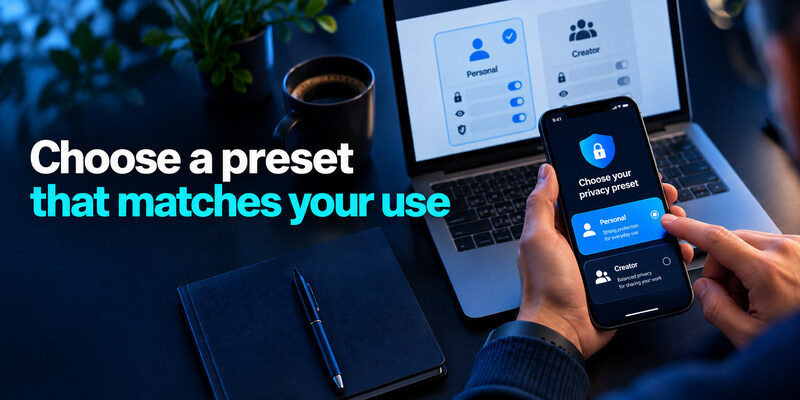
| Account type | Visibility default | Interaction default | Extra control to prioritize |
| Personal or family | Limited audience for new posts | Known contacts for messages and tags | Recovery and old-post review |
| Public creator | Public content by choice | Filtered messages and moderated comments | Strong MFA and collaborator roles |
| Small business page | Public business information | Managed inbox and role assignments | Offboarding and integration audit |
| High harassment risk | Strict audience and discovery | Restricted mentions and contact | Documentation, reporting, and trusted support |
A preset is a starting point. Test an actual post and a direct-message request after changing controls. If a feature necessary for your work stops functioning, restore only that permission and keep the other restrictions. Document the exception so it is not accidentally broadened later.
Recheck after a device or team change
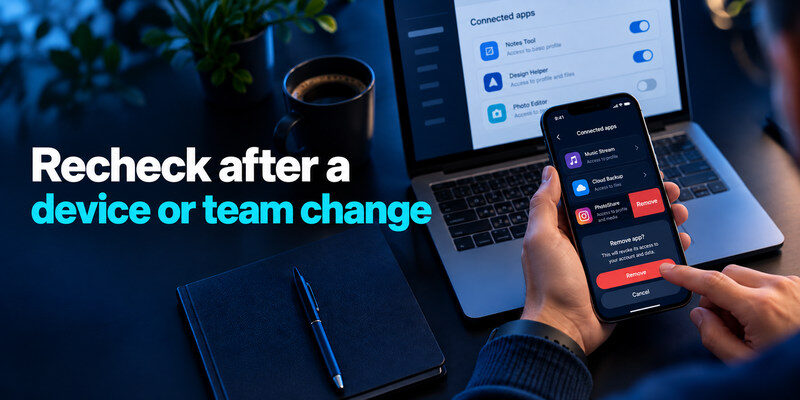
Every few months, and whenever you replace a phone or lose a collaborator, review trusted devices, backup methods, page roles, connected apps, and audience defaults. Platforms change their menus and sometimes add new options. Keep recovery codes current. If you notice an unauthorized post, unknown session, or changed email, follow the provider’s hacked-account flow from the app or official site immediately.
Review after changing account type
Switching from personal to creator or business can change which content and contact options are public. Recheck the profile from another account and revisit message, tagging, and audience defaults. If a campaign requires a public setting, limit it to the necessary surface and document the choice for teammates.
A five-minute verification
Sign out of one noncritical session, then sign in again with your chosen factor. Check that a new-device alert reaches you and that the audience of a test post matches your expectation. Do not disable MFA merely because a recovery step is inconvenient; fix the recovery method while you still have access.
Test the settings from outside your own account
The account owner’s view is a poor test of privacy. Open a public browser window or ask a trusted person who is not connected to the account what they can see. Check the profile header, older posts, follower list, tagged photos, and ways to contact you. Do not ask them to interact with suspicious content. A private toggle may apply to new posts while a public business profile remains visible by design.
Use a harmless test post
Create a non-sensitive post and set the intended audience. Confirm that a person outside that audience cannot see it. Then inspect comments and tagged-content review. If you change a default, make sure the next post inherits the intended audience; some platforms remember the last choice, while others apply per-post settings. Delete the test post when done, understanding that deletion does not undo a screenshot someone already took.
Check account discovery separately
Search for your profile by its handle and by the email or phone you have used for sign-up, where the platform permits such discovery. Visibility may differ for contacts, followers, logged-out visitors, and search engines. Restrict pathways that serve no purpose for you, but a public creator may deliberately keep the handle searchable. Retest after a platform redesign or when switching account type. Document what remains public so a collaborator does not assume the account is private.
An account with a perfect visibility test can still be taken over through a weak recovery mailbox. Keep this outside-view test alongside MFA, login alerts, and device review, not in place of them. If harassment is involved, preserve evidence, use platform reporting, and ask for trusted support instead of repeatedly changing settings under pressure.
Frequently Asked Questions
Should every social profile be private?
No. A public creator or business account can remain public while administrative access, personal details, messages, and connected apps are restricted. For a personal profile, a limited default audience is usually easier to manage. Consider what strangers need to see and test the result.
Is hiding my phone number enough to protect the account?
No. Public visibility and account recovery are separate controls. Hide or restrict the number where possible, then protect the recovery mailbox and enable MFA. Keep the number current if it is still a necessary recovery method.
Which security setting is free and most useful?
The platform’s built-in MFA, login alerts, session review, and audience controls generally do not require a paid plan. Begin with MFA and accurate recovery details because they protect the ability to keep the account. Feature availability can vary by platform and account type.
Can an authenticator stop every social-media hack?
No. It helps against password-only sign-ins but cannot stop an attacker who controls an existing session, tricks you into entering a code on a fake site, or abuses a connected integration. Strong sign-in protection works with session reviews, cautious link handling, and recovery hygiene.
Do deleted posts disappear from everyone else’s copy?
No. Another person may have saved, quoted, or captured content before deletion. Use audience controls before posting sensitive material, and treat deletion as a way to reduce future visibility rather than reverse prior disclosure. If an impersonator reposts your material, preserve evidence and use the platform’s reporting process.
Final Thoughts
Choose the best security settings for social media by protecting access first and deciding visibility and interactions based on your actual audience. Review one account today: recovery email, MFA, active devices, new-post audience, and connected apps. Then apply the same questions to the other profiles you use.
