
Is It Safe to Store Passwords in One App? A Practical Risk Assessment
Published October 9, 2026
Yes, it is generally safe to store passwords in one reputable password manager if you secure the vault, your device, and its recovery path. One encrypted vault is often safer than reusing memorable passwords across websites, but it creates a valuable target and a dependency you must manage. The meaningful question is what an attacker can obtain in each failure scenario: an old website password, your master password, an unlocked laptop, or the encrypted vault data. This guide separates those cases and gives you a setup you can test.
Start with the risks you actually face

The purpose of a manager is to make unique passwords possible for every account. If one shopping site is breached, the password for your email should be different. CISA recommends password managers as a way to create and remember strong passwords. That does not make the manager invulnerable; it changes where you concentrate effort. You now need to guard one important account, its sign-in factors, and the devices that can open it.
| Event | What may be exposed | First defense |
| A website you use is breached | That site’s credential | Unique password and second factor |
| Encrypted vault data is stolen | Ciphertext and possibly metadata | Strong unique vault password and sound encryption design |
| Your vault is already unlocked on a device | Readable items in that session | Device lock, updates, session controls |
| Recovery email is taken over | Reset or account-change opportunities | Independent email protection |
One app is not the same as one password
Saving hundreds of distinct generated passwords in one encrypted vault does not mean every account has the same password. In contrast, remembering one password and reusing it on hundreds of sites makes every breach portable. The concentration concern is about access to the vault, not the number of unique items it can hold. Consider which risk is currently more likely for your setup before deciding against a manager altogether.
Using one encrypted vault does not eliminate the need for good security habits across your other accounts. Our guide on how to protect your online accounts explains how unique passwords, multi-factor authentication, and regular security reviews work together to reduce account takeover risks.
The relevant alternatives
Browser password storage, an offline encrypted file, a written record, or memorizing only a few passwords can all work for specific people. Each has different sync, sharing, backup, and phishing limits. A browser may fit a single ecosystem, while an offline file places backup responsibility entirely on you. The comparison is not “perfect security versus one app”; every arrangement has a failure mode that needs a recovery plan.
If you’re uncomfortable keeping every credential in a single application, compare the available storage approaches before making a decision. Our guide to alternatives to using a password manager explores browser storage, passkeys, offline encrypted files, and physical records, including their security and recovery trade-offs.
Secure your accounts with fast, reliable two-factor authentication. Download now and protect your login in seconds.Download Authenticator App
What encryption protects, and what it does not
An established zero-knowledge design encrypts vault contents on your device before syncing so the provider cannot casually read your saved passwords. Bitwarden’s encrypted-data documentation describes local encryption of its vault data; 1Password documents an account password combined with a Secret Key. Those are provider-specific designs. Read the product’s security documentation, independent assessments where available, and export policy rather than relying on an “unhackable” marketing claim.
Stolen ciphertext is not an open vault
If someone obtains encrypted data but not the key material, they cannot simply browse the passwords as if opening a text file. They may still attempt offline guessing against a weak master password, depending on the design and what data was obtained. A long, unique vault password matters even when the provider advertises strong encryption. Encryption also does not hide every piece of operational metadata, and the exact scope differs among products.
Strong encryption is most effective when the password protecting your vault is difficult to guess and has never been reused elsewhere. Our guide on how to create a strong master password explains how to build a memorable passphrase, avoid predictable patterns, and prepare a safe recovery method.
An unlocked device changes the threat
A vault that is open on your laptop has to display readable credentials for you to use them. Someone with local access, malicious software, or a compromised browser session may reach data at that moment. A password manager cannot encrypt away the fact that the user needs access. Set a short lock timeout appropriate to your workflow, protect the operating-system account, and install updates. Do not allow a shared household computer to remain signed in indefinitely.
Recovery can undermine a strong vault
If the primary email account is weak, an attacker may use it to interfere with account access or recovery. If the recovery code is stored only in the locked vault, you may lose access when a phone breaks. Protect email with its own factor and keep recovery information in a separate secure place. The point is resilience, not a complex secret-sharing ritual you will never maintain.
Your primary inbox may receive password-manager alerts, account-change notifications, and recovery messages, making it a critical part of vault security. Our guide on how to secure your email account explains how to protect sign-ins, review recovery settings, and detect suspicious mailbox activity.
Choose a manager using observable criteria
Look for clear explanations of encryption, account recovery, breach response, import/export, and how you leave the service. Verify that it supports your actual devices and browsers. Test an ordinary sign-in, a device change, and a failed autofill before moving everything. A manager whose interface makes you ignore warnings or leave the vault unlocked does not serve you well even if its specification sheet looks impressive.
Inspect the security model
Ask what data is encrypted, where decryption happens, how the account password is processed, and whether the provider can reset access to readable contents. Do not treat “zero knowledge” as a guarantee against phishing, an unlocked endpoint, or poor recovery choices. Check the vendor’s security white paper or help center and note when a feature changes the model, such as organization recovery or a shared vault.
Test an export before you depend on it
Export capability is an exit route and a backup tool, but a plaintext export is extremely sensitive. Perform any export on a trusted device, store the file encrypted if you must keep it, and remove temporary copies after the migration. Confirm that usernames, URLs, notes, passkeys, and one-time-code secrets are actually included or explicitly excluded. A count of imported items alone can hide missing data.
Match sharing to the user
If your partner or team needs access to a small set of accounts, use a proper shared vault or designated access mechanism. Sending the master password by chat makes the entire personal vault shared. Assign different permissions and remove access when it is no longer needed. If no sharing is required, keep a simpler personal configuration to reduce accidental exposure.
Sharing credentials securely requires more than choosing an app with a shared-folder feature. Our guide to selecting a password manager for small teams explains how to manage shared vaults, assign permissions, handle employee offboarding, and prepare emergency access without exposing an entire personal vault.
Secure the vault in five concrete steps
Create a long and unique master password or passphrase that has never appeared on another site. Use the provider’s supported second factor, preferably a security key where practical, and keep a backup method. Review logged-in devices and remove old sessions. Set the vault to lock automatically and keep devices updated. Finally, practice recovery while you still have access, rather than discovering a missing code during an emergency.
Make the master password distinctive
NIST’s Digital Identity Guidelines emphasize password length and screening against common or compromised values rather than forcing arbitrary symbol recipes. A memorable multiword phrase can be a good choice if the words and ordering are not a famous quotation or personal fact. Do not merely add a year to a reused password. The manager can generate random passwords for every website; the vault’s own password deserves special attention because it is the one you must remember.
Keep the vault’s second factor outside the vault
If a code required to sign in is stored only in the locked vault, losing the current session can create a loop. Keep the second factor in a separate authenticator or security key, with a documented recovery route. You may store codes for less sensitive websites inside the manager if you understand the trade-off, but the manager’s own login needs independent access.
Plan for device loss
Write a short recovery map: how to enter your email, open the manager from a new device, find its backup code, and verify that any security key or phone is available. Store that map in a protected location distinct from the device you might lose. Test one low-risk account after an import and again after changing phones. Successful recovery is a security feature, not an afterthought.
Decide what belongs inside the vault
Unique website passwords, account URLs, and essential notes are ordinary vault contents. Payment details, identity documents, and highly sensitive recovery secrets deserve a separate decision based on the manager’s feature design and your threat model. Saving everything because a field exists is not mandatory. In particular, avoid keeping the only recovery route for the vault or primary email exclusively inside that same vault.
Separate high-impact authentication
For the email account that resets other services, an independent TOTP app or security key can limit the effect of one compromised vault session. is an option for standard authenticator codes when the service supports them; keep the service’s backup codes accessible separately. A TOTP code is still susceptible to a real-time phishing site, so use a passkey or security key when phishing resistance is the priority and the provider offers it.
Avoid a false sense of safety
Autofill can help you spot a mismatched site because the saved login may not appear on a lookalike domain. It is not a substitute for checking the address, especially if you copy and paste manually. Do not approve a sign-in request you did not initiate or send a one-time code to a caller. Even a well-secured vault cannot protect a credential voluntarily handed to an attacker.
What to do if the manager reports a problem
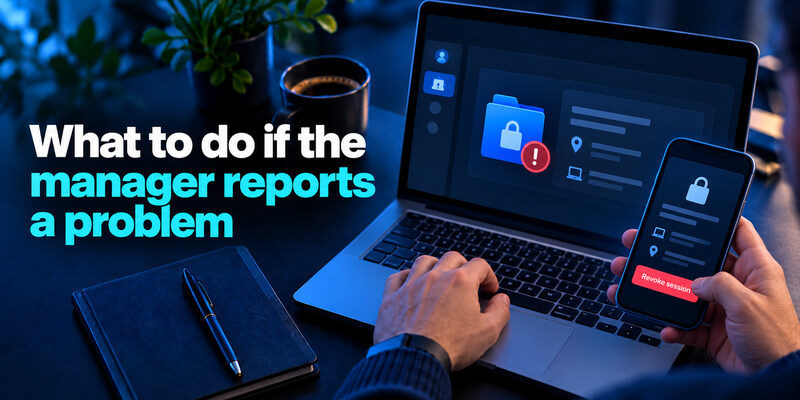
Treat a notification about an unfamiliar device or sign-in as a signal to investigate from the official app or website, not from a link in the message. Secure the email account, change the vault password if compromise is credible, revoke unknown sessions, and follow the provider’s incident instructions. If passwords may have been exposed in readable form, prioritize email, finance, and other accounts that can reset the rest. Changing every password before securing the attacker’s access can let the intruder take the new ones too.
A provider breach versus your account breach
A public provider incident may expose different categories of data than an individual account takeover. Read the provider’s incident notice for the scope, timing, and recommended actions. Do not assume encrypted vault theft is equivalent to plaintext exposure; do not assume it is harmless either. Your response depends on the encryption design, strength of the vault password, evidence of account access, and whether devices were compromised.
When to move providers
Move if you cannot trust the provider’s response, cannot make the recovery model work, or the app no longer supports your devices. Export and import carefully, verify important items, set up a new independent factor, then delete sensitive temporary exports. Changing managers without fixing reused website passwords or an insecure email account leaves the core risk untouched.
Run four failure tests before committing the whole vault
You cannot prove a product safe with a quick demo, but you can expose practical weaknesses in your own setup. Use a noncritical test account, not your bank, and write down what happens. The results tell you whether the tool fits your devices and whether the recovery story is real. Repeat the tests after major changes to your phone, email, or manager plan.
| Test | What to do | Acceptable result |
| Lost phone | Sign in from a second trusted device | Independent backup factor works |
| Unlocked laptop | Step away until auto-lock | Vault requires re-entry or device authentication |
| Wrong website | Visit a harmless lookalike test domain | Manager does not autofill the real account |
| Export | Export a disposable sample vault | Items can be verified and the file removed |
A failed test is a design signal
If the recovery code sits only in the lost phone, move an authorized copy to an independent protected place. If the vault stays open for hours, adjust its lock interval. If the wrong-domain test is confusing, train yourself to read the address before copying a password. A test does not guarantee defense against malware or a provider incident; it turns vague confidence into a set of behaviors you can improve.
Recheck the business end of the problem
Some people avoid a manager because they fear one point of failure, then store passwords in a synced spreadsheet with no access controls. Compare the proposed alternative honestly: who can read it, what happens on device loss, how unique passwords are made, and whether you can move out later. The safe system is not just an encryption claim on a product page; it includes habits and recoverable access.
For a shared family account, another question is who can see what. A shared vault for a streaming login need not expose tax records or private email. Use separate collections and test with the other person’s actual account. If a provider offers emergency access, understand the waiting period and notification before treating it as a substitute for ordinary sharing. A security feature can become a privacy problem when granted too broadly.
If you have a reason to keep one category outside the manager, make it explicit. Some people prefer a separate security key for primary email, a physical recovery record for the vault, and the vault for website passwords. That split is coherent because each item has a purpose. Scattering passwords across several unlabeled apps, by contrast, creates duplicate and stale copies that are hard to update after a breach.
Frequently Asked Questions
Is cloud sync inherently unsafe?
No. Properly designed encrypted sync can be a reasonable choice, provided the vault password, device security, and account recovery are strong. A local-only vault avoids one category of server exposure but makes backup and multi-device recovery your responsibility.
Can the provider read my passwords?
It depends on the actual product and feature configuration. Providers that document client-side, zero-knowledge vault encryption say they cannot read the protected contents. Check the current security model and exceptions rather than generalizing to every app with a lock icon.
Should I keep my 2FA codes in the same app?
You can keep codes for routine accounts there for convenience, but separate the manager’s own factor and consider separating codes for email and financial services. The choice changes how much an unlocked vault session can reveal.
Is a written password record safer?
For a small set of accounts, a protected physical record can be viable. It is difficult to maintain unique random passwords for many services, share selectively, detect reuse, and recover after loss. The safer choice is the system you can use correctly and back up.
Final Thoughts
Is it safe to store passwords in one app? Usually yes, if the app has a credible security design and you secure both the locked vault and the devices that unlock it. The value is unique credentials everywhere; the responsibility is one carefully protected vault account and a rehearsed recovery plan. Start with a few accounts, test the workflow, and move the rest only when the setup holds up in practice.
