
Alternatives to Using a Password Manager: 5 Secure Options
Published October 9, 2026 · Updated October 21, 2026
Looking for alternatives to using a password manager? You can manage your login credentials through built-in browser storage, passkeys, encrypted offline files, or even a carefully protected paper record. Each approach offers different advantages, but none eliminates the need for strong, unique passwords and reliable account recovery.
In this guide, we compare five practical alternatives to traditional password managers, explain their security limitations, and help you decide which method works best for your devices, accounts, and everyday habits.
Choose by the problem you are trying to avoid
Do you dislike subscriptions, cloud sync, one more app, or the idea of putting every password together? The answer changes the recommendation. Someone who uses one laptop and five accounts can keep a secure paper record more easily than someone with eighty logins across family devices. Do not compare options only by whether they store secrets; compare whether they help you create unique credentials, recognize the correct website, and regain access after a loss.
| Method | Works best when | Main cost | Recovery responsibility |
| Browser or OS password storage | Mostly one device ecosystem | Less portable across mixed platforms | Platform account and device access |
| Passkeys | Supported on key services | Coverage is incomplete | Sync provider or backup key |
| Protected paper record | Few infrequently used accounts | Manual updates and physical access | Protect and duplicate the record |
| Offline encrypted file | You accept manual sync | Conflict and backup management | You keep usable backups |
| Memorization | Only a few critical secrets | Hard to scale without reuse | Human memory plus recovery options |
Do not replace a vault with password reuse
The alternative must still let you use a different password on every website. Reusing a favorite phrase with a changed suffix is easy to predict after one credential leaks. CISA’s password-manager guidance focuses on long, unique, random passwords because most people cannot memorize dozens of them. If your replacement system cannot support unique logins, it has not solved the actual account security problem.
Even if you avoid a traditional password manager, you may still need to remember a few high-value secrets, such as the password protecting an encrypted file or your primary device account. Our guide on how to create a strong master password explains how to build a memorable passphrase without relying on predictable substitutions or reused credentials.
Separate storage from authentication
Where you store a password and how you prove a second factor are distinct choices. A physical notebook can hold a password while a phone produces a one-time code. A browser may fill the password while a security key approves the sign-in. Keeping those decisions separate makes it easier to choose a simple storage method without weakening high-value accounts.
Choosing an alternative password-storage method does not remove the need for strong authentication. If you want to understand how a separate verification app fits into your setup, our guide explaining what an authenticator app is covers temporary login codes, two-factor authentication, and the difference between storing passwords and generating verification codes.
Secure your accounts with fast, reliable two-factor authentication. Download now and protect your login in seconds.Download Authenticator App
Built-in browser and operating-system storage
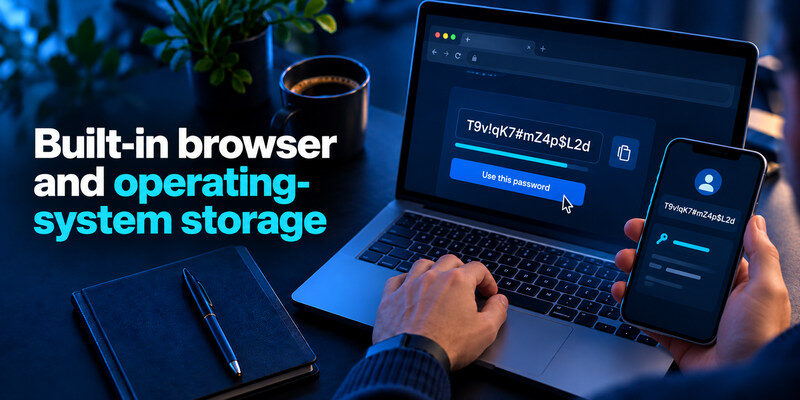
For a person who stays in one platform, the browser or device’s built-in password feature may already provide generated passwords, autofill, and sync. This is the least disruptive option: you can start replacing reused logins the next time you visit each service. Its limits appear when you switch browsers, share a device, or need selective access for a family member or coworker. Verify the specific export and device-recovery path before making it the only copy of your credentials.
One ecosystem is the easy case
If every device signs into the same platform account, built-in storage can feel seamless. You still need to protect that platform account with a strong sign-in method and independent recovery. Losing the platform account may affect both your passwords and your ability to reset connected services. Review which browser profile is active before saving a new credential, particularly on a work laptop with both personal and corporate profiles.
If your browser passwords and passkeys depend on a Google, Apple, or Microsoft account, protecting that account’s recovery email is essential. Our guide on how to secure your email account explains how to review sign-in activity, protect recovery settings, and reduce the risk of losing access to connected services.
Mixed devices reveal friction
A password saved in one browser may not appear in another app or operating system. Copying it by hand once is manageable; doing it constantly encourages weaker, memorable passwords. Test the websites and apps you use most, including mobile banking and native apps, before deciding the built-in tool is enough. The correct evaluation is your real sign-in path, not a feature list on a desktop screenshot.
Shared computers need extra care
Do not leave browser sync and autofill active in a shared profile. Create separate operating-system and browser users, lock the device, and remove old sessions when lending or selling it. An encrypted provider account does not help if another person can open your signed-in profile. Check saved payment details and personal information separately from website passwords.
Passkeys can remove passwords on supported services
A passkey lets you authenticate with a cryptographic credential, usually unlocked by a device method such as a biometric or PIN. It is bound to the website or app in ways that resist common lookalike-site phishing. CISA’s MFA guidance favors phishing-resistant methods where available. Passkeys are promising, but not every service supports them, and a passkey does not automatically replace all recovery factors or legacy passwords you still use.
Check what “passwordless” really changes
Some websites let you sign in with a passkey while retaining a password as a fallback. Others make the passkey the primary method. Review recovery email, old active sessions, and any remaining password after enrollment. A passkey on one phone is convenient until that phone is lost; a synced credential or a separately registered security key can provide redundancy if the service supports it.
Passwordless sign-in can reduce dependence on traditional passwords, but the available methods and recovery requirements vary between services. Our guide to passwordless email authentication explains how modern email sign-in methods work and why account recovery still matters even when a password is no longer required for everyday access.
Protect the passkey ecosystem
If passkeys sync through an operating-system or browser account, that account becomes a root of trust. Secure it, verify recovery, and know how a new device receives the credential. A physical security key can be a good option for the most important services, but register a backup key where supported. Passkeys reduce one problem—phishable passwords—while still demanding a sensible device and recovery strategy.
A written record is viable for a small footprint

Paper is not connected to the internet and can be practical for a person with a few accounts. Write each website and username clearly, use unique passwords, and keep the record in a protected place that other household members or visitors cannot casually inspect. A second copy in a separate safe location addresses fire or loss, but creates another copy to protect. Update both when a password changes.
Avoid an unstructured notebook
Record the exact service domain rather than “email” when you have multiple providers. Mark whether two-factor authentication is enabled and where the recovery code is stored, without putting every recovery secret next to the password if that would defeat separation. Do not carry the complete list in a bag every day. A paper system is intentionally manual; its success depends on disciplined updates, not a clever hiding spot.
Who should avoid this method?
If you create accounts frequently, use long generated strings, travel often, or share selected items with others, paper becomes cumbersome. The resulting temptation to reuse a password is the real warning sign. It can remain a recovery backup even when the main storage method is digital. The goal is not to prove that paper is obsolete; it is to choose a method you can keep accurate.
Offline encrypted files and local vaults
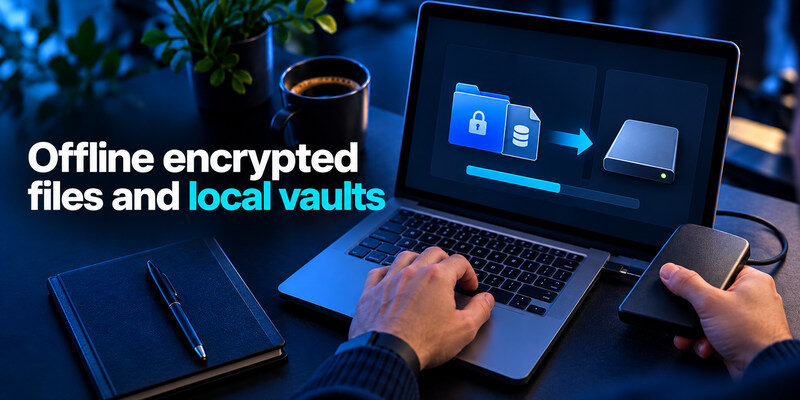
A locally stored encrypted database offers control over where the file lives. You can keep it on a trusted device and maintain encrypted backups. The trade-off is that you must handle synchronization, updates, conflicts, and recovery yourself. An offline design does not make a malware-infected unlocked computer safe, and an untested backup is not a backup you can rely on.
Backup a file you can actually open
Keep more than one current copy, including one disconnected from your everyday computer. Periodically open a backup in the intended application and confirm recent entries are present. A copied encrypted file can still be unusable if you forgot the key file or master password required to unlock it. Label versions clearly so an old copy does not overwrite newer credentials during a device change.
Sync is a design decision
Copying a database to a cloud drive may be acceptable if the file is encrypted and you understand its conflict behavior. Editing two copies on separate devices before sync may produce divergent files. Some local tools provide merge workflows; others do not. Test with a noncritical entry. The absence of a vendor cloud account does not eliminate the operational work of using more than one device.
Split strategies often beat an all-or-nothing choice

You might keep routine logins in a browser, use a security key for email, keep a paper recovery record, and use passkeys on services that support them. That is a coherent system if you know where each credential lives. Write a short inventory for the handful of root accounts: primary email, platform account, financial services, and any password vault. Duplicate storage without labels is worse than either method alone because stale copies can mislead you.
An independent code generator
When a service still requires authenticator codes, can supply standard TOTP codes separately from browser storage or a local file. Enable the factor on the service and save its recovery codes in a protected location. An authenticator does not create or remember website passwords, so pair it with whichever password or passkey method fits your setup.
A low-risk migration test
Try the candidate method with three accounts: one you use daily, one you access on both phone and computer, and one you rarely use. Generate distinct credentials, sign out on each device, and complete a fresh sign-in. Then imagine losing the phone. If you cannot describe how to recover those three accounts, adjust the method before migrating the rest.
Compare the total effort, including a bad day
A method that feels effortless on a normal Monday may require substantial work after losing a phone or leaving an employer’s device ecosystem. Estimate both daily use and recovery effort. This matters more than the number of boxes on a vendor feature page. A person with only six logins may accept manual entry; a freelancer switching among several client accounts may not.
| Scenario | Browser storage | Paper | Offline file | Passkeys |
| New phone | Restore platform account | Carry protected record | Transfer verified backup | Restore sync or backup key |
| Shared access | Ecosystem dependent | Physical handoff | Copy with care | Service-specific delegation |
| Forgotten main secret | Platform recovery | Read protected copy | Backup key or master secret needed | Provider/device recovery |
Count the maintenance touches
Every account creation, password rotation, device replacement, and family handoff is a maintenance event. A paper list that stays accurate for two years may suit a retiree with stable services. The same method may fail a team that rotates client access weekly. Be candid about how often you will make updates. If the system depends on a heroic annual cleanup, you will likely fall behind.
Keep an exit route
Before committing, ask how you export or transfer your credentials and what information may be left behind. Passkeys may need re-enrollment if you move between ecosystems; paper can be transcribed; an offline file can be copied if you still have its key. Browser exports may create plaintext files that require careful deletion after migration. Test one account and confirm a new sign-in before erasing the old method.
A decision for a mixed household
Two adults using different phones may choose a shared manager even if each could rely on a built-in browser tool alone. Conversely, one person may keep personal accounts in browser storage and a protected paper backup for two critical accounts. The right architecture can be mixed, provided everyone knows which system owns each item. Do not duplicate a password into several untracked places and assume all copies will update themselves.
If the household shares one tablet, make separate user profiles or avoid saving credentials there. A shared browser profile can unintentionally surface another person’s mail or payment login regardless of whether the underlying password store is encrypted. Decide who can use the device, which account is signed into sync, and how to sign out before lending it. These ordinary boundaries often matter more than whether a vault is labeled local or cloud.
When one member is less comfortable with technology, do not build a system only the other can operate. Practice a routine sign-in and a lost-phone recovery together without revealing unnecessary private accounts. A clearly labeled recovery envelope or emergency contact may help, but it should grant only the intended access. The test is whether both people can understand the arrangement after several months, not just on setup day.
Frequently Asked Questions
Can I use passkeys instead of a password manager?
For some services, yes. Passkey support is not universal, and you still need a plan for older password logins and recovery. Protect the account or devices that sync your passkeys, and register a backup where supported.
Is a browser password manager a real alternative?
Yes, especially within one device ecosystem. It may be less convenient for selective sharing and mixed platforms. Test the apps you use and the export and recovery paths before relying on it exclusively.
Is paper more secure than cloud storage?
Paper avoids remote data exposure, but it can be lost, photographed, or left outdated. Cloud storage can be encrypted yet depends on account and device security. Neither is automatically safer; their failure modes differ.
Should I memorize every password?
No. Memorizing a few root secrets may be useful, but trying to memorize many strong unique passwords usually leads to predictable patterns or reuse. Use an appropriate storage method for the rest.
Final Thoughts
Alternatives to using a password manager are workable when they preserve unique credentials and an independent recovery route. Browser storage is easiest in one ecosystem, passkeys are strongest where supported, paper suits a small account set, and offline files reward careful operators. Pick one primary method, test it under device loss, and keep a separate second factor for accounts that matter most.
