
Kick Authenticator: Set Up 2FA and Fix Login Codes
Published November 20, 2026
To set up a Kick authenticator, sign in on the official Kick site and open your channel’s Security settings. Select Enable 2FA, scan the setup QR code in your authenticator app or enter the setup key, and continue. Enter the fresh six-digit code from the app and finish the setup. Save the backup codes somewhere you can reach without that phone, then test a separate login before closing your working session.
If the Kick authenticator code is rejected, first check the account name and turn on automatic date and time on the phone that generates it. If you lost the app entirely, use an unused Kick backup code if you have one. Kick Help documents an ownership review with its security team for people who lack both the app and backup codes.
What the Kick Authenticator Does for Your Channel
| What you see | What it is for | Where it belongs |
|---|---|---|
| Setup QR or manual key | Pairs a code generator with your channel | The add-account flow in your authenticator |
| Six-digit app code | Confirms pairing or answers a login challenge | The official Kick prompt |
| One-time backup code | Provides a separate way to answer the 2FA prompt | The official Kick login screen |
| SMS verification prompt | Checks a code sent to your enrolled number | The prompt that sent the message |
Check the Channel Name Before Enrolling
The Kick authenticator belongs to the Kick account shown in Security settings. If you use separate viewer and creator accounts or switch between channels, confirm the username and email before scanning. An entry can generate fresh-looking codes even when it was created for a different profile. Add a recognizable label in the app when it allows you to edit the display name.
Kick’s guide How to enable Two-Factor Authentication recommends 2FA for viewers and says it is required before changing a username. If your reason for setting it up is a rename, complete enrollment and test the next login before returning to the username change. This leaves you with a verified sign-in and an independent way back into the renamed account.
Separate the Setup Key From the Login Code
The setup QR and manual key carry the enrollment information. The rotating six-digit value proves that the Kick authenticator paired successfully. Enter the key only while adding the entry, then use the six-digit value on Kick. Treat a saved copy of the setup QR or key as sensitive because it can be used to create another generator for that enrollment.
The backup code is a third item. It comes from Kick, and a used code cannot answer another challenge. Keep the backup set separate from the phone and its photo library. You should still be able to locate it if the phone is damaged, reset, or inaccessible at an airport or a streaming event. Setup keys, rotating verification codes, and recovery codes serve different purposes. Understanding how to get a 2FA code and identify the correct verification method can help you avoid entering the wrong type of code during Kick sign-in.
Secure your accounts with fast, reliable two-factor authentication. Download now and protect your login in seconds.Download Authenticator App
Set Up Kick 2FA With an Authenticator App
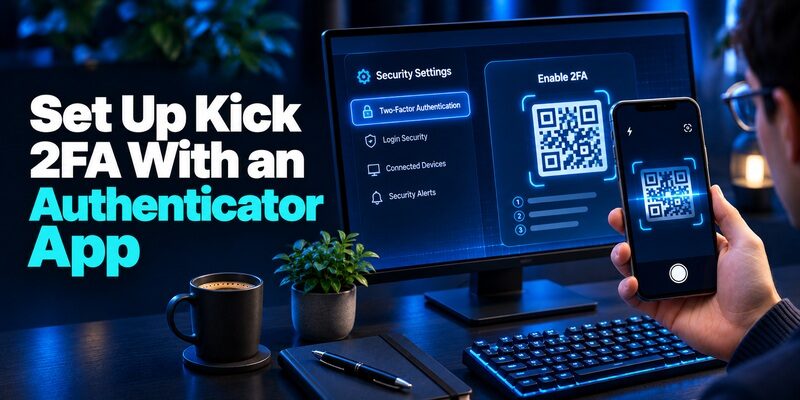
Open the Official Security Screen
Start with an existing signed-in session on the official site. Open the security page from your channel settings and click Enable 2FA. If you opened a link from a message, check the browser address before entering a password. You can also navigate from a bookmark you made earlier. A verified starting point matters because setup asks you to handle both the account credentials and the enrollment secret.
Kick Help illustrates the Kick authenticator setup with Google Authenticator. Open it to the add-account view. If you use another compatible app, follow the QR or manual-entry flow shown by your app and confirm compatibility with the live test. Have the phone and browser ready together so you can complete the setup while the QR and confirmation screen are still available.
Scan the QR or Enter the Key Manually
On a desktop, show the QR in the official browser and point the authenticator’s own scanner at it. If your only device is the phone, use the manual key if Kick presents it. Copy the whole key into the app, follow the app’s prompt, and clear the clipboard when you are done. Avoid saving an image of the QR to make scanning easier on a second device.
After the entry appears, check the Kick username in the browser against the label on the phone. The display label helps you locate the Kick authenticator later. It can be changed locally in some apps, so an old display name alone is not proof that the pairing has failed. The next verification is what establishes that the two sides match.
Verify a Fresh Six-Digit Value
Select Continue Setup in the browser. Open the matching entry and enter the value currently displayed. If the app indicates a change is imminent, wait for a fresh value so you can submit it with time left. Continue through the confirmation and check that 2FA is enabled in Security settings.
If the prompt rejects your first attempt, leave the working browser session open. Check whether the phone’s time is automatic and whether you chose the new entry. An older entry with the same name can sit immediately beside it. Test with the new entry after resolving those details before deciding you need to create another pairing.
A practical setup check is to confirm three items in order. First, verify the browser accepted a value from the entry you just added. Second, make sure the settings page shows that the method is active. Third, open the backup set in its secured storage from a device that will still be available if your phone is lost.
Read more: How to Use an Authenticator App for QR Code Setup and Secure Verification
Test the Kick Authenticator Before Signing Out

Store and Identify the Backup Codes
Save the backup codes Kick supplies during enrollment in a secure place you can open separately. A private password manager or physically secured copy can work if you can reach it after losing the phone. Record the username with the set so that you can distinguish it from recovery codes for a different creator or viewer profile.
The Kick authenticator still provides the routine login value. Keep a record of which backup code you use if you ever need one, and retire that copy afterward. Kick’s Two-Factor Authentication problems guide says a backup code is used in the 2FA field after you enter the account password. Its one-time use makes it a limited recovery resource. Kick backup codes provide an emergency sign-in option when your registered authenticator is unavailable. Learning what an account recovery code is and how to store it securely can help you keep these credentials separate from everyday verification codes and prepare for unexpected account lockouts.
Use a Separate Browser Session to Verify
Keep the original account session open and start a separate browser profile or private window. Go directly to Kick and sign in to the same channel. When it asks for proof, open the Kick authenticator and enter the current value. Finish the test by checking the username and opening the part of the account you actually need, such as the creator dashboard.
If Kick does not ask for 2FA in your test, an existing browser state or the sign-in route may explain what you saw. Check the Security page again and verify in a separate profile when a challenge appears. Preserve the original session until you know which method you can use and where the backup set is stored.
If a channel is used on a shared streaming computer, run the test from a browser session you control and close that test session when finished. The owner of the Kick account should also control the Kick authenticator and the backup set. Sharing a live code with collaborators makes it harder to tell who actually initiated a login.
Use the Correct Method for Each Prompt
| Prompt or situation | First action | What to confirm |
|---|---|---|
| Kick requests an app code | Open the enrolled channel entry | The value is current and belongs to that username |
| Kick sends an SMS | Check the destination and newest message | You control the number displayed on the official screen |
| Phone is inaccessible | Use an unused backup code | It is for the same Kick channel |
| Login or setup request came from a message | Open Kick directly before responding | You started the request yourself |
Read the Screen Before Opening an App
Kick’s troubleshooting material also discusses SMS, so you may see an SMS path depending on how your account was configured. Follow the delivery or app method specified by the official screen. A recent text and the value from the Kick authenticator can both look like short verification codes, but they come from different checks.
If the SMS number is still yours, check the destination, signal, and the newest message after any resend. If you no longer own the number, preserve a working session and look for the official account recovery route. Never ask the new holder of that phone number to forward a verification message.
Protect Your Live Codes and Setup Material
A message claiming to offer channel support, a sponsorship, or verification can ask you to send a code or scan an image. Keep the enrollment and login material inside the official flow you started. Even a quickly expiring code can be copied and submitted before the display changes. A backup code is sensitive until used.
When you send support a screenshot, crop out the code field if it contains a value and exclude any QR, manual key, account password, and backup set. Include the username only where the verified support route needs it. A plain description of the failing step is enough to begin most troubleshooting conversations.
Read more: SMS vs Authenticator App: Security, Convenience, and Recovery Differences
Fix a Kick Code That Is Not Working

Correct the Clock on the Code-Generating Phone
Open the operating system’s date and time settings and enable automatic date and time. Check the time zone if the clock appears wrong after travel. Once the device is synchronized, return to the Kick authenticator and use a new value promptly. Kick Help’s troubleshooting guide identifies time mismatch as a common cause of rejection.
The relevant clock is on the device producing the value. If you have a desktop browser open, correcting only the laptop clock leaves a badly set phone unchanged. An already paired app can usually display values without service or Wi-Fi, but the phone may need a network connection to correct its clock and the browser still needs to reach Kick.
Distinguish an Expired Code From a Stale Pairing
If the value changes while you type, wait for the next one. If several fresh values from the same Kick authenticator fail after the time check, look for another entry created during a more recent enrollment. A restored backup can contain the old entry without restoring its validity at Kick. Check which one you last confirmed on the website.
When you still have access to Security settings, follow Kick’s account controls to repair the enrollment. Save the recovery method you can use before making changes. Deleting the entry in the phone app does not change Kick’s stored setting and can remove the only working generator.
If the site loads slowly and the challenge itself has expired, begin one new official sign-in after you have confirmed the current method. Note whether the failure happens before or after the code prompt. A page that cannot load the prompt points to a different issue from a valid challenge rejecting a freshly generated value. Fake sponsorship offers and impersonated support messages can lead streamers to fraudulent login pages designed to steal passwords and verification codes. Understanding what to do if you clicked a phishing link can help you respond quickly if your Kick credentials or authentication details have been exposed.
Move Kick 2FA to a New Phone
Follow Kick’s Switch Process While the Old Phone Works
Kick Help describes removing 2FA while you still have the current code and then reenabling it on the new device. Open the existing Kick authenticator first and make sure it works. Set up the replacement phone with a lock screen and install the authenticator before you change anything on the website. Keep both devices at hand.
Use the official removal prompt and supply the proof it requests. Reenable 2FA, pair the new phone, and verify a fresh value. Securely store the backup codes supplied for the new enrollment and test a separate session before wiping the old phone. Remove the stale app entry after the new flow succeeds so that both entries cannot be confused at the next login.
Check a Restored Entry Against the Live Account
If your app supports restore or transfer and the Kick authenticator entry appears on the replacement phone, verify it with a genuine Kick prompt while the old device remains available. Seeing the entry’s label and moving digits only confirms that the app has some enrollment data. A successful challenge confirms that those data match the account.
If the old phone was stolen or may be accessible to someone else, use your official device-lock or lost-device controls and follow Kick’s recovery and reenrollment process. A fresh pairing can replace the enrollment that was on the compromised phone. Review account activity and protect the associated email account if you suspect it was exposed too. If Kick continues rejecting fresh verification codes, check for duplicate authenticator entries, incorrect device time, or an outdated enrollment. Our troubleshooting guide explains why an authenticator app may not work and how to fix common verification errors without unnecessarily deleting a working account.
Recover Access When the App Is Gone
Try an Unused Backup Code or an Open Session
Enter your password on the official Kick sign-in screen. At the 2FA field, enter an unused backup code for the correct username. If it works, restore your Kick authenticator from a safe backup or use the Security controls to set up the new phone. Mark the code as used and store any newly issued set securely.
Keep another signed-in device open if you have one. Kick’s help mentions using a still-signed-in browser to attempt a change after losing the phone. The security page may still require additional proof for the change. Do not sign out just to check whether the working session had remembered the account.
Prepare an Ownership Request for Kick Security
If you lack the old device and usable codes, open the Kick Help Center and follow Two-Factor Authentication problems to the current Cyber Security contact. Give your streamer username, associated email, the method you were using, and a short explanation of what changed. State whether you have an existing session or any unused backup codes without sending the codes themselves.
Kick says it may request evidence such as account creation or past payment information. Supply requested ownership details only through the verified process and follow the instructions for sensitive documents. Restoring the Kick authenticator can depend on the provider’s ownership decision, so keep records that identify the right account.
Read more: How to Back Up Authenticator Codes Before Changing or Replacing Your Phone
Common Questions About Kick Verification

Can I Use the Same App for Several Channels?
Yes, if the app lets you store multiple entries and each account pairs successfully. Give them unique local labels and verify each one in its own browser session. A single Kick authenticator entry maps to the pairing that created it. A code for one channel will not validate the other.
Do I Need the QR Every Time I Log In?
No. Use the QR once to enroll, then open the saved entry for a current code when Kick prompts. A new QR belongs to a new setup or replacement process. For other accounts that support rotating codes, you can explore the and check compatibility with each account’s own enrollment screen.
What Should I Save Before Traveling or Upgrading?
Keep the account email reachable, check that the current method works, and confirm you can get to the backup codes from a trusted device. Record the account username separately if you manage several channels. If you intend to change phones, verify the replacement before you erase or trade in the old one. When your authenticator is no longer available, restoring access depends on the recovery options you prepared beforehand. Review how account recovery codes work and when to use them before attempting another sign-in or changing your existing authentication settings.
Final Thoughts
A Kick authenticator is ready when a fresh code signs you in to the correct channel and the backup codes are available separately. Pair it from the official Security page, check the result in a second session, and verify the replacement before you retire an old phone. If access is already lost, use a valid backup code or Kick’s documented ownership process.
