
Twitch Authenticator App Setup and Phone Number Recovery
Published November 18, 2026
Set up a Twitch authenticator app from Security and Privacy in the official Twitch account. Start two-factor authentication, verify your mobile number as Twitch requests, and choose the authenticator option when the setup offers it. Scan the live QR in the app and enter the current verification code to finish. Test another sign-in before giving up your old phone or number.
Twitch’s Help Center says enabling 2FA creates a linked Authy account for the registered number, even when you choose another app such as Google Authenticator or Microsoft Authenticator. If the old number and working authenticator are both unavailable, Twitch directs users to Authy’s official phone-change process. The recovery route depends on what you can still access.
Decide What You Need Before Opening Twitch Security
Check the Twitch Account and Registered Phone
Open Twitch through a trusted bookmark or the official app and confirm the username you want to protect. If you manage multiple channels, check the account before making changes. A display name or browser profile can be misleading. Keep the account’s official contact and login route available while you enroll a Twitch authenticator app.
Twitch uses a mobile number in its documented 2FA setup. Check the country code and use a number you can continue to access. Twitch’s help for missing SMS says to use a cellular number rather than a VoIP number for setup. If an employer or organization owns the number, verify how an authorized user will recover it during a device or staffing change.
Plan the Change Around Your Creator Schedule
Twitch says Affiliates and Partners need to turn on 2FA. If you stream regularly, make the change when you have time to complete the test and contact support if needed. Keep a current authorized session until a fresh sign-in works. A session that already opens Creator Dashboard does not verify that the replacement device can pass the next challenge.
A Twitch authenticator app protects the account login. A streaming tool or browser integration may have its own connection and permissions. After a successful test, check the creator account and intended dashboard. Avoid changing streaming settings or copying a stream key just to confirm the sign-in works. For standard Twitch TOTP enrollment, a compatible authenticator app such as Authenticator App by Begamob is another option to evaluate, provided Twitch accepts its generated codes. Check device compatibility, QR code enrollment, and recovery options before relying on the app for your Twitch account.
Secure your accounts with fast, reliable two-factor authentication. Download now and protect your login in seconds.Download Authenticator App
Enroll the Twitch Authenticator App in Security and Privacy
Verify the Phone Number in the Official Setup
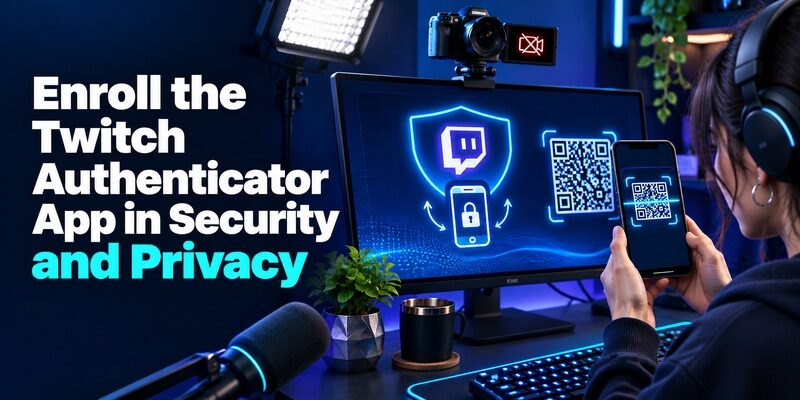
From Twitch Settings, open Security and Privacy and look for the two-factor setup control. Follow the current prompts to add or verify the mobile number. Enter the delivered value only in the Twitch page that asked for it. If the number is already associated with the account, follow the instructions Twitch presents.
Do not close the setup window while you wait for the initial proof. If delivery fails, check the masked destination and the number format before requesting another message. The phone confirmation step and the Twitch authenticator app enrollment use different values. Read the prompt before choosing what to enter.
Scan the QR With the App You Want to Use
When Twitch offers app enrollment, open the chosen authenticator and use its add-entry scanner. Scan the QR shown in the current security setup. Use a second trusted screen when the code and scanner would otherwise be on the same device. If Twitch offers manual entry, enter the setup value directly into the app.
Keep the setup image out of screenshots, stream overlays, recordings, and chat. It contains information the app uses to generate future values. If you are streaming your desktop, stop screen sharing before opening the enrollment. A Twitch authenticator app QR should be visible only to the person completing the official setup.
Enter the Current Value and Check a Fresh Sign-In
Select the entry you just added and enter its current value in Twitch. If the value is about to rotate, wait for the next one. Complete the confirmation and check that Security shows 2FA is active. Label the entry so you can tell which account it belongs to if the app supports a custom label.
Use a separate approved browser session to verify the current Twitch authenticator app. Open the official sign-in, choose the account, and complete the expected challenge. If you use more than one channel, check that the test opens the correct profile and creator resources. Keep the old method while the test is in progress.
Read more: Multifactor Authentication Methods Compared by What They Prove
Compare Google Authenticator, Microsoft Authenticator, and Authy for Twitch
Choose a Compatible App You Can Maintain
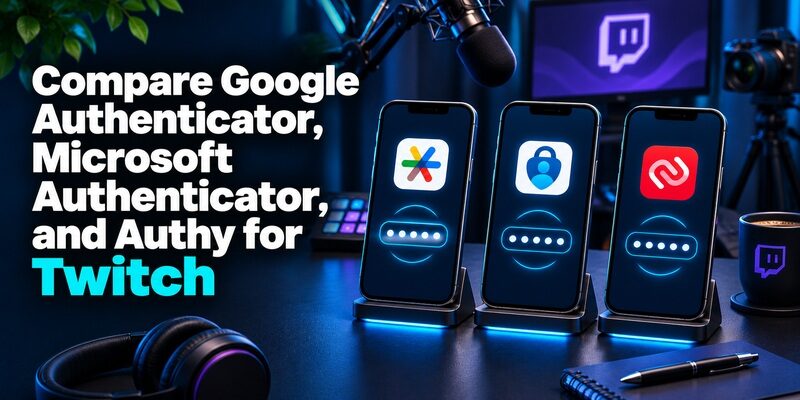
Twitch’s official guidance mentions Authy, Google Authenticator, and Microsoft Authenticator as examples. Compare how you will restore or transfer the actual entry after a device change. With Google Authenticator, review optional sync and manual transfer. With Microsoft Authenticator, check that Twitch is a standard code entry and distinguish it from a Microsoft account’s approval requests. If you use Authy, review its device and recovery documentation.
For a standard Twitch code setup and where your policy allows it, is another option to evaluate. Verify that it accepts the official QR and that Twitch accepts the fresh code. Compare the recovery and device experience for the app you choose, not just the result of the first scan.
Understand What the Authy Link Means
Twitch’s setup and access guides say the linked Authy account is created when you enable 2FA. You can still use a different compatible Twitch authenticator app for day-to-day codes. The Authy association becomes relevant if you lose the old number and need to use Twitch’s documented phone-change route.
Check which number is registered even when you normally enter a code rather than receiving a text. A code app and the registered number can be affected differently during a phone change. Make the update while you can still sign in where possible, and test the resulting settings in the official account. Before choosing a verification app for Twitch, compare the best authenticator apps based on TOTP compatibility, supported devices, backup features, and recovery options. A successful first scan is important, but long-term access to your Twitch account matters just as much.
Read the Code Prompt Before Requesting Another One
| What you see | Where the proof belongs | What to check |
|---|---|---|
| Twitch app-code prompt | The enrolled Twitch entry | Correct username and current value |
| Text verification | The registered mobile number | Country code, delivery, and current challenge |
| A security code delivered by email | The mailbox named by the prompt | Whether Twitch requests email verification for this action |
| A phone-number recovery case | The official Twitch or Authy process for your situation | Which old device, number, or session still works |
| Creator access fails after sign-in | The Twitch account and connected creator role | Which account and resource you actually opened |
A Delivered Value and an App Code Are Different
A code delivered by text belongs to the current Twitch request. A Twitch authenticator app generates its value from its enrollment. If Twitch asks for the app, check the entry label rather than waiting for an SMS. If it sends a text, confirm the masked number and wait for delivery or use an offered alternative.
If the request did not start with you, leave the value unused. Navigate to Twitch yourself and check the account. An unexpected email or text can look similar to a legitimate prompt, so confirm what the official site actually asks you to do.
Check One Rejected Code Without Removing the Entry
Verify the account, current enrollment, and automatic date and time where permitted. Enter the next fresh value. A code generated from an older enrollment can keep changing while Twitch rejects it. If you have two entries, compare the current setup and previous device before deleting anything.
If the Twitch authenticator app works for another service but fails for Twitch, focus on the Twitch account and challenge. If the app entry disappeared after an upgrade, check the original device and the app’s transfer or sync settings. Use Twitch’s official account recovery when no working proof is available.
Read more: GitHub Authenticator App Setup and Recovery
Get Past the First Text During Twitch Setup
Check the Number Format and Carrier
If the setup text never arrives, confirm the selected country code and the rest of the number on the screen. Twitch’s guide on missing verification messages says to use an eligible cellular number. Check whether the line can receive other texts. If you have a dual-SIM phone, confirm which line you entered and whether it is active. Wait for the setup screen’s delivery interval before requesting a new message. To understand the difference between Authy and other verification apps, read our Authy authenticator guide. Twitch’s Authy association can affect the official phone-number recovery process even when you normally generate verification codes with Google Authenticator or another compatible app.
A Twitch authenticator app can help with future sign-ins once you complete enrollment. It cannot supply the text Twitch is currently sending to verify the number. If you cannot receive that first message, resolve the number or carrier issue through the official setup and support routes. Keep the browser on the intended account while you do so.
Match a Delayed Message to the Current Request
If several texts appear after a delay, follow the current Twitch screen and use the value that belongs to its challenge. The code from a previous attempt may have expired. Start again from the official security settings if the browser says the challenge is no longer active. Avoid entering the value in a separate link received by text.
In a household or team, make sure the number belongs to the authorized user or is managed under an approved access policy. A borrowed number can make setup appear successful while making recovery harder later. Verify the number and the Twitch authenticator app as separate parts of the setup before you depend on them.
Change Your Number While You Still Have a Working Route

If You Can Sign In, Update the Number From Security
Twitch’s account access guide says users who can still sign in should update the number from account security. Confirm the intended account, open the official setting, and follow the instructions for replacing the old number. Check that the new number can receive messages before depending on it. Use the current prompts if Twitch requests another verification during the change.
A Twitch authenticator app can still be available on the old device even when the line has changed. Test a separate sign-in and verify that the account now shows the intended number. If you also moved the app, check that its code works on the replacement. A successful text verification is a separate result from successful code app access.
If You Know the Password and the Old App Works, Use It
If you lost the number but the code app is still available, use the app where the official sign-in offers it. After you regain access, update the contact details through Security. Keep the working app entry available during the change. A code entry may still work without the SIM, because it depends on its enrollment and device time rather than message delivery.
If the new phone has no Twitch entry, check the app’s transfer route while the original phone is still accessible. Follow the app provider’s instructions. A Twitch authenticator app transfer has passed only when Twitch accepts the new device’s value for the correct account.
If Both Are Gone, Follow Authy’s Phone-Change Route
For users who cannot sign in with 2FA and no longer have the relevant proof, Twitch directs them to the official Authy phone-change process. Follow the link from the current Twitch Help Center or use the official Authy route you can verify. This applies even if your everyday app was Google Authenticator or another supported app.
Processing can take time and depends on the case. Begin early if you need access for a scheduled broadcast. Keep the account username, old number, and new number available for the official process. Never publish the details, codes, or documents in a community channel. Once you regain access, verify the account contact and complete a clean sign-in.
Read more: TikTok Authenticator App Setup and Recovery
Handle an Unexpected Prompt or Suspected Account Change
| Event | What you can do immediately | What to verify afterward |
|---|---|---|
| SMS or app request you did not start | Leave it unused and open Twitch through your usual route | Review the account and recent security changes |
| Old phone is lost | Use an approved alternate and follow official recovery | Check the number, enrolled device, and active access |
| Email or profile changes unexpectedly | Follow Twitch’s official account access and security process | Confirm the account contact and sign-in methods |
| Creator tools open for the wrong account | Check the Twitch username and authorized connection | Verify the intended profile and dashboard after sign-in |
Secure the Account Through the Official Entry Point
If you suspect someone accessed the account, open the official Twitch route and follow its account security and recovery instructions. Review the linked email, number, and authorized access. If you used a compromised password elsewhere, protect those accounts through their own security settings. Keep control of your email because it may affect Twitch recovery.
Do not read a Twitch authenticator app code to someone who claims they need it to verify your channel. If a stranger sends a QR claiming to restore the account, leave it unused. Write down the time and nature of the unexpected request for official support without including the code.
Review Access After a Successful Recovery
After regaining control, check the intended username and current contact details. Verify the two-factor setting and test the Twitch authenticator app through a fresh sign-in. Review active access or connected services using the official account controls and remove anything you do not recognize, as appropriate to the recovery process.
For an account used by a creator, verify the dashboard and any authorized integrations separately. A working sign-in does not demonstrate that a stream integration is connected to the right channel. Keep a short record of what you checked and who is authorized to help the next time. A TOTP authenticator app generates temporary verification codes from a registered secret and the current time. Unlike SMS verification, standard TOTP generation does not depend on receiving a new text message, although Twitch may still require a registered mobile number for its account security process.
Check the Setup Before Your Next Stream

Use a test account if you need to rehearse the general process, then verify the intended creator account separately. Confirm that the regular account sign-in requests the expected proof and that the owner can reach the corresponding device or number. Keep any account details you record separate from live credentials.
If you are moving a streaming setup to another computer, open the official Twitch sign-in on the new browser and test the Twitch authenticator app while the old browser still works. Check the username after sign-in and open Creator Dashboard. If a connected tool needs reauthorization, follow its approved procedure and confirm the channel it shows.
Consider the case where a phone becomes unavailable during a scheduled broadcast. Write down how to reach Twitch’s account access guidance and Authy’s phone-change process if needed. Verify the registered number in advance. A Twitch authenticator app test plus a known recovery route gives the owner two distinct checks before a deadline.
Read more: Sage Authenticator App Setup and Recovery
Save a Recovery Note for the Account Owner
Record the Twitch username, the type of method that passed, and the date you last verified the registered number. Keep the note limited to what an authorized owner needs to identify the account and official recovery path. Leave out the live code, enrollment QR, and any credential for the streaming software. If the channel has more than one authorized operator, document who can assist with access without asking them to share an account password.
When a number update involves Authy, follow the official case until it is complete and then test the Twitch login from a fresh session. Check the contact shown in Twitch and verify the intended creator account. If the first attempt fails, report the stage and error through the same authorized support route.
Final Thoughts
Enroll a Twitch authenticator app from the official security page and verify a fresh sign-in after setup. Keep the registered number current even if you usually enter an app code. Twitch links that number to Authy for its documented 2FA recovery path.
If you lose access, start with the working app or session if you still have one. If both the number and the authenticator are gone, follow the official Authy phone-change route Twitch identifies. Recheck the intended account and creator access after recovery.
