
What 2 Fatores Means and How to Set Up Two-Step Verification
Published November 18, 2026

“2 fatores” means “two factors” in Portuguese. In account security, it usually refers to autenticação de dois fatores or verificação em duas etapas. You prove access using two different types of evidence, such as a password and a code from a registered app. Open the official account’s security settings and choose a method the service supports. Confirm it with a fresh sign-in and keep a recovery route you can reach if you lose the primary device.
For a Brazilian gov.br account, use the official gov.br app for the access code when that account’s two-step verification is enabled. The Brazilian government’s documentation distinguishes it from a standard code app. On other services that offer a standard authenticator QR, use the supported app or another approved method. The label “2 fatores” tells you the feature’s purpose. The specific prompt tells you which proof to use.
Translate the Security Labels You See

| Portuguese wording | Common English meaning | What it usually asks you to do |
|---|---|---|
| Autenticação de dois fatores | Two-factor authentication | Use two distinct forms of proof |
| Verificação em duas etapas | Two-step verification | Complete the additional step shown |
| Aplicativo autenticador | Authenticator app | Open the registered code entry or provider app |
| Código de acesso | Access code | Get the value from the method the screen names |
| Chave de segurança | Security key | Use an eligible registered credential or physical key |
| Código de recuperação | Recovery code | Use the saved value in the official recovery flow |
Treat the Screen’s Wording as a Clue
On a site in Portuguese, you may see “2 fatores” in a search result and a longer phrase in the settings. Look in the section for security or sign-in and read the method listed. A code sent to a phone and a code displayed in an app can both appear as six digits. Check where the screen says to obtain it before you try to enter either.
If you are helping someone who uses another device language, compare the type of proof rather than the literal translation. An app approval, phone message, passkey, and recovery code follow different flows. Ask the person to read the prompt without showing the code or QR.
Understand the Difference Between a Key and a Setup Secret
The phrase chave 2FA can refer informally to a hardware security key or the secret used to enroll a code app. A physical security key is a device you can register and use through a supported browser or app. A manual setup key is private enrollment data that the authenticator uses to generate rotating codes. Never give someone the setup key because they asked whether you have a security key.
Where a service offers both, decide what proof fits your needs. A security key can protect against phishing when implemented as a compatible cryptographic method. An app code can be convenient on sites that support it, though someone can still relay a value you enter in a fake page. Check the current “2 fatores” option the service actually supports. For services that support standard TOTP enrollment, a compatible authenticator app such as Authenticator App by Begamob is an option to evaluate. Check device support, local access, and the app’s backup or transfer process. Then test “2 fatores” through a fresh sign-in while an approved recovery method remains available.
Secure your accounts with fast, reliable two-factor authentication. Download now and protect your login in seconds.Download Authenticator App
Choose 2 Fatores That Adds a Separate Form of Proof
Pair a Password With a Registered Credential
A password is something you know. A code from a registered app usually demonstrates access to the app’s enrollment. A compatible security key or passkey can demonstrate possession of a cryptographic credential. A device may also require a local PIN or fingerprint before allowing the credential to respond. What counts depends on the proof the service requires.
A second question about your personal history also uses knowledge. That can be another step without adding an independent factor. If you enable “2 fatores” to protect a sensitive account, verify which evidence the service actually checks and which options it permits when the primary method is unavailable.
Prefer a Supported Method You Can Keep Available
For a service that offers passkeys or compatible security keys, check whether you can enroll and recover an approved credential. NIST’s Digital Identity Guidelines distinguish phishing-resistant cryptographic methods from manually entered codes. If you use a supported code app, test it after enrollment and before giving up the device that holds it.
A working “2 fatores” setup includes a plan for device loss. Register an approved spare or keep the recovery material the provider issues. Make sure it is reachable without the original phone. A method you can use today can become difficult to recover if everything depends on one account or device.
Read more: Twitch Authenticator App Setup and Phone Number Recovery
Enable a Standard Code App From the Account’s Security Page
Open the Live Setup and Scan the Correct QR
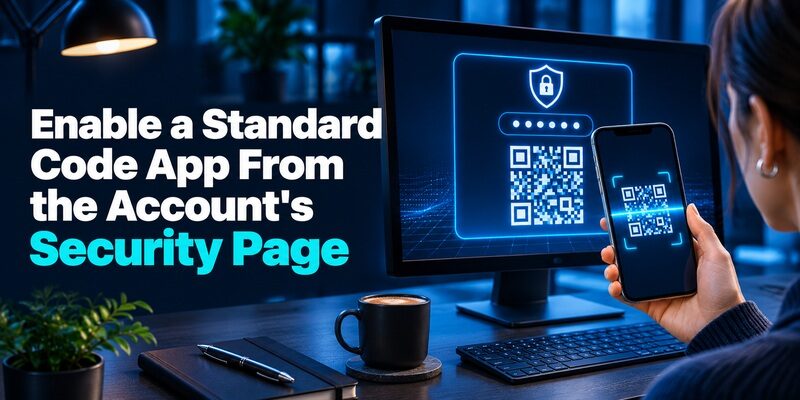
Sign in through the service’s official site or app, then open security settings. Choose the app method where it is offered. Open the authenticator’s add-entry scanner and scan the QR displayed during enrollment. If the service offers a manual setup value, enter it directly in the app instead of sending it to a second device through messaging.
The private “2 fatores” QR contains information that lets the app generate future values. Keep it out of screenshots, recordings, and shared notes. A QR from a payment, wallet connection, or cross-device passkey flow does something else. Scan only the setup image created by the security action you started. If you are setting up two-factor authentication for the first time, follow our guide on how to use an authenticator app. It explains how to scan a standard TOTP setup QR code, enter a manual key, verify the first code, and prepare recovery options before completing enrollment.
Submit a Current Code and Test a Clean Sign-In
Select the entry for the correct service and account. Enter a current value, wait for the confirmation, and check that the method now appears in security settings. Google Account Help describes turning on two-step verification in the Google Account and using Google Authenticator for compatible accounts. Follow the actual controls shown for your account.
For standard TOTP, is an option to evaluate. Check device support, local access, and the app’s backup or transfer process. Then test “2 fatores” from a clean sign-in while a working session or approved recovery option remains available.
Keep the App Entry Separate From the Website Account
An app entry label helps you identify which code to use, but the provider decides whether the code matches the account. If you maintain personal and work accounts with similar names, confirm the sign-in address before entering a value. A service that accepts an app code for ordinary access may ask for a different proof during recovery or for a sensitive change.
Where an employer requires a particular provider or device, follow its policy. Generic code apps fit standard enrollment only when the service permits it. A policy-managed “2 fatores” request can use a push approval or device-bound credential that needs separate registration.
Read more: Gusto Authenticator App Setup and Payroll Account Recovery
Use the Official App When a Brazilian gov.br Account Requests Its Code
Check the Activation Requirements in the Official Account
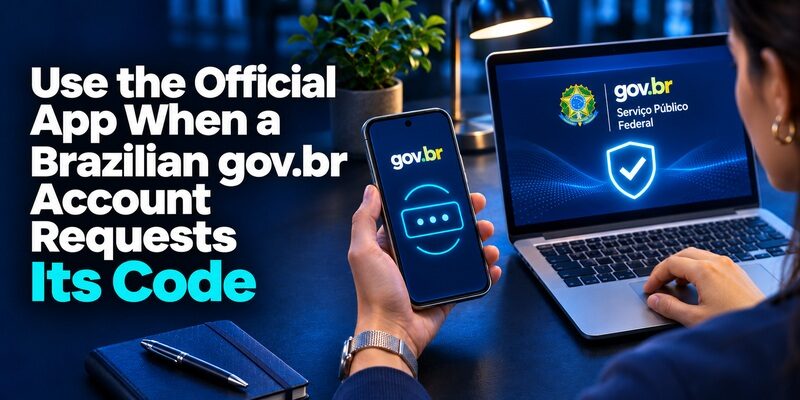
The Brazilian government’s guidance describes enabling verification for eligible gov.br accounts through the official gov.br app. Open the account’s own security area and follow the on-screen option for two-step verification. Verify the requirements and current account level in the official instructions before starting. Keep the device you registered available when you test access.
For gov.br, “2 fatores” does not mean scanning a standard secret into an unrelated app. The government guidance says the gov.br access code is generated by the gov.br app itself. When the official sign-in asks for that code, use the app’s access-code generation control. A third-party rotating code for a different service will not satisfy this prompt. A TOTP authenticator app generates temporary verification codes from a registered secret and the current time. This method works with services that support standard TOTP enrollment, but it cannot replace a provider-specific verification method such as the official gov.br access code.
Prepare the Recovery Contact Before Replacing the Device
The government publishes a recovery-by-email route for people who previously registered a recovery email in the gov.br app and are eligible for that flow. Review the app’s recovery settings while it still works. Confirm that you can reach the registered email independently of the phone. Read the current requirements rather than assuming any address associated with the account will work.
If you lost the device and cannot generate the code, start from the official gov.br sign-in and choose the difficulty or recovery option shown. The government describes an official recovery flow that may ask you to use the app on the new device and complete the steps it displays. Use the recovery choices available to your account. If a method is unavailable, follow the other official routes the service provides.
Test the Public Service You Actually Need
Some Brazilian public services use the gov.br account for sign-in. Banco Central do Brasil’s Registrato guidance describes using a code from the gov.br app when two-step verification is required. A working gov.br sign-in and eligibility for the specific service are separate questions. Verify that the relevant service opens for the intended account after you complete the challenge.
If you are supporting someone through “2 fatores” on gov.br, identify the exact public service, whether the old app is accessible, and which screen is asking for the proof. Keep identity documents, QR values, and current access codes in the official flow. Do not ask the account owner to forward them.
Read more: Coinbase QR Code for Authenticator Setup or Receiving Crypto
Fix the Method Named by the Prompt
| What you see | Most useful first check | Next action |
|---|---|---|
| An app code is rejected | Correct account label, automatic phone time, and current code | Try the next fresh value in the active challenge |
| The service asks for an official provider app | Name of the app and registered account | Open the official app or use its recovery route |
| A hardware security key is unavailable | Whether an approved spare or alternate is enrolled | Use the supported recovery path |
| The old phone is gone | Which backup, sync account, or trusted device you can still reach | Recover through the app or service’s official instructions |
| A QR arrives unexpectedly | Whether you initiated the action on the official site | Leave it unused and open the service independently |
Fix a Code That Exists but Does Not Pass
For a standard time-based entry, check the account label and turn on automatic date and time where allowed. Wait for the next value and enter it in the original challenge. If you recently changed phones or reset the method, look for an older entry that can still display codes but no longer matches the active enrollment.
If a Portuguese prompt says a message was sent, use the message it describes. A code from the app will not match a delivered value for a separate challenge. Distinguish the type before resetting “2 fatores.” Keep a working session until you know which method is actually failing.
Recover a Missing Entry Through the Correct Provider
For a generic code app, check the old device and the app’s approved sync or transfer before deleting anything. For gov.br, start with its official recovery procedure. An authenticator backup for other sites cannot recreate the account registration that gov.br expects. Use the exact provider named in the prompt.
When you seek help, report which account, device, and sign-in step failed. If the entry is missing, explain whether you replaced or wiped the original phone. If a code is visible but rejected, report that separately. Do not include the live value or the enrollment secret in the support request.
Keep Recovery Independent of the Primary Device

Identify What You Could Still Use After a Loss
For each account using “2 fatores,” ask which approved method remains available if the phone is lost today. You may have a backup security key, a registered passkey on another device, a recovery email, or codes issued by the provider. Verify who can reach the fallback and whether it is stored on the same missing device.
Keep separate methods for accounts that control other recovery steps, such as the email inbox and the account that syncs an authenticator. Test the path before you change phones. A remembered session can help you review settings, but the test should confirm what a fresh sign-in requests. A two-factor authentication app can provide an additional verification step when a service supports app-generated codes. Combining a password with an independently registered authentication method helps protect the account, although the exact security properties depend on the service and method used.
Record the Method Without Recording the Secret
Write down the provider, account type, registered method, and date of the successful test. Record where the official recovery instructions can be found. Store any recovery codes only in the protected place you chose for them. Avoid writing a live “2 fatores” value, password, manual setup key, or QR into the same notes.
When recovery is complete, check the account’s recognized devices and remove anything the official provider says should be retired. Confirm the intended role or service still opens on your replacement device. If a phone was lost, review the account activity as part of the provider’s security process.
Check Whether a Passkey or Hardware Key Is Supported
Ask Where the Credential Will Live
A Portuguese sign-in can describe a passkey as a chave de acesso. It may be stored with a platform account or remain on the device that registered it. Check the provider’s instructions and the device shown in the setup. If you are enrolling a physical chave de segurança, confirm which port or wireless connection the service supports and how the key verifies the user.
For “2 fatores,” the actual policy matters more than the phrase on the button. The service can require a password followed by a key, or it can allow a passkey that includes local user verification. Test whether the account accepts your approved credential from the browser you normally use. A device that can create a passkey might still be subject to the site’s account policy.
Verify the Backup Before You Retire a Key
If the site allows an extra security key or other independent recovery proof, register it while the primary method still works. Test that method in a fresh sign-in without removing the original credential. Keep the spare in a safe location where the authorized account holder can access it.
Check which “2 fatores” recovery steps remain available if the platform account that syncs your passkey also becomes inaccessible. The website might offer a second registered credential or another way to verify your identity. Use its official instructions. If your organization manages the key, ask the authorized administrator how replacements are issued.
Before a planned device move, check the browser, the account role, and the security feature together. A personal account may accept a synced passkey while a work service requires a managed key. Record the working device and method so you can identify the expected request when another sign-in displays similar wording. Verify the intended account before using a key for the first time on a replacement computer. Keep your working method until the separate test succeeds.
Read more: GitHub Authenticator App Setup and Recovery
Practice Reading Three Common Prompts
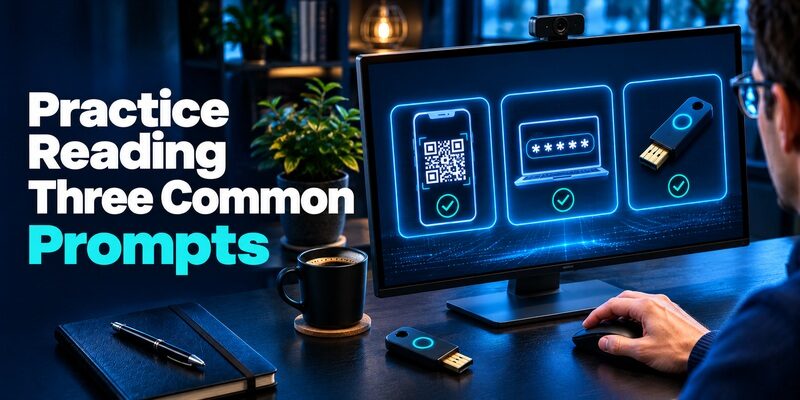
Suppose a website shows a standard authenticator enrollment QR under the account’s security settings. Open the chosen code app and scan it in the active setup. Once the account accepts the first code, run a fresh sign-in. That “2 fatores” test confirms the service can verify the enrolled app entry.
If gov.br requests an access code, open the official gov.br app and use its code generation option. If the app no longer provides the code because you moved to another device, open the service’s official recovery option. Do not repeat the generic setup with a third-party app.
If a sign-in asks you to use a security key, check whether the screen expects a physical key or a passkey on an eligible device. A manual code setup secret belongs to another flow. Follow the prompt you started and verify the site before using the registered credential.
Final Thoughts
“2 fatores” is a Portuguese label for using two distinct kinds of proof. Choose the method offered by the account, confirm a fresh sign-in, and keep a recovery route available. Use a supported code app or key where the service offers it. For gov.br access codes, use the official gov.br app and the government’s recovery instructions.
If a prompt fails, identify which service issued it and what proof it expects. Preserve any working session and test the replacement before retiring the original device.
