
Authenticator Extension Options and How to Install One Safely
Published November 11, 2026
An authenticator extension can generate a verification code in your browser, request it from a paired phone, or fill it from a password vault. Start with the model you want and use the publisher’s official browser store listing. Check where the setup secret will be stored, which sites the add-on can read, and how you can sign in if the browser stops working.
The extension only works with accounts that support its kind of authentication. If a service requires a managed approval or security key, keep using the required method. If you want a time-based code without changing your browser, use an approved mobile authenticator and type the current code into the official sign-in page.
Check What Your Account and Browser Need
Read the Service’s Authentication Method
Start at the service you want to protect and inspect its security settings. A QR or a manual key for a time-based app indicates a compatible enrollment may be possible. A push approval, passkey, or hardware key uses a different flow. An authenticator extension cannot reproduce a verification method merely because it appears in the same browser. On a managed account, confirm whether you are permitted to use an extension with the service.
Decide What You Want the Extension to Do
If you are only trying to avoid retyping a code, a phone companion may fit. If you want both password and code in a vault, check a supported integrated authenticator. If you need the browser to hold the actual enrollment and generate values by itself, look for a dedicated code extension and inspect how its backup works. The place where the secret lives affects the effort of recovering from a browser reset.
Use a Profile You Control
An authenticator extension is installed into a browser profile. A work-managed profile may block installation or require an approved version. On a shared computer, your profile, session, and local storage may be exposed to other users. Keep a personal login on an account and device you control. Check whether sync would install the same add-on on other devices that use the profile.
If your primary device is a corporate laptop, ask whether you can install an authenticator extension in that profile and whether local credential storage is allowed. The answer can differ from the rules for a personal laptop. Verify the policy before you scan an account’s QR so a later administrative removal does not take the only working copy.
A compatible mobile authenticator app, such as Authenticator App by Begamob, can generate codes for supported accounts without requiring a browser extension to access the sign-in page. Verify device compatibility and available backup options before enrollment.
Secure your accounts with fast, reliable two-factor authentication. Download now and protect your login in seconds.Download Authenticator App
Compare Three Ways an Authenticator Extension Can Work
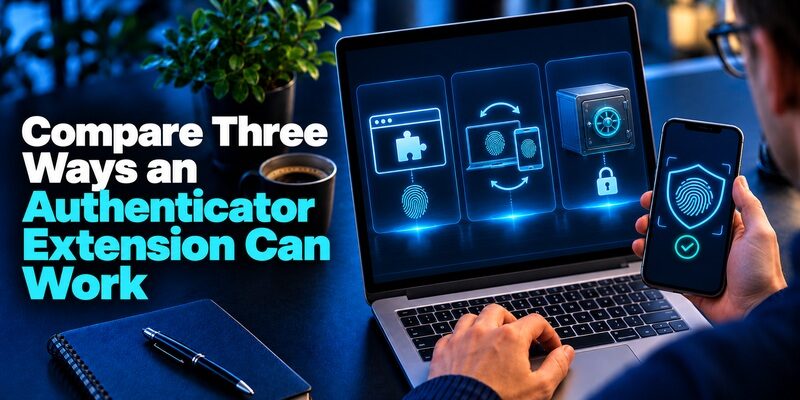
| Model | Example | Decision to verify |
|---|---|---|
| Browser-native code generator | Authenticator Extension at authenticator.cc | Where entries are stored and whether you can export a protected backup |
| Paired-phone companion | 2FAS Auth Browser Extension | How you approve requests and what you do when the phone is unavailable |
| Password-vault integration | Bitwarden Password Manager integrated authenticator | Plan eligibility, vault recovery and whether credentials should share storage |
| Separate app and manual entry | A compatible standalone mobile authenticator | Phone access, provider recovery and whether you want browser access at all |
Browser-Native Code Generation
The Authenticator project documents a dedicated extension for Chrome, Firefox, and Edge and describes importing and exporting backups. Check its current store listing for your browser and review the available password protection before storing secrets. If this type of authenticator extension holds the enrolled data in the browser environment, a profile deletion can affect your access. Before adding high-impact accounts, practice a protected export and verify that you know how to restore it.
Many browser-based authenticators use the same time-based code standard as a TOTP authenticator app. The main difference is where the enrollment secret is stored and how the verification code reaches the sign-in page. Review these differences before moving authentication data into a browser profile.
Paired-Phone Code Requests
2FAS documents a browser companion that requests a token from the registered mobile app. The user can accept or reject the request, and the extension inserts the returned value into the field. Pair the browser profile you intend to use. This arrangement still requires the phone for the documented companion workflow. Test manual entry as a fallback if a browser permission, notification, or connectivity issue interrupts pairing.
Password-Vault Code Generation
Bitwarden documents an integrated authenticator that uses a vault item’s TOTP key. The provider currently distinguishes key storage from code generation, which depends on plan eligibility. If you store both the password and setup secret in one vault, a vault compromise could affect both. If your organization requires separate custody, use an approved separate factor. Test that vault access can be recovered without relying on the vault’s own unavailable code.
Manual Entry From a Separate App
A compatible mobile app such as Begamob’s can calculate codes for supported accounts without granting a browser extension access to the sign-in page. Verify device compatibility and backup. Manual entry can be a good fit if you sign in infrequently or use several browsers. The app must still be enrolled with the service through its official setup screen.
Suppose you sign in to the same account from two browsers. A mobile code app can supply a value to either browser through manual entry. A paired phone companion requires setup for the browser you intend to use. A browser-native tool needs a supported way to supply the secret to each trusted profile. Check how the vendor handles that second copy.
Read more: FanDuel Authenticator App Setup and Code Help
Verify the Store Listing Before You Install
Start From the Publisher’s Official Download Page
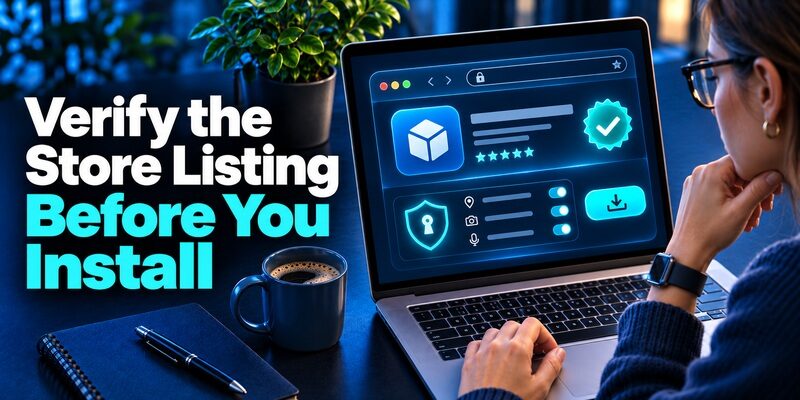
Find the product and choose the listing linked by the publisher for your browser. Compare the full name, developer, and support domain. Several extensions can contain the same word in their names. If an authenticator extension appears in a sponsored search result, verify its relationship to the actual publisher before adding it. The listing’s age or popularity does not tell you whether it is the intended product.
Read Permissions and Site Access
A browser extension may ask to read or change site data so it can locate and fill a code field. Check the developer’s explanation and compare the permission with what you actually need. Google’s Chrome Help describes site access controls for supported extensions. Where possible, set access for the sites where you use it. Test the intended workflow after limiting scope, because permission changes can affect autofill. If you want to understand how Google’s authenticator workflow relates to browser-based verification, read our guide to Google Authenticator for Chrome. It explains the difference between using a supported authenticator app alongside Chrome and relying on a browser extension to generate codes.
Check Support and Maintenance
Review the publisher’s support page, recent update history, and documented process for reporting a security problem. If the product claims to be open source, locate the official repository and match it to the store listing. Repository visibility does not establish that an arbitrary lookalike listing distributes the same software. For a work browser, use the approved listing and release channel from your administrator.
Avoid Mixing Up Product Variants
A publisher may offer a password manager, a code app, and separate add-ons for each. Verify which app and account your intended authenticator extension pairs with. For example, the 2FAS Auth companion and the separate 2FAS Pass extension belong to different workflows. Installing the wrong variant may lead you to pair the wrong app or give a component access it does not need.
If you find multiple store listings with similar titles, compare the links from the publisher’s support page and verify the developer listed in each store. Check the requested site scope before enabling an authenticator extension. A verified publisher link and a permission review together give you more context than a name and star rating.
Read more: Discord Auth Code Where to Find It and Get Back In
Decide Which Security Trade-Off Fits Your Workflow
| Question | Check before installing | Example outcome |
|---|---|---|
| Where does the setup secret live? | Browser storage, mobile app, or vault | You can keep raw secrets in an approved location |
| What does the extension see? | Current code, page data, or the actual secret | You can limit access to the intended sites |
| What happens if the browser is lost? | Manual code, protected restore, or account recovery | You can still complete a fresh sign-in |
| Does the service support another method? | Passkey, security key, or managed approval | You can select a provider-supported method for sensitive accounts |
Consider How Much You Trust the Browser
Your browser already handles the sign-in page and a session after authentication. Adding an authenticator extension can also give browser software access to a code or an enrollment secret. Consider whether the browser runs other add-ons with broad permissions and whether its profile is managed. If you handle sensitive accounts from multiple systems, verify which devices you are permitted to use and where their secrets belong.
Match the Method to the Risk
Time-based codes can be relayed through a phishing page. If the service supports a passkey or security key, check whether you can use it and how you would recover. NIST’s digital identity guidance distinguishes phishing-resistant methods from manually entered OTP. If the provider requires app codes, use the authenticator extension or app setup you have verified and submit values only on the official domain.
Review Password and Factor Storage Together
Keeping a password and TOTP key together can simplify ordinary sign-ins. It also makes vault access and recovery central to both credentials. If you choose that workflow, protect the vault with a separate recoverable method. If you keep them in separate systems, test how to reach both from a replacement device. An arrangement that only works on one laptop deserves a recovery check before you add important accounts.
Think through a lost device before you add the first sensitive account. List the systems needed to get the password, factor, and recovery material. If all three depend on the same browser profile, choose an independent recovery route. Test the route once on an account whose current enrollment you can safely retain. If you are new to enrolling accounts with QR codes or manual setup keys, follow our guide on how to use an authenticator app. It covers adding supported accounts, confirming the first verification code, and preparing recovery options before depending on a new authentication method.
Read more: 2FA Live FB and How to Get Your Facebook Code Safely
Add an Account and Test Manual Fallback

Enroll From the Service’s Settings
Sign in to the official provider and open its authentication app setup. For a browser-native or vault-based tool, follow the publisher’s method for adding the setup data. For a paired-phone authenticator extension, add the account in the mobile app first, then pair the companion. The QR for pairing the browser is not the QR that the account generates. Keep both QR types private.
Verify the Code Before Depending on Autofill
Submit the first value to the provider and check the enrollment result. Try a fresh sign-in while the current session is still open. If the authenticator extension inserts a value, verify the account and domain first. If the service has multiple profiles, label each entry by an account identifier that helps distinguish it. Test the exact browser profile you will use day to day.
Check What Happens When the Add-On Fails
Disable the companion temporarily or use a separate trusted browser for one sign-in. Confirm you can get a code from the approved alternative, a backup method, or the mobile app. Re-enable the extension after the test if you intend to keep it. This exercise can reveal a missing recovery path before a browser update, laptop replacement, or policy change makes the original workflow unavailable.
If the account setup is open in the browser that also hosts your authenticator extension, keep the confirmation tab available until enrollment succeeds. Name the entry with the actual account and check that your second test reaches it. An app can store duplicate labels, so a working confirmation is more informative than the name on the entry. Before storing both passwords and authentication secrets in a single vault, compare the security model and recovery options in our Bitwarden authenticator review. Consider whether your account requires separate authentication factors or whether an integrated vault workflow meets your security needs.
Prepare for Browser Reset or Device Loss

Use the Product’s Documented Recovery Method
A standalone authenticator extension may offer an export or sync. A companion often requires a phone and fresh pairing on the replacement browser. A vault may restore the stored TOTP key after you regain access to the vault. Follow the publisher’s current instructions and verify that you can still access the service itself. Store any backup file and its password securely, using distinct access paths if practical.
Test Recovery Without Destroying the Working Copy
If the product supports a safe restore test, use a separate device or profile you control. Confirm the backup shows the expected entries, then complete a normal login to a test account. Check what happens after you add a new enrollment. A manual export created before that account was added will not restore it. Keep service recovery codes in a protected location independent of the browser profile.
Unpair or Revoke When a Device Is Retired
When replacing a laptop, check the provider’s active sessions as well as the extension’s browser pairings. Remove an old pairing from the phone when supported and follow the provider’s controls for signing out an untrusted device. If a browser profile containing raw enrollment secrets was exposed, rotate the affected factor through each service. Removing the authenticator extension alone cannot invalidate copies elsewhere.
Keep one recoverable account as a migration test. Confirm that you can open the backup on the intended replacement before touching your only working profile. If the backup needs a separate password or cloud login, record where that proof is available. A stored file without its password does not establish that you can restore your entries.
Read more: GitHub Two Factor Authentication: Setup & Recovery Guide
Diagnose Codes and Permissions Separately
If Manual Entry Works but Autofill Fails
Check that the extension is installed in the current browser profile and has access to the official domain. A sign-in may move to a different provider domain for verification. Read the publisher’s site-access guidance before broadening permissions. If you use a companion, check the paired phone and its request settings. Continue with manual entry while you identify the browser issue.
If the Provider Rejects Both Values
Confirm the correct account entry, automatic date and time, and whether the timer is about to change. A restored backup or a stale account can still generate a plausible code. Verify the service’s current enrollment from a working session. If the provider expects a push approval, recovery code, or different method, switch to its correct option instead of retrying the same value.
If the Extension Disappears From a Work Browser
Check whether the organization changed its software policy or whether you switched profiles. Do not install an unofficial copy to restore convenience. Use your approved alternate factor and ask the authorized administrator whether the authenticator extension is still supported. Once the account works, record the current approved route without including codes or setup secrets.
When a browser site permission changes, test the authenticator extension against the official login using one known account. If an autofill attempt fails but a manual code works, narrow the investigation to the extension and browser. If the manual code also fails, start with the account enrollment and time setting.
Questions About an Authenticator Extension
Do I Need an Authenticator Extension for Two-Factor Authentication?
No. Use the method your service accepts. A standalone app can generate supported codes that you enter manually. A passkey, managed approval, or security key may be the required method for some accounts.
Can I Use the Same Extension on Two Browsers?
Check the vendor’s support and how each profile gets its entries. Some companions can pair separately with multiple browsers. A standalone add-on may need sync or a protected import. Verify both browsers before deleting the working profile.
Does an Authenticator Extension Work Offline?
A locally stored standard code can be calculated offline if the device clock is accurate. A companion or vault may depend on phone connectivity or vault access. The service still needs to receive the code when you sign in.
What Should I Do if a Listing Asks for More Permissions After an Update?
Compare the new permissions with the official release notes and the behavior you need. You can use an approved backup method while you verify the change. If the publisher or listing no longer matches, avoid adding new secrets until you identify the correct product.
Final Thoughts
Choose an authenticator extension based on how it handles the setup secret and delivers the code. Install from the official publisher’s listing, verify the permissions, and test on the same account and browser profile you will actually use.
Keep a separate recovery route and practice it before a device change. If you only need occasional codes, a compatible mobile app and manual entry may be enough. For managed or sensitive accounts, follow the provider and organization’s approved method.
