
New Phone 2FA Setup: How to Transfer Authentication Codes Safely in 2026
Published November 9, 2026
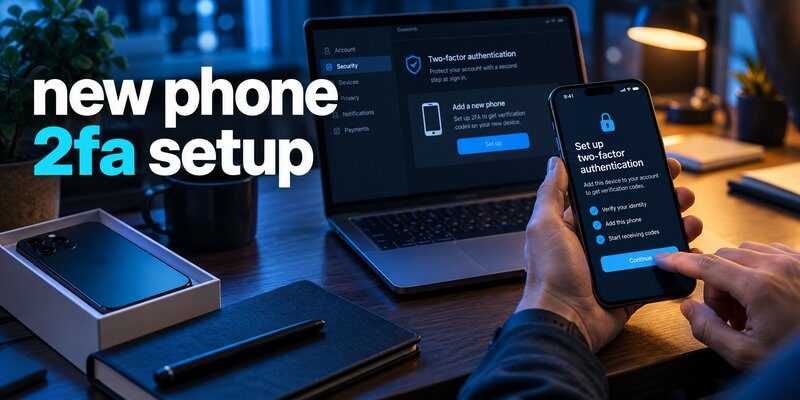
New phone 2fa setup involves transferring or restoring your authentication codes, registering your new device with online accounts, and verifying that two-factor authentication works before removing your old phone.
The safest approach is to keep your old phone active, transfer supported authenticator codes, reconnect accounts that require reactivation, and save recovery codes. If your previous device is unavailable, use a backup method or the account provider’s official recovery process.
Getting a new smartphone is exciting, but losing access to two-factor authentication (2FA) can quickly become frustrating. Your passwords might transfer automatically, while the security codes required to access Gmail, Microsoft, social media, or workplace accounts may not.
Fortunately, most authentication systems offer ways to transfer credentials, restore backups, or register a replacement device.
This guide explains how to complete new phone 2fa setup, prevent account lockouts, and restore secure access across popular authentication services.
What Is New Phone 2FA Setup and Why Is It Important?
New phone 2fa setup is the process of configuring two-factor authentication on a replacement smartphone so that you can continue securely accessing your online accounts.
Two-factor authentication requires an additional verification method beyond your password. Depending on the service, this could be a temporary code, an authentication notification, a passkey, or a physical security key.
The problem is that transferring ordinary phone data does not necessarily transfer authentication credentials.
How Two-Factor Authentication Works
A typical authentication process requires two steps:
- Enter your username and password.
- Confirm your identity using an approved second factor.
Many authenticator applications generate six-digit time-based one-time passwords (TOTP). These codes commonly refresh every 30 seconds.
A six-digit code has 1,000,000 possible combinations, although real-world protection also depends on server-side rate limiting, account security, and the secrecy of the authentication key.
Microsoft has reported that more than 99.9% of compromised accounts in its referenced security observations lacked multifactor authentication. This highlights the importance of maintaining MFA protection when upgrading devices.
What Happens to 2FA When You Change Phones?
Not every verification method transfers in the same way.
| Authentication method | What happens on a new phone? |
|---|---|
| SMS verification | Usually works after your number and SIM/eSIM are activated |
| Authenticator codes | May require synchronization, export, or re-enrollment |
| Push notifications | Often require registering the replacement device |
| Passkeys | May sync through a supported credential provider or remain device-bound |
| Security keys | Physical keys generally continue working independently of your phone |
For a successful new phone 2fa setup, identify which authentication methods your accounts use before transferring your data.
If you are unsure about the difference between authenticator-based and text-message verification, read our guide to SMS vs Authenticator App.
Why You Should Never Disable 2FA Permanently
Some users disable authentication when switching devices because the process seems complicated.
However, doing so removes an important layer of account protection.
Instead, complete new phone 2fa setup through an approved transfer, restore, or recovery method. If a service temporarily requires you to remove an existing authenticator enrollment, register the replacement method immediately and verify it works.
The goal is to change your trusted device without weakening account security.
What to Do Before Setting Up 2FA on a New Phone
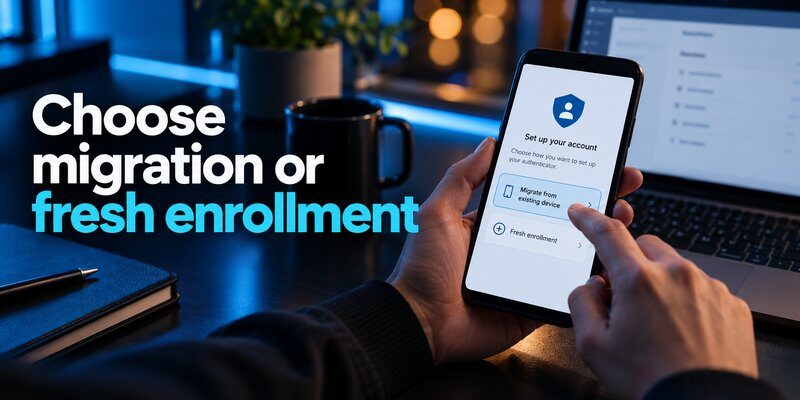
Preparing your old device is the most important part of new phone 2fa setup.
If you still have access to your previous smartphone, complete the following steps before resetting, selling, or trading it in.
1. Check Your Existing Authenticator Accounts
Open the authenticator application on your old phone.
Review all accounts that depend on generated codes or authentication notifications.
Common examples include:
- Google and Gmail accounts
- Microsoft and Outlook accounts
- Facebook and Instagram
- Banking and financial services
- Workplace accounts protected by Duo
- Cryptocurrency exchanges
- Cloud storage services
Create a simple checklist of accounts that need to be tested after migration.
If your existing application supports backup or export, review those options before making changes.
2. Save Your Recovery Codes
Many services provide recovery codes when you first enable two-factor authentication.
These codes can help you access your account when your usual authentication method is unavailable.
Before performing new phone 2fa setup, sign in to important accounts and check whether backup codes can be generated or renewed.
Store recovery codes in a secure password manager or another protected offline location.
Avoid saving them in unencrypted notes, ordinary screenshots, or publicly accessible cloud folders.
Remember that recovery codes belong to individual services. A Google recovery code cannot unlock an unrelated Microsoft or social media account.
3. Keep Your Old Phone Accessible
Do not immediately erase your old smartphone.
Some services require you to approve a login, scan a transfer QR code, or confirm the new device using the previous one.
Keep both devices charged and connected to a trusted network.
It is also helpful to remain signed in on a trusted computer while completing the transfer.
4. Prepare Your New Authenticator Application
Install the authenticator solution you plan to use on your new phone.
For iPhone users, the Authenticator app from Begamob provides an option for setting up supported time-based verification accounts.
Important: Installing a different authenticator app does not automatically move existing authentication secrets into it. You may need to re-enroll each account using its security settings.
If you are switching between iOS and Android, check the original authenticator provider’s cross-platform backup limitations.
A reliable new phone 2fa setup begins with choosing the correct transfer method rather than assuming that all applications share compatible backups.
Download Authenticator App
Secure your accounts with fast, reliable two-factor authentication. Download now and protect your login in seconds.
How to Transfer 2FA Codes to a New Phone
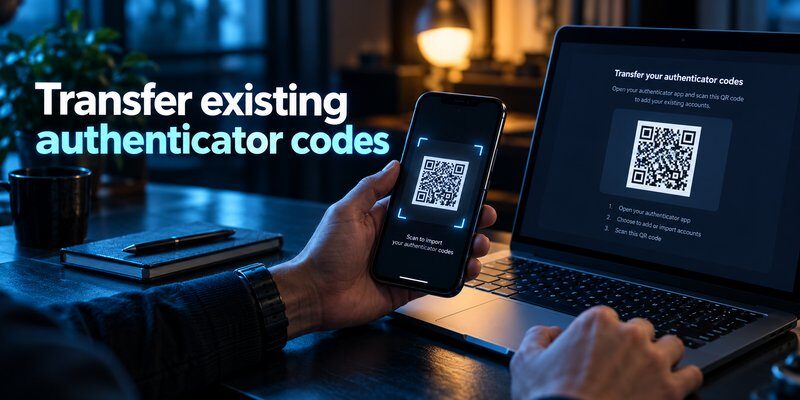
The most common question when replacing a smartphone is how to change 2fa to new phone without losing access to important accounts.
There are three main approaches: account synchronization, QR-code transfer, and individual account re-enrollment.
Method 1: Transfer Google Authenticator Codes
Google Authenticator supports account-based code synchronization as well as manual transfers.
If synchronization is enabled, your existing codes may become available when you sign in to the same Google Account within Google Authenticator on the replacement device.
For users who store codes locally, Google provides a manual export process.
Steps to transfer codes manually:
- Install Google Authenticator on your new smartphone.
- Open Google Authenticator on the old device.
- Find the Transfer codes or equivalent transfer option.
- Select Export codes and choose the accounts to transfer.
- Unlock the old device when prompted.
- Open the import function on the new device.
- Scan the QR code displayed by the old phone.
- Confirm the accounts appear on the new device.
The application may generate several QR codes if multiple accounts are selected.
Menu labels can vary by operating system and application version.
For detailed instructions, see How to Use Google Authenticator.
Never share authentication transfer QR codes. They can contain sensitive secrets that allow another device to generate valid login codes.
After transferring, test your accounts before deleting the originals.
Method 2: Reconfigure 2FA Through Account Security Settings
Not all authenticator applications support direct migration.
In these cases, the safest new phone 2fa setup process is to register your new application through each website’s account security settings.
Follow these steps:
- Sign in to the service using your existing credentials.
- Open Settings, Security, or Two-Factor Authentication.
- Locate the existing authenticator enrollment.
- Choose an option to add, replace, or configure an authenticator.
- Scan the new setup QR code using your replacement phone.
- Enter the generated verification code to complete enrollment.
- Save any newly issued recovery codes.
Some services let you register multiple authenticators simultaneously. Others require replacing the existing enrollment.
Only remove the old method after confirming the new one works, whenever the service allows that sequence.
For anyone changing 2fa to new phone, account-level re-enrollment is especially useful when moving between different authenticator brands.
Method 3: Set Up a New Authenticator App
If you want a fresh authentication setup, install a compatible TOTP application and register supported services individually.
You can Download authenticator app for iPhone directly from the App Store.
Then:
- Open the authenticator application.
- Choose the option to add an account.
- Open the online service’s two-factor authentication settings.
- Display its enrollment QR code or setup key.
- Add the account using the application.
- Enter the verification code requested by the service.
If the QR code appears on the same phone, look for a manual setup key or use another trusted screen.
An authenticator app can generate codes only after the relevant service’s secret has been securely enrolled or restored.
For users completing new phone 2fa setup with several different accounts, repeat this process carefully and test each login individually.
You can also follow our Transfer Authenticator to New Phone guide for additional instructions.
How to Set Up Google, Gmail, and Microsoft 2FA on a New Phone
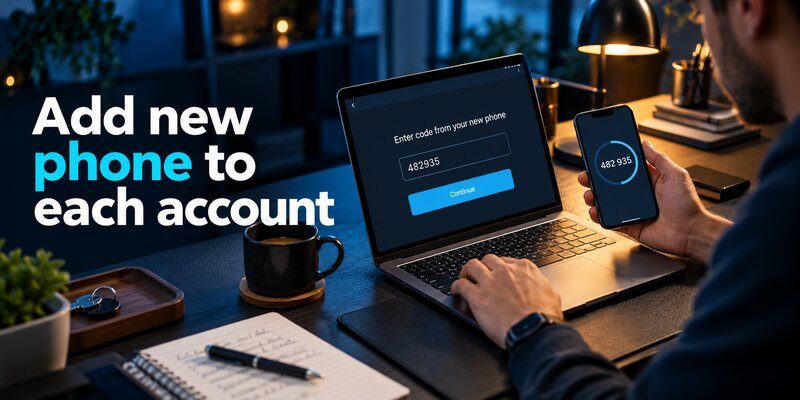
Google and Microsoft accounts often protect email, documents, payments, and recovery information. They deserve special attention during new phone 2fa setup.
Google 2FA New Phone Setup
For google 2fa new phone authentication, begin by checking your Google Account’s two-step verification settings.
If you already use Google Authenticator with code synchronization, first verify that your codes are available in the application on your new phone.
Otherwise:
- Sign in to your Google Account on a trusted device.
- Open Security & sign-in and locate 2-Step Verification.
- Choose the authenticator setup or management option.
- Follow the instructions to register your new device.
- Confirm that the generated code is accepted.
- Review your recovery methods and backup codes.
Google may require additional verification before allowing sensitive changes.
A Google Account can also support passkeys, security keys, prompts, and other authentication options. Moving authenticator codes does not automatically transfer every sign-in method.
Read Google Account Two-Step Verification to understand how these protections work together.
Gmail 2FA New Phone Setup
The process for gmail 2fa new phone authentication uses your Google Account’s security settings because Gmail is protected by the same underlying account.
Once your authentication method is working, test Gmail sign-in on the replacement device.
If Google requests confirmation from an older device, select another available verification option or use the official recovery process.
Do not repeatedly reset security settings while attempting to sign in. Google may apply additional security checks after unusual account activity.
Microsoft Authenticator New Phone Setup
Microsoft Authenticator offers cloud backup for eligible one-time password accounts, but restoration has important limitations.
Microsoft states that backups must be restored to the same operating-system family. An iOS backup cannot simply be restored on Android, or vice versa.
Personal and supported third-party TOTP codes may be restored, depending on the backup configuration.
However, work or school account credentials must generally be registered again, even when their account names appear after restoration.
For Microsoft accounts:
- Check whether the original device has the necessary backup enabled.
- Install Microsoft Authenticator on the replacement device.
- Use the supported recovery or backup restoration option.
- Complete additional sign-in verification where required.
- Re-register workplace accounts through your organization’s security process.
- Verify that authentication notifications reach the correct device.
For a complete walkthrough, visit Microsoft Authenticator Change Phone.
Completing these checks makes new phone 2fa setup more reliable across your most important digital accounts.
How to Transfer Duo, X, Apple, and T-Mobile Authentication
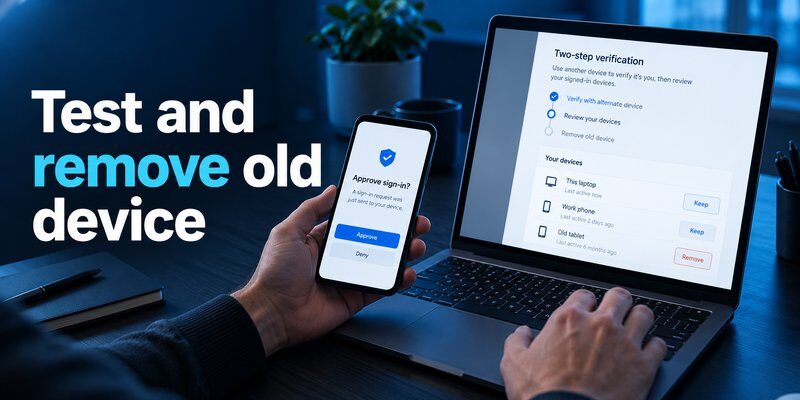
Different platforms have different procedures when users replace their smartphones.
Understanding these differences prevents common new phone 2fa setup mistakes.
Duo 2FA New Phone Setup
Duo Mobile is widely used for workplace and education-related authentication.
For duo 2fa new phone activation, the correct procedure depends on your organization’s Duo configuration.
Cisco Duo supports Instant Restore for eligible Duo-protected accounts. Administrators control which restoration and reactivation methods are available.
Users may be able to restore an account through the application’s recovery process, reactivate through an organization’s self-service portal, or request administrator assistance.
Having the same telephone number does not automatically guarantee that Duo Mobile is activated on your replacement device.
If you are searching for duo new phone same number instructions, check whether your organization offers device reactivation through its authentication portal.
For other cases:
- Install Duo Mobile on the replacement phone.
- Open your organization’s approved Duo enrollment or recovery workflow.
- Select the option to reactivate or replace your device.
- Complete the required identity verification.
- Follow the QR-code or restoration instructions.
- Test authentication against an organization-approved service.
Third-party TOTP accounts stored in Duo may have a different backup process from Duo-protected organizational accounts.
See Duo Mobile App for more information.
X 2FA Not Working After Changing Phones
If you experience x 2fa not working after replacing your phone, first determine whether the account uses an authenticator application, SMS, or a security key.
If the previous authentication app remains available, use it to sign in and update the authentication method.
If you cannot access the old device:
- Try a valid X backup code.
- Check whether you still have an authenticated session.
- Review the available authentication methods in your account settings.
- Use X’s official support and recovery options if necessary.
X also limits SMS-based authentication availability according to subscription and regional conditions.
Do not assume your original phone number is sufficient to recover an authenticator-protected X account.
Apple Authenticator and iPhone Verification Codes
Users researching apple authenticator options should know that Apple’s Passwords app can store and generate verification codes for compatible services.
With iCloud Passwords & Keychain enabled, supported credentials and verification codes can remain available across approved Apple devices.
To check your codes:
- Open the Passwords app.
- Find the relevant saved account.
- Look for its verification code.
- Confirm that it matches the service’s current authentication enrollment.
For more details, see Apple Authenticator.
If you also use google authenticator for mac, remember that desktop authentication workflows and Google Authenticator mobile synchronization are separate considerations. Check Google Authenticator for Mac before choosing a desktop method.
T-Mobile New Phone Setup and SMS Verification
For t mobile new phone setup, activate your SIM or eSIM using T-Mobile’s approved device transfer process.
After activation, verify that your new phone can receive ordinary text messages and calls.
This is important if some accounts send verification codes by SMS.
However, activating your phone number does not migrate authenticator-generated security codes.
If an account uses TOTP or push authentication, complete its separate enrollment process.
T-Mobile’s official device-switch instructions also advise customers to back up their content before upgrading.
These service-specific steps help ensure new phone 2fa setup protects both SMS-based and application-based accounts.
How to Set Up 2FA If Your Old Phone Is Lost
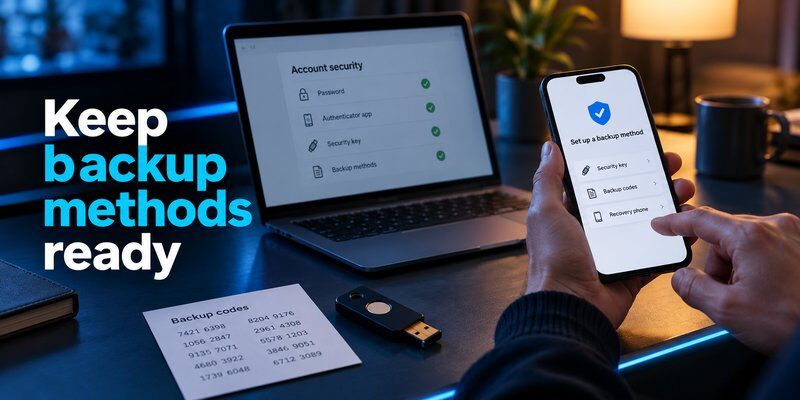
Losing your old device makes new phone 2fa setup more complicated, but it does not always mean losing your accounts permanently.
The available recovery methods depend on what you configured before the device disappeared.
Step 1: Use Your Account Recovery Codes
Check your securely stored recovery codes.
If you have a valid code, follow the affected service’s official sign-in instructions to use it.
Once you regain access, register a new authentication method and generate fresh recovery codes when supported.
Step 2: Try Another Trusted Authentication Method
Some services allow recovery through:
- A registered security key
- A previously configured passkey
- A trusted device
- An approved backup phone number
- An existing authenticated session
- An administrator-managed recovery process
Select an alternative only if the service offers it.
Never provide passwords, backup codes, or verification codes to someone claiming they can bypass account security.
Step 3: Check Authenticator Backups
If you previously enabled a supported backup or synchronization feature, follow the original provider’s recovery instructions.
For example, Google Authenticator users who saved codes to their Google Account may be able to access those codes on the replacement device.
If you stored codes locally without a backup, you may need to recover each protected account separately.
Our Google Authenticator Lost guide explains common recovery scenarios.
Step 4: Register the New Phone
After recovering access:
- Open the account’s security settings.
- Remove or invalidate any compromised authentication methods.
- Register your replacement phone.
- Verify a successful sign-in.
- Generate new backup codes when available.
- Review active sessions and trusted devices.
If your old phone was stolen, use the platform’s device security tools to secure or erase it when appropriate.
Never disable important account protections simply because the previous phone is unavailable.
A secure new phone 2fa setup should restore your access while preventing unauthorized use of the missing device.
Troubleshooting New Phone 2FA Setup Problems
Even when users follow the correct transfer instructions, new phone 2fa setup can encounter verification problems.
Most issues fall into a few common categories.
Problem 1: Authenticator Codes Are Incorrect
If your authenticator generates a code that the website rejects, check the following:
- The correct account was selected.
- The code has not expired.
- Your phone’s date and time are accurate.
- Automatic time settings are enabled.
- The website is using the same authentication enrollment as your app.
TOTP codes depend on synchronized time and the correct secret key.
A valid-looking six-digit code is not necessarily valid for the account you are trying to access.
If the enrollment is outdated, sign in using an approved alternative and register the authenticator again.
Problem 2: Authentication Notifications Go to the Old Phone
Some applications continue sending push notifications to the previously registered device.
This is especially relevant to work or school accounts using device-bound authentication.
Open the account’s security management page and check which device is registered.
If you cannot update it, contact the account administrator or use an approved alternative verification method.
Problem 3: Backup Restoration Does Not Work
First, verify that a backup was created before the device switch.
Then confirm that you are using the correct recovery account and supported operating system.
Not every authenticator supports cross-platform restoration.
Also, an application may restore account names without restoring the credentials necessary for authentication.
In those cases, complete the required re-registration steps rather than assuming the backup failed entirely.
Problem 4: No SMS Verification Code Arrives
Check your SIM/eSIM activation, network connection, and whether ordinary messages are being delivered.
If you recently transferred your phone number, carrier activation may still need attention.
Avoid requesting many codes in rapid succession. Some services invalidate earlier codes once a newer one has been issued.
Use another approved authentication method if SMS remains unavailable.
Problem 5: QR Code Cannot Be Scanned
If the QR code will not scan:
- Increase screen brightness.
- Clean the camera lens.
- Confirm the QR code has not expired.
- Generate a fresh enrollment QR code if necessary.
- Use manual setup-key entry when the service supports it.
Do not upload authentication QR codes to public scanning websites.
Problem 6: Your Account Is Temporarily Locked
Repeated failed authentication attempts may trigger security restrictions.
Stop guessing codes and follow the service’s recovery or account-unlock instructions.
If the account belongs to an organization, its IT administrator may need to reset the enrollment.
Completing new phone 2fa setup successfully requires both transferring credentials and confirming the service recognizes the replacement device.
Best Practices and FAQs for New Phone 2FA Setup
Following several basic security practices can make future phone upgrades much easier.
Essential Security Checklist
Before finishing new phone 2fa setup, confirm the following:
- All critical accounts are accessible from your replacement phone.
- Authenticator codes are working when tested against the correct services.
- Backup codes are saved securely in an accessible recovery location.
- Push authentication reaches your new device, not an outdated device.
- Your recovery email and phone number are current.
- Old devices are removed or secured after testing the new setup.
- No authentication secrets were shared during the transfer process.
Consider registering an additional phishing-resistant authentication method, such as a supported passkey or hardware security key, for especially important accounts.
Frequently Asked Questions
Can I transfer 2FA to a new phone without the old phone?
Yes, in some circumstances. You may be able to use synchronized authenticator codes, a supported cloud backup, recovery codes, a security key, or an account recovery process.
However, if no recovery method exists, you may have to contact the account provider. Access is not guaranteed.
Will 2FA work automatically on my new phone?
It depends on the authentication method.
SMS verification may work after your phone number is activated, while an authenticator application may require synchronization or account re-enrollment.
A standard device backup does not guarantee that every 2FA credential will transfer.
Can I use the same authenticator on two phones?
Some services and applications allow multiple devices to hold valid TOTP credentials or support multi-device synchronization.
Other authentication methods are tied to one registered device.
Always check the application’s backup and device management features.
Is it safe to change my authenticator app?
Yes, provided you use an approved enrollment process and verify the replacement before removing your old authentication method.
For new registrations, choose an application that supports the authentication standard required by your service.
How often should I update my 2FA recovery information?
Review your recovery information whenever you change phones, change phone numbers, replace security keys, or modify important account credentials.
You should also review recovery methods after a suspected security incident.
Final Thoughts
New phone 2fa setup is an essential part of securely upgrading your smartphone.
The most reliable approach is to prepare your old device, transfer supported authentication codes, re-register device-bound methods, test every important account, and protect your recovery credentials.
Google, Microsoft, Duo, Apple, and other services provide different recovery and migration options, so following the correct procedure for each account matters.
For users who want to configure supported time-based authentication on a new iPhone, Begamob’s Authenticator app offers an option for registering verification accounts.
Download Authenticator App for iPhone
Protect your accounts before retiring your old phone, and make sure your new authentication setup works when you need it most.
Download Authenticator App
Secure your accounts with fast, reliable two-factor authentication. Download now and protect your login in seconds.
