
How to Set Up MFA for a Company: Complete Business Guide
Published November 10, 2026
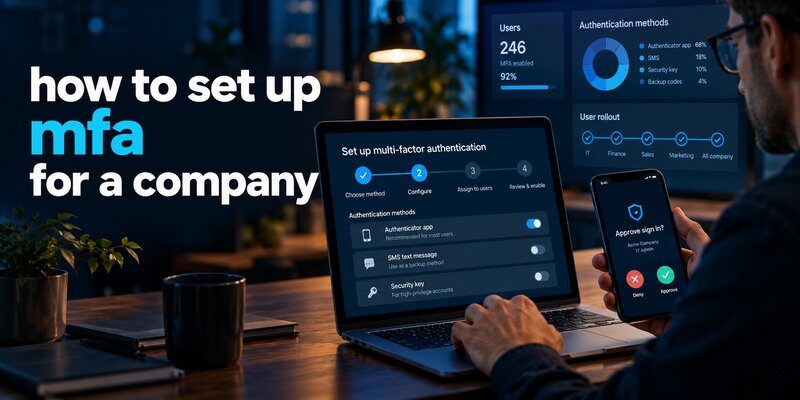
Learning how to set up mfa for a company starts with choosing an authentication policy, enabling MFA in your identity platform, registering employee verification methods, and testing access before enforcing the policy across your organization. For Microsoft 365 businesses, administrators can use Microsoft Entra security defaults or Conditional Access to protect employee accounts.
Quick setup checklist:
- Identify all business accounts requiring MFA.
- Select an identity provider and authentication methods.
- Configure organization-wide MFA policies.
- Register employee authentication devices.
- Test login, recovery, and emergency access.
- Enforce MFA and monitor suspicious sign-ins.
For organizations looking for how to set up mfa for a company, the most important rule is to protect employees without accidentally blocking legitimate access.
Companies should also establish approved verification methods, including passkeys, security keys, and authenticator applications where supported.
For compatible accounts that support time-based verification codes, an Authenticator app provides another verification layer beyond passwords.
Employees can also Download authenticator app for supported TOTP authentication workflows. However, Microsoft-specific push notifications and number-matching approvals require Microsoft Authenticator rather than a generic code-generating application.
This guide explains how to implement MFA for small businesses, growing teams, and organizations managing Microsoft 365 or multiple cloud services.
1. Why Every Company Needs Multi-Factor Authentication
Multi-factor authentication requires users to verify their identities using two or more independent authentication factors.
These factors generally belong to three categories:
- Something you know: A password or PIN.
- Something you have: A registered security key, passkey authenticator, or phone.
- Something you are: A biometric characteristic, such as a fingerprint, used within a supported authentication system.
Combining independent factors makes unauthorized access more difficult, even when an attacker obtains an employee’s password.
How effective is MFA against cyberattacks?
A Microsoft Research study published in May 2023 examined the effectiveness of MFA in protecting commercial accounts.
The researchers reported that:
- MFA reduced account compromise risk by 99.22% across the population studied.
- Risk decreased by 98.56% in cases involving leaked credentials.
- More than 99.99% of MFA-enabled accounts remained secure during the investigation period.
These findings demonstrate why organizations should prioritize MFA, although they do not guarantee that every MFA-protected account is immune to compromise.
Modern phishing attacks can still steal sessions, trick users into approving sign-in requests, or exploit weak recovery procedures.
Which business accounts need MFA?
When planning how to set up mfa for a company, prioritize accounts with access to sensitive information or administrative functions.
These commonly include corporate email, Microsoft 365, Google Workspace, payroll systems, accounting software, customer databases, VPN connections, and cloud infrastructure.
Administrator accounts require especially strong protection because a compromised administrator may be able to change permissions, access company data, or weaken security controls.
For these privileged identities, phishing-resistant MFA such as FIDO2 security keys or supported passkeys is preferable to SMS verification.
Learning how to set up mfa for a company is therefore more than installing an application. It involves building a consistent identity security policy covering people, devices, systems, and recovery procedures.
2. How to Prepare Your Business for MFA Implementation

Before enabling MFA, organizations should understand which accounts and applications depend on their authentication infrastructure.
A structured deployment reduces employee confusion and prevents avoidable disruptions.
Step 1: Identify all company accounts
Create an inventory of business applications, including:
- Employee email and collaboration tools.
- Customer relationship management platforms.
- Financial and human resources systems.
- Cloud storage and development environments.
- Remote access and VPN services.
- Administrator and third-party contractor accounts.
Identify whether each application supports single sign-on, authenticator-generated codes, security keys, or other MFA methods.
The goal is to eliminate unprotected access paths, not merely increase the number of authentication prompts.
Step 2: Choose the right MFA methods
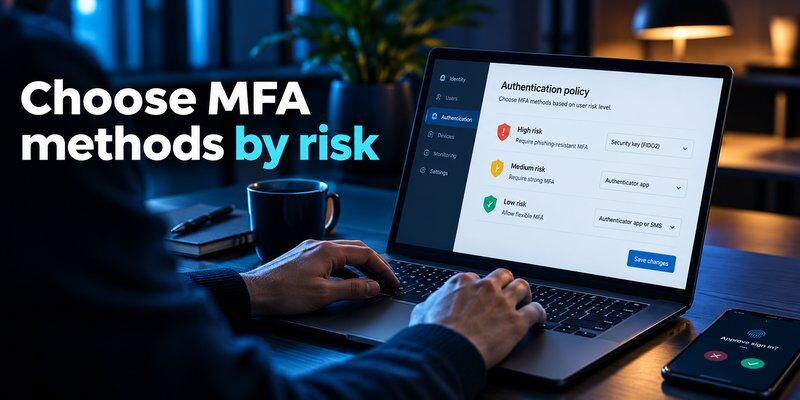
Different authentication methods provide different levels of phishing protection.
| Authentication method | Main advantage | Important limitation |
|---|---|---|
| FIDO2 security key | Strong phishing resistance | Requires enrollment and a recovery plan |
| Passkey | Convenient, phishing-resistant authentication | Support depends on the identity platform |
| Authenticator push approval | Convenient verification on supported platforms | Users may be targeted by approval fatigue |
| TOTP authenticator code | Broad compatibility and offline code generation | Codes can be stolen through phishing |
| SMS verification | Widely available fallback | Vulnerable to SIM-swapping and interception |
Phishing-resistant MFA should be the long-term goal, particularly for administrators and employees handling sensitive information.
The U.S. Cybersecurity and Infrastructure Security Agency (CISA) recommends FIDO-based authentication and reducing dependence on SMS-based methods.
Step 3: Define employee access policies
A company should document who must use MFA, which methods are approved, and how employees recover access when devices are lost.
For example, an organization might require FIDO2 authentication for administrators while allowing approved authenticator applications for standard employee accounts.
Decide whether personal devices are permitted and how employees without compatible smartphones will authenticate.
Step 4: Prepare backup access
A successful how to set up mfa for a company strategy must include recovery before rollout.
Organizations should establish secure recovery methods, register multiple supported verification options where appropriate, and maintain protected emergency administrator accounts.
Emergency access accounts require special handling. Microsoft recommends excluding designated break-glass accounts from Conditional Access policies that could prevent emergency sign-in while protecting those accounts with strong authentication and monitoring.
3. How to Set Up MFA for a Company Using Microsoft 365
Microsoft 365 is a common starting point for businesses implementing organization-wide authentication.
If your company uses Outlook, Teams, OneDrive, or SharePoint, MFA can be managed through Microsoft Entra ID.
There are two primary approaches: security defaults and Conditional Access.
Step 1: Choose security defaults or Conditional Access
Before configuring how to set up mfa for a company, check your organization’s Microsoft Entra licensing.
Security defaults offer baseline protection without requiring Entra ID P1 licensing. They are suitable for organizations that do not need customized authentication policies.
Conditional Access provides more granular controls and requires eligible Microsoft Entra ID P1 or P2 licensing.
Legacy per-user MFA remains available in some environments, but Microsoft recommends using security defaults or Conditional Access instead.
Step 2: Enable Microsoft Entra security defaults
For a smaller organization, administrators can begin with the following process:
- Sign in to the Microsoft Entra admin center using an appropriately authorized administrator account.
- Open Entra ID → Overview → Properties.
- Select Manage security defaults.
- Set security defaults to Enabled.
- Save the configuration.
- Verify the resulting authentication requirements with test users.
Security defaults apply Microsoft-managed baseline protections, including MFA requirements and restrictions on legacy authentication.
They cannot be customized for individual departments or specific access scenarios.
If your organization needs exceptions, authentication strengths, or staged access policies, Conditional Access is generally more appropriate.
Step 3: Configure MFA with Conditional Access
For companies researching how to set up mfa in office 365, Conditional Access is Microsoft’s recommended option when suitable licensing is available.
Follow this process:
- Sign in to the Microsoft Entra admin center as a Conditional Access Administrator or another appropriately authorized role.
- Navigate to Entra ID → Conditional Access → Policies.
- Select New policy.
- Give the policy a descriptive name, such as “Require MFA for Employees.”
- Under Users, include the relevant employee groups or all users.
- Exclude designated emergency access accounts according to the organization’s recovery policy.
- Under Target resources, select the appropriate applications or all resources.
- Under Grant, select Require authentication strength and choose the appropriate MFA strength.
- Set the policy to Report-only.
- Create the policy and review the results before switching it to On.
Microsoft recommends a baseline Conditional Access policy covering all users and resources, with carefully managed exclusions.
Do not activate an untested policy across the entire organization. Misconfigured requirements can interrupt critical business access.
Also, do not assume security defaults and Conditional Access should run simultaneously. Microsoft documents them as alternative policy approaches.
Step 4: Configure allowed authentication methods
Companies learning how to set up mfa for office 365 should configure the methods employees are permitted to register.
In the Microsoft Entra admin center:
- Open Entra ID → Authentication methods → Policies.
- Review the available authentication methods.
- Enable Microsoft Authenticator for the intended users if required.
- Configure passkeys or FIDO2 security keys where supported.
- Review the settings for third-party software OATH tokens.
- Save changes and test the registration experience.
For additional background, read the internal guide to Microsoft multi-factor authentication.
A key distinction is that Microsoft Authenticator can support Microsoft-specific approval workflows, while approved third-party TOTP applications generally generate verification codes.
An organization’s authentication policy determines which methods employees can actually use.
4. How Employees Can Configure MFA With an Authenticator App
After the company enables MFA policies, employees must register their verification methods.
This is where questions such as how do i set up my mfa authentication and how to set up mfa with microsoft authenticator become relevant.
Administrators should provide clear enrollment instructions instead of expecting employees to configure security independently.
Step 1: Open the employee security information page
For Microsoft 365 work or school accounts, employees can open their Microsoft account’s Security info page through the organization’s approved sign-in process.
After signing in, they can select Add sign-in method and choose an available option.
The exact options depend on Microsoft Entra authentication method policies.
Step 2: Register Microsoft Authenticator
When Microsoft Authenticator is permitted:
- Install Microsoft Authenticator on a compatible phone.
- Open the employee’s Security info page.
- Select the Microsoft Authenticator registration option.
- Follow the prompts until a QR code appears.
- Open Microsoft Authenticator.
- Add a Work or school account and scan the displayed QR code.
- Complete the requested verification.
- Confirm that the new method appears in Security info.
For further instructions, see the Microsoft Authenticator setup guide.
Employees should understand that the enrollment QR code is sensitive and must not be shared with coworkers or support impersonators.
Step 3: Set up a compatible third-party authenticator
Some business services support standard time-based one-time passwords, commonly called TOTP.
When permitted by the identity platform and company policy, employees can register an authenticator application that generates temporary verification codes.
A typical enrollment process involves scanning a service-generated QR code, entering the displayed six-digit code, and confirming registration.
Explore how TOTP authenticator apps work for additional information about code-based verification.
For employees who need a compatible code-generating application, the Authenticator app for iPhone offers an app option to evaluate for supported TOTP accounts.
A third-party TOTP app does not replace Microsoft Authenticator for Microsoft-specific push approval or number-matching requirements.
Step 4: Register another recovery method
Employees should configure an additional approved authentication method where organizational policy allows it.
This might be a second security key, a compatible passkey, or another supported verification method.
Keeping recovery options current reduces support requests when an employee changes phones or loses a device.
For businesses deciding how to set up mfa for a company, employee onboarding instructions are just as important as the technical configuration.
5. How to Deploy MFA Across All Business Applications

Protecting Microsoft 365 is an important first step, but most organizations use several applications outside Microsoft’s ecosystem.
A complete how to set up mfa for a company implementation should cover every business-critical authentication entry point.
Use single sign-on when possible
Single sign-on allows employees to access multiple integrated applications using a central identity provider.
For example, an organization may connect compatible HR, project management, and customer management systems to Microsoft Entra ID.
When applications rely on the central identity provider, administrators can enforce consistent MFA requirements through centralized authentication policies.
Centralized authentication reduces fragmented security management, although the organization must still check for local application accounts, emergency logins, and alternate access paths.
Enable MFA for applications without SSO
Some applications cannot integrate with a corporate identity provider.
For these systems, administrators should enable each application’s available MFA options and document enrollment requirements.
When TOTP is supported, employees may use an organization-approved authenticator application.
For a comparison of different verification methods, see SMS vs authenticator app.
Do not assume every application supports passkeys, security keys, or third-party authenticator codes. Compatibility should be tested individually.
Protect privileged and shared access
Administrative accounts need stronger authentication than ordinary accounts whenever possible.
Avoid sharing administrator identities among employees. Instead, assign individual accounts with appropriate permissions and maintain auditable access records.
Service accounts and automated integrations require separate planning because interactive MFA prompts may interrupt their operation.
Where supported, use managed identities, workload identity authentication, certificates, or other approved noninteractive mechanisms.
The objective of how to set up mfa for a company is to protect human sign-ins while preserving secure automated operations.
6. How to Test, Enforce, and Monitor Company MFA

An MFA deployment is not complete when administrators click the enable button.
Organizations must verify that authentication policies work correctly and continue monitoring their effectiveness.
Run a pilot deployment
Start with a representative employee group that includes different departments, operating systems, and work arrangements.
Pilot users should test:
- Normal sign-in from a trusted device.
- Authentication from an unfamiliar device.
- Remote access outside the office.
- Verification after a phone replacement.
- Recovery when an authenticator is unavailable.
- Access to important Microsoft 365 and third-party applications.
Document problems before expanding the policy.
Review policy results before enforcement
Microsoft Entra Conditional Access supports Report-only mode, which allows administrators to evaluate policy outcomes without enforcing the proposed access restrictions.
Review sign-in logs and Conditional Access results to identify accounts that could be blocked.
Once critical issues have been resolved, enable the policy for the pilot group and gradually expand coverage.
This staged approach is particularly useful when implementing how to set up mfa for a company with hundreds of employees.
Monitor authentication coverage
Security teams should track several operational metrics:
| Metric | Purpose |
|---|---|
| MFA registration rate | Identify employees without required methods |
| MFA-protected sign-ins | Assess enforcement coverage |
| Failed authentication attempts | Detect access or configuration problems |
| Suspicious sign-in activity | Support incident investigation |
| Recovery requests | Identify onboarding and usability gaps |
| Privileged account coverage | Confirm protection of high-risk identities |
A practical target is 100% MFA policy coverage for in-scope employee accounts, with documented handling of exceptions.
This is an operational target, not an industry-wide measured result.
Train employees to recognize suspicious requests
Even well-configured MFA can be undermined by social engineering.
Employees should never approve unexpected verification prompts, disclose temporary authentication codes, or scan QR codes supplied by unverified callers.
They should immediately report unusual authentication requests to their security team.
For high-risk departments, prioritize phishing-resistant authentication because standard one-time codes can still be stolen through fraudulent sign-in pages.
7. Common MFA Setup Problems and How to Fix Them
Organizations often encounter authentication problems during the first weeks of deployment.
Understanding these issues is essential for anyone researching how to set up mfa for a company.
Problem 1: Employees are not receiving MFA prompts
Possible causes include an incorrectly scoped policy, unsupported sign-in flow, excluded accounts, or existing authentication sessions.
Administrators should verify policy assignments, authentication requirements, and sign-in logs.
Do not conclude that MFA is disabled simply because a user is not prompted during every login.
Problem 2: The authenticator app is not generating valid codes
A verification code may fail because the wrong account was registered, the device time is incorrect, or the registration process was incomplete.
Employees should verify the account name, synchronize their device time, and follow the application’s approved troubleshooting procedure.
If the issue persists, IT staff may need to reset the authentication registration.
Problem 3: An employee loses their phone
Losing an authentication device does not automatically mean the employee has lost their business account.
The employee should contact the organization’s IT administrator and use an already registered recovery method if available.
Depending on organizational policy, an authorized administrator may issue a Temporary Access Pass or require secure MFA re-registration.
The Microsoft Authenticator recovery guide explains related recovery concepts.
Never disable MFA permanently just to bypass an individual employee’s recovery problem.
Problem 4: A replacement phone cannot authenticate
Employees should register their replacement device before removing the old authentication method whenever possible.
For Microsoft-specific work accounts, a restored application backup may not fully restore the account’s approval capability. Re-registration may still be necessary.
See how to change phones with Microsoft Authenticator for additional guidance.
Problem 5: Employees are repeatedly asked to authenticate
Repeated prompts can result from session policies, browser restrictions, changes in device compliance, or overlapping authentication requirements.
Administrators should investigate the applicable sign-in and session policies instead of weakening MFA protection immediately.
A reliable how to set up mfa for a company plan should include a documented support procedure for diagnosing these situations.
8. Frequently Asked Questions About Company MFA

How long does it take to implement MFA for a company?
The timeline depends on employee count, application inventory, licensing, and available authentication methods.
A small company using Microsoft 365 security defaults may complete basic configuration relatively quickly.
Larger organizations may require a multi-stage rollout, authentication policy testing, employee training, and recovery planning before full enforcement.
Is MFA free for small businesses?
Some baseline MFA functionality is included with existing identity service subscriptions.
For example, Microsoft Entra security defaults do not require additional Entra ID P1 licensing.
However, customized Microsoft Conditional Access policies require eligible licenses. Hardware security keys and certain enterprise management services may also involve additional costs.
Can employees use the same authenticator for multiple accounts?
Many TOTP authenticator applications can store verification entries for multiple compatible services.
However, employees should follow company policy regarding approved applications, backup procedures, and device management.
Using one code-generating application does not automatically mean it supports every enterprise authentication method.
How to set up MFA for a personal Microsoft account?
The process for how to set up mfa for microsoft account differs between personal Microsoft accounts and company-managed work accounts.
A personal account owner can manage verification methods through Microsoft account security settings.
For business accounts, an organization’s Microsoft Entra policies determine which methods are available and whether MFA is required.
MFA how to set up for a new employee?
For teams searching mfa how to set up, the recommended onboarding process is straightforward.
IT should create the employee identity, assign required access and licenses, ensure the employee is covered by the correct MFA policy, and guide the employee through method registration.
The employee should then complete a successful authentication test before receiving access to sensitive business systems.
MFA how to enable for existing users?
When administrators search mfa how to enable, the first step is identifying the organization’s identity provider.
For Microsoft 365, review existing security defaults or Conditional Access policies.
Enable an appropriate policy, confirm users can register approved methods, and test enforcement before broad deployment.
Should a company use SMS or an authenticator application?
Authenticator-generated codes generally provide stronger protection than SMS against certain attacks involving phone numbers.
However, neither ordinary SMS nor TOTP codes provide the same phishing resistance as correctly implemented FIDO2 authentication.
Companies should prioritize phishing-resistant methods where available and use other approved methods according to their security requirements.
What is the best way to set up MFA for a growing business?
The best approach to how to set up mfa for a company is to centralize authentication policies, protect all employee identities, and maintain clear recovery procedures.
A growing organization should also periodically audit privileged accounts, remove unnecessary access, review inactive users, and update authentication requirements as its application environment changes.
Final Thoughts
Understanding how to set up mfa for a company requires combining technical configuration with employee readiness, security monitoring, and reliable account recovery.
Start by enabling MFA through your identity provider, register approved verification methods, test access thoroughly, and enforce policies across business applications.
Microsoft 365 organizations can use security defaults or Conditional Access, while other platforms may support security keys, passkeys, or TOTP verification.
For compatible accounts requiring time-based authentication codes, download Authenticator app for iPhone and follow your organization’s approved enrollment process.
The ultimate goal is to make secure authentication a consistent part of every employee’s daily workflow.
Sources and References
The following authoritative sources informed this guide. Source titles are provided without outbound links.
- Microsoft Research (2023) — How effective is multifactor authentication at deterring cyberattacks? Research on MFA effectiveness and account compromise reduction.
- Microsoft Learn (2026) — Set up multifactor authentication for Microsoft 365. Official guidance on security defaults, Conditional Access, and legacy per-user MFA.
- Microsoft Learn (2026) — Require MFA for all users with Conditional Access. Guidance on organization-wide policies, exclusions, and report-only testing.
- Microsoft Learn — Authentication methods in Microsoft Entra ID – OATH tokens. Documentation on software TOTP authenticators and third-party application compatibility.
- CISA (2024) — Mobile Communications Best Practice Guidance. Recommendations concerning phishing-resistant FIDO authentication and alternatives to SMS verification.
Last updated: November 10, 2026.
