
How to Set Up Face ID on iPhone and Check That It Works
Published November 3, 2026

Quick answer: To set up Face ID, open Settings > Face ID & Passcode, enter or create your device passcode, tap Set Up Face ID, and select Get Started. Keep your face inside the on-screen frame, slowly move your head to complete two scans, and tap Done. You can then choose whether Face ID unlocks your device, approves purchases, or signs you into supported apps.
If you are searching for how to set up face id, the process is usually straightforward. You do not need a separate face-scanning app, an Apple Account subscription, or a photograph of yourself. The compatible iPhone or iPad uses its own TrueDepth camera system to enroll your appearance. This how to set up face id guide covers the initial setup, practical settings, common failures, and privacy considerations without assuming you have used biometric authentication before.
What You Need Before Setting Up Face ID
Before learning how to set up face id in detail, check that your device supports the feature. Apple introduced Face ID with iPhone X, and it is available on many subsequent Face ID-equipped iPhones and supported iPad Pro models. However, not every iPhone or iPad includes the required hardware. An iPhone SE with Touch ID, for example, cannot gain Face ID through a software download. Check Apple’s supported-device list if you are unsure.
You also need a device passcode. Apple requires one because there are situations in which you must verify your identity without facial recognition, such as immediately after restarting the device. A six-digit code is a common option; a longer custom alphanumeric code can provide stronger protection if you can remember it.
Prepare the device before starting:
- Update iOS or iPadOS if an update is available and your device is functioning normally.
- Clean the front camera area and remove any case or screen protector that covers the TrueDepth sensors.
- Choose a well-lit location for enrollment. Face ID also uses infrared technology, but clear positioning makes setup easier.
- Hold the device comfortably and make sure your full face is visible, without a mask or anything that blocks important features.
- Keep your passcode private. Do not share it just because facial unlock is enabled.
Apple says Face ID works best when the device is about 10–20 inches (25–50 cm) from your face. These preparations make how to set up face id for beginners less frustrating and help prevent repeated scans.
How to Set Up Face ID on iPhone: Step by Step

Here are the steps to set up face id on a supported iPhone. If you skipped facial enrollment when you first turned on the phone, you can start at any time from Settings. Anyone researching how to set up face id should use the device settings, not a browser.
Step 1: Open Face ID & Passcode settings
Open Settings, scroll to Face ID & Passcode, and enter your current device passcode when prompted. If your phone has no passcode, create one first. This protects the settings used for biometric enrollment and account-related actions.
Step 2: Start the facial scan
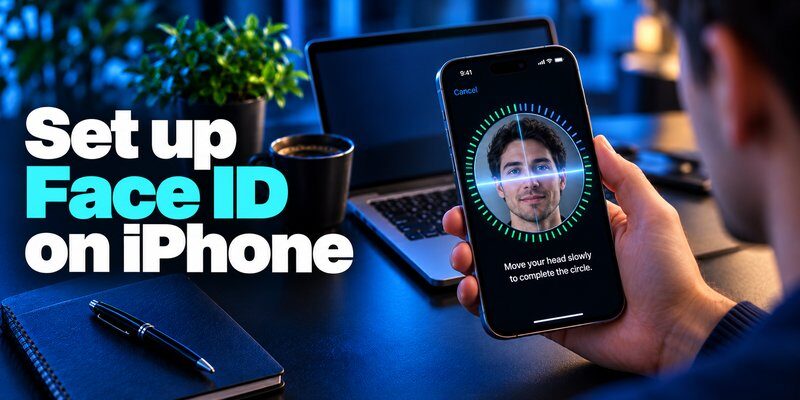
Tap Set Up Face ID, then Get Started. Hold your iPhone upright in portrait orientation, with the screen facing you. Position your face inside the circular guide. If your phone displays instructions about moving closer or farther away, adjust the distance gently.
Step 3: Complete the first scan
Slowly move your head in a small circle as the on-screen ring fills. The movement should be gentle, not a fast shake or a dramatic tilt. Continue until the phone indicates the first scan is complete, then tap Continue.
If you cannot comfortably move your head, select Accessibility Options during setup. Apple’s alternative enrollment options can help people with limited head mobility. This is an important part of how to set up face id accessibly: do not force yourself into a movement you cannot perform.
Step 4: Complete the second scan
Repeat the circular movement for the second scan, then tap Done. Two successful scans finish enrollment. You can now lock the screen, wake it, and look toward your iPhone to test recognition. If the lock icon opens, swipe up to reach your Home Screen. Face ID normally recognizes your face without requiring a deliberate smile, exaggerated expression, or a new scan each time.
Step 5: Choose how Face ID is used
Return to Settings > Face ID & Passcode. Under Use Face ID For, enable the functions you actually want, such as iPhone Unlock, iTunes & App Store, Wallet & Apple Pay, and Password AutoFill, where available. You can switch these permissions on or off later.
Once you understand how to set up face id, verify these switches instead of assuming facial recognition will automatically be used by every app. A successful scan only establishes your enrolled appearance; individual features still follow their own settings and permissions.
How to Set Up Face ID on iPad Pro
The basic process for how to set up face id on a compatible iPad Pro is nearly identical to iPhone enrollment. Open Settings > Face ID & Passcode, enter or create a passcode, select Set Up Face ID, and follow the two-scan prompts. Tap Done when enrollment finishes.
The main practical difference is the way you hold the larger device. Place the iPad where you can comfortably see the screen and keep your hand away from the TrueDepth camera. If recognition stops when you rotate the tablet, check whether your palm or a keyboard case is obscuring the camera. Apple supports Face ID on specific iPad Pro models, not every iPad Air or standard iPad.
After learning how to set up face id on iPad, test both unlocking and a supported app. An iPad may be used in portrait or landscape orientation, but the camera still needs a clear view of your face. If it is resting far away on a stand, move closer before concluding that recognition has failed.
How to Use Face ID for Apps, Purchases, and Passwords
Knowing how to set up face id is only the beginning. Next, decide where facial recognition actually improves your day-to-day security. Face ID can authorize supported purchases, access saved credentials, and help open applications without repeatedly typing a password.
How to Set Up Face ID for Purchases
With iPhone Unlock enabled, wake the device and look at the screen. For App Store purchases, enable iTunes & App Store in Face ID settings. For supported Apple Pay payments, make sure the card is configured in Wallet and the Apple Pay Face ID setting is enabled. On a Face ID iPhone, double-click the side button, check the payment details, glance at the phone, and hold it near the payment terminal. Facial recognition confirms the transaction; it does not send your facial scan to the merchant.
How to Set Up Face ID for Apps
Some banking, shopping, password-manager, and utility apps allow Face ID login. Open the app, sign in using its existing method, and enable biometric login in the app’s own settings if offered. You can review participating apps under Settings > Face ID & Passcode > Other Apps.
If an app does not appear, it may not support Face ID, or you may need to sign in normally before the permission becomes available.
Use Face ID with passwords and account verification
Turn on Password AutoFill under Face ID options if you want authentication when filling saved credentials. Where supported, Face ID may also confirm access to passkeys or credential managers. It proves you are authorized to use a credential on that device; it is not itself a universal two-factor authentication code generator.
That distinction matters. If a website asks for a one-time code, learn about Apple authenticator options or 2fa authenticator app features instead of assuming the facial scan will supply a six-digit code. To understand passkey-based sign-in across services, see our overview of Microsoft Authenticator passkeys.
How to Set Up Face ID With a Mask or Alternate Appearance

If you wear a mask frequently, how to set up face id 2026 searches may lead you to one useful extra setting. On iPhone 12 and later running iOS 15.4 or later, go to Settings > Face ID & Passcode, turn on Face ID with a Mask, and follow the new scan instructions. This feature uses distinguishing characteristics around your eyes, so the eye area must remain visible.
Face ID with a Mask only works in portrait orientation and is not available on iPad. Apple also notes that full-face recognition is generally the more accurate option.
Add glasses or a different appearance
If you wear clear prescription glasses, normal Face ID often works without additional setup. When mask recognition struggles, choose Add Glasses in the Face ID settings, if available, and follow the prompts. Apple permits up to four pairs of glasses for the mask feature. Sunglasses are not supported for this particular enrollment method because they can obscure the eye area.
For a noticeably different look, navigate to Settings > Face ID & Passcode > Set Up an Alternate Appearance. This can help if your appearance changes substantially with facial hair, makeup, or particular accessories. It does not mean you should enroll someone else’s face casually: another enrolled appearance can potentially unlock your device and authorize actions permitted by Face ID.
What to Do When Face ID Setup Is Not Working
If you’re following how to set up face id but the screen never completes a scan, start with the simplest causes before resetting anything. Face ID needs working TrueDepth hardware, a clear view of your face, and software that supports the feature.
Check the camera and positioning
Wipe the front camera area with a suitable soft cloth. Remove a damaged screen protector or a bulky case if it covers sensors. Hold the phone roughly 10–20 inches from your face, keep your eyes and nose visible, and follow the displayed orientation instructions. If you use Face ID with a Mask, uncover the area around your eyes. On supported older iPhones, rotate the device to portrait. On newer devices that support landscape Face ID, remember that mask recognition still requires portrait orientation.
Check settings, restart, and reset if needed
Go to Settings > Face ID & Passcode and confirm setup has been completed and the relevant use option is enabled. Install available iOS or iPadOS updates, restart the device, and unlock it once with your passcode. Apple may require the passcode after a restart or several unsuccessful facial matches even if Face ID is working correctly.
If the problem continues, use Reset Face ID from the same settings page and enroll again. If you need to repeat how to set up face id, tapping Reset Face ID removes the existing enrollment; you must then complete both scans again. If you see a message saying Face ID is unavailable, or the TrueDepth camera cannot work after a repair or physical damage, contact Apple Support or an authorized service provider rather than attempting hardware repairs yourself.
Apple’s Face ID troubleshooting article covers these checks. The best how to set up face id troubleshooting approach is to distinguish an enrollment failure from a single app that has not received Face ID permission.
Is Face ID Secure? Privacy and Protection Tips

Understanding how to set up face id also means understanding what it protects. Apple’s TrueDepth system creates depth information about your face, rather than relying on an ordinary two-dimensional selfie. The resulting mathematical representation is encrypted and protected by the device’s Secure Enclave. Apple says Face ID data does not leave the device and is not included in iCloud backups.
Apple estimates that the probability of a random person unlocking a device with Face ID using one enrolled appearance is less than 1 in 1,000,000. This is Apple’s stated statistical estimate, not a promise that every attack will fail. The risk can be higher for identical twins, similar-looking siblings, and younger children. Apple also requires a passcode after five unsuccessful facial matches. See Apple’s technical explanation for its methodology and limitations.
Also consider Stolen Device Protection under Settings > Face ID & Passcode. On supported devices, this adds biometric requirements for some sensitive actions and can impose a one-hour security delay for important account changes. Depending on your settings and location, certain protected actions cannot fall back to a passcode. Apple explains the rules in its Stolen Device Protection guide.
Face ID strengthens local device access, but it does not eliminate phishing, weak account recovery, or stolen online passwords. Where a service supports it, combine secure device access with a unique password, a passkey, or a separate sign-in factor. Our guide to Google account two step verification explains that additional layer, while does Apple have an authenticator app explores Apple’s built-in credential tools.
The most practical how to set up face id security checklist is simple: enroll only trusted appearances, protect your passcode, keep device software updated, and enable extra account security where it is available.
Frequently Asked Questions About Face ID
Can I set up Face ID without a passcode?
No. A device passcode is required for Face ID enrollment and for situations where facial authentication cannot be used. If you’re wondering how to set up face id without typing any code at all, the answer is that you must first set a passcode; after that, many everyday unlocks can use your face instead.
Does Face ID work in the dark?
Yes, in many low-light conditions. Apple’s TrueDepth system uses infrared technology, so it is not solely dependent on visible light. However, a clear view of your face and unobstructed sensors still matter. During initial enrollment, Apple recommends good lighting.
Why does my phone sometimes ask for a passcode?
This can be normal. iPhones require a passcode under certain security conditions, including after restarting and after too many unsuccessful recognition attempts. A passcode prompt does not automatically mean the camera is broken. Review the circumstances before resetting Face ID.
Can I use Face ID with an authenticator app?
Often, yes. An app may support Face ID to protect access to its interface, but Face ID and a one-time authenticator code are different authentication mechanisms. If you need guidance on phone-based code generators, see Google Authenticator for iPhone. Always check what the specific app supports.
Bottom line: For how to set up face id, start with Settings > Face ID & Passcode, complete both face scans, and enable only the features you intend to use. The setup is quick, but a private passcode, current software, and appropriate app permissions make facial authentication more useful and more secure.
Download Authenticator App
Secure your accounts with fast, reliable two-factor authentication. Download now and protect your login in seconds.
Official sources: Use Face ID on iPhone or iPad Pro | Set up Face ID on iPhone | Face ID advanced technology | Face ID troubleshooting | Face ID with a mask
