
2FAKey Site and What Its Verification Code Requires
Published November 11, 2026

The 2FAKey site at 2fakey.net describes an online tool that takes a Base32 setup secret and calculates a rotating time-based one-time password. If you are looking for a code to sign in to your own account, use the authenticator you already enrolled or the account provider’s official recovery option. A login value is short lived. The setup secret used to calculate it can generate many future codes.
The site says it calculates codes in your browser and can save an entry in a cookie when you select that option. Those are the publisher’s stated behaviors. A live setup secret is sensitive even when a tool says it calculates locally. For an algorithm check, use public test data that is unrelated to any real account.
Identify What the 2FAKey Site Does
Read the Required Input
The 2FAKey site describes its input as a Base32 secret. Base32 represents bytes using a restricted alphabet that commonly includes letters A to Z and digits 2 to 7. This is an encoding, so someone who receives the text can decode it. It does not protect the secret. A six-digit code you saw during sign-in is an output and does not belong in a setup-key field.
Read the Published Defaults
The site says its default TOTP settings use SHA-1, six digits, and a 30-second time step. RFC 6238 describes the algorithm and a default time step, while providers can use other supported settings. If a code differs from the value your provider accepts, a different secret, time, or parameter can explain the mismatch. A plausible output from the 2FAKey site does not prove that the provider enrolled the input.
Understand What the Tool Does With a Saved Entry
The publisher says saving an entry writes the secret to a first-party cookie so the browser can retrieve it later. It says its service does not keep a server-side vault. Those are statements from the site. They do not independently verify the deployed code, browser extensions, or device. Avoid storing live secrets in a browser environment you have not approved. Deleting a cookie also does not revoke the enrollment at the account provider.
If you see more than one 2FAKey site in search results, identify the publisher and domain before evaluating any claims about storage or offline behavior. A lookalike page can use the same terms for its form. The observations here refer to the public description on 2fakey.net. Each service and browser environment should be checked separately.
For accounts that support standard TOTP enrollment, you can evaluate a compatible authenticator app such as Authenticator App by Begamob. Scan the setup QR code from the account provider’s official security settings, verify the first code, and prepare a recovery method before relying on the new enrollment.
Secure your accounts with fast, reliable two-factor authentication. Download now and protect your login in seconds.Download Authenticator App
Recognize the Different Forms of a Setup Secret
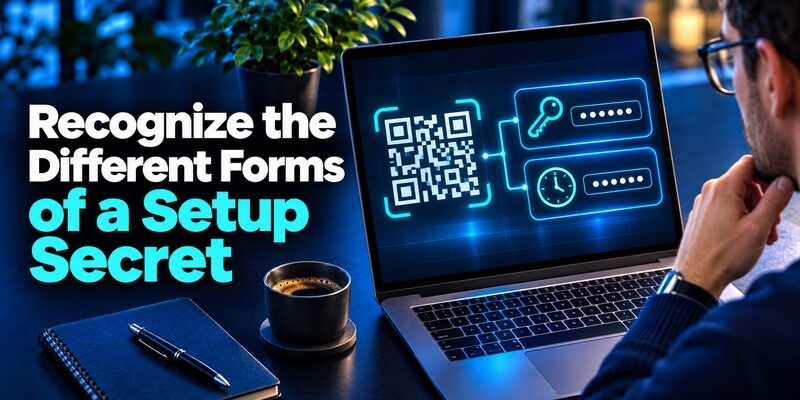
| What you see | What it represents | Where it belongs |
|---|---|---|
| Base32 setup text | An encoded enrollment secret | The approved authenticator during setup |
| Setup QR | Usually the secret and parameters in a machine-readable representation | Scan from the provider’s official enrollment screen |
| Current six-digit value | One short-lived output from the enrollment | The account’s official sign-in or confirmation field |
| Recovery or backup code | An emergency access value issued by the provider | The official backup route for the account |
Distinguish an Enrollment URI From the Base32 Portion
A setup QR can carry a structured enrollment URI with an account label, a secret and configuration parameters. Copying the entire URI into a field that expects only Base32 can produce an error. Do not extract a live secret solely to try it on the 2FAKey site. Use the compatible QR or manual setup the service offers, and verify that the authenticator supports any non-default settings.
Understand Why Formatting Does Not Change the Trust Decision
The site says it ignores some formatting characters around the Base32 input. That can help a copied demonstration string parse. It does not change what the decoded material can do. If a real key is in your clipboard, avoid putting it in an untrusted webpage, cloud note, or shared support record. People sometimes assume a long string is harmless because it does not resemble a password. The ability to generate future sign-in values is what makes it sensitive. A TOTP authenticator app uses an enrolled secret and the current time to generate temporary verification codes. Understanding the TOTP standard helps explain why code length, algorithm, time step, and the correct enrollment secret must match the provider’s configuration.
Keep Recovery Codes in Their Own Workflow
A recovery code is created by the account service. It normally belongs in a dedicated recovery prompt and may be usable only once. The 2FAKey site cannot derive the service’s recovery list from a username or a short value. If you are locked out, check the unused recovery material you saved or use another official route. If the site requested a setup key, that is different from the recovery proof the provider expects.
For example, you might copy a code from the phone and see a field asking for a secret. Stop and compare the page with the official account challenge. A normal sign-in does not require you to hand over the enrollment key to a new generator. The field on the 2FAKey site is intended for a different kind of data.
Read more: Binance Authenticator App Setup and Recovery
Use a Registered Method for Your Own Account

Match the Prompt and Account First
Open the service independently from a trusted bookmark or its official app. Read the identity and method on the page. If it asks for a code from an authenticator, use the registered entry for that account. If it says it sent a text, requests a push approval, or asks for a passkey, follow that method instead. A code from the 2FAKey site cannot replace a different type of registered proof.
Use a Compatible App for Standard TOTP
If you are enrolling a new account, choose its authenticator option and scan the official setup QR into a compatible app. Begamob’s is one option to review for supported standard enrollment. Submit the first code to the provider and test an ordinary sign-in. Keep a recovery route accessible separately from the app. If a work account requires a specific method, follow the organization’s instructions.
To understand how an enrollment secret becomes a temporary verification code, read our guide on how do authenticator apps work. It explains how QR code enrollment, shared secrets, device time, and server-side verification work together without requiring a third-party online code generator.
Use Account Recovery if the Original Entry Is Missing
If you still have a working session, check the service’s security settings and approved alternatives. If you are already locked out, use a saved recovery code or another supported method. A new app, extension, or 2FAKey site result cannot create a working enrollment without the service’s current setup data. After recovery, use the official process to register the replacement and test it while a working session remains available.
When someone loses a device, their safest available choice often depends on what remains. If an approved backup restores the existing authenticator entry, test it. If they have a provider-issued recovery value, use that route. If neither exists, follow the service’s account recovery process. A tool that only calculates a code cannot supply the missing enrollment.
Decide What You Can Verify About a Browser Tool
Separate Site Claims From Observable Results
You can inspect the form and read how the publisher describes its calculation and storage. A displayed number tells you that the page produced a value for the input. It does not establish how it handles the input internally. For the 2FAKey site, attribute the browser and cookie behavior to its own documentation. Avoid making conclusions about how other similarly named domains handle data.
Check Who Controls the Browser Profile
A website runs code in your browser, and extensions can have permissions that affect some pages or data. Consider whether the profile is shared, synchronized, or managed by someone else. If the publisher says the browser saves an enrollment, check who can open that profile or restore it later. A code shown only on the local device can still be accessible to someone who controls that environment.
Use a Tool That Fits the Account’s Risk
A test key with no associated account can be used to check a calculation. A personal or managed account setup secret deserves an approved authenticator, a verified backup, and a recovery route. Where available and appropriate, a passkey or security key can provide phishing-resistant authentication. A manually typed code can still be relayed by a phishing site even when it came from a trusted authenticator.
If the 2FAKey site claims a saved entry persists after you reopen the browser, check what that implies for a shared computer. A later browser user may be able to reach the saved entry while the secret remains there. The site’s own FAQ points out the device access issue. Review this before treating browser-only storage as sufficient for account data.
Read more: MFA Token Types and How to Use the Right One
Use Test Data When You Only Need to Check the Algorithm

| Test question | Input to use | What a match establishes |
|---|---|---|
| Does the algorithm match RFC 6238? | A public test vector and its specified time and parameters | The test implementation reproduced that expected output |
| Why do two codes differ? | The same disposable secret and reference time on both approved tools | Whether the difference persists with matched inputs |
| Does a real account accept the enrolled app? | A current value generated inside the approved registered app | The provider accepted a login for that specific enrollment |
Pick a Public Vector or a Disposable Secret
RFC 6238 includes published test cases. Those are suitable for checking a local implementation without involving a real account. Use the specified reference time, digest and number of digits. The 2FAKey site advertises defaults for live time-based generation. If it does not let you choose the test parameters, use a controlled tool that does rather than comparing outputs that were calculated under different conditions.
Compare the Parameters Before Blaming the Clock
A code mismatch can be caused by different digit lengths, time steps, algorithms, or secrets. Two tools using their default settings may not implement the same test. Record the reference timestamp and the parameters, then compare the expected result. If you are testing your actual enrollment, return to the approved app and use the official confirmation page. Do not move live setup data into a web test form.
If you are setting up TOTP verification for the first time, follow our guide on how to use an authenticator app. It covers scanning setup QR codes, entering manual keys, verifying your first code, and preparing recovery options before finishing enrollment.
Keep Test Results Separate From Account Recovery
A successful public-vector test demonstrates an implementation property. It does not prove a particular provider accepts the enrollment or confirm how the test tool handled sensitive data. If the actual account rejects the code, check the entry label, active enrollment, and phone time. If you cannot verify those from a working session, follow the provider’s approved recovery procedure.
A code test can fail even when both implementations are correct if you compare on opposite sides of a time-step boundary. Use a fixed reference time where the tool supports one. Record which hash and number of digits the reference uses. If the 2FAKey site is only producing live default values, choose a local test environment for controlled comparisons.
Read more: How Do Authenticator Apps Work From Setup to Sign-In
Replace a Secret That Left Your Control

Start From the Official Provider
If you pasted an active key into the 2FAKey site or another browser tool you do not trust, open the provider separately. Use a known session and keep an approved backup method available when possible. Identify the specific enrollment that may be exposed. If you reused the same browser profile for several tests, check which account secrets were entered before changing anything unrelated.
Rotate the Enrollment and Verify the Replacement
Use the service’s authorized settings or support to replace the enrolled app secret. A fresh setup key should create a new entry. Submit its current value and verify a separate sign-in. Check that the previous method is no longer active. Clearing the 2FAKey site’s saved entries or browser cookies can remove a local copy, while the provider’s revocation is what stops old enrollment data from producing accepted codes.
Review Sessions and Any Other Credentials You Shared
Check the provider’s sign-in history, registered contacts, and active sessions where available. If you shared a password or recovery code, follow the relevant official instructions to replace it and review access. If the affected account belongs to an organization, contact the authorized support team without sending the secret. Record the event time and the account identity instead of copying the key again.
If your original verification device is unavailable, our guide on recovering from a lost authenticator app explains common recovery options. Use an existing backup, a provider-issued recovery code, or the service’s official account recovery process rather than entering sensitive setup keys into an unfamiliar website.
If you cannot revoke the factor from your own session, contact the provider or authorized administrator through a known route. Explain that setup material may have left your control and identify the affected service account. Keep the actual key out of the support record. When access returns, check that the old enrollment no longer appears.
Diagnose a Code Failure Without Sharing Setup Data
Compare the Current Account and Enrollment
Confirm the service and username, then check the app label. If you have two entries with the same display name, use an existing signed-in session to identify the one that belongs to the current factor. An older entry can still show a number after the account changed its secret. A 2FAKey site result can look current even when the account will never accept the underlying key.
Check Time and Try a Fresh Value
Use the phone’s automatic date and time where possible. Wait for the next value if the timer is ending. If only one restored account fails, check whether it was re-enrolled after the backup was taken. For a provider with attempt limits, follow its instructions. Repeating a rejection can delay recovery without identifying the cause.
Use the Official Support Route When the Method Is Unclear
Capture the error wording and the stage of the login. Tell the provider whether you still have an enrolled device or active session. Keep all codes, QR images, and keys out of a screenshot. If an account administrator requires a specific app or device, follow the approved enrollment and verify access from the client you normally use.
If the authenticator entry was restored to a new phone and the code fails, test the old device while it still works. A sync or import issue can leave the wrong entry on the replacement. Review the service’s current method and complete the first successful sign-in before clearing either copy. Do not use a web generator to guess which secret is current.
Read more: FanDuel Authenticator App Setup and Code Help
Questions About the 2FAKey Site

Can the 2FAKey Site Generate a Code From an Email?
No. A standard TOTP value requires the enrollment secret and time. An email address may label an entry but does not provide its secret. Use the authenticator registered to the account.
Is the Current Code the Same as the Setup Secret?
The current code is a short-lived result. The secret is the data from which a series of results is calculated. Store the enrollment in the approved authenticator and send the code only to the official prompt you initiated.
Does Clearing Cookies Invalidate My Account’s Codes?
Clearing cookies can remove stored browser data. A service can still accept values from a copy of the active setup secret elsewhere. To invalidate that enrollment, replace or revoke it in the service’s official settings.
Can I Check TOTP Without a Real Account?
Yes. Use the public RFC 6238 vectors or a disposable secret that no real provider has enrolled. Match the algorithm, number of digits, time step and reference time across tools. This tests the calculation without risking account access.
What if I Saved a Real Entry on a Shared Computer?
Use a trusted device to sign in to the provider, replace the exposed factor, and check account activity. Remove the saved data from the shared browser if you can do so safely. Verify the new enrollment with a normal sign-in.
A practical distinction is whether you are testing an algorithm or recovering an identity. The 2FAKey site is a calculation tool as described by its publisher. The provider is responsible for changing the enrollment or accepting the account’s recovery proof. Use the official path for those tasks.
Final Thoughts
The 2FAKey site describes a browser-based TOTP generator that accepts a Base32 setup secret. If your goal is to sign in to an account, get the current value from the authenticator already registered with that service. Use an approved recovery option if the entry is missing.
For a calculation test, use public or disposable data and match the test parameters. If a live secret left your control, replace the enrollment through the provider, review sessions and verify the new method.
