
Most Secure Two Factor Authentication for Accounts You Need to Protect
Published November 18, 2026
The most secure two factor authentication for many sensitive accounts is a supported phishing-resistant credential, such as a FIDO2 security key or a passkey that requires appropriate user verification. A compatible cryptographic sign-in can bind its response to the legitimate service, making it much harder for a fake sign-in page to relay the proof. Use the strongest method the actual account supports, then test how you will recover if the primary credential is gone.
If a service supports only rotating app codes or SMS after a password, a compatible code app is often preferable when you can maintain it and recover safely. Its codes can still be phished. The most secure two factor authentication setup depends on the account’s normal sign-in, the proofs it accepts for sensitive actions, and the fallback it offers after device loss.
Pick a Method Based on the Attack You Need to Resist
| Method | What it handles well | What to test before relying on it |
|---|---|---|
| FIDO2 hardware key | A supported phishing-resistant sign-in with possession proof | User verification policy, connector support, spare key, and account recovery |
| Passkey with user verification | A supported cryptographic sign-in on a device or credential provider | Device access, sync policy, and replacement route |
| Password and TOTP code | A second proof that works without carrier delivery | Phishing exposure, transfer, and independent recovery |
| Password and push approval | Verification from an enrolled device | Request context, number matching where supported, and repeated prompts |
| Password and SMS | An additional check on services with limited choices | Phone-number control, delivery, and stronger alternatives |
Start With Phishing Resistance for High-Impact Accounts
CISA’s phishing-resistant MFA guidance identifies FIDO/WebAuthn as an approach that can reduce exposure to fake sign-in pages. NIST’s Digital Identity Guidelines distinguish cryptographic authentication bound to the legitimate verifier from manually entered OTP. A short code can be submitted to a phishing page while it is still valid. A supported cryptographic proof uses information about the service as part of the response.
When choosing the most secure two factor authentication for a main email, password vault, or work administrator, start with the phishing-resistant methods the account actually supports. Check whether the site requires user verification and whether the credential can be used for the resource you need. A platform setting can support a method generally while a particular account has a different policy.
Protect the Actions That Matter After Sign-In
Identify what a compromised account could do. A person with access to primary email may be able to reset other accounts. An administrator can change security settings or grant new access. A payment role may initiate or approve a sensitive action. Test the proof required for those actions as well as ordinary sign-in.
The most secure two factor authentication arrangement for a sensitive action needs the provider to enforce the intended method at that point. An account may accept a broad set of methods for routine sign-in and require a stronger one for a specific operation. Verify both and record which alternative is allowed. Where a service supports standard TOTP enrollment, a compatible authenticator app such as Authenticator App by Begamob is another option to evaluate. Check the official app listing, test a low-risk account, and verify that you can recover access before relying on it for sensitive sign-ins. Remember that a TOTP app does not make manually entered codes phishing-resistant.
Secure your accounts with fast, reliable two-factor authentication. Download now and protect your login in seconds.Download Authenticator App
Compare Hardware Security Keys With Platform Passkeys
Choose a Hardware Key When You Need a Separate Physical Credential
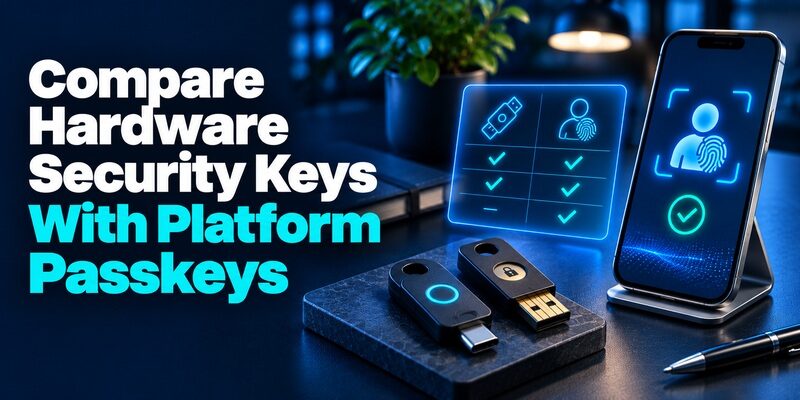
A compatible hardware key can hold a credential you use through USB, NFC, or another supported connection. A service may ask for a password followed by the key, or it may use a discoverable credential with local verification. Check whether the service requires a PIN, a biometric, or just physical interaction with the key. The policy defines what proof it counts.
Examples to evaluate include FIDO2-capable keys from Yubico and Google’s Titan Security Key where the site and device support them. Check the exact model, connector, browser, and credential support before buying. For the most secure two factor authentication arrangement with a hardware key, register a spare if permitted and verify it can complete the same sign-in. Store it separately. To understand how phishing-resistant authentication works, read our guide on what is FIDO2. FIDO2 supports public-key authentication through WebAuthn and CTAP, helping compatible services verify registered credentials without relying on manually entered one-time codes.
Choose a Platform Passkey When Device Recovery Fits
A platform passkey can use the device’s PIN or biometric to authorize a cryptographic response. Some passkeys are synced through a credential provider and others are device-bound. Check how your device and account implement it. A synced credential can be available on a replacement device after the right account recovery, while a device-bound credential may need an independent registered spare.
For a user who already manages several devices through one approved provider, a supported passkey may fit the most secure two factor authentication choice they can maintain. Check what happens when the platform account or primary device is unavailable. Use a provider-approved fallback rather than weakening the account just to make a replacement easier.
Confirm User Verification and Enforcement in a Test
A physical touch on a security key can indicate user presence. A local PIN or biometric can provide user verification when the authenticator and policy require it. Ask the provider which result it checks. The most secure two factor authentication choice for a work role should match the organization’s policy on device ownership, verification, and recovery.
Open a clean session with the correct account and test the expected credential. Then try the same protected resource using only an alternate that is supposed to be ineligible. If it still grants access, review the policy with the authorized owner. Keep the existing method available while the organization tests the change.
Read more: Twitch Authenticator App Setup and Phone Number Recovery
Compare Authenticator App, Google Authenticator, and Microsoft Authenticator
| Code app choice | Useful question | What to check in practice |
|---|---|---|
| Authenticator App | Can I manage compatible rotating codes on the devices I use? | Successful TOTP enrollment and accessible recovery |
| Google Authenticator | Do I want optional account sync or a local transfer route? | Correct sync identity, old-device transfer, and replacement test |
| Microsoft Authenticator | Do I already use the approved Microsoft app? | Whether the entry is ordinary TOTP or a work registration with separate recovery |
| 2FAS Authenticator | Do its backup and import choices fit my mobile devices? | Current platform options, account independence, and a successful restore |
Choose the App for Compatible Sites and Real Recovery
If a service does not offer a phishing-resistant method and accepts standard TOTP, compare the apps by device support, recovery, and the ease of identifying the correct entry. Google Account Help describes syncing Google Authenticator entries when signed in and transferring them manually when appropriate. Microsoft’s support distinguishes some backed-up entries from accounts that require additional sign-in or re-registration.
is another option to evaluate where the site offers compatible code enrollment. Check the official listing, try one low-risk account, and test a fresh sign-in and approved recovery. For TOTP, the most secure two factor authentication choice is limited by the service’s method as well as the app’s backup and device protection. A different app cannot make a typed code phishing-resistant.
Avoid Saving a Setup QR as a Recovery Shortcut
The enrollment QR or setup key contains a secret that a compatible app uses to generate future codes. Keep it private. Use the app’s approved transfer or backup process and the site’s official recovery material. If a setup secret was exposed, replace the method through the account and check that the old entry no longer passes.
After a phone change, verify the new entry from a separate session. Check the app’s sync account and whether you can recover it without the old phone. The most secure two factor authentication setup can still fail operationally if the app and its fallback both require the same unavailable device. Learn what is a passkey to understand how cryptographic credentials protect sign-ins, how local user verification works, and why synced and device-bound passkeys require different recovery planning. The strongest option is one your account supports and you can recover securely.
Understand What Push and SMS Add
A push prompt can require a response from an enrolled device. Some providers support number matching or show more context about the request. Those controls can help people reject attempts they did not start, while a phishing-resistant method offers a different kind of protection. Test what the user sees and how they report an unexpected prompt.
SMS requires current control of the registered number. It can be a supported extra step on services with limited options, but number changes and message interception are relevant risks. NIST classifies delivery over the public telephone network as restricted. For the most secure two factor authentication available on an account, check whether a stronger option can be enrolled instead of treating text delivery as the only choice.
Read more: Gusto Authenticator App Setup and Payroll Account Recovery
Configure an Independent Backup Without Weakening the Policy
Test a Spare Before Removing the Current Credential
A spare hardware key can be useful when a primary key is lost. Register it through the official account if the provider permits it. Verify it from a separate browser or device without removing the first key. Record which credential worked and where the authorized user can retrieve it. Do not keep the primary and spare together if losing one bag would remove both.
For a synced passkey, test the replacement-device path or register another supported credential. For a code app, test an authorized transfer or a service-issued recovery code where appropriate. The most secure two factor authentication setup needs at least one reachable route that does not depend on the missing device.
Check Who Can Recover a High-Impact Account
For personal accounts, identify which email or credential provider can reset access. For work accounts, ask who can verify identity and approve re-enrollment. Rehearse the approved procedure with a test account. Check that the fallback does not grant stronger privileges than the policy intended.
If a recovery option uses a weaker form of proof, ask which operations it permits. An account may allow a limited recovery session before requiring a new stronger factor. Record what actually happens. The most secure two factor authentication method for a normal login can be undermined if a support reset immediately grants unrestricted access.
Review Old Devices and Account Sessions After a Change
After replacing a phone or key, verify the new credential and review the provider’s registered device list. Retire obsolete devices according to the account’s official controls. If you suspect an account was compromised, follow the provider’s security process and review existing sessions or contact changes. A successful test of the new method does not account for earlier access.
Keep a short record of the method, device, date, and recovery result. Avoid storing live codes, QR images, or passwords in the record. A strong setup is easier to maintain if you can identify which credential is registered and who can authorize a replacement. When a website supports only app-generated codes, a compatible TOTP authenticator app can provide a practical second verification step. However, these codes remain vulnerable to real-time phishing, so use a unique password, protect the enrollment secret, and maintain an independent recovery method.
Put the Choice Into Practice for Three Types of Accounts
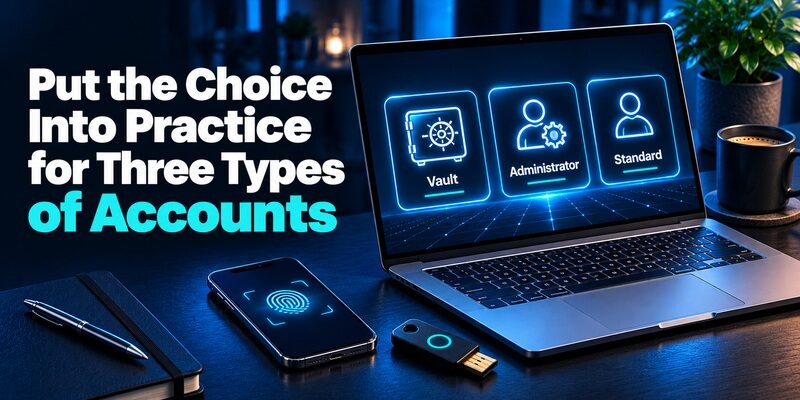
Secure Your Main Email and Password Vault
Start with the services that control password recovery for the others. Check which supports a passkey or security key and what happens if you cannot use the phone. If you register both, test them independently. Make sure the account that syncs the passkey does not depend entirely on a code stored in the vault you are trying to open.
The most secure two factor authentication for this pair of accounts also needs a workable recovery relationship. Write down which account can recover the other, then break obvious loops with a supported spare or independent recovery route. Store the proof where only the authorized owner can use it.
Protect an Administrator Account and Its Protected Resources
Ask which application or resource the administrator actually needs. Use the organization’s approved phishing-resistant credential, then test enrollment, sign-in, and a sensitive action with an authorized test account. Check how a device is replaced and whether another administrator must verify the request. Avoid allowing a help desk exception to bypass the rule without authorization.
For these roles, the most secure two factor authentication might be a managed device or a separate physical key with an approved backup. Choose based on what the organization can enforce for the application. A provider can support the right method without applying it to every resource.
Protect a Site That Offers Only App Codes
Start in the official account security settings. Use an approved app that scans the QR and verify a current value. Save the site’s recovery information in a protected location. Test a clean sign-in before transferring your other accounts. If you see an unexpected text or approval, ignore it and open the site independently.
A TOTP app can be the most secure two factor authentication choice within the options that particular site provides. Review the settings periodically for stronger support and check your current recovery path after changing a phone or email. Use a unique password and keep your browser and device up to date.
Read more: Coinbase QR Code for Authenticator Setup or Receiving Crypto
Compare What You Would Buy or Enroll Today
Check the Exact Security Key Model Before Purchasing
Start by checking the services you want to protect. Make a list of the security key standards they support and the ports available on your devices. Yubico’s Security Key Series includes FIDO-capable options, and its official product page distinguishes that series from models with additional functions. Google’s Titan help describes using a security key for supported Google sign-ins. Verify the model and compatibility for each account you actually use.
For an office worker who switches between a laptop and a phone, the most secure two factor authentication choice also needs a way to connect on both. An NFC-capable key can be useful where the phone and service support it. A USB-only key must fit the available port or approved setup. Try a real sign-in before relying on a new key for access away from your usual computer.
If you buy a spare, confirm that the provider permits a second registration. Label the keys in a way that does not disclose unnecessary information. Record the test date and make sure the spare lives somewhere you can reach separately. A two-key setup loses that benefit if both travel in the same bag.
Decide When a Device Passkey Is Enough
A service can support passkeys stored by your phone or computer provider. For an individual who already controls that account and can recover it safely, this can provide phishing resistance without another purchase. Check whether the passkey is available in the browsers and devices you actually use. Confirm whether it requires local verification, including after a device replacement.
The most secure two factor authentication for a shared device needs a different check. Verify which person can unlock the device or access the credential provider. If several people share a browser profile, a passkey stored there may not fit the account ownership model. Use separate profiles or another approved credential, and test the actual sign-in with the named account owner.
Evaluate the Best App Within a Code-Only Account
If the site only supports TOTP, test two app options before moving sensitive accounts. Compare the setup, label, timer, and how the app handles a replacement phone. 2FAS’s official support documents restoring through configured synchronization or using its backup file with a suitable existing copy. Microsoft and Google provide their own procedures. Review the app actually used by your device rather than assuming one transfer rule fits all of them.
The most secure two factor authentication available for the code-only site should also include a unique password and a tested fallback. If you need to recover the app, first identify whether you can reach its backup independently of the locked account. Ask the service whether it issues recovery codes or offers another supported proof.
Run the final test before you commit. Use a clean session, the account you intend to protect, and the device you plan to use. Record which method passed, which fallback appeared, and whether the same proof is required for a sensitive action. Comparing the most secure two factor authentication options this way turns vendor claims into results you can verify in your own setup.
Read more: Square Authentication App Setup for Your Account and Team
Check the Result When a Sign-In Is Suspicious

Leave Unsolicited Prompts Unused
If a phone displays an approval or receives a code you did not request, leave it unused and reach the account from a trusted starting point. Review account activity and registered methods. If you suspect credentials were shared, follow the provider’s official security process and change affected secrets through that route.
The most secure two factor authentication setup still benefits from prompt handling and session review. A user can encounter a fraudulent support conversation after a genuine alert. Confirm what happened through the service, and never read a live code to someone who says they need it to cancel a sign-in.
Verify the Real Login and Recovery After the Incident
Test the method from a clean session after you have reviewed the account. Check whether your spare still works and whether recovery contacts were changed. If an organization is involved, report what happened through the approved channel. Record the time, resource, and proof type rather than the secret.
Once authorized access returns, confirm the actual security policy still applies to the intended operation. Use the test to catch a newly added method or unexpected fallback. Then review the permitted devices so you know which future prompts belong to you.
Questions About the Most Secure Two Factor Authentication
Is a Hardware Security Key Always Stronger Than a Passkey?
Both can provide phishing resistance when the service verifies a compatible cryptographic response. A hardware key can keep the credential on a dedicated physical device, while a platform passkey may be synced or device-bound. The most secure two factor authentication choice for a particular account depends on its verification policy, who controls the device, and the fallback allowed when it is unavailable.
How Do I Know Whether My Account Accepts a Security Key?
Open the official security settings for the exact account and service. Look for a security key, passkey, WebAuthn, or the vendor’s equivalent description. Check the supported browser, device, and connector. Register one approved credential while your current method still works and test it in a fresh sign-in. If a workplace controls the policy, ask the authorized administrator which model and proof it supports.
What Should I Do If the Site Only Supports SMS and Code Apps?
If standard TOTP is available, evaluate a supported code app you can maintain. It avoids dependence on carrier message delivery, although a typed value can still be phished. Use the official enrollment, choose a unique password, and test a separate recovery route. The most secure two factor authentication you can configure on that site will still be limited by the methods it accepts.
Does a Strong Primary Credential Protect Me if Support Can Reset It?
Support is part of the account’s recovery design. Check what proof the provider requires for a reset and what access recovery grants. A workplace can verify an employee through an approved help desk process before re-registering a credential. For personal accounts, document the official fallback and test any spare. Keep recovery reachable without making it easier for an unauthorized person to take over.
Can I Rely on the Same Method When I Travel?
Check which devices and connectors you can actually use. A code app can generate a value without receiving a text after enrollment. A hardware key requires a compatible connection. A synced passkey can be available through an approved device or credential provider. Test the method before leaving and keep an independent recovery route somewhere you can reach. The most secure two factor authentication choice still has to work when you need it.
What Should I Test Before Removing an Old Factor?
Test a fresh sign-in with the replacement, then check any sensitive action that requires extra proof. Confirm that a spare or approved recovery process works independently of the old device. Finally, use the service’s official settings to retire obsolete registrations when appropriate. Record the method and test date without keeping live codes, setup keys, or a copy of the enrollment QR.
Final Thoughts
Choose the most secure two factor authentication your account can enforce and you can recover. For high-impact access, start with a supported phishing-resistant passkey or security key. For sites that only support app codes, enroll a compatible app, protect the secret, and keep an independent recovery route.
Verify a clean sign-in, the sensitive action you need, and an approved alternate before retiring an old device. The strongest normal sign-in is easier to maintain when recovery and account ownership are clear.
