
Square Authentication App Setup for Your Account and Team
Published November 18, 2026
Set up a Square authentication app in the sign-in and security area of your Square Dashboard. Under two-step verification, enable the feature if needed, choose another method, and select the authentication app. Scan the QR displayed in the dashboard or use Square’s manual key option. Enter the current app code and verify it to complete setup. Keep a verified backup number if that fits your account policy.
Square manages individual sign-in settings separately from the business requirement for team members. If you run a store or manage a team, start by securing the intended personal account, then review the separate business setting before asking staff to enroll. A Square authentication app code also serves a different purpose from an employee’s point-of-sale passcode.
Set Up a Square Authentication App From Dashboard
Check Your Account and Open Sign-In Security
Sign in through the official Square Dashboard and confirm your own account and the intended business. Open Settings, then Account & Settings. In the personal information area, open the sign-in and security page. Square’s U.S. support guide says sellers with the relevant account and settings permissions can update two-step verification. If you cannot see a setting, check your role and region.
Install your chosen app from its official listing before opening enrollment. Square names Google Authenticator, Microsoft Authenticator, and Authy as examples, and says you can use one authentication app at a time. If you already enrolled a Square authentication app, use the management flow to check the current method before starting a replacement.
Scan the QR or Use the Manual Setup Key
In the dashboard’s two-step settings, choose Enable when offered, then open the alternate method choice and select Authentication app. Open the code app on your phone, add an entry, and scan the image Square displays. If the camera cannot read it or you are on one device, use Square’s option to enter the key manually.
Keep the QR and key private. They are enrollment material. A Square authentication app entry can generate codes from the secret once enrolled, so storing the QR in a shared folder would give someone else information they should not have. If you closed setup without completing verification, open a new official session instead of using a saved image.
Confirm a Current Code and Keep One Working Session
Return to the dashboard, continue past the QR step, and enter the current code from the entry you just added. Wait for the next value if the timer is about to end. Complete verification and confirm the dashboard reports the method. Label the app entry so you can distinguish it from another business login if the app supports custom labels.
Keep the original dashboard session open while you test a separate sign-in. If a familiar device skips the prompt, use an approved clean browser to test. Square documents a 90-day remember-device option. Use it according to your business policy and avoid leaving a device remembered when multiple staff members can access the same browser.
For accounts that support standard TOTP enrollment, a compatible authenticator app such as Authenticator App by Begamob is an option to evaluate. Use the QR code or manual setup key provided by the official service, and confirm the first verification code before completing enrollment.
Secure your accounts with fast, reliable two-factor authentication. Download now and protect your login in seconds.Download Authenticator App
Choose a Sign-In Method That Fits the Device
| Method | What it uses | What to check |
|---|---|---|
| Authentication app | A current code from the enrolled app | Whether the correct account and entry appear on the phone |
| SMS or voice call | A code delivered to a verified number | Whether the authorized user can reach that number |
| Passkey where offered | An eligible credential unlocked on a supported device | Whether it works in the intended Square surface |
| Team passcode at point of sale | A passcode assigned to a staff member or workflow | Whether the prompt concerns shift or point-of-sale access |
Compare a Code App With a Delivered Code
A Square authentication app generates a current value on the device. It can help when text or call delivery is unreliable. Square also documents receiving a code by text or voice call and adding more than one verified number. Pick a backup that remains accessible when the primary device is missing.
Where Square offers standard code enrollment and your business allows it, is another option to evaluate. Compare whether it completes enrollment from the actual Square QR, how its local access is protected, and what happens when the phone is lost. Keep your existing authorized route until the replacement passes. Not every MFA authenticator app uses rotating verification codes. Some applications support push approvals, number matching, or organization-managed authentication. The available method depends on the service and the device registered to the account.
Check the Passkey Path for the Intended Surface
Square’s passkey support article describes using a passkey for Square Dashboard or Square Point of Sale sign-in on eligible devices. Follow the specific setup from that guide and test it on the device that will use it. A passkey and a Square authentication app entry are separate credentials. Check how each appears in your account before changing the old method.
If you serve customers from a shared register, clarify which staff may use a credential on that device. A passkey controlled by one person can be impractical on a device another person uses to cover a shift. Follow your point-of-sale roles and verify that a team member can sign in with the account or passcode assigned to them.
Read more: Venmo 2FA for New Devices, Phone Changes, and Account Recovery
Compare Google Authenticator, Microsoft Authenticator, and Authy
Choose the App Your Business Can Support
Square lists these three apps as examples for its code-based setup. If your team already uses Google Authenticator on approved devices, check whether its optional sync policy fits the Square account. If your team already supports Microsoft Authenticator, enroll Square as a separate code entry and distinguish it from Microsoft approval requests. If you use Authy, check the app’s current device registration and backup procedure before depending on it.
The app names matter less than whether the actual business can administer the phone and verify a replacement. Use a named test account with an available recovery route to evaluate a candidate before asking the whole team to use it. Check installation from the official store, scanning or manual enrollment, first code verification, and whether the approved administrator knows how to assist if a phone is lost.
Compare the Recovery Dependencies Before You Pick
An app backup can depend on a separate account, a registered number, or app-specific recovery information. Write down which of those the authorized Square user can still reach after a loss. Where policy allows synchronization, make sure the person who needs to restore the entry can get into the relevant account without the same missing code. Where the organization disallows sync, confirm how the team handles direct transfer or re-enrollment.
Treat the Square authentication app as one part of the test. Also confirm that Square’s own verified backup is available to the intended account holder. If you need to recover a team member’s account at the start of a shift, an app entry that was successfully restored is useful only after Square accepts its code and the person’s permissions allow their work. If you are enrolling a TOTP account for the first time, follow our guide on how to use an authenticator app. It explains QR code enrollment, manual setup keys, temporary verification codes, and recovery preparation before you rely on the new authentication method.
Protect Access Before Changing Phones
Add and Test a Verified Backup Number
Square’s support guide says you can add a phone number after your initial enrollment. In the same personal sign-in settings, open management for two-step verification, add the number, and complete the offered verification. Verify who controls the number and whether they will be able to use it during a phone loss or device change.
If the backup number is on the same handset as your Square authentication app, it may still work after a routine device transfer. It can be unavailable along with the app if the handset is lost. Consider an independently reachable number when the organization permits one. Keep the fallback limited to people authorized to act on the account.
Replace the App in a Planned Window
Before an upgrade, note the current Square account and verify a backup. Use the official account management flow to replace the app when needed. Square documents one authentication app at a time, so check the exact step where a previous enrollment is removed or replaced. Keep the old phone available until a separate sign-in passes with the new Square authentication app.
If your code app supports transferring entries, follow its approved process and verify that the replacement generates a code Square accepts. A copied entry that appears in the app is an incomplete test. Confirm the dashboard opens for the intended business, and then retire obsolete registrations or entries as appropriate.
Read more: Sage Authenticator App Setup and Recovery
Roll Out Two-Step Verification for Team Members
Set the Business Requirement With the Right Role
Open Square Dashboard, go to Account & Settings, then open Security in the business area. The U.S. Square Support Center describes a business-level control to require two-step verification for team members. Confirm you are in the intended business and have the permissions to make the change. An individual Square authentication app enrollment does not by itself enable the setting for the team.
Square says existing team members receive setup instructions after the requirement is enabled. Staff who have not enrolled will be prompted on a later sign-in, and new team accounts see setup during creation. Give team members a time to complete the required steps and an authorized support contact if they cannot reach their own verification method.
Keep the Dashboard Sign-In Separate From the Register Passcode
Square’s team management documentation describes personal passcodes for activities such as signing in or clocking in at a shared point of sale. A Square authentication app code used during account verification is a separate proof. Ask employees to read the prompt and identify whether they are entering the register passcode, accessing their Square account, or completing a setup challenge.
For a shift change, test the scenario your staff actually uses. A team member can have a valid factor and still lack permission for a refund, report, or other action. After a successful sign-in, check the staff member’s role and the operation. Changing verification will not grant a missing permission. To understand why a verification app must be connected to an account before its codes can work, read our guide on how do authenticator apps work. It explains how enrollment secrets, device time, and server-side verification work together during TOTP authentication.
Plan for First Sign-In and Staff Turnover
Choose a time when managers can help team members who need to enroll. Ask staff to use their assigned accounts and keep each Square authentication app code private. Before a colleague leaves, review the account and device access the business needs to remove using Square’s authorized team management controls.
If a team member changes phones, verify whether they can still reach an approved method before removing the old one. Handle that recovery for the individual account. Review a business-wide change separately because it affects the sign-in requirements of other team members.
Read more: NetSuite Authenticator App Setup by Role and Device
Fix a Failed Square Code or Missing Phone
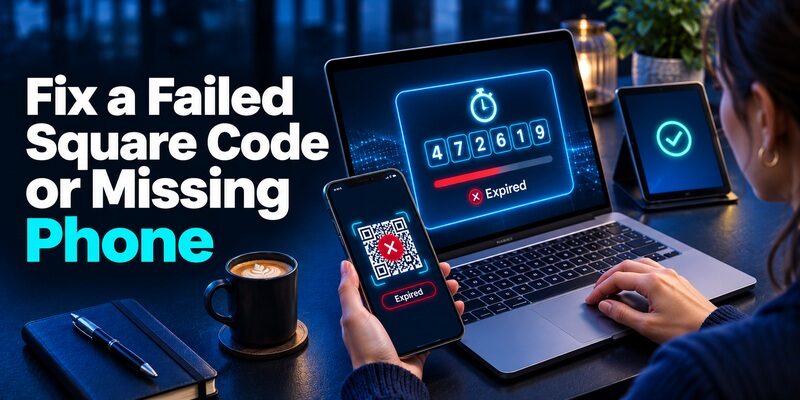
| Symptom | First check | Next step |
|---|---|---|
| The QR will not scan | Camera permission, glare, and the current setup screen | Use Square’s manual key option in the live session |
| A code appears but is rejected | Correct account label, fresh value, and device time | Try a fresh code from the current enrollment |
| The phone is missing | Whether a verified backup is still available | Use the backup or contact Square Support through the official route |
| No challenge appears on a known browser | Whether that device was remembered | Use an approved fresh session when you need to test |
| The business setting is unavailable | Business selection and account permissions | Ask the authorized owner or administrator |
Check the First Failure Before Resetting Anything
If the Square authentication app shows a rotating value, compare its label with the account signing in. Enable automatic device date and time where appropriate and try a new code. If you recently changed apps, check whether the visible entry belongs to an earlier registration. Preserve the old device or open session until you can confirm the active method.
If Square asks for a delivered code instead, read the destination and check whether you can access it. Open the relevant account’s recovery path if the number is no longer yours. Square’s setup guide directs users who cannot reach their phone to contact Square Support by its official phone route. Use contact information from the official Square site or your account.
Treat Suspected Account Changes as a Separate Case
A prompt you did not start, an unexpected security change, or unfamiliar transaction activity should be reviewed from the official dashboard. Square’s suspicious activity guide gives a route for reporting unauthorized changes. Provide the relevant account and timing through the approved channel, while keeping your live code and setup key private.
If the store has multiple authorized managers, confirm which person can act on the account. Keep a record of the event and the recovery step taken. After Square restores access, verify the security settings, current verified number, and the intended role before returning to sensitive business tasks. Unlike a traditional MFA token that displays a one-time code, a passkey uses cryptographic authentication to verify the account. Learn what is a passkey to understand how passkey sign-in works and why it can provide stronger resistance to credential phishing.
Read more: Crypto.com Authenticator App Setup and Code Recovery
Manage or Turn Off Two-Step Verification Deliberately
Change the Method When the Factor Still Works
If the goal is to replace a phone number or the Square authentication app, open management for the current individual method. Add and verify the replacement route first when the dashboard supports it. Review which route will remain usable for the next sign-in. Removing one verified number is a different operation from turning off two-step verification entirely.
If a device is inaccessible, look for a registered alternate or contact Square Support. The official turn-off process calls for verification, so it may still require a method you can use. Check this before counting on the setting as a way to recover from a lost device.
Understand the Scope of the Team and Individual Controls
Square recommends keeping two-step verification enabled. If an authorized owner needs to turn it off, Square’s U.S. documentation says an enabled team requirement has to be turned off first in the business security settings. Then open the personal sign-in security settings, manage two-step verification, select the turn-off action, verify with a current code, and confirm.
Review the business consequences before changing a team-wide requirement. A change intended to fix one employee’s lost phone can affect how other staff sign in. Once the requested change is complete, verify the correct settings for the business and the individual user. If you later restore protection, test the current Square authentication app and backup again.
Verify the Store Can Open and Close With the New Setup
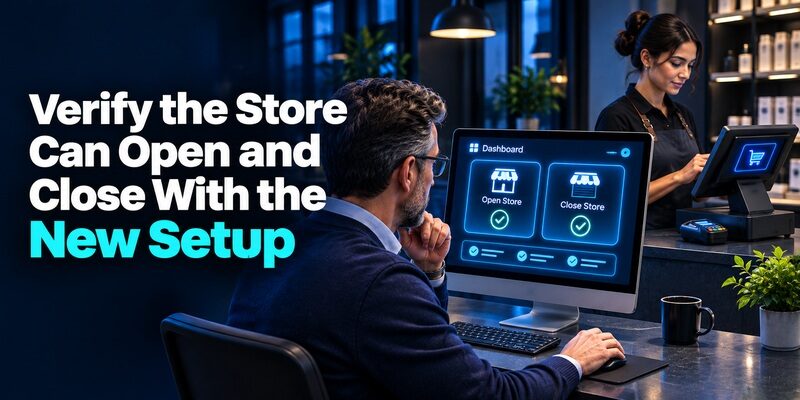
After a rollout, test a manager sign-in in Dashboard and a staff workflow on the approved register. Record which account and permission set each test covered. A successful Square authentication app check at a laptop cannot establish whether the employee’s point-of-sale passcode and role work at the register.
Suppose a store opens with a manager on duty and another employee at the till. The manager needs to access Dashboard, while the employee may need to clock in or start a sale. Test the actual authorized work for each person without reusing the manager’s credentials. If something fails, note the application, prompt, and requested action so you can diagnose the right part.
Review who can support the team after hours. Keep an approved route available outside the owner’s phone and identify who can confirm a user’s role if they regain access but cannot perform an action. Record the result of the test without storing any employee passcode, QR, or live Square authentication app value.
If your team uses more than one location, confirm that the test covered the intended register and business. Keep the test date and the name of the authorized person who verified the workflow in the business record.
Final Thoughts
Set up the Square authentication app through Dashboard, verify the first code, and check a backup before changing your primary device. Use the individual sign-in page for your own factors and the business security page for the team requirement. Test a real staff workflow separately from your manager sign-in.
If a code fails, identify the prompt and account before replacing a working method. Use Square’s official support when the verified methods are unavailable. Confirm the correct business and role after you restore access.
