
OPay OTP Code Help for Missing, Rejected, or Unexpected Codes
Published November 18, 2026
An OPay OTP code is a one-time password used for a specific verification step. If you started the request, check the destination shown in the official OPay app and use the code only in that active prompt. If the message is delayed, confirm the registered number and line, follow the app’s resend instructions, and use the current value the prompt accepts. You cannot get a usable code from a search result or from someone who offers to generate one.
If you received an OPay OTP code you did not request, leave it unused. Open the official app directly, review account activity, and contact OPay through an official route if you see anything unusual. OPay Digital Services’ safety guidance tells users to keep login details, tokens, card information, and PINs private.
Identify What Triggered the OPay OTP Code
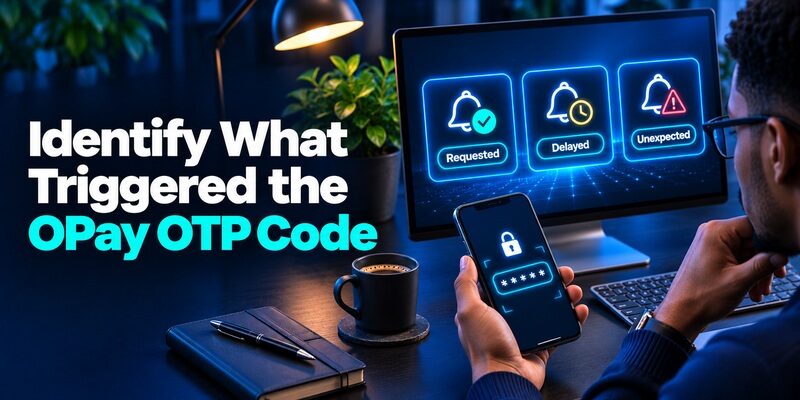
| Situation | What to verify | What to do next |
|---|---|---|
| You started an OPay verification | The official app shows the current action and destination | Use the current code only in that prompt |
| A code is delayed | The line is active and the number shown is reachable | Wait and use the in-app resend option when available |
| A code is rejected | It belongs to the same active request and has not expired | Follow the prompt for a new request if needed |
| A code arrives unexpectedly | Whether there is any matching activity in the official account | Leave it unused and review activity independently |
| Your registered number is gone | Which official recovery route applies | Contact OPay through a trusted channel |
Keep the Request and the Code Together
Start by identifying the action you took in OPay. It may be a sign-in, a device or account verification, or another step the app names. Keep the official screen open while you check the message. Verify that the code arrived after the request you are completing and that the destination is the one the app displays.
An OPay OTP code can be current for one request and unusable for another. If you start a second request while waiting for the first message, the order in your inbox may not match the order of requests. Read the current OPay instructions and follow what the active prompt says. Avoid entering a value in a different window, on a page sent in a message, or for an action you did not start.
Distinguish the OTP From Your PIN or Password
The OTP is tied to the verification request. A PIN or password is another credential used under the app’s instructions. A value from an SMS does not change your PIN by itself. If the app asks for a PIN, use the approved entry field and keep the PIN private. If you forgot it, follow the official reset route the app provides.
OPay’s safety guidance distinguishes login and card details, tokens, and PINs as information customers need to protect. Keep all of them out of informal messages and calls. For an OPay OTP code, the only place you need to enter it is the official challenge that requested it.
Read more: Instagram 2FA Setup With an Authentication App and Backup Codes
Secure your accounts with fast, reliable two-factor authentication. Download now and protect your login in seconds.Download Authenticator App
Check the Number and Device When the Code Does Not Arrive
Compare the Masked Destination With Your Active Line
Check the digits OPay displays and compare them with the line associated with your account. If your phone uses two SIMs, make sure the intended line is active and able to receive messages. Check whether you can receive other messages or calls on that line. A recent SIM change, carrier move, or network issue can affect access.
Do not send the OTP to a friend’s number or ask the new owner of an old number to forward it. Use the official account process if you no longer control the destination. An OPay OTP code sent to the wrong or unreachable number is a recovery problem, not a reason to use a code from somewhere else. To better understand how verification codes differ from passwords and PINs, explore what OTP means and how one-time passwords work across different account security systems.
Check Delivery Without Creating Multiple Requests
Wait for the interval shown by the app. Check the current messages app and any filter that affects incoming texts. If the app offers resend, use it after the waiting period. Keep the active OPay screen available so you can match the arrival to the request. Follow the app’s instructions if a new message replaces the prior one.
If the OPay OTP code still does not arrive, write down the time, operation, device, and masked number. Check whether the issue affects the OPay app alone or other messages to the same number. Contact OPay through the official app or contact page for account-specific help. Use a trusted carrier route for a problem that affects the line itself.
Verify a Replacement Phone or Number Before You Rely on It
When moving to a new phone with the same line, complete the authorized activation and check delivery on the replacement. Install OPay from the official source and follow its current verification. Keep the old phone or working session available until the intended sign-in passes.
If you are changing the number too, check the registered OPay contact before giving up the old one. The carrier’s transfer or activation does not automatically update the number stored by a financial service. An OPay OTP code will follow the route the app displays. If you cannot update it from an existing session, use OPay’s approved support or recovery.
Read more: Xero Authenticator App Setup With Xero Verify or Rotating Codes
Fix a Code That Arrives but Gets Rejected

Use the Value From the Current Request
A delivered value can be rejected after expiration or if it belongs to a different action. Check the official screen and identify the request you started. Compare the message timing and any nonsecret context. If the app says the value expired, follow its current instruction to request another one rather than repeatedly entering an earlier code.
If you copied the value, check for a stray space or an older value left in the field. Enter the current OPay OTP code privately. Avoid sending a screenshot of the screen to another person to ask which value to use. The support team can help identify the stage without seeing the code.
Check Whether the App Asks for a Different Proof
A screen can ask for an OTP, a PIN, or another account check. Follow the exact field label. A passcode for a card or a PIN used in the app belongs to its own flow. A message for one operation does not necessarily work in another. Reopen the official route if the page has changed or you were taken to a different request.
A generic app that generates rotating codes does not produce an OPay OTP code sent for a bank or payment challenge. For a different service that explicitly offers standard TOTP enrollment, is an option to evaluate. Use only the method OPay presents for the active verification.
Read more: SMS vs Authenticator App: Comparing Two-Factor Authentication Methods
Protect the Account When a Code Arrives Unexpectedly

| What you notice | What to do now | What to verify |
|---|---|---|
| A single unrequested code | Leave it unused and open OPay independently | Whether the account shows any matching activity |
| A caller asks you to read the code | End the interaction and use the official contact route | Whether the caller’s request is legitimate |
| The line suddenly stops working | Check the line through the carrier and review OPay separately | Whether a SIM or number change occurred |
| An unfamiliar transaction or account change | Use official OPay support promptly | Which account or card needs review |
| The phone or card is missing | Follow OPay’s official lost-device or account protection guidance | Whether the appropriate access has been secured |
Ignore Requests to Read, Forward, or Screenshot the Code
A person may claim that they need the value to cancel a transfer, recover your profile, or verify that you are the owner. OPay’s safety page tells users to protect login and token information and be cautious even when the number or email looks familiar. Leave the OPay OTP code unused. Contact OPay through the official app or contact page you open yourself.
An unrequested code alone does not establish that someone reached the account. Check recent activity through the official app. If you see a change or transaction you do not recognize, use the official support and dispute route. Record the time and activity without disclosing the code.
Treat a Missing Phone or SIM as a Separate Event
If the phone was lost or stolen, use OPay’s current official instructions for securing the account or card. OPay’s Nigeria site describes account and card locking options. Verify the current route directly through OPay before using it. If you suspect the SIM or number changed unexpectedly, contact the carrier independently to check the line.
Keep the phone and payment account investigations separate. Restoring your line does not confirm whether the OPay account had unauthorized activity, and the payment service cannot fix your carrier line. After recovery, review the registered contact and sign in again through the official app before relying on the next OPay OTP code. Unlike SMS-delivered codes, authenticator apps can generate time-based verification codes for supported accounts. Learn more about how TOTP authenticator apps generate and manage security codes and why these methods are not interchangeable with every payment verification system.
Separate Phone Delivery From Account Verification
Run a Small Test on the Registered Line
Check the line’s availability without requesting repeated OPay messages. If a normal text from a person you know arrives, that shows basic SMS reception. Delivery from a service can still be affected by carrier settings or filters. If other texts also fail, ask the carrier to check line activation and receiving capability. If only OPay is affected, report the specific request through official OPay support.
When you retry, start one authorized request from the official app. Note whether it shows the expected destination and how long it asks you to wait. An OPay OTP code can be delayed even while the app successfully created the challenge. A value that arrives and is rejected points to a different issue. Keeping those cases separate helps you avoid changing the registered number unnecessarily.
Check What Happens When You Reopen the App
If the app closed while you were waiting, reopen it from the approved app icon and see whether the original request remains active. Follow any expired-request or resend message it shows. Do not type an old code into a new screen just because the values look similar. If you cannot tell whether the request belongs to sign-in or another action, cancel it and start from the trusted account screen.
Check whether other legitimate OPay functions still open from a working session. If they do, the account may be accessible while a specific verification is blocked. Report the exact step, such as a device verification or an account change. Avoid making a payment just to test whether the OPay OTP code arrived. A clean verification attempt can confirm delivery without a financial action. Fraudsters may use urgent messages to trick users into sharing private verification details. Learning how to identify a scam text message can help you recognize suspicious requests before responding.
Preserve an Independent Way to Reach Official Help
If you need to contact support after losing a phone, open OPay’s verified contact page from another trusted device. Use the route that matches the account type. For a payment or card concern, provide only the details requested through the approved process. A support representative can record that delivery or verification failed without asking you to read the value.
After you resolve the line or account issue, keep the official route available for the next incident. Review the registered destination and test the verified device before giving up the old one. Record the result so a later delivery problem can be distinguished from a case where the account cannot verify your identity.
Read more: What Is Account Takeover? Warning Signs and Ways to Protect Your Accounts
Contact OPay With the Information That Explains the Failure

Choose the Support Route for the Right Product
OPay Digital Services’ official contact page describes in-app customer service and separate support options for app and card issues and POS business issues. If the app still opens, use the support or dispute option provided there. If you cannot sign in, open the current official contact page or another trusted OPay route. Avoid numbers supplied by an unsolicited caller or message.
Tell support whether the OPay OTP code never arrived, arrived too late, or was rejected after entry. State whether the line still receives other messages. Include the operation, device, approximate time, and masked number where appropriate. Keep PINs, passwords, full card details, and live verification values private.
Verify What Was Fixed Before Closing the Case
After support confirms the next step, start a new authorized verification through the official app. Check the account, destination, and operation. Confirm the OTP completes the intended check. If the original issue was a transaction, review its status separately using the official account or dispute process. Successful sign-in does not settle a transaction by itself.
Record the support case reference where available and the outcome you verified. Avoid keeping screenshots that contain sensitive information. If the problem returns, the account holder can report which stage worked last time and which OPay OTP code prompt is now affected.
Read more: How to Protect Yourself From Smishing and Fraudulent SMS Messages
Work Through Three Common OPay Verification Cases
You Requested a Code and Several Texts Arrived Later
Open the original app screen and check whether the current request is still active. If you asked for a resend, follow the app’s indication about which value to enter. If the screen expired, start the approved action again. Keep the messages private. A support report can describe the delay without showing any value.
Once the request succeeds, check whether the action you started actually completed. If it was a separate account or transaction verification, the OPay OTP code can prove one step while the app still needs another confirmation. Read the current status in OPay rather than assuming the code alone finished it.
You Know the Old Number but Cannot Receive Its Messages
If you can still open an authorized session, review the profile and confirm the route OPay provides for updating contact details. The service may need fresh proof. If the old line is inaccessible and the app cannot continue, use the official recovery or support process. Do not try to guess the code or ask someone on the old number to share it.
After recovery, verify the new contact and test a fresh sign-in. A planned number change can be easier when you confirm the account while the previous number still works. Write down the authorized support route and last test date, while leaving verification values out of the record.
Someone Says a Code Will Stop an Unwanted Payment
End the call or conversation and open OPay independently. Do not read the OPay OTP code or install another app at the caller’s request. Review the transaction history and use OPay’s in-app support or official contact instructions if anything looks unfamiliar. If the message included a link, avoid using it as the starting point for account verification.
When you report the issue, include the time and what the person claimed. Keep the live code private. Verify the status through OPay and follow its directions on securing the account. If the same phone number is used for other financial accounts, check those accounts through their own trusted routes as appropriate. Once your account access is restored, review your other important accounts for suspicious activity. Following account security best practices can help you strengthen login protection, review recovery options, and reduce the risk of future unauthorized access.
Check the New Setup After Account Access Returns

Confirm the correct profile opens, the intended line can receive an official request, and the previous device is handled according to OPay’s instructions. If the incident affected a card or transaction, check that status separately. Note the result and the official support case reference if one was issued. A clear record helps you distinguish the next device or delivery issue from the one already resolved. Confirm that the current contact still belongs to you and that your usual device can receive a fresh verification prompt when needed.
Final Thoughts
Use an OPay OTP code only in the official prompt for an action you started. If it does not arrive or is rejected, verify the destination and the active request before resending. If the old phone or number is unavailable, use OPay’s official recovery route.
Leave an unexpected code unused and check the account independently. Protect the OTP, PIN, and login details, and verify the intended device and contact before relying on the next request.
