
2FA Tools for Personal Accounts and Business Sign-Ins
Published November 13, 2026
By the Authenticator App Team
Last updated: November 2026
Choose 2FA tools based on whether you need to generate codes for your own accounts or enforce verification for other users. For a personal account, prefer a phishing-resistant passkey or security key when the provider supports it. Use a trusted authenticator for accounts that offer standard time-based codes. For a business, start with your existing identity platform and check which applications, policies, and recovery workflows it can cover.
A code app holds enrollment data for an individual account. An identity platform decides which proof a group of users must present and when. Use the comparisons below to shortlist the right kind of tool before weighing device support, policy controls, and the effort required to recover access.
Decide Which 2FA Tools You Actually Need
Start by listing the accounts or applications you are responsible for. Decide whether you need an app for your own sign-ins, a physical factor, a service that manages other users, or a combination. Comparing 2FA tools across those categories can be misleading because they solve different parts of the same sign-in.
| Your responsibility | Start with | What it controls |
|---|---|---|
| Your own accounts | A service-supported passkey, security key, or authenticator | The proof you present at sign-in |
| A small team on a shared identity platform | The platform’s MFA policies and recovery tools | Which methods staff can enroll and when the service requires them |
| Customer sign-in for a product | An identity service with application and user enrollment controls | How customers enroll, verify, and recover |
| Existing applications with mixed login systems | A provider whose integrations fit those applications | Which access points receive an MFA challenge |
A Personal Authenticator Holds a Factor
A TOTP app can store compatible account entries and display their current codes. The account provider issues the enrollment information and verifies the code at sign-in. An individual app cannot make a service support TOTP or apply a rule to somebody else’s account. It is one component of verification.
An Identity Platform Manages Sign-In Rules
2FA providers for organizations can apply policies across groups or applications, depending on the product and integration. When comparing 2FA tools at that layer, ask where the platform sits in the actual sign-in. A setting in the provider’s console has no effect on an application that bypasses that sign-in route. Verify coverage with a controlled test before relying on the policy.
If one person manages several personal accounts and a small team, evaluate the two jobs separately. They might use a phone app for personal sites and a company identity provider for employee access. Try mapping each of the 2FA tools you are considering to a single job. A vendor can supply more than one component, but you still need to know which one decides whether a sign-in proceeds.
Compare Personal Authenticators and Security Keys
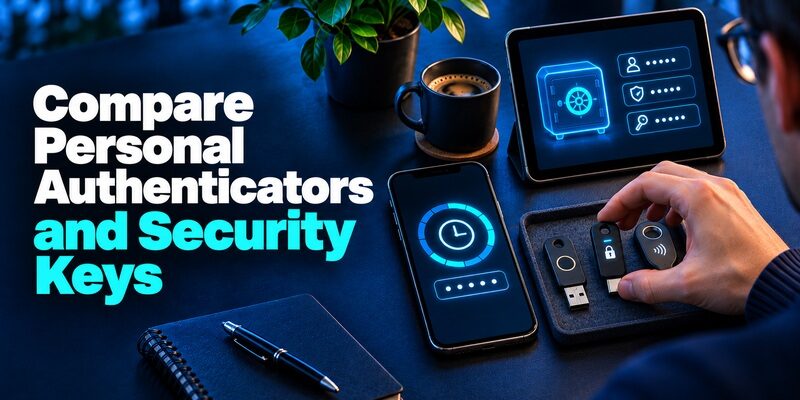
For compatible accounts, choose a tool you can use from your everyday devices and recover without the original phone. CISA’s guidance favors phishing-resistant MFA when available. A FIDO method can serve that purpose on an account that supports it. A rotating-code app serves a different set of services, especially where standard TOTP is the stronger or more convenient option offered.
| Option | Best fit | Trade-off |
|---|---|---|
| Authenticator App by Begamob | Several compatible TOTP accounts that need clearly labeled codes | Verify device support and recovery before switching |
| Google Authenticator | Standard app codes on a phone | Choose and understand sync or supported manual transfer |
| 2FAS Auth | A published-source mobile code app | Check how backup and transfer work for your platform |
| Apple Passwords | Verification codes alongside sign-in information on supported Apple devices | A shared vault can hold both password and code |
| FIDO security key | A supported physical factor for high-value accounts | Check spare-key enrollment and device compatibility |
Dedicated Code Apps
Begamob’s product page says supports QR and manual setup for compatible TOTP accounts and calculates codes offline. It is a fit if your services ask for ordinary app codes and you want to distinguish them by account in one place. Google Account Help also documents offline code generation for Google Authenticator, with sync and manual transfer choices. The 2FAS publisher describes 2FAS Auth as open source. Before replacing an existing app, confirm you can move or re-enroll each important account.
Integrated Vaults and Physical Keys
Apple Support documents automatic verification codes in the Passwords app on supported Apple devices. An integrated vault can simplify filling a code, while putting passwords and code secrets in the same place. Plan how you would restore that vault separately. A hardware key can be more suitable for a sensitive account that supports FIDO. Keep a supported backup method you can reach if you leave the key at home.
When you compare personal 2FA tools, consider the people and devices you already share. An app that fits one phone can be difficult to recover if you change platforms, and a key needs a compatible device and account. Check these details with your highest-priority account before enrolling everything else. A small test is easier to unwind than switching every factor in one session.
Download Authenticator App
Secure your accounts with fast, reliable two-factor authentication. Download now and protect your login in seconds.
Compare 2FA Providers for Teams and Products
Make your shortlist around the login surface you need to protect. Microsoft Entra is relevant to workforce identities and Microsoft 365. Auth0 is relevant when your application already uses or is evaluating Auth0 for user sign-in. Cisco Duo is worth evaluating when its protected-application integrations match the services you run. These products offer different integrations and policies. Check your exact edition and deployment before assuming a feature is included.
| Provider | Use case to evaluate | What to verify in a pilot |
|---|---|---|
| Microsoft Entra | Workforce access and Microsoft 365 policies | Licensing, authentication methods, and Conditional Access scope |
| Auth0 | Application sign-in with tenant MFA factors and policies | Which applications reach the tenant, enrollment, and user recovery |
| Cisco Duo | MFA across applications supported by your Duo deployment | Integration, Universal Prompt, available factors, and recovery |
| Existing identity provider | Teams whose apps already share a sign-in | Whether current methods meet policy before adding a service |
Microsoft Entra for Workforce Identities
Microsoft Learn describes security defaults and Conditional Access options for applying MFA in Microsoft 365 and Microsoft Entra. The setup that fits depends on what your organization licenses and the level of control it needs. Test the actual group, device, and app the policy targets. Check that a fresh sign-in shows the intended factor and that the team’s authorized recovery path works.
Auth0 for Application Enrollment
Auth0 Docs separates factor selection from the policy that decides when to challenge. Its factor documentation lists app-generated OTP and WebAuthn among supported options. For Auth0-based 2FA tools, test both fresh enrollment and existing customer sessions. A multi-application tenant may need different rules for a customer portal and an administrative app. Review how you would reset a factor for an authorized customer without removing a registration for the wrong account.
Cisco Duo for Supported Application Integrations
Cisco Duo’s Universal Prompt documentation describes WebAuthn security keys and configurations that ask for a number shown in the prompt during Duo Push. Confirm which applications in your deployment use the supported prompt and methods. Some factors require users to register a device or key in advance. Decide which users can manage their own devices and which require help. Compare the policy and recovery behavior on a real test integration before adopting Duo across several services.
Ask each provider what happens outside the primary sign-in. Password reset, a new phone enrollment, a user support override, and an admin login can each follow a different route. Good comparisons of 2FA tools include these paths because access may depend on the fallback when the normal method is unavailable. Write down which system owns each one before the trial begins.
Check Which Factor Stops the Attacks You Care About

A comparison of 2FA tools needs to look beyond whether a product displays an MFA prompt. Ask how its methods resist password theft, live phishing, or unwanted approvals. CISA explains that phishing-resistant MFA is preferable where available. NIST’s Digital Identity Guidelines classify manually entered one-time passwords as lacking phishing resistance because the value is not bound to the specific session.
Code-Based Methods
A TOTP code can help block a sign-in with a stolen password alone. A fake page can still forward a fresh code to the real service. An app-generated code avoids dependence on text-message delivery, but it still has to be entered only on the genuine sign-in page. Do not treat all codes as having the same delivery or recovery characteristics. Check which factors the service actually supports.
Push, Passkeys, and Hardware Keys
A push approval can be simple, but an unexpected request can be approved by mistake. CISA describes number matching as a mitigation for repeated prompts. A FIDO passkey or security key uses a different protocol that binds proof to the genuine service. For sensitive accounts, evaluate that method if supported. Include the fallback in the comparison. A strong primary method with a fragile or weak recovery route can still leave users exposed or locked out.
Choose an example of an account that matters. If it protects your work email, test whether the provider can require a phishing-resistant factor and which other methods can still grant access. If it is a personal site that only offers code-based 2FA tools, focus on setting up a trusted app and preserving a separate recovery method. The same preference need not apply to both cases.
Evaluate Where Enrollment Data Is Stored
A tool that generates a valid TOTP code uses the registered secret and time, as RFC 6238 describes. Where that secret lives affects both convenience and recovery. Local storage, device-to-device transfer, and account sync can each be appropriate. Check which one you’re choosing and whether you can recover without the original device.
Ask What Travels With a Backup
For a personal app, find out whether the backup contains the registered entries, how it is protected, and how you would open it on another device. Test one service before assuming everything moved. A device that displays an app icon after restoring a phone is not proof that the enrolled data came with it. Keep another sign-in method available while you check.
Review Permissions Before Installation
Some browser extensions ask to read or change data on websites, as Google Chrome Help explains. If you are considering an extension among your 2FA tools, check which permissions it needs and whether you can limit access to the sites you intend. For a managed device, follow the organization’s approved software policy. Keep setup keys out of public generator pages and shared files. They can produce future codes even after today’s output expires.
If a product offers synchronization, read how a new device gains access to those entries. You may need the account that controls the sync feature or a recovery credential you stored elsewhere. A trial is a good time to test that process with disposable entries. Decide which of the 2FA tools you can restore if the original phone is already gone.
Run a Pilot That Includes Failure and Recovery
Test 2FA tools with a small group or on one account before rolling out the change. Start with the path your users normally take. Add a new test user and an existing enrolled user, and try at least one case with no access to the usual factor. Record which part of the sign-in succeeds and which part stops.
Test Enrollment Through the Actual Application
Use the actual app or account entry point, plus a fresh browser session where appropriate. Confirm the user can identify the correct factor and return to the application after the challenge. Test a few device and browser combinations that people actually use. If only the pilot team’s laptop can complete the flow, the setup may need more work before rollout.
Test the Alternate Route
Ask an authorized support person to rehearse a recovery using a test account. Verify the requester through your organization’s process, enroll a replacement, and check what happened to the old registration. For a personal account, keep the current session open and see whether a backup method works. Recovery is a feature of 2FA tools worth comparing before an actual loss forces the issue.
When comparing 2FA tools, include one test with accessibility needs or a device that cannot install a required app. Check what the provider supports before defining an exception. An exception should be understood by the user and the support team, with a clear path for future recovery. If you can’t test that route, keep the rollout small until you can.
Calculate the Cost of the Support You Need

Compare the operational costs along with any subscription. Teams may have to buy spare keys, spend time on enrollment, maintain integrations, and staff recovery. A tool that looks inexpensive in a feature list may add work if users frequently lose access to the method. A familiar 2FA service may already cover the accounts that matter most.
Look for the Cost Drivers in Your Deployment
Ask which features require a particular plan, which integrations need ongoing maintenance, and how many users or devices must be covered. Check the provider’s current terms directly before making a purchase. If the tools you compare come from different identity categories, account for the missing parts separately. A code app has a different scope from 2 factor authentication software that controls an organization’s login policy.
Measure Support Friction During the Trial
Track the number of people who completed enrollment, the reasons a sign-in failed, and whether authorized recovery succeeded. Compare what the tools require from staff and administrators in each case. For business 2FA tools, a clean way to identify the blocked user and the affected app can save time during a real outage. Give the people testing the flow a support route outside the protected account.
For a team, write down the cost of keeping a fallback service active during a transition. If two 2FA tools overlap, find out how long you need both and which one owns support during that period. For personal use, count any spare device or recovery key you would need. Do not compare a free download to a company service as though each covers the same task.
Decide What to Keep and What to Replace
If your current setup covers the sign-in, recovery, and factor strength you need, you may only need to improve a specific account or method. Adding overlapping 2FA tools can give users two similar prompts or leave support unsure which registration to reset. Set a clear default and explain when the alternatives apply.
Switch With a Working Factor Still Available
If you move personal accounts to a different authenticator, use an official transfer or re-enroll from each service’s settings. Test a clean login before wiping the old phone. For organizations, run the new factor with a limited group and record a rollback path that leaves required accounts recoverable. Confirm who can make the rollback decision.
Keep Ownership Clear After the Change
Write down which service owns each policy and how the user should ask for help. Avoid exporting secrets just to document that they exist. If a provider controls only part of the sign-in journey, document where the other parts live. This makes it possible to change one component of your 2FA tools without disrupting an unrelated login or resetting the wrong factor.
Update onboarding instructions as soon as the new flow passes your tests. People may still reach an old help page through a bookmark. Explain how to recognize the expected prompt and give them an approved way to report an unexpected one. That step helps users trust the right 2FA tools without approving a lookalike request.
Questions About 2FA Tools
Do I Need an App and a Security Key?
Only if the accounts you use need both methods or you want a supported backup. A security key can protect compatible accounts with phishing-resistant verification. A code app can serve other accounts that offer standard TOTP. Enroll each method through the relevant account.
Can an Authenticator App Replace a Workplace Approval App?
Only when the workplace explicitly offers a compatible authenticator-code option. A generic TOTP app cannot receive a provider-specific push request. Ask the administrator which factor is permitted and follow the workplace enrollment instructions before removing an existing app.
Can I Use App Codes When My Phone Is Offline?
Yes, when the app already holds a compatible TOTP enrollment. The phone can generate the value without receiving a text or push request. The computer or other device actually signing into the service still needs a connection to that service.
What Should I Check Before Paying for an MFA Provider?
Confirm the applications it can protect, the factors the plan supports, and how authorized users recover. Test the exact configuration your team would use. Account for integration time, spare devices, and support work along with the published price.
Can I Keep My Current Identity Provider?
Often, yes. Start by reviewing its existing factors, enrollment controls, and recovery process. Test whether it protects all the applications and users in scope. Consider a separate provider if the existing service leaves a specific integration or policy requirement unmet.
Final Thoughts
Choose 2FA tools by the accounts and decisions they need to protect. For personal use, start with a supported phishing-resistant method for sensitive accounts, then use a compatible authenticator where app codes are the best available route. For a team or product, compare providers on application coverage, policy, and the way users regain access.
Keep your setup secret private and test sign-in from a clean session. For each important account, identify a backup method that remains available if the primary device disappears. For an organization, give support a verified recovery process and test it with a disposable account before requiring the factor for more users.
Make the first test on one representative account or application. Confirm which factor appears, what happens when it fails, and which route gets the authorized user back in. Those results will tell you whether the 2FA tools you chose cover the actual sign-in, even when the everyday method is unavailable.
Record the result for each app you tested. If you keep the existing setup for some accounts, note why it fits there. When you revisit the selection, the record will make it easier to compare new 2FA tools against the actual gap you need to fill.
Download Authenticator App
Secure your accounts with fast, reliable two-factor authentication. Download now and protect your login in seconds.
