
How to Use Proton Authenticator: Complete Setup Guide
Published August 18, 2026 · Updated October 6, 2026
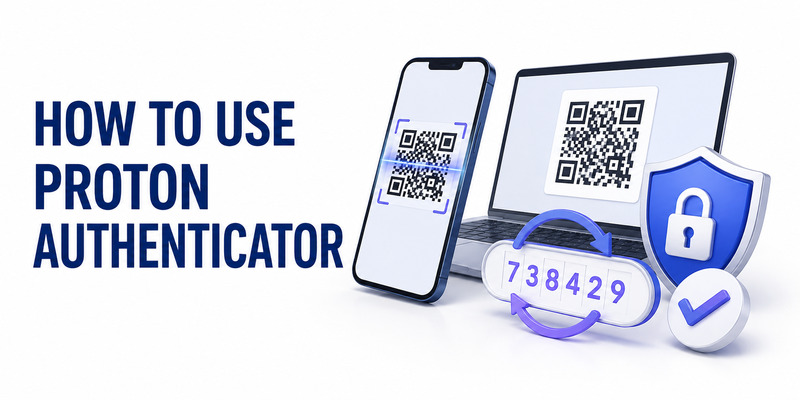
Learning how to use Proton Authenticator is simple: install the app, open the two-factor authentication settings of the account you want to protect, scan its QR code with Proton Authenticator, and enter the generated verification code to confirm setup.
Proton Authenticator generates time-based one-time passwords (TOTP) for 2FA and works on Android, iOS, Windows, macOS, and Linux. You can use it without creating a Proton Account, while signing in enables encrypted synchronization across supported devices.
Quick answer: How to use Proton Authenticator
- Download and open Proton Authenticator.
- Go to the Security or 2FA settings of the account you want to protect.
- Choose Authenticator app and display the QR code or setup key.
- In Proton Authenticator, tap Create new code (+) and scan the QR code or enter the key manually.
- Enter the generated code on the website to verify 2FA.
- Save the website’s recovery codes somewhere secure.
Once connected, Proton Authenticator continuously generates temporary codes that you can enter whenever that account requests two-factor authentication.
How Do You Set Up Proton Authenticator for the First Time?
Before learning how to use Proton Authenticator for daily logins, download the official app for your device and decide whether you want to keep your codes locally or synchronize them.
Proton Authenticator is available for Android, iPhone and iPad, Windows, macOS, and Linux. Existing TOTP codes can also work offline, so an internet connection isn’t required every time you need to authenticate.
A Proton Account isn’t required for basic local use. If you want encrypted synchronization across Android, Windows, or Linux devices, sign in with a Proton Account. Apple users can also use iCloud synchronization.
For additional protection, enable a PIN or biometric lock where available and keep your phone or computer protected with a strong device passcode.
Download Authenticator App
Secure your accounts with fast, reliable two-factor authentication. Download now and protect your login in seconds.
How Do You Add an Account to Proton Authenticator?
The most important part of how to use Proton Authenticator is connecting it to the account you want to secure.
Start on the website or app you want to protect — not inside Proton Authenticator.
Open the account’s 2FA settings
Sign in to the service and look under Security, Login & Security, Two-Factor Authentication, or a similar menu.
Choose Authenticator app as your verification method.
The service should display either:
- a QR code;
- a secret setup key; or
- both.
Keep this page open while completing the next steps.
Create a code in Proton Authenticator
Open Proton Authenticator and tap Create new code or the + button.
You can then:
- Scan QR code: Point your phone’s camera at the QR code displayed by the service.
- Enter manually: Paste or type the secret setup key if you can’t scan the QR code.
Give the account a recognizable title or issuer so you can easily identify it later.
Verify your new 2FA code
After saving the account, Proton Authenticator begins generating a temporary verification code.
Return to the website where you’re enabling 2FA and enter the current code.
If the code is about to expire, wait for the next one rather than trying to submit it at the last second.
Once the service confirms the code, two-factor authentication is active.
Save your recovery codes
Many websites provide backup or recovery codes after you enable 2FA.
Save these separately from the device containing your authenticator. Recovery codes can help you regain access if your phone is lost, damaged, or unavailable.
Never send your QR code, secret setup key, recovery code, or current authentication code to someone claiming to be customer support.
🧭 Explore Guides: Proton Authenticator: Download, Setup & Complete Review Guide
How Do You Use Proton Authenticator When Logging In?
Once setup is complete, how to use Proton Authenticator becomes a simple login routine.
Enter your username and password on the website as usual. When the service asks for a two-factor authentication or verification code, open Proton Authenticator and find the corresponding account.
Copy or type the current code into the login screen before it expires.
TOTP codes are generated locally, so existing codes can continue working even when your device is offline.
If a code doesn’t work, first check:
- You’re using the correct account entry.
- Automatic date and time are enabled on your device.
- The code hasn’t expired.
- The website hasn’t recently reset or replaced your 2FA configuration.
Avoid repeatedly entering expired codes. Wait for a fresh code and try again.
Prefer Keeping Your 2FA Setup Simple?
If you want another straightforward way to generate TOTP codes, Authenticator App by Begamob can scan supported 2FA QR codes and keep multiple accounts organized in one place.
🗺️ Browse How-To Guides: How to Use Proton Authenticator: Complete Setup Guide
How Do You Import, Sync, and Back Up Proton Authenticator?
Knowing how to use Proton Authenticator also means preparing for a lost or replaced device.
Can you import codes from another authenticator?
Yes. Proton supports importing existing 2FA codes from several authenticator apps, including Google Authenticator, 2FAS, Aegis Authenticator, Bitwarden Authenticator, Ente Auth, and LastPass Authenticator.
Keep your previous authenticator installed until you’ve confirmed that important accounts work correctly in Proton Authenticator.
Treat exported authenticator data as sensitive information because it may contain the secrets needed to generate valid authentication codes.
Can Proton Authenticator sync between devices?
Yes.
If you use Android, Windows, or Linux, sign in to Proton Authenticator with your Proton Account to synchronize supported data across devices.
Apple users can also synchronize through iCloud.
Proton states that synchronized Authenticator data is protected with end-to-end encryption.
What happens if you lose your phone?
Proton Authenticator supports backup and export options designed to make migration and recovery easier.
However, don’t rely on a single recovery method.
For important accounts, keep the service’s recovery codes somewhere separate and secure. That way, losing access to your authenticator doesn’t automatically mean losing access to the account itself.
How Do Proton Pass and Proton VPN Work on Your Phone?
Proton Authenticator, Proton Pass, and Proton VPN belong to the broader Proton ecosystem, but they perform different jobs.
Understanding the difference prevents a common mistake when learning how to use Proton Authenticator.
How to use Proton Pass on Android?
If you’re searching for how to use Proton Pass on Android, Proton Pass is primarily a password manager rather than the standalone Proton Authenticator app.
Install Proton Pass on Android, sign in to your Proton Account, and enable Proton Pass as your default autofill service if you want it to automatically fill saved usernames and passwords.
You can save logins manually or allow Proton Pass to offer to save credentials when you sign in to websites and apps.
Proton Pass can also store TOTP information with saved login items, but this shouldn’t be confused with the standalone Proton Authenticator workflow described above.
How to use Proton VPN on phone?
If you’re searching for how to use Proton VPN on phone, install Proton VPN on your Android phone or iPhone, open the app, and connect to an available VPN server.
On Android, Proton allows users to sign in with a Proton Account or use supported free features in guest mode. You can connect to the fastest available location or select another server according to your plan.
Proton VPN protects your network connection. It does not generate the TOTP login codes covered in this how to use Proton Authenticator guide.
In short:
Proton Authenticator → generates 2FA codes
Proton Pass → manages passwords and login information
Proton VPN → encrypts your internet connection
Is Proton Authenticator Safe to Use?
Proton Authenticator includes several features designed around privacy and account security.
Proton describes the app as open source, and its synchronized codes use end-to-end encryption. The company states that this prevents Proton itself from accessing the unencrypted authentication data stored in your account.
The app also supports offline code generation, biometric or PIN protection, imports and exports, and multiple backup options.
However, knowing how to use Proton Authenticator securely is just as important as the technology itself.
Never share your TOTP setup QR code or secret key. Anyone who obtains the underlying secret may be able to generate the same authentication codes.
You should also keep recovery codes separate from your authenticator and verify the website domain before entering a live 2FA code, because ordinary TOTP authentication does not completely eliminate real-time phishing attacks.
Frequently Asked Questions About Proton Authenticator
Can I use Proton Authenticator instead of Microsoft Authenticator?
Yes, for services that support standard TOTP authenticator apps, Proton Authenticator can generally be used to generate the required verification codes instead of Microsoft Authenticator.
However, Microsoft Authenticator also supports Microsoft-specific features such as certain push approvals and passwordless sign-ins. Proton Authenticator shouldn’t be assumed to replace those proprietary authentication methods.
How do I use authenticator for the first time?
Open the Security or 2FA settings of the account you want to protect and select Authenticator app.
When the service displays a QR code, open your authenticator, choose to add a new account, and scan the QR code. Enter the generated verification code back on the website to confirm the setup.
That’s the basic process behind how to use Proton Authenticator and most other TOTP authenticator apps.
Is there a Proton Authenticator?
Yes. Proton offers a standalone authenticator called Proton Authenticator for generating TOTP two-factor authentication codes.
It is available on Android, iOS, Windows, macOS, and Linux and can be used without a Proton Account for local authentication.
Is Proton Authenticator safe to use?
Proton Authenticator is open source and supports end-to-end encrypted synchronization, local/offline TOTP generation, biometric or PIN protection, backups, and code export.
Security still depends on how you use it. Protect your device, never expose your setup secrets, and keep independent recovery codes for important accounts.
Can I use Proton Authenticator without a Proton Account?
Yes. You don’t need a Proton Account for basic local use.
A Proton Account becomes useful when you want supported encrypted synchronization between Android, Windows, Linux, and other devices. Apple users can also use iCloud synchronization.
Does Proton Authenticator work offline?
Yes. Once an account has been configured, TOTP codes are calculated locally and can work without an active internet connection.
Internet access may still be necessary for downloading the app, updates, account login, or synchronization.
Ready to Start Using Two-Factor Authentication?
Now that you know how to use Proton Authenticator, the essential workflow is straightforward: enable authenticator-based 2FA on a website, scan its QR code, verify the generated code, and safely store your recovery options.
Whichever authenticator you choose, protecting your recovery methods is just as important as enabling 2FA itself.
For another simple way to manage TOTP verification codes across supported accounts, visit Authenticator App by Begamob and start securing your logins.
Download Authenticator App
Secure your accounts with fast, reliable two-factor authentication. Download now and protect your login in seconds.
