
Microsoft Authenticator for iPhone iOS: Complete Guide 2026
Published August 13, 2026 · Updated October 13, 2026
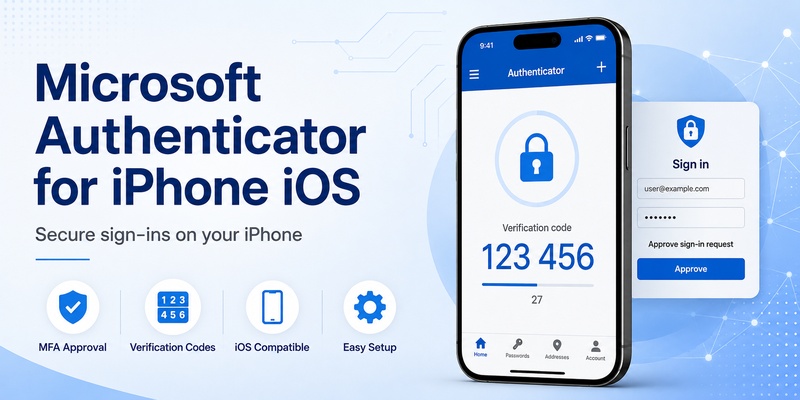
Looking for Microsoft Authenticator for iPhone iOS to protect your Microsoft account, Outlook, Microsoft 365, or other online services? Microsoft Authenticator is a free authentication app that helps secure your accounts with two-factor authentication (2FA), verification codes, push notifications, and supported passwordless sign-in methods.
Whether you’re installing the app for the first time or moving to a new iPhone, setting it up correctly is essential to avoid authentication problems and account lockouts.
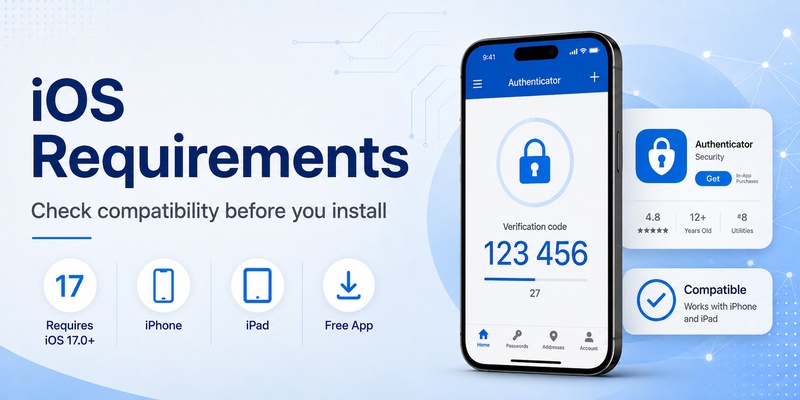
Quick Answer: To download Microsoft Authenticator on iPhone, open the Apple App Store, search for “Microsoft Authenticator,” verify that Microsoft Corporation is the developer, and tap Get. Once installed, open the app, add your Microsoft, work, school, or third-party account, and complete the verification process. The current U.S. App Store listing requires iOS 17.0 or later, although requirements may change with future updates.
This guide explains how to download Microsoft Authenticator app on iPhone, set up two-factor authentication, enable iCloud backup, transfer accounts to a new device, and troubleshoot common iOS issues.
How to Download Microsoft Authenticator App on iPhone
Downloading Microsoft Authenticator for iPhone iOS is straightforward, but you should always use the official Apple App Store rather than third-party download websites.
Step 1: Check Your iPhone’s Compatibility
Before downloading Microsoft Authenticator, confirm that your device meets the application’s current requirements.
As of August 2026, the U.S. App Store listing requires iOS 17.0 or later.
To check your iOS version:
- Open Settings on your iPhone.
- Select General.
- Tap About.
- Find the iOS Version field.
- If necessary, open Settings > General > Software Update to check for available updates.
If your iPhone cannot run the required iOS version, the latest Microsoft Authenticator release may not be available for installation.
Always verify compatibility on the current App Store listing because minimum system requirements can change.
Before proceeding, make sure your iPhone has sufficient storage, a working internet connection, and a secure device passcode.
Step 2: Find the Official Microsoft Authenticator App
Follow these steps to download Microsoft Authenticator app on iPhone:
- Open the App Store.
- Tap Search.
- Enter “Microsoft Authenticator.”
- Select the official Microsoft Authenticator application.
- Verify that the developer is Microsoft Corporation.
- Check the application’s compatibility information.
- Tap Get to begin installation.
- Confirm the download using Face ID, Touch ID, or your Apple Account credentials when requested.
The official application is free to download.
Security tip: Avoid websites that offer unofficial IPA files, configuration profiles, or modified Microsoft Authenticator installers. Always verify the developer before downloading an authentication application.
Step 3: Install and Open Microsoft Authenticator
After the download finishes:
- Locate Microsoft Authenticator on your Home Screen.
- Open the application.
- Review the initial privacy and permission prompts.
- Allow camera access when you need to scan an authentication QR code.
- Enable notifications if you plan to use push authentication.
- Review the app’s security settings.
Microsoft Authenticator may ask you to use Face ID, Touch ID, or your device passcode to protect access to sensitive authentication functions.
Important: Installing the app does not automatically enable two-factor authentication for your accounts. You must connect each account through its official security settings.
Step 4: Verify That the App Is Ready
Before adding important accounts, check that:
- Microsoft Authenticator opens correctly.
- Your iPhone has automatic date and time enabled.
- Notifications are permitted where needed.
- Your device is protected by a passcode.
- You can access the account security settings for the service you want to protect.
If you’re replacing another authenticator, keep the old authentication method active until the new setup has been tested successfully.
For additional information, explore our Microsoft Authenticator download guide.
Secure your accounts with fast, reliable two-factor authentication. Download now and protect your login in seconds.Download Authenticator App
How to Set Up Microsoft Authenticator on iPhone
Once Microsoft Authenticator is installed, you can configure it for personal Microsoft accounts, work or school accounts, and compatible third-party services.
The setup process depends on the account provider and the authentication method being registered.
Set Up a Personal Microsoft Account
To connect your personal Microsoft account:
- Open a browser and visit https://account.microsoft.com/security.
- Sign in to your Microsoft account.
- Open the security settings used to manage sign-in methods.
- Choose the option to add Microsoft Authenticator.
- Open Microsoft Authenticator on your iPhone.
- Tap the option to add an account.
- Select Personal account.
- Follow the sign-in or QR code enrollment instructions.
- Complete the verification request.
- Confirm that the new authentication method appears in your Microsoft account security settings.
Depending on your account configuration, you may be asked to approve a notification, complete number matching, or enter a verification code.
After setup, test a new sign-in before removing any previous authentication method.
Set Up Microsoft Authenticator for Work or School
If you use Microsoft 365, Teams, Outlook, or another organization-managed service, your employer or school may require Microsoft Authenticator.
To register your work or school account:
- Open https://mysignins.microsoft.com/security-info on a trusted browser.
- Sign in with your work or school credentials.
- Select Add sign-in method.
- Choose Microsoft Authenticator if available.
- Open Microsoft Authenticator on your iPhone.
- Tap Add account.
- Select Work or school account.
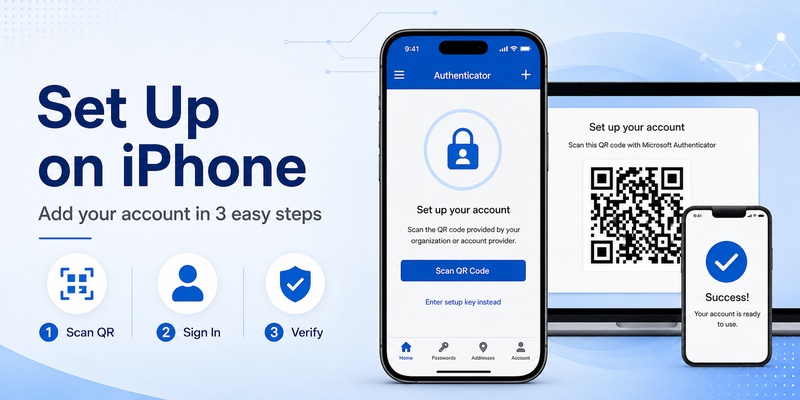
- Scan the QR code displayed by your organization.
- Complete the verification test.
- Confirm that registration succeeds.
Your organization may enforce additional requirements, including device registration, approved authentication methods, or Microsoft Entra security policies.
If Microsoft Authenticator is unavailable as a sign-in method, contact your IT administrator rather than attempting to bypass the organization’s configuration.
For detailed instructions, read our how to use Microsoft Authenticator guide.
Add Third-Party Accounts Using QR Codes
Microsoft Authenticator can also generate verification codes for compatible third-party accounts.
For example, you may use it with services that support standard TOTP authentication.
To add an account:
- Sign in to the website you want to protect.
- Open its security settings.
- Enable two-factor authentication.
- Select an authenticator app as the verification method.
- Display the setup QR code.
- Open Microsoft Authenticator on your iPhone.
- Tap Add account.
- Select Other account.
- Scan the QR code.
- Enter the generated verification code on the website.
Save any backup codes provided by the service.
Never share an authenticator setup QR code or manual setup key because it can allow another person to generate your verification codes.
How to Use Microsoft Authenticator on iOS
After completing setup, Microsoft Authenticator for iPhone iOS can protect your accounts using several authentication methods.
Approve Sign-In Requests With Push Notifications
For supported Microsoft accounts, Microsoft Authenticator can send a push notification when you attempt to sign in.
A typical authentication process works as follows:
- Open Microsoft 365, Outlook, or another supported service.
- Enter your account credentials.
- Wait for the authentication notification on your iPhone.
- Open Microsoft Authenticator.
- Review the account and sign-in request.
- Complete number matching if prompted.
- Approve the request only if you initiated it.
If you receive an unexpected authentication request, deny it and review your account’s recent sign-in activity.
Push authentication requires an internet connection.
Generate Six-Digit Verification Codes
Microsoft Authenticator can generate time-based one-time passwords for supported accounts.
These verification codes typically refresh every 30 seconds.
To use a code:
- Open the website or application you want to access.
- Enter your login credentials.
- Open Microsoft Authenticator.
- Select the appropriate account.
- Find the current verification code.
- Enter the code before it expires.
Unlike push notifications, standard TOTP codes can be generated without an internet connection once the account has been configured.
Use Passwordless Authentication and Passkeys
Microsoft Authenticator also supports passwordless authentication and certain passkey scenarios.
Availability depends on your account type, organization policy, and supported platform configuration.
For example, eligible Microsoft accounts may support sign-in approval through Microsoft Authenticator rather than requiring a traditional password for every login.
Supported Microsoft Entra accounts may also use passkeys registered through Microsoft Authenticator.
These methods are different from ordinary six-digit TOTP codes.
Not every third-party service supports Microsoft Authenticator’s passwordless sign-in features.
Enable App Lock for Additional Security
App Lock helps prevent unauthorized access to Microsoft Authenticator.
When enabled, the application may require Face ID, Touch ID, or your device passcode before allowing access or approval of certain authentication requests.
To review this feature:
- Open Microsoft Authenticator.
- Navigate to Settings.
- Find App Lock if available.
- Enable the setting.
- Test the authentication prompt.
Using App Lock alongside a strong iPhone passcode provides additional protection.
Microsoft Authenticator iPhone Compatibility and Features
Microsoft Authenticator supports several authentication methods, but some features depend on your iOS version, device configuration, and account provider.
Microsoft Authenticator iOS Requirements
The current U.S. App Store listing referenced in August 2026 requires iOS 17.0 or later.
Older versions of Microsoft Authenticator previously supported earlier iOS releases, but historical compatibility information should not be treated as current installation guidance.
If your iPhone runs iOS 16, check whether it can be updated before attempting to install the latest app.
Microsoft also recommends keeping Authenticator updated and does not support app versions that are more than one year old.
Does Microsoft Authenticator Work on iPad?
Microsoft Authenticator is also available for supported iPad devices.
However, compatibility requirements and authentication features should be checked against the current App Store listing.
If you use both an iPhone and an iPad, do not assume that installing the application on the second device automatically transfers every authentication credential.
Some accounts require separate registration.
Does Microsoft Authenticator Work on Apple Watch?
Microsoft Authenticator does not currently support Apple Watch as a standalone authentication device.
Although certain notifications may be mirrored from an iPhone to a connected Apple Watch, this is not equivalent to running the full Microsoft Authenticator authentication process on the watch.
For supported sign-in approvals, your registered iPhone remains the primary authentication device.
Can Microsoft Authenticator Autofill Passwords on iPhone?
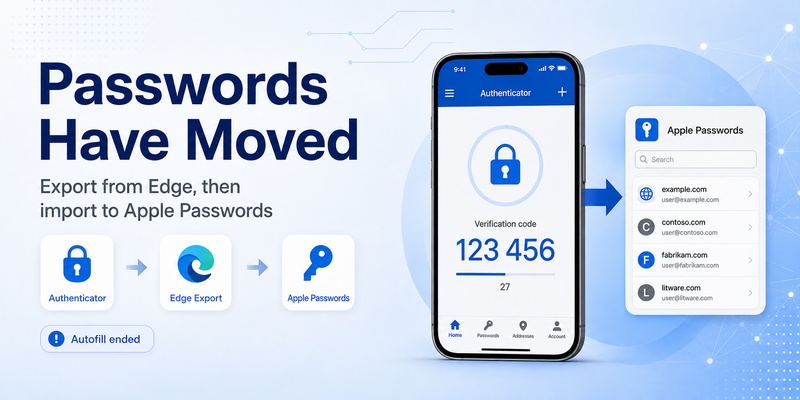
Microsoft discontinued password autofill functionality in Authenticator during 2025.
As a result, Microsoft Authenticator should no longer be treated as a password autofill application.
Users who previously stored passwords through Microsoft’s synchronization services can access supported saved passwords through Microsoft Edge.
For iPhone password management, Apple Passwords and other compatible password managers are available.
If you plan to move passwords from Microsoft Edge to Apple Passwords, follow the official export and import instructions and securely delete any unencrypted export files afterward.
Remember that transferring passwords is different from transferring authenticator accounts.
How to Back Up and Transfer Microsoft Authenticator to a New iPhone
If you are upgrading your iPhone, preparing Microsoft Authenticator backup and recovery is essential.
Simply downloading the application on a new phone does not guarantee that every account will work immediately.
Enable Microsoft Authenticator iCloud Backup
Microsoft’s current iOS backup instructions rely on iCloud services.
Before replacing your iPhone:
- Open iPhone Settings.
- Confirm that iCloud Drive is enabled.
- Enable iCloud Keychain.
- Confirm that iCloud Backup is enabled.
- Open the Saved to iCloud app list.
- Find Microsoft Authenticator.
- Enable iCloud access for Authenticator.
- Update Microsoft Authenticator.
- Open the application at least once before changing phones.
The exact Settings labels may vary by iOS version.
Restore Microsoft Authenticator on a New iPhone
To restore supported authentication information:
- Keep your old iPhone accessible if possible.
- Prepare your new iPhone using the same relevant Apple Account and iCloud configuration.
- Install Microsoft Authenticator from the App Store.
- Follow the available recovery instructions.
- Restore supported account information.
- Sign in again to accounts that require reauthentication.
- Test important authentication methods before resetting the old phone.
Microsoft Authenticator backups are platform-specific.
An iOS backup cannot be directly restored to an Android device using the same recovery workflow.
Which Accounts Can Be Restored?
Not all account types restore in the same way.
| Account type | Recovery behavior |
|---|---|
| Third-party TOTP accounts | Supported codes may be restored |
| Microsoft personal accounts using only OTP | Supported OTP information may be restored |
| Microsoft personal accounts with passwordless sign-in | May require signing in again |
| Work or school accounts | Account name may restore, but reauthentication is required |
For work or school accounts, your IT administrator may need to help re-register authentication methods.
Do not remove your old device until the new one successfully completes sign-in requests.
Remove Microsoft Authenticator From an Old iPhone
After verifying that your new iPhone works correctly:
- Review the authentication methods associated with your accounts.
- Remove outdated device registrations where appropriate.
- Confirm that the new device remains registered.
- Save or verify alternative recovery methods.
- Remove the application from the old phone.
- Erase the old device only after confirming account access.
Deleting Microsoft Authenticator from an old iPhone does not necessarily unregister that device from every Microsoft account or organization.
For more information, read our Microsoft Authenticator recovery guide.
Common Microsoft Authenticator iPhone Problems
Even after downloading and configuring Microsoft Authenticator, some iPhone users encounter installation, notification, or authentication errors.
Microsoft Authenticator Not Downloading on iPhone
If Microsoft Authenticator will not download:
- Confirm that your iPhone meets the minimum iOS requirement.
- Check your internet connection.
- Verify that your App Store region supports the application.
- Review available storage.
- Check Screen Time or device management restrictions.
- Restart the App Store and try again.
Avoid downloading unofficial application packages to bypass compatibility or organization restrictions.
Microsoft Authenticator Notifications Not Working
If authentication requests do not appear:
- Open iPhone Settings.
- Select Notifications.
- Find Microsoft Authenticator.
- Confirm that notifications are allowed.
- Review Focus and notification summary settings.
- Check your internet connection.
- Update Microsoft Authenticator.
If the account is managed by an organization, its authentication policy may affect available notification methods.
Microsoft Authenticator Code Not Working
If your verification code is rejected:
- Confirm that you selected the correct account.
- Enable automatic date and time.
- Wait for the next verification code.
- Enter the code before it expires.
- Confirm that the account setup was completed successfully.
Do not repeatedly remove and recreate accounts unless you have another working recovery method.
Microsoft Authenticator Keeps Asking for Approval
Repeated authentication prompts can occur because of interrupted sign-ins, account configuration issues, or authentication loops.
If Microsoft Authenticator repeatedly opens without completing sign-in:
- Update iOS and Microsoft Authenticator.
- Check network connectivity.
- Restart the affected application.
- Confirm that the account is registered correctly.
- Try an approved alternative verification method.
- Contact your IT administrator if the issue affects a managed account.
Never approve an unexpected authentication request simply to stop repeated notifications.
Microsoft Authenticator Not Working After Changing iPhones
If Microsoft Authenticator stops working after switching devices, the account may still be associated with your previous phone.
Restoring an account name does not always restore its authentication registration.
For personal accounts, review your Microsoft account security settings.
For work or school accounts, you may need to re-register the device or contact your IT administrator.
For further troubleshooting, see our Microsoft Authenticator not working guide.
Frequently Asked Questions
Is Microsoft Authenticator available for iPhone?
Yes. Microsoft Authenticator is available for supported iPhone devices through Apple’s App Store. The official developer is Microsoft Corporation.
How do I download Microsoft Authenticator app on iPhone?
Open the App Store, search for Microsoft Authenticator, verify that Microsoft Corporation is the developer, and tap Get. After installation, open the app and configure your accounts.
Is Microsoft Authenticator free on iPhone?
Yes. Microsoft Authenticator is free to download and use for standard authentication features. Some associated enterprise identity services may have separate licensing requirements.
What iOS version does Microsoft Authenticator require?
The U.S. App Store listing referenced in August 2026 requires iOS 17.0 or later. Check the current listing because compatibility requirements may change.
Can I use Microsoft Authenticator on iOS 16?
The latest version may not be available for installation on iOS 16. Check the App Store requirements and determine whether your iPhone supports a newer iOS version.
How do I set up Microsoft Authenticator on iPhone?
Install the official application, open the security settings of the account you want to protect, add Microsoft Authenticator as a verification method, and complete the enrollment process.
Can I use Microsoft Authenticator without internet?
Yes. Standard TOTP verification codes can be generated offline after setup. Push notifications and some account registration features require internet connectivity.
Can I use Microsoft Authenticator on two iPhones?
You may be able to register multiple devices depending on the account provider and authentication method. However, installing the app on a second iPhone does not automatically make every account usable there.
Does Microsoft Authenticator work on Apple Watch?
Microsoft Authenticator does not currently support Apple Watch as a standalone authentication device. Some notifications may be mirrored, but the iPhone remains the primary authentication device.
Can Microsoft Authenticator save passwords on iPhone?
Microsoft Authenticator’s password autofill functionality was discontinued in 2025. Users should use a supported password manager for password storage and autofill.
How do I transfer Microsoft Authenticator to a new iPhone?
Prepare iCloud backup on your old iPhone, install Microsoft Authenticator on the new device, follow the recovery process, and reauthenticate accounts when required. Test everything before removing the old phone.
Why is Microsoft Authenticator not sending notifications?
Common causes include disabled notification permissions, Focus settings, connectivity problems, outdated software, or account-specific authentication policies.
Can Microsoft Authenticator protect Gmail or Facebook?
Yes. Microsoft Authenticator can generate standard TOTP verification codes for compatible third-party services, including those that support authenticator-based two-factor authentication.
Conclusion
Microsoft Authenticator for iPhone iOS is a free authentication application that helps protect Microsoft accounts, work and school services, and compatible third-party websites.
To get started, download Microsoft Authenticator from the official Apple App Store, verify the publisher, install the app, and register each account through its security settings.
For long-term account security, enable appropriate device protection, prepare iCloud backup, and maintain alternative recovery methods before changing phones.
If you experience authentication problems, troubleshoot your iPhone settings and account registration before deleting the application.
For additional security tutorials, explore our Microsoft Authenticator setup guide and other resources on Authenticator App.
Download Authenticator App
Secure your accounts with fast, reliable two-factor authentication. Download now and protect your login in seconds.
