
Microsoft Authenticator Desktop: Complete PC & Mac Guide
Published August 13, 2026 · Updated August 20, 2026
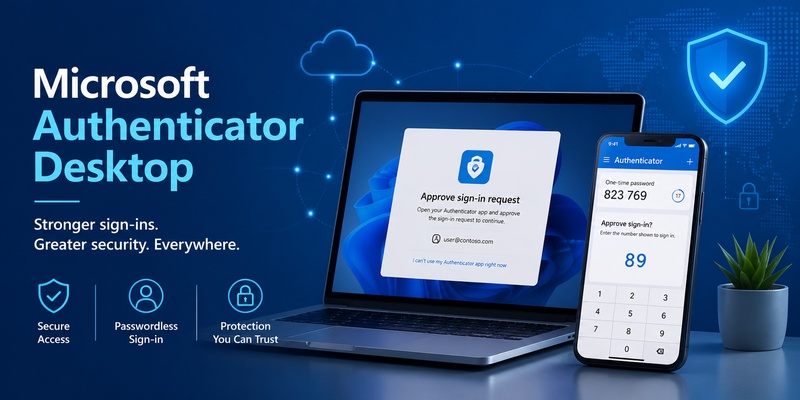
Searching for microsoft authenticator desktop usually starts with a simple question: can Microsoft Authenticator be installed directly on a Windows PC or Mac? The answer is more nuanced than many users expect.
Microsoft Authenticator is an important part of Microsoft’s multi-factor authentication and passwordless sign-in ecosystem, but Microsoft currently distributes the official Authenticator application for iOS and Android rather than Windows or macOS. Microsoft explicitly states that the app is not available for PC or Mac.
That does not mean desktop users cannot use Authenticator. In practice, a computer is often where the login begins, while the smartphone running Microsoft Authenticator becomes the separate device that confirms identity.
This guide explains how microsoft authenticator desktop workflows operate, how to set them up correctly, what desktop alternatives are available, and why downloading unofficial desktop versions may create unnecessary security risks.
1. What Is Microsoft Authenticator Desktop?
Understanding what users mean by the term
The phrase microsoft authenticator desktop can be slightly misleading because it sounds like the name of a dedicated Windows application.
In most cases, users searching for the term actually want one of several things:
- Approve a Microsoft account login that starts on a desktop.
- Generate a verification code while using a computer.
- Sign in to Microsoft 365 or another service from Windows.
- Find a microsoft authenticator for desktop download.
- Access passwords previously associated with Microsoft Authenticator.
- Avoid repeatedly reaching for a phone during desktop login.
The important distinction is that Microsoft Authenticator remains a mobile application. Microsoft’s documentation describes it as being available for Android and iOS and supporting MFA, verification codes, passwordless sign-in, notifications, and passkeys.
Therefore, microsoft authenticator desktop is better understood as a desktop authentication workflow rather than a standalone desktop product.
Why the phone remains part of the process
Using two different devices can feel less convenient than keeping everything on one computer, but the separation has a security purpose.
Microsoft explains that keeping the authentication factor on a smartphone separates it from the desktop where the password or initial login may be entered. If both elements were stored on the same compromised computer, an attacker could potentially gain access to both factors.
This separation is one of the reasons the standard microsoft authenticator desktop experience consists of a PC plus a phone rather than a PC-only setup.
Download Authenticator App
Secure your accounts with fast, reliable two-factor authentication. Download now and protect your login in seconds.
🛠️ Learn with Step-by-Step Guides: Microsoft Authenticator: Complete Setup, Login, Backup & Troubleshooting Guide
2. Is Microsoft Authenticator Available for Desktop?
Is there an official Windows or Mac application?
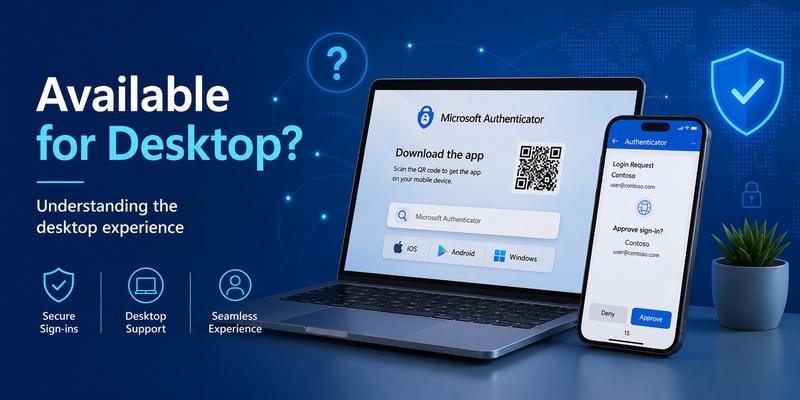
At present, there is no official microsoft authenticator desktop app for Windows PCs or Macs.
Microsoft’s official download page specifically states that Microsoft Authenticator is not available for PC or Mac and provides installation options for iOS and Android instead.
This means that if you search the Microsoft Store, software download websites, or the web for a native microsoft authenticator desktop installer, you should not expect to find an official Windows .exe or native macOS edition from Microsoft.
This distinction matters because search results can sometimes include third-party applications using similar terms such as “Microsoft authenticator PC,” “desktop OTP,” or “Authenticator for Windows.” Their names do not mean they are the official Microsoft application.
Why Microsoft does not provide a desktop edition
Microsoft gives two main reasons for keeping Authenticator on mobile devices.
First is security. A separate device makes the second authentication factor more independent from the computer being accessed.
Second is availability. Smartphones tend to remain with the user, whereas a desktop computer may only be available at a particular location.
For this reason, anyone searching for microsoft authenticator on computer should distinguish between using Authenticator with a computer and installing Authenticator on that computer.
The first is officially supported. The second is not the normal Microsoft implementation.
3. How Microsoft Authenticator Desktop Sign-In Actually Works
The computer starts the authentication request
A normal microsoft authenticator desktop workflow begins in a browser, Windows application, Microsoft 365 service, VPN portal, enterprise application, or another login interface.
For example, you may:
- Open the service on your PC.
- Enter your Microsoft account email.
- Continue to the verification stage.
- Choose or receive an Authenticator request.
- Check Microsoft Authenticator on your phone.
- Confirm the request.
- Continue using the service on the computer.
Microsoft’s current sign-in instructions explain that after entering the username, users can choose to send a notification to Authenticator. The desktop may display a number that must be matched or entered in the mobile app before the request is approved.
The desktop remains the destination, while authentication is completed from the mobile device.
Verification codes can also be used
Notifications are not the only way microsoft authenticator desktop authentication can work.
Microsoft Authenticator can generate OATH verification codes that users type into the login interface. Microsoft notes that these codes can function as another authentication method during MFA.
One useful difference is connectivity. Microsoft states that verification codes do not require an internet or mobile-data connection, while receiving and responding to push sign-in notifications does require connectivity.
Therefore, if your desktop shows a field requesting a verification code, open the authenticator app on your registered mobile device, locate the relevant account, and enter the current code into the computer.
💡 Discover Helpful Guides: Microsoft Multi Factor Authentication: Complete MFA Guide
4. How to Set Up Microsoft Authenticator for Desktop Sign-In
Step 1: Install the official mobile application
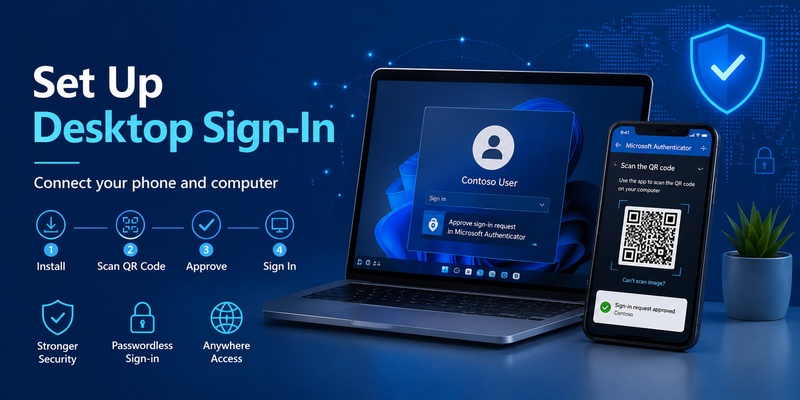
Before using microsoft authenticator desktop sign-in, install Microsoft Authenticator on a supported iOS or Android device.
Avoid downloading an application simply because its name resembles Microsoft Authenticator. For account security, use the official Microsoft application distributed through the appropriate mobile app store.
Microsoft currently describes Authenticator as a mobile application and directs users to iOS or Android installation options.
This is equally important if your original search was microsoft authenticator app laptop. The laptop can be the device you sign into, but the Authenticator application itself should normally remain on your phone.
Step 2: Add your account
After installing Authenticator, connect your Microsoft personal account, work account, or school account according to the instructions displayed by the service.
Depending on the account configuration, setup may involve:
- Signing into the account.
- Scanning a QR code displayed on the desktop.
- Registering Authenticator as an authentication method.
- Confirming a test notification.
- Enabling passwordless sign-in if supported.
Your organization may control which authentication options are permitted for work or school accounts.
Once registration is complete, microsoft authenticator desktop authentication can be initiated whenever the corresponding account requires additional verification.
Step 3: Test the desktop login
Open the relevant service on your computer and attempt to sign in.
When Microsoft requests verification, follow the desktop instructions and check your phone. If number matching is displayed, confirm that the number on the phone corresponds to the one shown on your desktop.
Never approve an unexpected request.
A microsoft authenticator desktop workflow should begin with a login you intentionally initiated. An unexplained authentication notification can indicate that someone else is attempting to access your account.
💡 Discover Helpful Guides: Microsoft Authenticator Keeps Asking for Approval: Causes and Fixes
5. Using Microsoft Authenticator with Windows and Mac
Microsoft Authenticator with Windows PCs
You do not need a native microsoft authenticator desktop program for the service to protect accounts accessed from Windows.
The PC can display the authentication challenge while your smartphone handles approval.
This arrangement works naturally when accessing browser-based Microsoft services or applications that use Microsoft authentication.
Users looking for a microsoft authenticator for desktop solution should therefore consider the computer and mobile app as two parts of the same sign-in process rather than attempting to move everything onto Windows.
Windows also supports its own device-based authentication technologies, including Windows Hello and passkeys. Microsoft explains that supported passkeys can be used on a computer with a PIN, fingerprint, or facial recognition.
These features do not convert Microsoft Authenticator into a Windows program, but they can reduce dependence on passwords in compatible login scenarios.
Microsoft Authenticator with a Mac
The same basic principle applies to macOS.
There is no official Mac version of the microsoft authenticator desktop app. Instead, users generally sign in on the Mac and respond to Microsoft Authenticator from an iPhone or Android device.
For example, you could open Microsoft 365 in a browser on a MacBook, enter your account information, and then approve the authentication request from the phone.
Consequently, microsoft authenticator desktop does not require Windows specifically. The desktop operating system is less important than whether the website or application supports the authentication method configured on your account.
6. Desktop Alternatives and Microsoft Password Manager
Do not confuse Authenticator with password management
Older information about microsoft authenticator desktop can be confusing because Microsoft Authenticator previously included password and autofill features.
That workflow has changed.
Microsoft states that Authenticator autofill stopped working beginning in July 2025 and passwords became inaccessible from Authenticator from August 2025. Saved passwords and addresses synced to a Microsoft account remain accessible through Microsoft Edge.
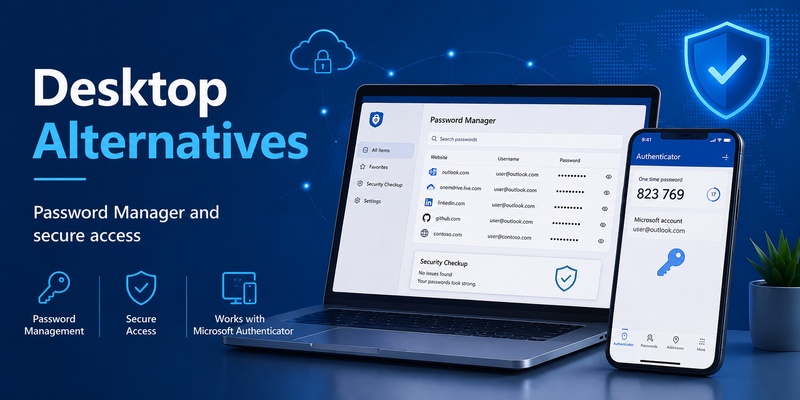
Therefore, users searching for microsoft authenticator on computer because they want to access saved passwords should look at Microsoft Password Manager in Edge rather than trying to install Authenticator on Windows.
This is an important difference:
- Microsoft Authenticator handles authentication functions on supported mobile devices.
- Microsoft Password Manager handles passwords and supported passkeys through Edge and Windows integrations.
They are related parts of Microsoft’s identity ecosystem, but they are not the same product.
Using Microsoft Password Manager on a desktop
Microsoft Password Manager can be accessed from Microsoft Edge when signed in with an eligible Microsoft account profile.
Microsoft’s current instructions direct users to Edge Settings, then Passwords and autofill, and then Microsoft Password Manager. Passkeys stored through Microsoft Password Manager can also be accessed through supported Windows Settings options.
If your reason for wanting microsoft authenticator desktop is simply easier password access from a computer, this desktop password-management workflow may solve the underlying problem without trying to replicate the mobile Authenticator app.
For authentication approvals, however, Microsoft Authenticator remains relevant.
🛠️ Learn with Step-by-Step Guides: Microsoft Authenticator: Complete Setup, Login, Backup & Troubleshooting Guide
7. Is It Safe to Run Microsoft Authenticator Directly on a PC?
Be careful with unofficial downloads
Search engines may return software claiming to provide microsoft authenticator desktop functionality.
Before installing anything, check whether the application actually comes from Microsoft.
Because Microsoft says Authenticator itself is not available for PC or Mac, a website offering a supposed “official Microsoft Authenticator Windows download” deserves additional scrutiny.
Authentication applications can hold highly sensitive secrets. A malicious or poorly secured application with access to TOTP secrets or account authentication information could undermine the protection that MFA is intended to provide.
For that reason, using an unofficial program merely to avoid opening your phone is usually not a worthwhile trade-off.
What about Android emulators?
Technically, some users may consider installing an Android emulator and attempting to run a mobile authenticator app on a computer.
However, this is not equivalent to Microsoft providing an official microsoft authenticator desktop version.
It can also weaken the separation between the primary login device and the authentication device. If the password, active session, and second-factor application are all stored on the same computer, compromising that computer potentially exposes more elements of the sign-in process.
Microsoft specifically identifies separate-device security as one reason Authenticator is designed for smartphones.
For security-sensitive accounts, the normal mobile setup remains the safer approach.
💡 Discover Helpful Guides: Google Authenticator for PC Free Download: Full Guide For Everyone
8. Microsoft Authenticator Desktop for Work and School Accounts
Enterprise authentication may be controlled by administrators
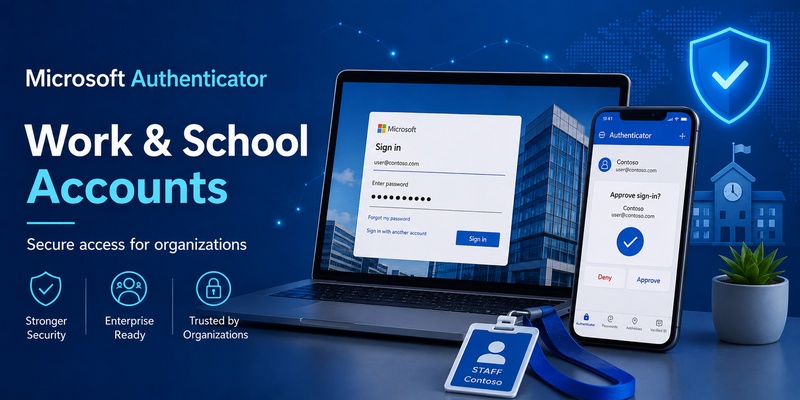
Work and school environments often rely heavily on microsoft authenticator desktop login flows because employees use Microsoft 365, Entra-connected applications, remote desktops, VPN systems, or other company services from computers.
However, users may not be able to choose every verification method themselves.
Microsoft Entra administrators can control authentication policies available within an organization. Authenticator can support MFA notifications, passwordless authentication, verification codes, and passkeys depending on the configuration.
Therefore, if your company computer requests Authenticator every time you sign in, installing another authentication application on the PC is not necessarily a valid way to change the process.
The authentication requirement may be part of your organization’s security policy.
Remote computer setup
There are also scenarios where a work or school account can be configured using another computer during Authenticator setup.
Microsoft documents a “Sign in from another device” process for eligible work or school users when administrators have enabled remote sign-in. The user starts the setup in Authenticator, receives a code, and completes part of the sign-in on another device such as a PC.
Again, this illustrates how microsoft authenticator desktop functions as a coordinated mobile-and-computer workflow rather than as a standalone PC application.
If organizational requirements are creating accessibility or device-availability problems, contact the IT administrator instead of attempting to bypass the configured authentication method.
📘 Find the Right Guide: Microsoft Authenticator App Not Showing Code: How to Fix It
9. Troubleshooting Microsoft Authenticator Desktop Problems
No notification appears on the phone
One common microsoft authenticator desktop issue occurs when the computer asks the user to approve a request but nothing appears on the phone.
First, confirm that the smartphone has internet access. Microsoft states that push sign-in notifications and responses require connectivity.
Then check:
- Whether notifications are enabled.
- Whether the correct Microsoft account is registered.
- Whether the phone’s date and time settings are correct.
- Whether Authenticator is updated.
- Whether the login page offers another verification option.
If the system displays an OTP field instead, you may be able to open Authenticator manually and enter the generated code.
The number on the desktop does not match
Number matching is designed to make authentication requests more deliberate.
During a microsoft authenticator desktop login, the computer may show a number while Authenticator asks you to select or enter the corresponding value. Microsoft documents this process as part of its Authenticator sign-in flow.
If the numbers do not correspond, do not approve the request.
Cancel the login and start again. More importantly, if you did not initiate the sign-in at all, deny the request.
You changed phones
Moving to a new smartphone can affect your Authenticator configuration.
Do not erase or trade in the previous device until you know that important authentication methods have been transferred, restored, or re-registered successfully.
Work and school accounts may require additional registration controlled by the organization’s administrator.
Your computer does not automatically become a backup microsoft authenticator desktop device simply because you previously used the account on that PC.
You cannot access your phone
Loss, damage, or temporary lack of access to the registered phone can make MFA difficult.
The available recovery process depends on the account and authentication methods configured beforehand.
You may see alternative verification choices on the desktop login screen. For an organizational account, the IT department may also need to reset or update authentication methods.
This is another reason to configure approved recovery options before an emergency rather than relying on an unofficial microsoft authenticator app laptop solution.
💡 Discover Helpful Guides: Microsoft Authenticator for iPhone iOS: Complete Guide 2026
10. Microsoft Authenticator Desktop FAQ
Can I download Microsoft Authenticator on Windows 11?
No official microsoft authenticator desktop application is currently provided for Windows 11. Microsoft explicitly states that Microsoft Authenticator is unavailable for PC and Mac and directs users to the iOS and Android versions.
You can still use a Windows 11 computer to initiate sign-ins that are approved through Authenticator on your phone.
Is there a Microsoft Authenticator extension for Chrome?
Microsoft’s official microsoft authenticator desktop model should not be confused with third-party browser authenticator extensions.
If a Chrome extension generates OTP codes, that does not automatically make it an official Microsoft Authenticator product.
Always verify the developer and permissions before trusting a browser extension with authentication secrets.
Can I use Microsoft Authenticator without my phone?
For Microsoft Authenticator itself, you normally need a supported mobile device because the official application is designed for iOS and Android.
However, your account may support other sign-in methods such as Windows Hello, passkeys, security keys, recovery options, or organization-approved authentication methods.
These alternatives do not create a microsoft authenticator desktop application; they provide different ways to authenticate.
Can Microsoft Authenticator generate codes without internet?
Yes. Microsoft states that verification codes do not require an internet or mobile-data connection. Push notifications and sign-in responses, however, do require connectivity.
This makes offline verification codes useful when the desktop has internet access but the phone has limited connectivity.
Can Microsoft Authenticator approve a login on my laptop?
Yes. This is one of the most common ways to use microsoft authenticator desktop authentication.
Start the login on your laptop, then approve the request or complete number matching through Authenticator on your registered smartphone.
Is Microsoft Authenticator the same as Microsoft Password Manager?
No.
Microsoft Authenticator focuses on authentication capabilities, while passwords that were previously accessible through Authenticator have moved into Microsoft’s Edge-based password-management experience. Microsoft confirms that passwords synced to Microsoft accounts remain accessible through Edge after Authenticator’s autofill changes.
This distinction is especially important when deciding what you actually need from microsoft authenticator desktop.
11. Final Thoughts
The most important thing to understand about microsoft authenticator desktop is that it is not currently a separate Windows or Mac application.
Microsoft Authenticator remains a mobile application for iOS and Android. When you sign in from a computer, the desktop usually initiates the request while the phone provides the additional authentication step. Microsoft specifically cites security and portability as reasons for keeping Authenticator on smartphones rather than desktops.
For everyday use, the safest setup is straightforward: install the official Microsoft Authenticator application on a supported phone, register the necessary accounts, and use it to approve sign-ins started from your PC or Mac.
If your goal is password access rather than MFA approval, Microsoft Password Manager in Edge is now the more relevant desktop tool. If you want passwordless login directly from a Windows computer, supported passkeys and Windows Hello may also provide a more suitable experience than searching for an unofficial Authenticator download.
Ultimately, microsoft authenticator desktop works best when the computer and smartphone remain separate parts of the same security process. That approach may require one extra device during login, but it preserves the central benefit of multi-factor authentication: proving your identity with something beyond the credentials entered on the computer itself.
Download Authenticator App
Secure your accounts with fast, reliable two-factor authentication. Download now and protect your login in seconds.
