
Facebook Authenticator: Complete Setup, QR Code & 2FA Troubleshooting Guide
Published August 10, 2026 · Updated October 1, 2026
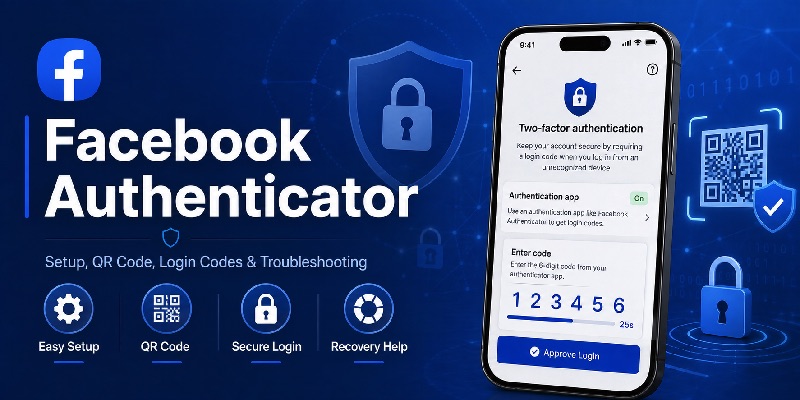
If you search for Facebook Authenticator, you may expect to find a separate authenticator app made by Facebook. In practice, Facebook lets you connect a third-party authenticator app to your account as a two-factor authentication method.
Once connected, the authenticator generates temporary verification codes. Facebook may ask for one of these codes when you sign in, especially from a device or browser it does not recognize.
In short: you do not need a special “Facebook Authenticator” app. You need a compatible authenticator app and then connect it through Facebook’s two-factor authentication settings.
1. What Is Facebook Authenticator?
Facebook uses third-party authentication apps
If you are searching what is facebook authenticator app, the most important thing to know is that “Facebook Authenticator” is not currently the name of a dedicated authentication application published by Meta for normal Facebook 2FA.
Facebook instead supports third-party authentication applications.
Meta explains that an authentication app can generate login codes that help Facebook confirm your identity when you log in.
In practical terms, facebook authenticator describes the connection between your Facebook account and whichever compatible authenticator you have chosen.
The process normally works like this:
- You enable two-factor authentication in Facebook.
- You choose Authentication app as the security method.
- Facebook provides setup information.
- You add that information to your authentication application.
- The app begins generating security codes.
- Facebook asks for one of those codes when additional verification is required.
Once this relationship has been established, your facebook authenticator app and Facebook both know the information needed to verify the temporary login code.
Why use Facebook Authenticator?
Two-factor authentication adds another security step after your password.
Meta states that when 2FA is enabled, Facebook can ask for a security code or confirmation when someone attempts to log in from a browser or mobile device that Facebook does not recognize.
This means a password by itself may not be sufficient to complete the sign-in.
A facebook authenticator is therefore useful because possession of the registered authentication method becomes another part of the login process.
It is especially worth considering if your Facebook account:
- Manages Pages.
- Has advertising access.
- Contains years of personal data.
- Is connected to business assets.
- Uses Messenger extensively.
- Is connected to other Meta accounts.
However, facebook authenticator is most effective when you also prepare account-recovery methods in advance.
💡 Discover Helpful Guides: Facebook Authenticator App Download: Safe Setup Guide for iPhone & Android
2. Does Facebook Have Its Own Authenticator App?
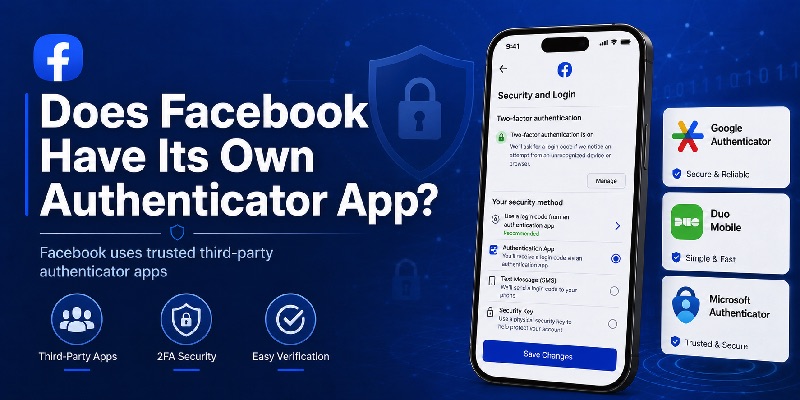
There is no separate Facebook Authenticator download
A common misconception is that users should search an app store for a dedicated facebook authenticator app.
Meta’s current instructions say to install a third-party authentication app and connect that application to Facebook.
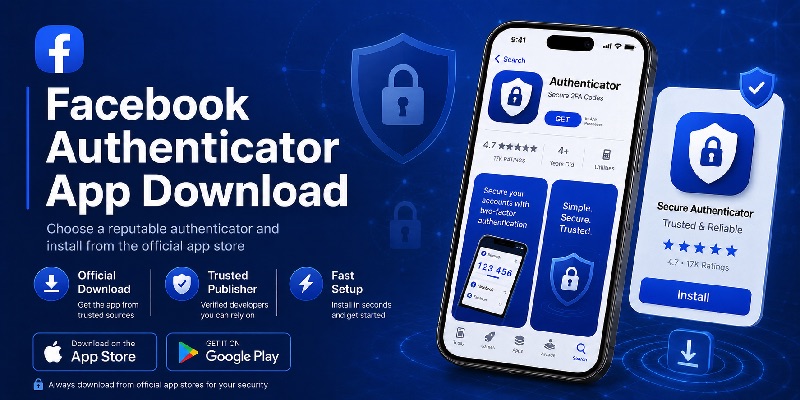
Therefore, when completing a facebook authenticator app download, you should choose a reputable compatible authentication application rather than searching for an unofficial application that happens to call itself “Facebook Authenticator.”
Examples referenced in Meta’s own Help Center include applications such as Google Authenticator and Duo Mobile. When troubleshooting a lost authentication method, Meta also mentions setting up another authentication application.
Other compatible TOTP applications may also work.
Why does Facebook use third-party apps?
This approach is common across online services.
Rather than requiring one authenticator application for every website, a single Authenticator App can hold authentication entries for multiple services.
For example, the same authentication application may contain entries for:
- Cloud storage
- Gaming services
- Social media
- Developer platforms
Each account remains a separate entry.
Your facebook authenticator code is therefore not automatically the same as a code for another account, even when both codes appear inside the same application.
Avoid unofficial “Facebook Authenticator” applications
If you search an app store for facebook authenticator, multiple unrelated applications may appear.
Do not assume that an application is published by Meta because “Facebook” or “authenticator” appears in its title or description.
Instead:
- Begin from Facebook’s 2FA settings.
- Choose Authentication app.
- Use a reputable authenticator.
- Verify the authenticator’s developer.
- Scan the setup information supplied by Facebook itself.
This reduces the chance of giving sensitive authentication information to an unknown application.
📘 Find the Right Guide: Facebook Authenticator QR Code: Where to Find, Scan, and Fix It
3. How Facebook Authenticator and 2FA Work
When you enable an authentication app for Facebook, Facebook and your authenticator establish a connection during setup.
Afterward, your authenticator displays a temporary code associated with your Facebook account.
For example, your app may display:
Facebook
482 193
The number changes periodically.
If Facebook asks for additional verification during login, open your authenticator, find the Facebook entry, and enter the current code.
The authenticator does not need to know your Facebook password. Its job is simply to generate the verification code associated with the account setup.
This gives Facebook another way to confirm that the person entering the password also has access to the configured authentication method.
📖 Read More Guides: Facebook Authenticator Code Not Working: Causes and Fixes
4. How to Set Up Facebook Authenticator
Facebook currently manages two-factor authentication through Accounts Center for many users.
The interface can vary slightly between Facebook on desktop, Android, and iPhone, but the general setup process is similar.
Step 1: Open Facebook Security Settings
Log in to Facebook and open:
Settings & privacy → Settings → Accounts Center → Password and security → Two-factor authentication
Select the Facebook account you want to protect.
If you manage several Facebook or Meta accounts, make sure you select the correct profile before continuing.
Step 2: Choose Authentication App
Facebook may offer several authentication methods.
Select Authentication app.
Facebook will then provide the information needed to connect your account to an authenticator.
Depending on the device and interface, you may be shown a QR code, setup key, or instructions for opening an authenticator application.
Step 3: Add Facebook to Your Authenticator
Open your authenticator app and select the option to add a new account.
Typical options include:
- Scan QR code
- Add account
- Enter setup key
Use the information displayed by Facebook.
Once the setup information has been added successfully, a Facebook entry should appear in your authenticator with a changing verification code.
Step 4: Verify the Code on Facebook
Return to Facebook.
Facebook normally asks you to enter a code generated by the authenticator to confirm that the connection works.
Open your authenticator, locate the Facebook entry, and enter the current code.
Complete the setup only after Facebook confirms that two-factor authentication is active.
5. How to Use Facebook Authenticator When Logging In
After setup, you usually do not need to open the authenticator every time you use Facebook.
Facebook may request additional verification when it considers a login unfamiliar or otherwise requires a security check.
When Facebook asks for an authenticator code:
- Open your authenticator app.
- Find the entry associated with Facebook.
- Copy or remember the current verification code.
- Return to Facebook.
- Enter the code before it changes.
- Continue signing in.
If you have several Facebook accounts inside the same authenticator, check the account label carefully. Using a valid code from the wrong Facebook entry will still cause verification to fail.
Download Authenticator App
Secure your accounts with fast, reliable two-factor authentication. Download now and protect your login in seconds.
💡 Discover Helpful Guides: How to Set Up Facebook Authenticator: Step-by-Step 2FA Guide
6. How to Find and Scan the Facebook Authenticator QR Code
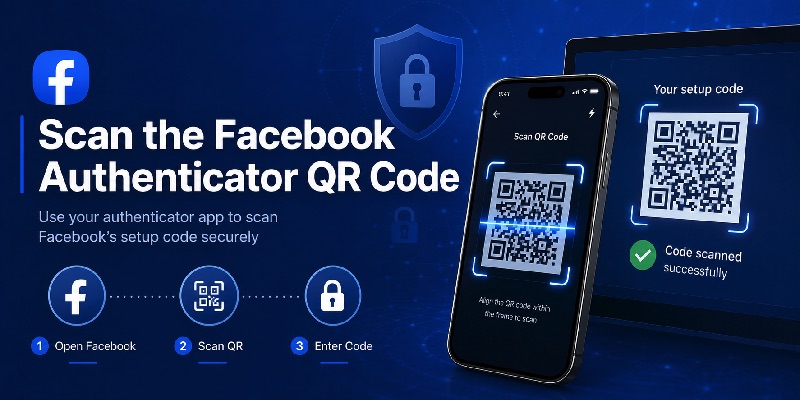
Where does the QR code come from?
The facebook authenticator qr code should come from Facebook’s own two-factor authentication setup process.
Do not search Google Images or another website for a generic Facebook QR code.
Authentication setup information is linked to your account.
To reach the setup flow:
- Open Facebook Settings.
- Go to Accounts Center.
- Select Password and security.
- Choose Two-factor authentication.
- Select your Facebook account.
- Choose Authentication app.
- Continue through the setup instructions.
When the appropriate setup information appears, use your authentication application’s scanner.
Scan from another screen
The easiest way to use a facebook authenticator qr code is often to display Facebook’s setup page on a computer while using your phone as the authentication device.
On the phone:
- Open the authenticator.
- Select Add account.
- Choose Scan QR code.
- Point the camera at the Facebook QR code.
- Wait for the Facebook entry to appear.
- Enter the generated code back into Facebook.
Your phone may ask for camera permission before scanning.
Treat the QR code as sensitive
An authentication setup QR code should not be treated like an ordinary promotional QR code.
Do not publish screenshots of your facebook authenticator enrollment screen.
Do not send the QR setup information to strangers or people claiming they need it to “verify” your Facebook account.
The safest practice is to generate the setup information directly inside Facebook and scan it immediately with the authenticator you control.
7. Where Is the Facebook Authenticator QR Code?
The QR code is generated during the authentication app setup process inside Facebook.
It is not a public QR code that you should search for online.
Go to Facebook’s two-factor authentication settings, choose Authentication app, and follow the setup flow.
The QR code or equivalent setup information links your authenticator with that specific Facebook account.
Because that information can be used to generate verification codes, treat it as sensitive information.
Do not share screenshots of your setup QR code publicly.
If your main problem is locating, scanning, or troubleshooting the QR code, see our complete guide:
Facebook Authenticator QR Code: Where to Find, Scan, and Fix It
🗺️ Browse How-To Guides: What Is Facebook Authenticator App? A Clear Guide
8. What If the Facebook Authenticator Code Does Not Work?
First, avoid immediately deleting the Facebook entry from your authenticator.
A rejected code can happen because:
- The current code expired before you submitted it.
- You selected the wrong Facebook account in your authenticator.
- Your phone’s date or time is incorrect.
- The authenticator contains an older Facebook setup.
- You changed phones without transferring or reconnecting the authenticator.
Try a newly generated code first and confirm that you are using the correct Facebook entry.
If Facebook continues rejecting valid-looking codes, troubleshoot the issue before removing your existing authentication method.
For step-by-step fixes, see:
Facebook Authenticator Code Not Working: Causes and Fixes
9. Can I Use Facebook Authenticator Without Internet?
Authenticator apps that generate time-based verification codes can typically generate those codes locally after the account has been configured.
That means the authenticator itself may not need an active internet connection simply to display the current code.
However, you still need connectivity to access Facebook and submit the verification code during an online login.
This is one reason authentication apps can be useful when SMS reception is unreliable.
10. What Happens If I Get a New Phone?
A new phone does not automatically guarantee that your existing Facebook authenticator entry will appear on it.
What happens depends on the authenticator you use and whether it supports backup, synchronization, export, or account transfer.
Before replacing or resetting your old phone, check how your authenticator handles transfers.
Also make sure you still have another way to access your Facebook account before removing the authenticator from the old device.
Do not assume that simply reinstalling the same authenticator app on a new phone will restore every account entry.
11. Common Facebook Authenticator Questions and Problems
Is there an official Facebook Authenticator app?
Facebook does not require a dedicated Facebook-only authenticator. You can connect a compatible third-party authentication app through Facebook’s two-factor authentication settings.
Where do I find my Facebook authentication code?
Open the authenticator you connected to Facebook and find the Facebook account entry. The temporary number displayed there is the code you enter when Facebook requests authentication.
Can I use Google Authenticator for Facebook?
Yes. Facebook supports third-party authentication apps, and Google Authenticator is one commonly used option.
Can I use Microsoft Authenticator for Facebook?
A compatible authenticator such as Microsoft Authenticator can be used for accounts that support standard authentication-app setup.
Why isn’t Facebook asking for my authenticator code every time?
Facebook may recognize devices or browsers you have previously used. Two-factor authentication does not necessarily mean that a code will be requested during every session.
What should I do if my Facebook authenticator code stops working?
Try a fresh code, verify that you selected the correct Facebook entry, and check your device time settings first. Avoid deleting your existing setup until you know the cause of the problem.
12. Final Thoughts
Facebook Authenticator is not a separate Facebook app. It is the process of connecting a compatible authenticator app to your Facebook account and using the generated verification codes as part of two-factor authentication.
To set it up, open Facebook’s Accounts Center → Password and security → Two-factor authentication, select your account, and choose Authentication app.
Once connected, keep the Facebook entry in your authenticator secure and make sure you have a recovery method available before changing or resetting your phone.
Download Authenticator App
Secure your accounts with fast, reliable two-factor authentication. Download now and protect your login in seconds.
