
Best Password Manager for iPhone: 6 Free & Paid Options
Published October 7, 2026 · Updated October 21, 2026
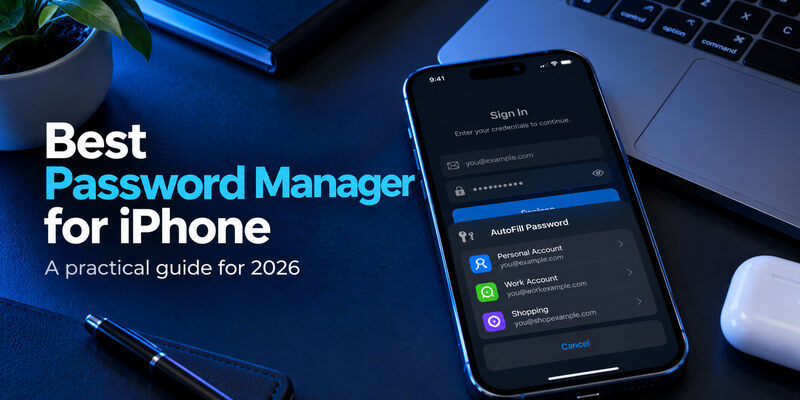
Choosing the best password manager for iPhone can make everyday logins easier while keeping your personal information secure. Instead of remembering dozens of passwords or reusing the same credentials, a password manager helps you generate strong passwords, store them securely, and automatically fill them when needed.
For most Apple users, Apple Passwords is a convenient free option. However, alternatives like Bitwarden, 1Password, and Proton Pass offer more flexibility, especially if you use Windows, Android, or multiple browsers alongside your iPhone.
So, which password manager is actually worth using? This guide compares six popular options based on security, iPhone compatibility, features, ease of use, and overall value to help you find the right fit.
Best Password Managers for iPhone: Quick Comparison
The right choice depends on whether you prefer a completely free solution, need access across several devices, or want advanced features such as family sharing and security monitoring.
| Password Manager | Best For | Free Plan | Main Strength |
|---|---|---|---|
| Apple Passwords | Everyday Apple users | Yes | Seamless iOS integration |
| Bitwarden | Free cross-platform use | Yes | Unlimited passwords and devices |
| 1Password | Families and premium users | Trial only | Advanced vault organization |
| Proton Pass | Privacy-focused users | Yes | Encrypted storage and email aliases |
| NordPass | Beginners | Yes, limited | Simple interface and AutoFill |
| Dashlane | Premium security features | No permanent free plan | Security monitoring tools |
Apple Passwords is our top recommendation for most iPhone users, particularly those who already use a Mac or iPad. Bitwarden is a better choice if you want a free password manager that works across different operating systems, while 1Password stands out for family sharing and premium features.
If you are comparing password managers for the first time, our guide on how to choose a password manager explains the most important security and usability factors.
6 Best Password Manager Apps for iPhone
1. Apple Passwords – Best Overall for Apple Users
Apple Passwords is one of the most practical password managers for iPhone because it is integrated directly into Apple’s ecosystem. Introduced as a dedicated app with iOS 18, it brings passwords, passkeys, Wi-Fi credentials, and verification codes into one convenient location.
For everyday use, the experience is straightforward. When you create an account in Safari or a supported app, your iPhone can suggest a strong password and save it automatically. The next time you sign in, Apple Passwords can fill in your credentials without requiring you to open another application.
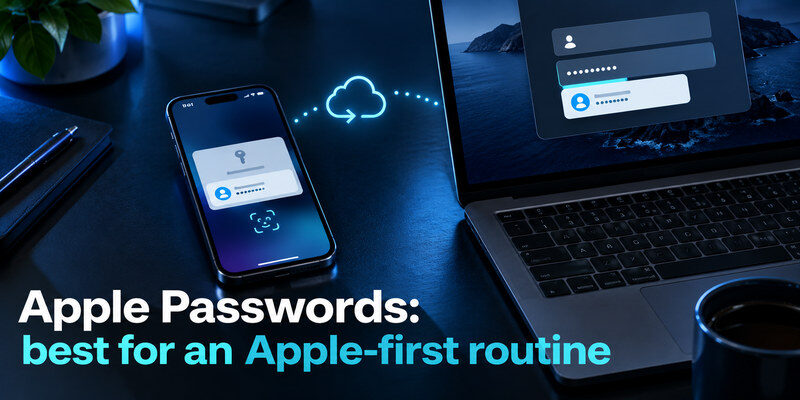
Another advantage is synchronization through iCloud Keychain. If you use an iPhone, iPad, and Mac, your saved passwords can remain available across those devices. Face ID also makes accessing your credentials convenient without sacrificing the protection of your device’s security controls.
Apple Passwords supports shared password groups, allowing trusted family members to access selected credentials. However, this feature works best when everyone uses compatible Apple devices and accounts.
Its main limitation is flexibility outside the Apple ecosystem. Although Apple provides password access options on Windows, the experience is less convenient for users who frequently switch between iPhone and Android.
Our verdict: Apple Passwords is the best starting point for most iPhone owners. It offers reliable AutoFill, password generation, passkey support, and synchronization without a separate subscription.
2. Bitwarden – Best Free Password Manager for iPhone
Bitwarden is an excellent alternative if you want a free password manager that does not depend on a single operating system.
Unlike Apple Passwords, Bitwarden works across iPhone, Android, Windows, macOS, Linux, and major web browsers. Its free personal plan allows users to store unlimited passwords and synchronize them across unlimited devices, making it particularly attractive for people who regularly switch between platforms.
Bitwarden is also open source, meaning its code can be publicly examined. The service uses encrypted vaults to protect stored credentials and supports password generation, AutoFill, and secure account management.
On iPhone, Bitwarden integrates with Apple’s password AutoFill system. Once configured, it can suggest saved credentials while you sign in to websites or compatible applications.
The main drawback is that Bitwarden can feel more technical than Apple Passwords. Its vault organization, security settings, and additional options may take some time to understand, especially for beginners.
Certain advanced features, including integrated TOTP generation within the password manager, require a paid plan. Nevertheless, the free version covers the essential needs of most individual users.
Our verdict: Bitwarden is the best free cross-platform password manager for iPhone users who want flexibility without a monthly subscription.
If you are particularly interested in transparent security software, our comparison of the best open-source password managers explores this category in greater detail.
3. 1Password – Best Premium Password Manager for iPhone
1Password is designed for people who want a polished password management experience with more advanced organization and sharing features.
It offers dedicated encrypted vaults where users can save login credentials, passkeys, payment information, and other sensitive details. The interface is clean and well organized, making it relatively easy to manage hundreds of accounts without losing track of important information.
One of 1Password’s biggest advantages is its ability to work consistently across different platforms. Whether you use an iPhone for personal activities, a Windows laptop for work, or an Android tablet at home, your saved passwords can remain accessible through the same service.
1Password is particularly useful for families. Its family plans support shared vaults, allowing members to access selected passwords without revealing every personal credential. This makes managing shared subscriptions, household accounts, and other common services more convenient.
Security is another strength. In addition to encrypted storage, 1Password uses a Secret Key alongside your account password and provides Watchtower alerts to identify potential security issues.
However, 1Password is not a permanent free password manager. After the trial, continued access requires a subscription. For someone who only needs to store personal passwords on one iPhone, the additional cost may be difficult to justify.
Our verdict: 1Password is a strong premium choice for families, professionals, and users who need more organization than a basic password manager provides.
For people managing shared credentials, our guide to sharing passwords securely with family explains how to reduce risks when multiple people need account access.
4. Proton Pass – Best for Privacy and Email Protection
Proton Pass combines traditional password management with privacy-focused features that help users protect more than just their login credentials.
Developed by the company behind Proton Mail, Proton Pass uses end-to-end encryption to protect stored information. Its free plan includes unlimited logins, synchronization across multiple devices, password generation, and a limited number of hide-my-email aliases.
Email aliases are one of its most useful differences. Instead of entering your personal email address whenever you register for a service, you can create an alternative address that forwards messages to your inbox. This can help limit how widely your real email address is exposed.
On iPhone, Proton Pass supports password AutoFill, allowing users to sign in to websites and compatible apps using saved credentials. It also supports passkeys, making it suitable for services adopting passwordless authentication.
The free plan is useful for everyday password management, while paid plans offer expanded alias functionality, sharing, and additional security tools.
The main consideration is whether you actually need Proton’s privacy features. If you simply want passwords to fill automatically on your iPhone, Apple Passwords may be easier. However, if you care about protecting your email identity and managing accounts across several platforms, Proton Pass offers meaningful advantages.
Our verdict: Proton Pass is an excellent choice for privacy-conscious iPhone users who want password storage and email alias protection in one service.
5. NordPass – Best for Beginners Who Want Simplicity
NordPass focuses on making password management accessible to users who prefer an uncomplicated interface.
The app provides encrypted password storage, password generation, and AutoFill on supported devices. Its straightforward design makes it easy to find saved accounts, update credentials, and organize important login details.
On iPhone, NordPass works with the system’s AutoFill functionality, reducing the need to manually copy passwords between applications.
NordPass also offers premium security tools, including password health analysis, data breach monitoring, and additional sharing capabilities. These features can help users identify weak or reused credentials and improve their overall account security.
However, the free plan has a significant limitation: although your data can synchronize across devices, you can maintain only one active session at a time. Users who frequently alternate between their iPhone and computer may find this inconvenient.
For this reason, NordPass makes more sense for users who value its interface or are willing to pay for the premium experience.
Our verdict: NordPass is a good choice for beginners who prefer simple password management, but Bitwarden and Apple Passwords generally offer better value for free users.
6. Dashlane – Best for Additional Security Monitoring
Dashlane offers password management alongside advanced security tools designed to help users identify potential account risks.
Its core functions include encrypted password storage, password generation, AutoFill, and cross-device access. These features support everyday password management in much the same way as other leading services.
What distinguishes Dashlane is its broader security offering. Premium subscriptions include features such as dark web monitoring and phishing-related protection tools, which may appeal to people who want more than a basic password vault.
Dashlane also provides a relatively streamlined experience, making its security features accessible without requiring users to understand every technical detail.
The biggest disadvantage is cost. Dashlane no longer offers a permanent free plan, so it is better suited to users who are comfortable paying for its additional security capabilities.
For an individual who simply needs to store passwords and fill login forms, Dashlane may provide more features than necessary. However, someone who values ongoing security monitoring might find the premium subscription worthwhile.
Our verdict: Dashlane is best for users who want password management combined with broader security monitoring and are willing to pay for those features.
How to Choose the Best Password Manager for iPhone
Finding the right password manager involves more than comparing feature lists. The most important question is whether an app makes managing your accounts easier without introducing unnecessary security risks.
Consider Your Devices and Everyday Habits
Start by considering where you normally sign in. If you use an iPhone, iPad, and Mac, Apple Passwords provides convenient synchronization and strong integration with Safari.
However, if you also use Windows or Android, a cross-platform solution may be more appropriate. Bitwarden, 1Password, and Proton Pass make it easier to access saved credentials across different operating systems.
For households using multiple platforms, our best password manager for Android guide provides additional comparisons.
Understand How Your Passwords Are Protected
A reliable password manager should encrypt saved credentials, support strong account authentication, and provide a clear recovery process.
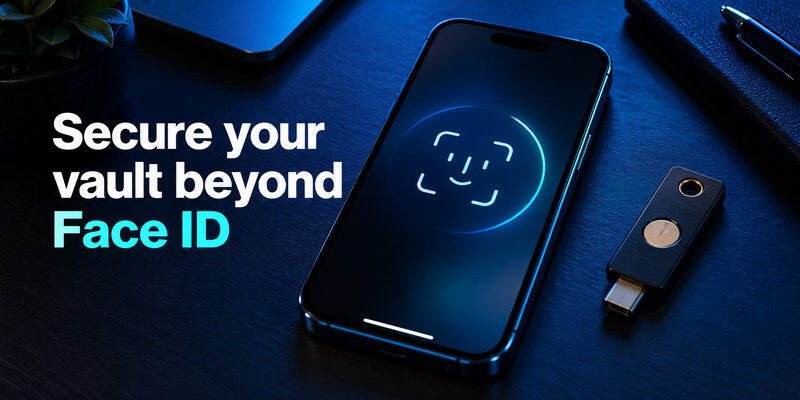
Biometric unlocking through Face ID is convenient, but it should not be the only protection you consider. You also need to understand what happens if your phone is lost, your account password is forgotten, or you need to access your vault from another device.
Using unique passwords for every account is equally important. Our guide on how to generate a strong password explains practical ways to improve password security.
Decide Whether Free Features Are Enough
A free password manager can be completely sufficient for personal use. Apple Passwords, Bitwarden, and Proton Pass provide core features such as password generation, encrypted storage, and AutoFill without requiring a subscription.
Paid services become more attractive when you need advanced sharing, family management, additional monitoring, or specialized recovery features.
Rather than automatically choosing a premium plan, evaluate the features you will actually use. Our comparison of the best free password managers can help you decide whether upgrading is necessary.
How to Set Up a Password Manager on iPhone
Setting up a password manager on iPhone is usually straightforward. If you choose Apple Passwords, the app is already available on supported versions of iOS. For another provider, download its official application from the App Store and complete the account setup process.
Next, open Settings > General > AutoFill & Passwords and select the password manager you want to use. Menu names may vary slightly depending on your iOS version.
Once AutoFill is enabled, try signing in to a website or application with a saved account. Your password manager should offer the appropriate credentials without requiring you to open the vault manually.
If you already have passwords stored in another service, you may be able to transfer them using an import feature. However, it is better to test a few accounts before moving your entire password collection.
Our guide on importing passwords into a password manager explains how to approach this process securely.
After importing your credentials, check that important accounts appear correctly and that AutoFill works in both Safari and frequently used apps. Keep your previous credentials available until you have confirmed the new setup works.
For more detailed instructions, read how to use a password manager.
Are Password Managers Safe on iPhone?
Password managers are generally a safer alternative to reusing passwords or storing sensitive credentials in unprotected notes.
They help generate unique passwords for different accounts and reduce the need to remember or manually enter those credentials. Many also provide warnings when passwords are weak, reused, or potentially compromised.
However, password managers are not immune to security risks. Phishing attacks, compromised devices, and poor account recovery practices can still put your information at risk.
It is important to protect your password manager account with strong authentication, keep your iPhone updated, and review your recovery options before an emergency occurs.
Another important consideration is whether to store passwords and two-factor authentication codes in the same application.
Some password managers can generate time-based verification codes, providing a convenient all-in-one login experience. This may be suitable for everyday accounts, but it also concentrates more sensitive information in one vault.
Using a separate authenticator app can provide additional separation between passwords and authentication secrets, particularly for important accounts.
If you want to understand this trade-off, read our guide on password managers with built-in 2FA support.
For users who prefer separate authentication tools, a dedicated two-factor authentication app can generate verification codes for services that support authenticator-based 2FA.
Frequently Asked Questions
What is the best free password manager for iPhone?
Apple Passwords is an excellent free option for users who primarily use Apple devices. Bitwarden is especially attractive for cross-platform use because its free plan supports unlimited passwords and synchronization across multiple devices. Proton Pass is another option for users who want additional privacy features.
Does iPhone have a built-in password manager?
Yes. Apple provides the Passwords app on supported versions of iOS. It allows users to store passwords, manage passkeys, generate secure credentials, and access saved information through Apple’s AutoFill system.
Is Apple Passwords better than 1Password?
Apple Passwords is more convenient for people who mainly use Apple devices and do not need advanced sharing or organization. 1Password offers greater flexibility for families and users managing credentials across different operating systems.
Can I use a password manager with Face ID?
Yes. Apple Passwords and several third-party password managers support Face ID on compatible iPhones. Biometric unlocking makes accessing saved credentials more convenient while relying on the device’s security controls.
Should I pay for a password manager on iPhone?
Not necessarily. Free options can provide strong password protection for personal use. A paid subscription becomes more useful when you need features such as family vaults, advanced security monitoring, or specialized sharing and recovery tools.
Do I still need an authenticator app if I use a password manager?
An authenticator app can provide an additional layer of account protection. Some password managers generate 2FA codes themselves, but a separate authenticator can help keep your passwords and verification secrets in different places. Your choice depends on the sensitivity of your accounts and your preferred security setup.
Final Verdict: Which iPhone Password Manager Is Best?
The best password manager for iPhone depends on your devices, budget, and security needs.
For most Apple users, Apple Passwords offers the best balance of convenience, security, and cost. Bitwarden is a strong free alternative for cross-platform access, while 1Password provides a more advanced premium experience. Proton Pass is particularly attractive for privacy-focused users, whereas NordPass and Dashlane appeal to people seeking a simpler interface or additional security features.
Whichever password manager you choose, the most important step is to use unique passwords for every account, protect access to your vault, and maintain reliable recovery options. A well-configured password manager, combined with appropriate two-factor authentication, can make everyday account security significantly easier to manage.
