
Begamob Authenticator vs Okta Verify: Personal Codes and Managed Access
Published October 9, 2026
Illustrated guide: Begamob Authenticator vs Okta Verify: Personal Codes and Managed Access
Keep Okta Verify for an employer-mandated approval; use Begamob only for personal accounts that accept ordinary authenticator codes. The crucial difference is who controls enrollment. An Okta organization may require a registered device, push confirmation or FastPass, while a personal website may let you choose any compatible TOTP app. Those paths can coexist on one phone. This comparison shows how to recognize the factor you actually have, make a safe decision for each account and prepare for a phone replacement without assuming that one app can restore everything in the other.
Reviewed: September 2026. Editorial approach: Product capabilities below are grounded in Okta’s user guidance and Begamob’s published overview. A service’s live security settings and an employer’s policy take precedence over a general app comparison.
Decide Which Login Your Organization Controls
A work approval is an enrollment, not just a code
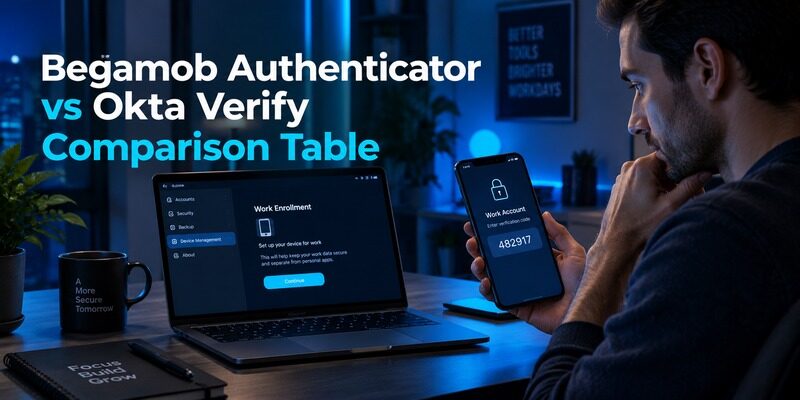
A company that uses Okta can configure how employees prove they have a trusted device. The sign-in page might send a push to Okta Verify, ask for a number match or use FastPass. Your IT team can restrict devices and require re-enrollment after a replacement. Installing a different code generator does not recreate that registration. If the login screen specifically names Okta Verify, consult the organization’s approved recovery instructions before making a change. For another perspective on enterprise authentication, our Microsoft Authenticator vs Okta comparison explores how organization-managed sign-in methods, device registration, and identity-provider policies affect the authentication experience.
Personal TOTP belongs to the account issuer
A shopping site or social network may instead display a QR code during its own two-step verification setup. That QR contains a shared secret used to generate time-based codes. The issuer, not Okta, decides whether another app can be enrolled and whether multiple authenticators can remain active. Look at the security page of that particular website. If it supports a standard authenticator, you can evaluate Begamob on one low-risk account without changing your work factor. Write down which organization or site owns each entry; this small inventory prevents a mixed work-and-personal list from becoming an opaque recovery problem.
Secure your accounts with fast, reliable two-factor authentication. Download now and protect your login in seconds.Download Authenticator App
Begamob Authenticator vs Okta Verify Comparison Table
Visual overview: Begamob Authenticator vs Okta Verify Comparison Table
Okta Verify and Begamob overlap on some personal TOTP scenarios, but the overlap is narrower than their similar six-digit displays suggest. The table deliberately separates the sign-in method from the app that happens to show it. If you’re evaluating other authentication apps that can be used in different personal and workplace scenarios, our Google Authenticator vs Duo Mobile guide offers another comparison of standard verification codes and organization-managed authentication workflows.
| Decision point | Begamob Authenticator | Okta Verify | Practical consequence |
| Standard personal TOTP | QR or manual enrollment and offline codes described | Can hold third-party codes | Test with the issuer’s own setup page |
| Okta work approval | No equivalent push or FastPass enrollment established | Organization-configured push, code and FastPass | Keep the required work factor |
| Device replacement | Check current app backup controls and issuer recovery | Transfer or re-enrollment can depend on organization policy | Rehearse each account category |
| Account owner | Personal issuer sets acceptance rules | Okta administrator can govern managed access | Ask the correct support team |
What a successful code does and does not prove
If a personal site accepts a code generated in Begamob, that proves the site’s TOTP enrollment works. It says nothing about whether your employer will accept a Begamob-generated code for a managed Okta login. Conversely, a working Okta push does not prove that third-party codes stored in Okta Verify will appear on a new phone. Treat each row as a separate test, rather than extrapolating from one successful sign-in.
The two-app outcome is often the right one
There is no requirement to consolidate every factor. Keeping Okta Verify for mandated work access and another authenticator for personal services can preserve the administrator’s controls while giving you a personal code workflow you prefer. The extra app is a small trade-off compared with losing access because of an unauthorized migration. If your employer explicitly permits alternate authenticators for a particular account, follow its documented enrollment path rather than copying an existing secret informally.
If you manage both personal and workplace accounts, our Begamob Authenticator vs Microsoft Authenticator comparison provides additional context on keeping personal TOTP codes separate from organization-managed sign-in methods.
Recognize Push, Codes, and FastPass as Different Paths
A push arrives in response to a sign-in attempt; a TOTP code rotates on a schedule whether or not you are logging in. FastPass is an Okta-specific, organization-configured experience with device context. These distinctions matter most when an account is under attack or a phone is being replaced. To better understand the difference between rotating codes and approval-based authentication, our guide on how TOTP authenticator apps work explains time-based code generation, QR code enrollment, and the role of shared secrets in account verification.
An unsolicited approval should stop the process
If Okta Verify shows a request you did not initiate, reject it. Do not approve a prompt just to make it disappear, and do not read a displayed code to a caller claiming to be support. Open the work service through your normal bookmark and report the event to the designated team. A second factor only helps when you connect the prompt to a real action you started.
If you want to compare another app that supports approval-based authentication for compatible services, our Begamob Authenticator vs LastPass Authenticator guide examines the differences between rotating verification codes, push approvals, and recovery options.
A rotating code needs its own original secret
Scanning a service’s TOTP QR into a compatible app creates an entry from that site’s setup secret. Seeing six digits in two apps is not proof that both entries are the same factor, and different account labels can hide mistakes. During a trial, wait for a newly rotated code and submit it to the original issuer. If the issuer rejects it, check the account name and automatic device time before re-enrolling anything. Avoid screenshots of QR codes or recovery codes: those images can give anyone holding them a path to future logins.
Plan a Replacement Phone Before a Work Lockout

Visual overview: Plan a Replacement Phone Before a Work Lockout
A contractor who serves two clients can face two distinct Okta tenants on the same handset. The first client might permit self-service factor reset, while the second requires a manager to verify identity before IT re-enrolls the device. Record the help-desk route, business hours and fallback method separately for each tenant. If the contract ends during a phone upgrade, account access may disappear before you can transfer an entry. Ask about offboarding timing through the normal company channel. None of these administrative controls are visible in a generic authenticator comparison, yet they determine whether the new phone can actually sign in.
A phone upgrade is easiest while the old device is still available. Okta documents transfer routes for eligible versions, but what you can actually do may be constrained by your organization’s policy. Do not assume that a general cloud-phone restore is equivalent to re-registering Okta Verify.
Ask the administrator about the exact account type
Before handing in the old phone, find out whether your work account requires a new enrollment, whether self-service reset exists and whom to contact if you cannot approve a request. A work device that is wiped before the factor is verified can leave you dependent on the help desk. Test the first sign-in from a separate browser after registration, not merely the presence of an Okta icon on the new phone.
Keep personal recovery independent
For each personal account, save its issuer-provided recovery codes in a secure place separate from the authenticator phone. If you plan to use Begamob, examine the currently installed app for a documented backup or export route and test one restore where possible. If no route is confirmed, plan to change the authenticator through each site’s security page while you still have the old device. The work recovery contact and the personal website’s recovery codes solve different problems; one cannot be substituted for the other.
If backup and phone replacement are major factors in your decision, our Begamob and Authy comparison offers another perspective on recovery planning, device changes, and maintaining access to personal authentication codes.
Protect Third-Party Codes Held in Okta Verify
Okta Verify can hold codes for non-Okta services. That convenience creates a subtle trap: a successful company login can make the app look fully restored even when personal entries require separate attention. Make a list of issuers and usernames without recording the TOTP secrets themselves. Classify an entry as a managed work factor or a third-party personal code before migration.
For the personal entries, visit each issuer’s security settings and check whether it allows adding another authenticator before removing the original. Some sites allow overlapping factors; others rotate the secret as soon as a new one is enrolled. Save any newly issued recovery codes. Then sign out and sign back in with the new factor. This is slower than assuming one transfer moved everything, but it gives direct evidence that each account still works. Prioritize email, your password manager and financial services, because loss of one of those can block recovery of many other accounts.
Do Not Move Work Secrets Into an Unapproved App
Visual overview: Do Not Move Work Secrets Into an Unapproved App
Compatibility is not authorization
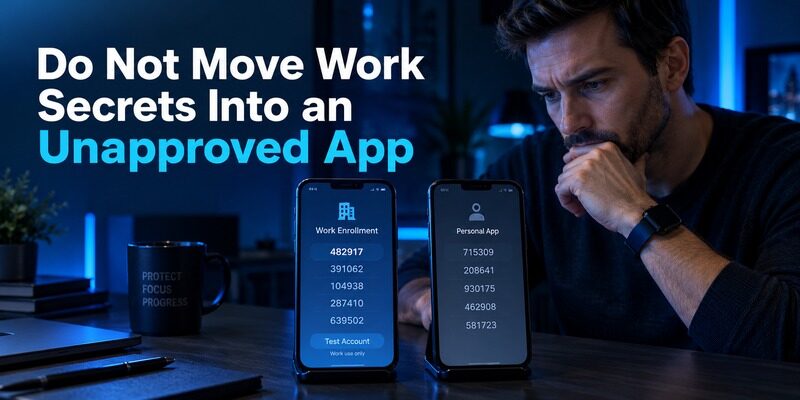
A QR scanner may accept a code even when an employer forbids storing that account on a personal device or in an unapproved app. The technical ability to scan does not change policy, device registration or audit requirements. If you want to separate work and personal use, ask which work methods are approved and whether a replacement phone needs an administrator reset. Do not export or duplicate a managed secret merely to compare interfaces.
Confirm the service’s actual prompt
A person may have a work dashboard that uses Okta Verify and an unrelated vendor portal that accepts standard TOTP. Those can look like a single work routine but have different owners. Read the sign-in prompt and the portal’s security page, then record the approved method for each. If an alternative factor is offered by the administrator, enroll it through the authorized process and test a new sign-in before changing the old device. This account-level distinction is more useful than declaring either app universally better for work.
Run a Safe One-Account Begamob Trial
Suppose the trial account already has a passkey as its primary login and a TOTP code as a fallback. Use the account’s settings to find out whether adding Begamob replaces only the TOTP enrollment or also changes the list of approved recovery methods. Record the timestamp of the change and test both paths from a browser you do not routinely use. That test catches a common false positive: the usual browser was still signed in, so it appeared that the new factor worked even though no authentication challenge occurred. A private window can help, provided you still have the original factor and backup codes available.
Choose a personal service whose recovery codes you have already saved. Install the app from the supplied store listing, check the publisher and current purchase terms, then use that service’s own “add authenticator” flow. Scan its QR or enter the setup key only on a trusted device. Name the entry clearly so that the same issuer under a second email address is not confused with it.
After setup, finish one login, sign out and perform another using a fresh code. If the site rotates recovery codes during enrollment, replace the old set in your secure storage. Check the Begamob app’s current screen lock, backup and device-change controls rather than assuming a competitor’s features are present. Only after those checks should you consider moving a second personal service. The trial is meant to answer two concrete questions: can you find and use the correct code quickly, and can you explain exactly how you would regain access if this phone disappeared?
Troubleshoot Without Weakening the Account
Visual overview: Troubleshoot Without Weakening the Account
A user who is locked out of one vendor portal may still have full access to the company’s Okta dashboard. Do not reset the company-wide enrollment until you identify which service rejected the factor. Capture the exact prompt wording and time, without recording a live code, and tell the appropriate support team what succeeded elsewhere. The distinction can save a needless device reset and preserve other working approvals. If the incident involved a stolen phone, follow the organization’s lost-device process even if the vendor portal later accepts a backup code. An account recovery fix and containment of a missing device are separate jobs.
A rejected code is not the same as a lost factor. First confirm that you opened the legitimate issuer, chose the right account label and entered a code before its timer expired. Let the phone set time automatically. If a newly enrolled code repeatedly fails, revisit the service’s setup state with the original factor still active; avoid disabling protection as a shortcut.
If the phone is gone, stop trying random codes. For a managed Okta account, use the organization’s help desk or self-service recovery path. For a personal site, use the site’s saved backup codes or official account-recovery procedure. If you receive an unexpected push during the troubleshooting process, reject it and report it separately. Keeping these failure types distinct prevents a routine timer issue from turning into an unnecessary factor reset.
Use a Decision Matrix for Mixed Work and Personal Use
| Your situation | Keep or choose | Before changing phones |
| Employer requires Okta Verify push or FastPass | Keep approved Okta enrollment | Confirm self-service reset or IT contact |
| Personal site accepts standard TOTP | Trial Begamob if its workflow appeals to you | Save issuer recovery codes and test a new login |
| Okta Verify also holds personal entries | Review each issuer separately | Verify each entry after transfer or re-enrollment |
| You cannot explain how to recover an account | Pause migration | Establish issuer recovery first |
This matrix is intentionally account-specific. A user with several employers may even have multiple organizational policies. Label each factor by its issuer and recovery owner, then revisit the list during a phone upgrade. If you use a cloud account for any backup, protect that cloud account with a recovery method that does not depend only on the phone you might lose.
Choose Begamob Only Where It Meets Your Requirement
Visual overview: Choose Begamob Only Where It Meets Your Requirement
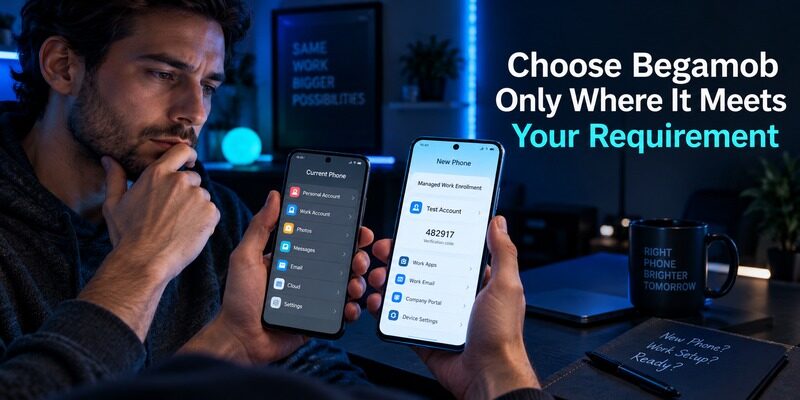
Use an account inventory as the decision record: issuer, work or personal owner, current method, available replacement method, recovery owner and last successful test. Do not include live codes, QR images or setup secrets in that inventory. This record is especially helpful when the visible app label differs from the service’s legal name or when you maintain multiple usernames for one issuer. Review it before a device trade-in and after an employer changes identity providers. A neat app list alone cannot reveal which factor belongs to an administrator-controlled enrollment; the inventory makes that boundary explicit.
Begamob’s published overview describes multiple accounts, QR or manual TOTP setup and offline code generation. Those are useful for personal services that accept standard authenticator codes. They do not establish parity with Okta’s organization-controlled approvals. Evaluate the app’s readability on your phone, the ease of finding the correct username and its current device-replacement instructions. A clear answer on recovery is more valuable than a long feature list.
Keep Okta Verify wherever it is required. If your personal trial succeeds and you are comfortable with Begamob’s current backup arrangements, move personal accounts one at a time. If those arrangements do not meet your needs, leave the existing personal factors intact and choose a different recovery model. The practical win is deliberate ownership of each factor, not a single icon containing every code.
Frequently Asked Questions
Can Begamob replace my employer’s Okta Verify push?
Usually not. A managed push or FastPass enrollment follows your organization’s configuration. Ask your administrator which alternate factors are permitted.
Does Okta Verify work with personal accounts?
Yes, it can hold third-party TOTP codes. Those personal entries still belong to their individual issuers and should be checked separately during a phone move.
Will a new phone restore every Okta entry?
Do not assume so. Follow your organization’s Okta transfer or re-enrollment instructions and verify each third-party account with a fresh sign-in.
Is an unexpected approval request safe to accept?
No. Reject it, report it through your organization’s normal security channel and check your account by navigating to the service yourself.
How should I separate work and personal codes?
Keep work factors in approved apps and devices. For personal TOTP, choose an app with a recovery route you can test and retain issuer backup codes independently.
Final Thoughts
Okta Verify remains the right choice when your employer requires its registered approvals; Begamob can be a practical personal TOTP option after a small, recoverable trial. Make the decision per account, preserve the original factor until the new login works and rehearse the lost-phone path before it is needed. Read the and for current product details. For related methods, see and .
Sources: Okta Help, Okta Verify overview and device-transfer guidance; Begamob Authenticator App product overview. Product terms and employer policies should be checked at the point of use.
