
2FA Authenticator APK: Safe Download & Installation Guide
Published August 23, 2026 · Updated October 20, 2026
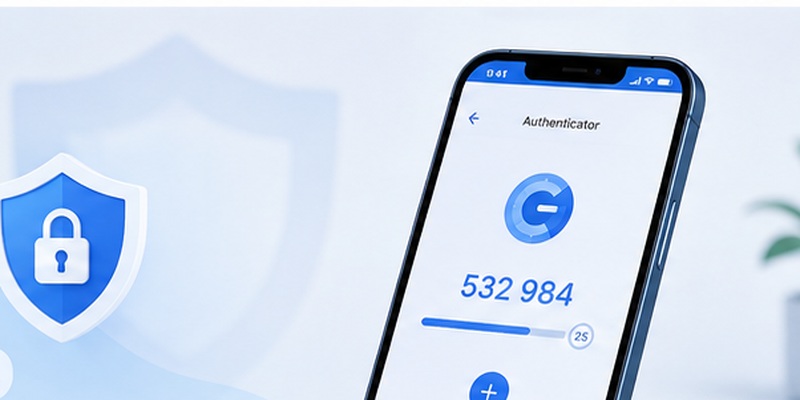
A 2FA authenticator APK is an Android application installation package for an authenticator app that generates one-time verification codes. These codes add an extra security step when signing in to compatible websites and services.
Android users often search for an authenticator app download APK when they cannot access Google Play, need to install an application manually, or want to understand the difference between an APK file and a regular app-store installation.
Quick Answer: The safest way to install a 2FA authenticator on Android is to use the official Google Play listing. If you specifically need an APK file, download it only from a distribution channel explicitly authorized by the app developer. Verify the publisher and release details before installation, keep Android security protections enabled, and avoid modified or unofficial APK packages. Do not import your 2FA accounts into an unverified application.
Important: This guide explains how to download and install authenticator apps safely. It does not provide or host an APK file, and it does not claim that every authenticator developer offers an official standalone APK.
What Is a 2FA Authenticator APK?
An APK, short for Android Package Kit, is a package format used to distribute and install Android applications.
A 2FA authenticator app APK contains the application software that allows an Android device to run an authenticator app.
After installation and account setup, a compatible authenticator can generate time-based one-time passwords (TOTP).
These verification codes are typically used alongside your account password.
How Does a 2FA Authenticator Work?
Most standard authenticator apps use TOTP.
When you enable authenticator-based 2FA on a website, the service provides a QR code or setup key.
The authenticator stores the associated secret and uses it with the current time to calculate temporary verification codes.
The website independently checks whether the submitted code is valid.
For many services, the code contains six digits and changes approximately every 30 seconds.
An authenticator app can generate standard TOTP codes without internet access after initial setup.
APK vs Google Play Installation
| Feature | Google Play installation | Manual APK installation |
|---|---|---|
| Installation source | Google Play | Developer-authorized external source |
| Installation process | Managed through Play Store | User opens a downloaded package |
| Updates | Usually managed through Google Play | Depends on developer and distribution channel |
| Security checks | Google Play policies and Play Protect | Source verification and available Android protections |
| User verification | Check app name and publisher | Check developer, source, signature, and release details |
| Best choice for most users | Yes | Only when there is a legitimate need |
An APK is not automatically unsafe. The main concern is whether the package is authentic, current, and obtained from a trustworthy source.
Does an APK Give You Better 2FA Security?
No.
Installing an authenticator through an APK does not inherently make the application more secure than installing it through Google Play.
Security depends on the application design, the integrity of the package, the device, and how authentication secrets are stored.
Download Authenticator App
Secure your accounts with fast, reliable two-factor authentication. Download now and protect your login in seconds.
Where to Download a 2FA Authenticator App Safely
If you are looking for an authenticator APK download, begin with the application’s official developer website.
Check whether the developer provides a direct APK, an official app-store link, or another authorized distribution channel.
Option 1: Download an Authenticator From Google Play
For most Android users:
- Open Google Play.
- Search for the authenticator app you want.
- Check the official publisher.
- Review the app information.
- Tap Install.
- Open the app after installation.
This is generally the simplest way to receive supported updates and avoid unrelated third-party installers.
For an introduction to authenticator features, read our two-factor authentication app guide.
Option 2: Download an Official APK From the Developer
If the developer explicitly offers an APK:
- Visit the official developer website.
- Find its authorized Android download page.
- Confirm that a standalone APK is available.
- Check the package’s release information.
- Download the file directly from the authorized source.
- Verify its authenticity using the developer’s published verification information, if available.
- Install only after completing these checks.
Do not assume that a download mirror is official simply because it uses the application’s name or logo.
Option 3: Use a Developer-Authorized Alternative Store
Some Android applications are distributed through alternative app stores or repositories.
These may be appropriate when the developer officially supports them.
Before downloading, confirm that:
- The developer identifies the channel as authorized.
- The application package matches the expected product.
- The version is supported.
- Updates are available.
- The distribution channel has a trustworthy reputation.
An alternative store is not automatically equivalent to the developer’s official release channel.
Where to Download Google Authenticator
For Google Authenticator, use Google’s official app-store listing.
Avoid websites offering modified Google Authenticator APK files.
See our Google Authenticator download guide for platform-specific instructions.
Where to Download Microsoft Authenticator
Microsoft Authenticator is officially distributed through supported mobile app stores.
Visit Microsoft’s Authenticator page for the official download options.
For installation and setup instructions, read our Microsoft Authenticator guide.
Can You Download Authenticator App by Begamob as an APK?
If you want Authenticator App by Begamob, start from the application’s official website and follow its verified download links.
Do not assume that an independently hosted APK is an authorized Begamob release.
If no official standalone APK is provided, use the developer’s supported app-store distribution instead.
You can learn more about the application at Authenticator App.
How to Install a 2FA Authenticator APK on Android
If you have downloaded a verified APK from an authorized developer source, Android may allow you to install it manually.
This process is called sideloading.
Step 1: Verify the APK Source
Before opening the file, confirm:
- The package came from the developer or an authorized distributor.
- The download page uses a legitimate domain.
- The application name and publisher are correct.
- The version is supported.
- The package has not been advertised as a cracked or modified edition.
If the developer publishes a cryptographic checksum or signing certificate details, compare them with the downloaded file using a trusted verification tool.
A checksum is useful only when the reference value comes from an authentic source.
Step 2: Download the APK File
Open the developer-authorized download page on your Android device.
Download the installation package.
Avoid pop-up advertisements and unrelated download buttons.
Do not install extra utilities or download managers unless the developer explicitly requires them.
Step 3: Allow Installation From the Trusted Source
On Android 8.0 and newer, Android generally controls unknown-app installation permissions by source.
If you open a legitimate APK and Android blocks the installation:
- Review the installation warning.
- Confirm that the source is trusted.
- Open the Install unknown apps setting for the application used to open the APK.
- Allow installation from that specific source when appropriate.
- Return to the installer.
Menu labels vary by device and Android version.
Do not disable Google Play Protect or other device security features to force an untrusted APK to install.
Step 4: Install the Authenticator APK
After Android permits installation:
- Open the verified APK.
- Review the application name.
- Confirm the installation request.
- Wait for Android to complete installation.
- Tap Open.
If Android reports a signature mismatch, package conflict, or harmful application warning, stop and investigate instead of bypassing the warning.
Step 5: Remove Unnecessary Installation Permissions
After installation:
- Return to the relevant Install unknown apps settings.
- Revoke permission for the browser or file manager if it is no longer needed.
- Delete the downloaded installer if you do not need to retain it.
- Keep the authenticator and Android operating system updated.
This reduces the chance of accidentally installing another application from the same source.
Step 6: Check the App Before Adding 2FA Accounts
Before scanning security QR codes:
- Confirm that the installed application is the expected product.
- Review its permissions.
- Check its backup and recovery features.
- Verify its update mechanism.
- Confirm that the developer still supports the installed version.
Do not import authentication secrets into an application whose authenticity is uncertain.
How to Set Up and Use an Authenticator App
After installing a trusted 2FA application, you can connect compatible online accounts.
Step 1: Enable 2FA on Your Online Account
Sign in to the website you want to protect.
Open its security settings.
Look for an option such as:
- Two-factor authentication.
- Two-step verification.
- Authenticator app.
- Authentication application.
- TOTP.
Choose the authenticator-based option.
Step 2: Scan the Setup QR Code
The website should display a QR code or a manual setup key.
Open the authenticator app.
Choose Add account, Scan QR code, or the equivalent option.
Scan the QR code shown on the website.
Never share a setup QR code publicly. It may contain the secret used to generate your future verification codes.
Step 3: Verify the First Code
After adding the account:
- Find the new account entry.
- Read its current verification code.
- Return to the website.
- Enter the code.
- Confirm that 2FA has been enabled.
Do not assume setup is complete until the website confirms it.
Step 4: Save Recovery Codes
Many services provide backup or recovery codes.
Store them securely and separately from your phone.
These codes may help you regain access if your authenticator app is lost, damaged, or unavailable.
Step 5: Configure Backup or Transfer Options
Check whether your chosen authenticator supports:
- Encrypted backup.
- Cloud synchronization.
- Local export.
- Device-to-device transfer.
- Recovery through another registered method.
Features vary by application.
For more information, see our authenticator app complete guide.
Is a 2FA Authenticator APK Safe?
A 2FA authenticator APK can be legitimate, but manually installed authentication software deserves extra scrutiny.
An authenticator may store sensitive credentials used to generate codes for your online accounts.
If a malicious app obtains those credentials, it may compromise the protection you expected 2FA to provide.
Risks of Unofficial Authenticator APK Files
Potential risks include:
Modified application code: An attacker may distribute a repackaged app that behaves differently from the official version.
Authentication secret exposure: A malicious authenticator may capture setup keys or TOTP secrets.
Outdated software: An old APK may lack security fixes.
Untrusted permissions: An app may request access unrelated to its authentication features.
Unreliable updates: Unofficial packages may not receive timely updates.
Misleading branding: A fake app may imitate a legitimate authenticator’s name and icon.
How to Check Whether an Authenticator APK Is Trustworthy
Use this checklist:
- Confirm the official developer.
- Verify the distribution source.
- Check release and version details.
- Review signing or checksum information when provided.
- Keep Google Play Protect enabled where available.
- Avoid cracked, modified, or unofficial premium editions.
- Review permissions before entering account secrets.
- Check that the application has a supported update process.
No single check guarantees that a package is safe.
What Permissions Should an Authenticator Need?
Permissions depend on the app’s features.
For example:
- Camera access may be needed to scan QR codes.
- Notifications may be used for approval-based authentication.
- Network access may be used for backups or synchronization.
- Biometric authentication may help protect app access.
Be cautious if an authenticator requests permissions that do not make sense for its stated features.
Should You Disable Google Play Protect?
No.
Google Play Protect helps identify potentially harmful applications.
If Android warns that an APK may be dangerous, investigate the source rather than disabling protection.
APK vs Play Store: Which Is Safer?
For most users, the official Play Store installation is the better choice.
A developer-signed APK from a verified official distribution channel may also be legitimate.
The key difference is that manual installation places more responsibility on the user to verify the source, package integrity, and update process.
2FA Authenticator APK Not Installing: Common Fixes
If your authenticator APK is not installing, the problem may involve Android compatibility, package integrity, permissions, or an existing installation.
Fix 1: Check Android Compatibility
Confirm that the authenticator supports your Android version.
Some applications require newer Android releases or specific device features.
Do not install an outdated APK merely to bypass compatibility restrictions.
Fix 2: Check Available Storage
Make sure your phone has sufficient storage.
Remove unnecessary files or applications if needed.
Then retry the installation.
Fix 3: Download the File Again From the Official Source
An incomplete download can prevent installation.
Delete the failed package and download a fresh copy from the developer-authorized source.
Fix 4: Review Install Unknown Apps Permission
If Android blocks installation from a trusted external source, review the permission for the specific browser or file manager.
Do not enable unknown-source installation broadly or leave unnecessary permissions active.
Fix 5: Check for a Signature Conflict
If an application with the same package identifier is already installed but signed differently, Android may reject the update.
Do not uninstall your existing authenticator to force installation unless you have verified that all authentication credentials can be recovered.
A signing conflict may indicate that the package is not an authentic update.
Fix 6: Do Not Ignore Play Protect Warnings
If Google Play Protect identifies the file as potentially harmful, stop.
Verify the publisher, distribution channel, and release information.
Avoid instructions that require disabling security protections to complete installation.
Fix 7: Check Device or Organization Restrictions
Work-managed devices may block sideloading.
If your device is managed by an employer or school, follow its approved installation policies.
What if Your 2FA Codes Disappear After Updating?
Do not immediately reinstall the application.
Instead:
- Check whether you opened the correct app and account.
- Review supported backup or sync settings.
- Check another trusted device.
- Look for a valid export or recovery option.
- Use the protected website’s recovery codes if necessary.
For device migration guidance, read our authenticator transfer tutorial.
Frequently Asked Questions
What is a 2FA authenticator APK?
It is an Android installation package for an authenticator application that supports two-factor authentication.
Where can I download a 2FA authenticator APK safely?
Use a developer-authorized APK download page when one exists. Otherwise, install the official application through Google Play.
Is an authenticator APK free?
Many authenticator apps are free, but pricing and licensing depend on the developer. The APK format itself does not determine whether an app is free.
Is it safe to install an authenticator APK from a third-party website?
It carries additional risk, especially if the distributor is not authorized by the developer. Prefer official sources.
Can I install a 2FA authenticator APK without Google Play?
Yes, if Android permits installation and you have a legitimate, compatible package from an authorized source.
How do I install an authenticator APK on Android?
Download a verified package, allow installation from the trusted source when necessary, open the file, complete installation, and revoke unnecessary installation permissions afterward.
Does an authenticator APK work offline?
Standard TOTP code generation usually works offline after account setup. Backups, synchronization, and push approvals may require internet access.
Can I download Google Authenticator as an APK?
The recommended method is to install Google Authenticator through Google’s official Play Store listing. Avoid unofficial or modified APK packages.
Can I download Microsoft Authenticator as an APK?
Microsoft directs users to its supported mobile app-store listings. Do not rely on unrelated APK mirrors.
Does Authenticator App by Begamob provide an official APK?
Check the developer’s official download channels. Do not assume that a third-party package is an authorized release.
Why is my authenticator APK not installing?
Possible reasons include Android version incompatibility, an incomplete file, insufficient storage, source permissions, or an application signature conflict.
Should I turn off Play Protect to install an APK?
No. Investigate security warnings instead of disabling protection.
Can a fake authenticator APK steal my 2FA codes?
A malicious application may capture authentication secrets or interfere with account security. Only use trusted authentication software.
Will updating an authenticator APK delete my codes?
A properly supported update should preserve application data, but this is not guaranteed across every installation method or app. Confirm backup and recovery options first.
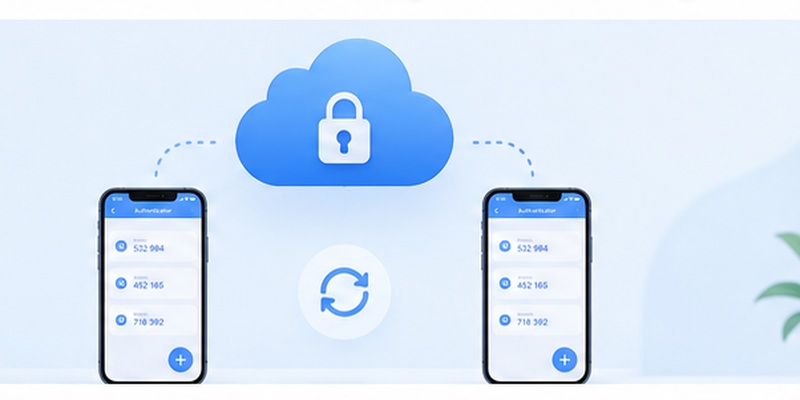
Can I transfer authenticator codes to a new Android phone?
Many apps support backup, synchronization, or transfer features. Availability depends on the application.
What is the difference between an APK and an authenticator app?
An APK is an Android installation package. An authenticator app is the software installed from that package or an app store.
Conclusion
A 2FA authenticator APK allows an Android user to install an authenticator application outside the normal Play Store workflow, provided the package is legitimate and compatible.
For most people, the safest approach is to install the official authenticator directly from Google Play.
If you need an authenticator app download APK, use only a developer-authorized source, verify the release, and keep Android security protections enabled.
After installation, configure 2FA through the website you want to protect and securely save your recovery codes.
For additional guidance, explore our two-factor authentication app guide, Google Authenticator download guide, and authenticator transfer tutorial.
