
Best Cybersecurity Tips for Beginners: A First-Week Plan
Published October 9, 2026
The best cybersecurity tips for beginners are to update devices, use unique passwords, turn on MFA, question unexpected requests, and keep recoverable backups. Begin with the phone and email account you use every day; they connect to most of your digital life. You do not need to learn security jargon or install ten products to make progress. This first-week plan explains what each action prevents, how to verify it worked, and what to do when an alert feels urgent.
Day one: know what you are protecting
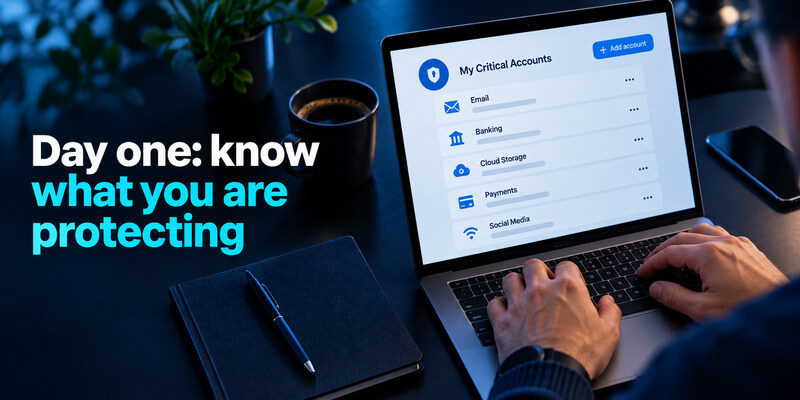
List your phone, computer, main email, bank, device-platform account, and any work account. Identify who else uses each device and where account recovery messages go. This simple inventory prevents a common mistake: securing a shopping profile while an old email address can reset it. Keep the list private and omit live passwords. It is a planning tool, not another place to store secrets.
Choose the two most important accounts
For most people, primary email and the account that stores passwords or syncs the phone are first. Once your primary email and device accounts are protected, review the social profiles connected to your personal identity, business pages, or advertising access. Our guide on how to secure your social media accounts explains how to strengthen passwords, enable two-factor authentication, review login sessions, and protect recovery options across social platforms. They can reset or reopen many others. Give them unique credentials and strong MFA before working on every low-impact service. If a work administrator account controls other people, elevate it too. The order is based on what each account can unlock.
Name a trusted recovery path
Know where a lost-phone recovery code or backup key is stored. Check that the recovery email and number still belong to you. Do not place the only copy of a code inside the account it unlocks. A protected paper record for a few critical methods can be sensible. The FTC recommends securing sensitive accounts with 2FA; recovery makes that protection usable after a device loss.
Secure your accounts with fast, reliable two-factor authentication. Download now and protect your login in seconds.Download Authenticator App
Day two: update and lock your devices
Turn on operating-system and app updates, use a device passcode that others cannot guess, and enable built-in encryption where available. Review old tablets and computers that remain signed in. Uninstall software and browser extensions you do not use. The FTC includes software updates as a basic defense because known vulnerabilities are fixed through them. An account can be well protected at sign-in yet exposed on an unlocked laptop.
Start with automatic updates
Check the phone, browser, and computer separately; updating one does not update all. Restart if an installation is waiting. Keep a note of devices no longer supported by their maker and plan to replace or isolate them. Do not download an “urgent security patch” from a pop-up; use the operating system’s official update mechanism.
Protect shared spaces
Use separate profiles on a family or work computer. Lock the screen when stepping away and sign out of sensitive accounts on shared devices. Autofill in a communal browser profile can disclose private accounts without an attacker breaking encryption. When selling a device, follow the platform’s official sign-out and erase process, then review trusted-device lists afterward.
Saving passwords in a shared browser profile can expose accounts to other people who use the same device. Our comparison of password manager vs browser autofill explains how browser-based credential storage differs from a dedicated password vault in access control, synchronization, and everyday usability.
Day three: stop password reuse
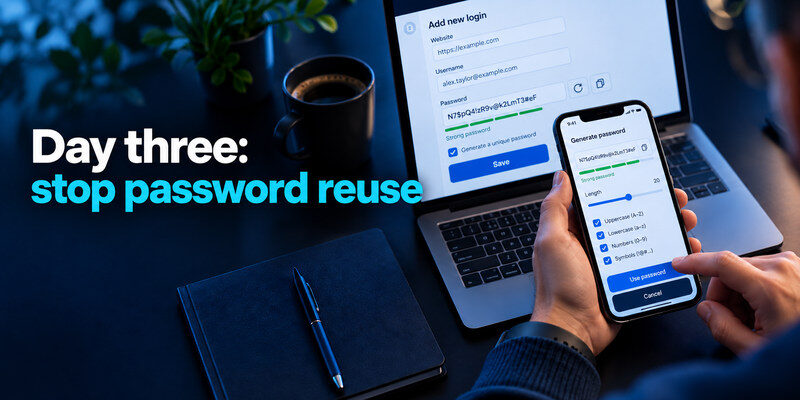
Use a reputable password manager or built-in password tool to generate a distinct password for each website. You need to remember the manager’s own long unique passphrase, not dozens of site credentials. Replace reused passwords in priority order: email, banking, work, social, and shopping. NIST emphasizes length and screening out common or compromised passwords rather than arbitrary symbol recipes. A favorite phrase with a different year on each site is not a strong system.
| Habit | Why it fails | Better first step |
| Same password everywhere | One breach opens other sites | Unique generated credentials |
| Save in an unprotected note | Anyone with device access can read it | Approved vault or protected record |
| Change one character by site | Pattern can be inferred | Independent random passwords |
| Trust a strength-meter color | It may miss reuse or exposure | Check uniqueness and breach status |
Move gradually
Do not import every account and delete old storage in one session. Start with three: email, one daily service, and one that works on both phone and laptop. Sign out, sign back in, and verify the new credential was saved under the correct website. Then move the rest over several sessions. A careful migration avoids duplicate, stale, or missing logins.
Moving to a password manager is safer when you begin with a few accounts, confirm that the new credentials work, and only then migrate the rest. Our step-by-step guide on how to use a password manager explains vault setup, password generation, autofill, credential migration, and recovery checks for first-time users.
Guard the vault’s own sign-in
Use a unique passphrase and an independent second factor for the manager. Keep recovery material outside the locked vault. If a new phone asks for a code only stored inside the unavailable manager, you have created a loop. Practice a safe new-device sign-in while the original phone still works.
Day four: add a second factor
Enable MFA for email, the manager, finance, and work first. Prefer a passkey or security key where supported and practical; a TOTP app adds meaningful protection against password-only attacks; SMS can be a fallback. CISA recommends phishing-resistant MFA for important accounts when possible. Save backup codes and test one fresh sign-in before treating enrollment as complete.
If you’re new to two-factor authentication, start by understanding how a verification app works before connecting your most important accounts. Our guide on what is an authenticator app explains temporary login codes, account enrollment, and the security benefits and limitations of app-based verification.
Understand the prompt
Only approve a login request you initiated on the real service. Repeated surprise prompts are not a system “sync” task. Deny them, open the account independently, and check activity. Do not read a one-time code to a caller or send it in a chat. A real support agent should not need the live code from your device.
Use an authenticator deliberately
For standard TOTP setups, can generate codes separately from your passwords. Scan the service’s setup QR, confirm with the next valid code, and save service recovery codes away from the phone. A TOTP code can be phished in real time, so check the sign-in domain; use a phishing-resistant method where the service supports it and your risk warrants it.
Day five: learn a three-question scam check
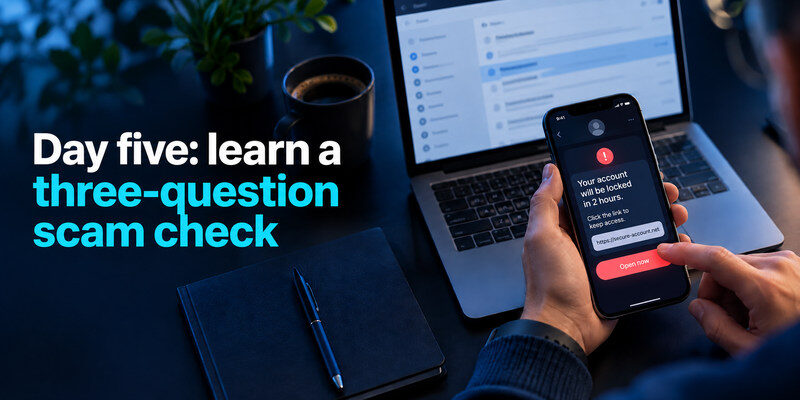
When a message demands immediate action, ask: Did I expect this? Is the sender or website independently verified? Am I being asked for a password, code, payment, or remote access? Open the app or type the provider’s address yourself instead of using the message’s link. Verify a financial request through a phone number you already know. Urgency is a tool scammers use to suppress that pause.
A realistic message example
“Your account will close in one hour; verify here” may include a real-looking logo and your name. Do not judge by design. Open the provider directly and inspect its security notices. If there is no matching event, report or delete the message. If there is an event, follow the provider’s official flow there. A convincing email can coexist with a genuine account issue, so the independent route matters either way.
QR codes and attachments
A QR code can point to a phishing page just like a link. An unexpected attachment can contain malicious content. Do not scan or open one solely because it arrived from a familiar account; that account may be compromised. Confirm through another channel if the request is unusual. Keep your browser and document viewer updated to reduce known software risks.
Day six: make a backup you can restore
Back up important photos, documents, and recovery information through a trusted service or encrypted external storage. Know which folders are included and test opening a sample file from the backup. A backup that has never been restored may be missing the data you value most. Keep at least one copy separated from the everyday device so theft, failure, or ransomware does not affect every copy at once.
Sync is not always a backup
A synced deletion or corrupted file may propagate across devices. Check version history or a separate backup option for irreplaceable data. Protect the account that controls the backup with a unique credential and MFA. Do not rely on a single USB drive kept next to the laptop as protection against a house fire or bag theft.
Keep recovery records current
After changing phones, update account factors and replace obsolete codes. Label physical records clearly enough for you to find them without revealing secrets to a casual reader. A phone photo of a TOTP QR code is not a safe general backup; it contains the reusable secret. Use the provider’s documented transfer and recovery method.
Day seven: check your home connection and activity
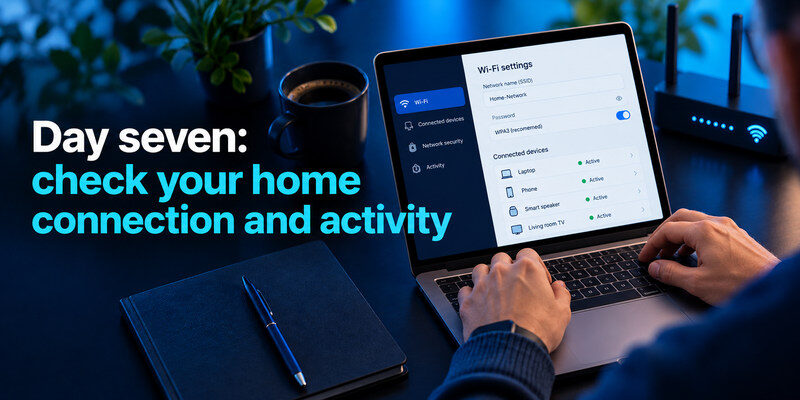
Log in to your router’s official management interface, change a default administrator password, enable supported firmware updates, and use WPA3 Personal or WPA2 Personal with a strong Wi-Fi password. The FTC recommends those encryption modes for home networks. Review connected devices and a guest network for visitors or less-trusted smart devices. Do not change unfamiliar ISP settings blindly; use the router’s manual or provider support.
Review account activity once
Look at recent sign-ins on email and the device-platform account. Remove old sessions you recognize as retired devices and investigate unknown successful ones. A location estimate can be distorted by a carrier or VPN, so compare device and time too. This brief review establishes a baseline for the next alert.
Keep the schedule humane
Once the first week is done, automatic updates and unique password generation handle much of the routine. Revisit recovery methods after device changes, check suspicious alerts when they arrive, and test backups periodically. Do not repeatedly change strong passwords without evidence just to feel active. Security should fit your life well enough that you will continue it.
When something still goes wrong
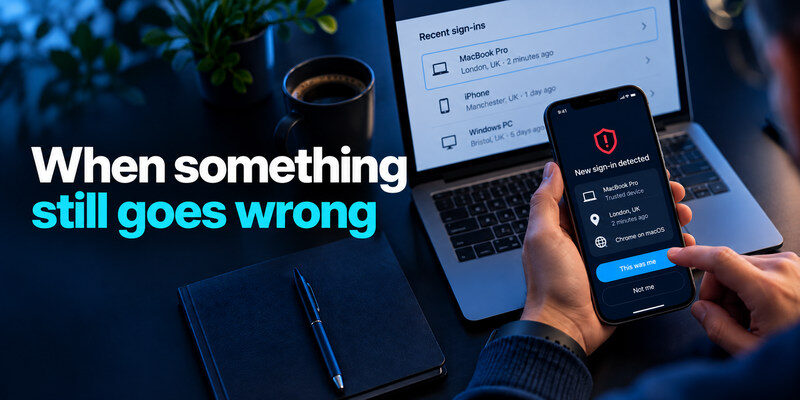
From a trusted device, secure primary email, change the affected account’s password, revoke unknown sessions, and correct recovery methods. If a device may be infected, do not enter new secrets on it. Contact your bank about unauthorized money movement and your workplace security team about work access. Preserve a short timeline of alerts and changes, without sharing passwords or live codes.
Contain money and messages
If a bank charge is unauthorized, contact the bank or card issuer promptly through a known number. If the account sent scam messages, warn contacts through another channel and preserve evidence. An account may be recovered while victims of those messages still need a warning. Work-related incidents should go to the authorized security team before an employee tries to investigate alone.
Separate account recovery from device cleanup
Regaining one login does not remove a malicious browser extension or reverse a fraudulent payment. Investigate the device and connected apps, then return to the account’s activity page after a day. If unauthorized changes reappear, use the provider’s official compromised-account flow and seek qualified help. Do not pay an unverified “recovery expert” found in a comment thread.
Keep the first-week work alive
The first seven days should leave you with defaults, not a pile of one-time chores. Turn on automatic updates, use the password manager when creating a new account, and keep the backup method written where you can find it. Review security alerts as they arrive through the real app. Revisit recovery methods after a phone-number change or a move, when old information is most likely to fail.
Make a ten-minute monthly check
Open the primary email’s security activity and look for unknown successful sessions. Confirm that at least one recent backup completed and a sample file opens. Check the device update queue and remove an extension or app you stopped using. If all is well, stop there. Do not let a checklist turn into a reason to reset every healthy account without evidence.
Know when to ask for help
A parent may need to help a child understand privacy controls; a workplace account may need its security team; unauthorized transactions need a bank or card issuer. If you cannot identify an alert, preserve the notice and ask the real provider through a verified channel. Avoid an unsolicited helper who asks to see a code or install remote access. A calm independent check is especially valuable when the message sets an artificial deadline.
| Event | First trusted contact or screen | What to bring |
| Unexpected account login | Official security activity | Time, device, success status |
| Unauthorized card charge | Bank/card issuer | Transaction amount and date |
| Work account warning | Authorized IT/security team | Exact error and device used |
| Lost phone | Provider recovery flow | Backup method and trusted device |
Frequently Asked Questions
Do beginners need a paid security suite?
Not necessarily. Start with built-in updates, device lock, unique credentials, MFA, backups, and careful verification of requests. Add a paid tool only when it solves a specific gap you understand.
What if I only have ten minutes?
Secure primary email: change a reused password, enable MFA, and check recovery information. Then protect the password manager or device-platform account. These root accounts have the biggest downstream effect.
Is public Wi-Fi always dangerous?
It depends on the network and service, but you should use HTTPS, keep devices updated, avoid connecting to a lookalike hotspot, and use a trusted mobile connection for sensitive tasks when uncertain. A VPN is not a substitute for checking the website or protecting the device.
How do I know a security alert is real?
Open the provider’s app or website independently and check whether the event appears there. Do not use a surprise link as the sole evidence. Compare device, time, success status, and account changes before responding.
Final Thoughts
The best cybersecurity tips for beginners form a first-week routine, not a shopping list: secure root accounts, update and lock devices, stop password reuse, enable MFA, learn to verify requests, and test a backup. Each action has a clear payoff and a way to confirm it worked. Repeat the small checks after a new phone or suspicious alert, and your protection will improve without becoming a second job.
