Password Manager for Small Teams: 4 Best Tools Compared
Published October 9, 2026 · Updated October 21, 2026
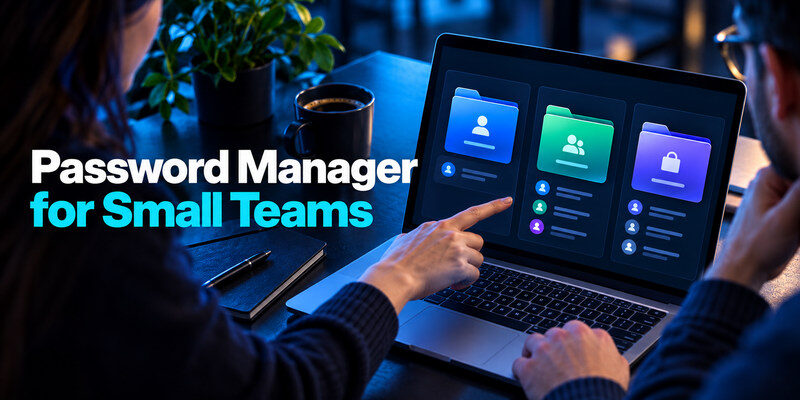
Choosing the right password manager for small teams can make sharing business credentials easier, reduce security risks, and prevent employees from losing access to important accounts. Instead of sending passwords through email or messaging apps, teams can use shared vaults to securely store credentials, manage permissions, and control who can access company services.
Bitwarden is our top recommendation for small teams that want affordable, flexible password management. 1Password is an excellent alternative for businesses that prioritize ease of use and organized shared vaults, while Proton Pass focuses on privacy and secure collaboration. Keeper is another strong option for teams that need more detailed administrative controls.
But which solution is best for your business? This guide compares four password managers based on pricing, security, sharing features, employee management, and ease of use. You’ll also learn how to implement a password manager without disrupting your team’s workflow.
Best Password Managers for Small Teams: Quick Comparison

The best solution depends on your team’s size, the number of shared accounts, and the level of administrative control required.
A five-person marketing agency managing social media accounts has different needs from a software development team handling client credentials, API keys, and cloud infrastructure.
The comparison below highlights where each password manager performs best.
| Password Manager | Best For | Team Sharing | Starting Business Price |
|---|---|---|---|
| Bitwarden Teams | Budget-conscious small teams | Shared collections | $4/user/month |
| 1Password Teams | Teams prioritizing usability | Shared vaults | $24.95/month for up to 10 users |
| Proton Pass for Business | Privacy-focused teams | Encrypted shared vaults | Varies by plan |
| Keeper Business | Teams needing detailed access controls | Shared folders | Varies by plan |
Prices are in USD where shown, based on published annual-billing options, and may change. Check the provider’s official pricing page before purchasing.
For most small businesses, Bitwarden offers the strongest balance between price, flexibility, and administrative features. Its Teams plan includes centralized credential sharing, user management, and activity tracking without requiring an expensive enterprise subscription.
1Password may be a better fit when employees need an especially approachable interface and the business wants to organize shared credentials by department or project.
Proton Pass is attractive for privacy-focused organizations, while Keeper is worth considering when administrators need more granular control over shared credentials.
If you’re comparing business password managers for the first time, understanding how to choose a password manager can help you identify which features matter most before committing to a subscription.
4 Best Password Managers for Small Teams

1. Bitwarden Teams – Best Overall for Small Businesses
Bitwarden Teams is a practical solution for businesses that need secure password sharing without spending heavily on software subscriptions.
The service is built around encrypted password storage and centralized account management. Instead of keeping credentials in individual employees’ personal vaults, businesses can organize shared information through collections and assign access according to each employee’s responsibilities.
For example, a marketing agency might create separate collections for social media accounts, analytics platforms, and client websites. Team members working on social media campaigns can receive access to the relevant accounts without automatically seeing billing credentials or administrative logins.
Bitwarden also supports password generation, AutoFill, synchronization across devices, and business administration tools. This makes it suitable for teams using a combination of Windows, macOS, Android, and iOS devices.
One important advantage is its open-source approach. Bitwarden publishes its software code, allowing independent researchers and developers to examine its implementation. This transparency can be appealing to technically experienced teams.
The Teams plan also provides capabilities such as event logs and directory-related integrations, helping administrators manage users as the organization grows.
However, Bitwarden may require more initial configuration than some alternatives. Administrators need to understand collections, permissions, and organizational settings before inviting employees.
Some advanced identity and policy controls are available through higher-tier plans rather than the basic Teams subscription.
Our verdict: Bitwarden Teams is the best overall password manager for small businesses that want affordable credential sharing, cross-platform access, and centralized management.
For a closer look at the underlying product, read our Bitwarden Review covering its security, usability, and limitations.
2. 1Password Teams – Best for Ease of Use and Team Collaboration
1Password is an excellent choice for small teams that want an intuitive password management experience without sacrificing important business security features.
Its main strength is the shared vault system. Instead of placing every credential in one large collection, administrators can organize passwords by department, project, or responsibility.
For example, a small e-commerce company could maintain separate vaults for marketing, customer support, operations, and finance. Employees receive access to the information needed for their roles, while more sensitive accounts remain restricted.
1Password provides secure password storage, AutoFill, passkey support, and account protection through its encryption architecture and Secret Key.
The Teams Starter Pack is designed for smaller organizations and includes up to 10 users in its base package, with additional seats available up to the plan limit.
This can make budgeting relatively straightforward for businesses with a predictable number of employees.
Another advantage is the user experience. Employees who are unfamiliar with password managers may find it easier to learn the basic workflow of saving, retrieving, and sharing credentials.
However, businesses requiring advanced identity-provider integrations, additional reporting, or enterprise administration may need to move to the more expensive 1Password Business plan.
The subscription cost can also be less attractive for very small teams when compared with lower-cost per-user alternatives.
Our verdict: 1Password Teams is particularly suitable for small businesses that prioritize ease of use, structured collaboration, and convenient shared vault management.
If your organization needs to separate personal credentials from shared accounts, our guide to sharing passwords securely explains several principles that also apply to collaborative password management. Business accounts still require stronger administrative ownership and offboarding controls than personal family sharing.
3. Proton Pass for Business – Best for Privacy-Focused Teams
Proton Pass for Business is designed for organizations that want to manage passwords securely while reducing unnecessary exposure of sensitive information.
Developed by Proton, the company behind Proton Mail, the service emphasizes end-to-end encryption and privacy-focused account management.
For small teams, Proton Pass offers shared vaults, encrypted credential storage, password generation, and cross-device synchronization. Employees can access shared credentials through supported browsers, desktop applications, and mobile devices.
One of Proton Pass’s distinguishing features is its support for hide-my-email aliases. These can be useful when employees register for external services without exposing a primary business email address unnecessarily.
The Pass Essentials plan includes core collaboration features, such as secure vault sharing, password health tools, and integrated authentication-code generation.
Organizations requiring additional administrative capabilities can consider Pass Professional, which includes features such as group management, advanced policies, and identity integrations.
This distinction matters for smaller businesses. A team of three people sharing a handful of credentials may only need the Essentials plan, while a growing organization may eventually need more structured access controls.
Proton Pass also supports passkeys, making it relevant for businesses gradually adopting passwordless authentication.
Its main limitation is that some advanced administrative tools are available only in higher-tier subscriptions. Businesses should review the exact permissions and recovery features available in the plan they intend to purchase.
Our verdict: Proton Pass for Business is a strong choice for privacy-conscious small teams that want encrypted password sharing and additional protection for business identities.
4. Keeper Business – Best for Advanced Access Management
Keeper Business is worth considering for small organizations that need structured credential sharing and detailed control over employee access.
The platform provides encrypted password storage, shared folders, role-based administration, and tools for managing credentials across teams.
A useful aspect of Keeper is its ability to separate individual records, shared resources, and administrative permissions.
For example, an IT services company managing several client environments may need to provide employees with access to specific systems without exposing unrelated customer credentials.
Keeper’s administrative features can support this type of workflow by helping businesses organize accounts around departments, projects, and access responsibilities.
The service also offers additional capabilities through certain plans and add-ons, including security monitoring and advanced business integrations.
However, this flexibility comes with considerations.
Some functions may require higher-tier subscriptions or separate purchases, and the overall cost can increase as a team adds users or advanced security features.
Smaller organizations with only a few shared logins may find Keeper more comprehensive than necessary.
What to Look for in a Password Manager for Small Teams
Choosing a team password manager involves more than finding a secure place to store passwords.
Individual users usually focus on AutoFill, password generation, and synchronization. Small businesses must also consider what happens when employees change roles, leave the company, or lose access to their devices.
Secure Sharing and Access Permissions
A reliable team password manager should allow employees to access the credentials they need without exposing every account in the organization.
For example, a content specialist may need access to a publishing platform but should not automatically receive credentials for billing systems or the company’s primary domain registrar.
This principle is commonly known as least-privilege access.
The password manager should support organizing credentials into separate vaults, folders, or collections. Administrators can then assign permissions according to an employee’s job responsibilities.
Whenever a service supports individual user accounts, it is generally better to invite employees through that service rather than share the primary account password.
A password manager should protect credentials that genuinely need to be shared, not replace proper user account management.
Administrative Control and Employee Changes
Small teams frequently add freelancers, contractors, and part-time employees.
Without centralized credential management, important passwords can end up stored on personal devices or in private accounts that the business cannot control.
A suitable password manager should help administrators invite users, organize shared resources, and remove access when employment or contractual responsibilities change.
However, removing someone from a shared vault does not guarantee that previously viewed passwords are no longer usable.
Employees may have copied credentials, saved active sessions, or generated access tokens.
This is why secure offboarding must include both the password manager and the underlying services.
Account Recovery and Business Continuity
Recovery is especially important for small teams because a single employee may manage several critical systems.
Imagine a five-person company where only the founder can access the domain registrar, business email administrator account, or payment platform.
If that person loses a device or becomes unavailable, the business may struggle to recover its own accounts.
A password manager can help centralize credential ownership, but organizations still need designated backup administrators and documented recovery procedures.
Critical accounts should have clearly assigned business owners, protected recovery information, and at least one tested emergency-access method.
The organization should also define how important authentication codes and recovery keys are stored.
Our guide to creating a strong password policy explains how account ownership, password requirements, and recovery responsibilities can fit into a consistent security process.
Pricing and Long-Term Value
Small businesses should evaluate subscription costs based on the number of people who actually need access.
A password manager costing a few dollars per user each month may be affordable for a team of five, but costs can grow as the organization expands.
More importantly, different plans may include different management capabilities.
Before subscribing, confirm whether your intended plan includes shared vaults, role management, recovery assistance, administrative logs, and the integrations your team needs.
The least expensive subscription is not always the best value if important controls require an immediate upgrade.
How to Set Up a Password Manager for Your Team

Implementing a password manager does not require moving every business account on the first day.
A better approach is to begin with a small number of shared credentials and establish a repeatable process before expanding.
Start by identifying the accounts the business owns. These may include company email, social media, analytics platforms, advertising accounts, billing tools, domain registration, and customer support software.
Determine which accounts already support individual employee access and which still require a shared login.
Next, create the organization’s password manager account and establish administrative ownership. Whenever possible, use a business-controlled email address rather than an employee’s personal address.
Set up shared vaults or collections based on actual working responsibilities. A small agency might begin with Marketing, Operations, and Finance, then create additional collections when necessary.
Invite two or three employees to test the system with noncritical accounts.
During this test, verify that a user can retrieve a shared credential, update it, and access the new version from another authorized device. Also confirm that an employee without permission cannot view unrelated credentials.
Once the initial workflow works, begin transferring important business accounts.
If existing passwords are exported from browsers or another manager, handle those exports carefully. Plaintext CSV files can expose credentials and should not be stored in shared folders or emailed between employees.
Our guide on importing passwords into a password manager explains how to approach migration securely.
Finally, document a simple process for requesting access, updating shared passwords, and reporting login problems. Employees should know whom to contact when an account stops working without needing to exchange passwords in chat messages.
A successful rollout is one that employees can follow consistently, not simply one that imports the largest number of passwords.
Keep 2FA and recovery under organizational control
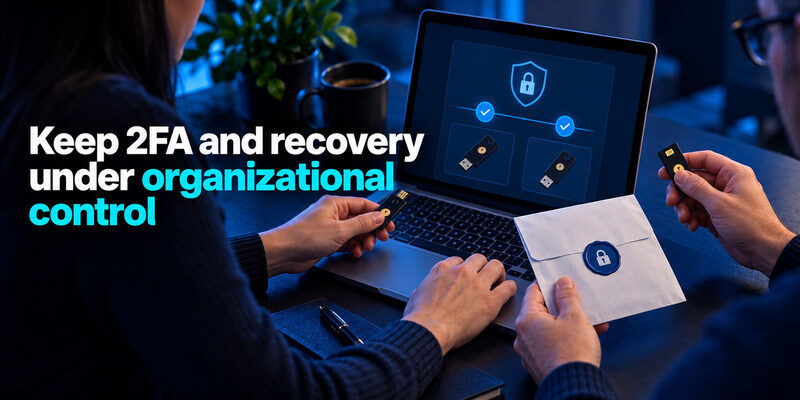
Enable MFA on the manager and on important underlying services. Prefer phishing-resistant methods for the highest-impact systems where offered, following CISA’s guidance. Decide whether standard TOTP codes are shared inside a vault or stored in a separate team-controlled authenticator; either way, avoid a single employee’s personal phone as the sole path to the company account. Save service recovery codes in a restricted, documented location with a backup owner.
Avoid a factor locked behind itself
The code for the password manager account must not exist only inside that locked manager. Register an independent factor and save its recovery material where authorized administrators can reach it after a device loss. Test with a new browser or test user. A recovery procedure that works only on the founder’s current laptop will fail at the least convenient moment.
Separate codes for critical services
For services that support standard authenticator codes, can provide a code outside the shared password vault when independent custody is appropriate. The organization must define who holds the device, how a backup is protected, and how to transfer or re-enroll the factor. A personal authenticator without an offboarding procedure does not solve team ownership.
Offboard a person without losing the account
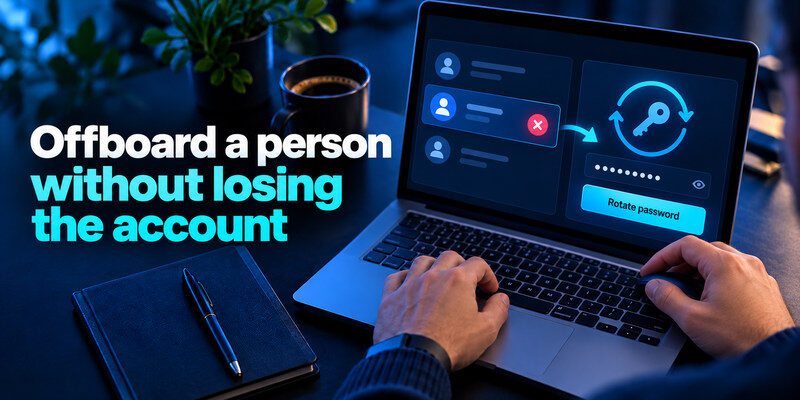
Remove the person’s named access in every underlying service, not just the manager. Disable or remove their manager membership, review shared vaults they could access, rotate shared passwords and recovery codes where appropriate, and revoke sessions or API tokens. Transfer account ownership and MFA methods before disabling a company email address that receives recovery mail. Keep a dated record of what was changed and by whom, without writing new secrets in that record.
A brief offboarding sequence
First confirm a second administrator can sign in. Next remove the departing user’s direct service roles and manager membership. Then rotate any shared credentials the person could have copied, review active sessions and app integrations, and test the owner login again. Do not delete the only admin account first. A dry run using a test member is useful because vendors differ in how removal affects items and groups.
What to do if the manager is unavailable
Keep an emergency contact, documented vendor recovery process, and protected backup for the handful of root accounts. The backup should be limited and updated after major changes. It is not a second uncontrolled spreadsheet of every password. Practice retrieving one noncritical record so administrators know the process and do not bypass it under pressure.
Frequently Asked Questions
Should every team member be an admin?
No. Give administrative roles only to people who need them, while maintaining at least one authorized backup. Ordinary access should follow job responsibilities. Test whether a role can see or export data before relying on its label.
Can a small team use a free personal manager?
It may store individual credentials, but governance, recovery, permissions, and offboarding may be limited. Compare the current plan’s exact features before sharing business-critical accounts. A business-owned vault is usually clearer for continuity.
Does revoking vault access protect copied passwords?
No. A person may have copied a shared credential while authorized. Rotate those passwords and revoke active sessions in the underlying service. Remove direct user seats and tokens separately.
Where should team recovery codes go?
Put them in a restricted, documented recovery location accessible to authorized backup owners, independent of the system they unlock. Do not leave the only copy on one employee’s phone or in an unprotected chat.
Final Thoughts
A password manager for small teams succeeds when it gives the company clear ownership and makes access easy to grant, review, and revoke. Pilot the product with real tasks, compare permissions and recovery, and keep individual service accounts wherever possible. The vault is one control in a larger workflow; the team needs an offboarding and emergency plan that works when its usual administrator is absent.