GitHub Two Factor Authentication: Setup & Recovery Guide
Published September 9, 2026 · Updated October 21, 2026

GitHub two factor authentication helps protect your account, repositories, and development projects by requiring an additional verification step when signing in. Whether you’re enabling 2FA for the first time or switching to a new authenticator app, setting it up correctly is essential to maintaining secure access.
This guide explains how to enable GitHub 2FA, connect an authenticator app, use verification and recovery codes, troubleshoot common authentication errors, and recover access if you lose your phone.
How to Enable GitHub Two-Factor Authentication
The easiest way to configure GitHub 2FA is with a time-based one-time password (TOTP) authenticator.
A TOTP app generates short-lived verification codes using a secret shared with GitHub during setup.
Step 1: Open GitHub Security Settings
- Sign in to GitHub.
- Click your profile picture in the upper-right corner.
- Select Settings.
- Under Access, select Password and authentication.
- Find Two-factor authentication.
- Click Enable two-factor authentication.
GitHub will guide you through the enrollment process.
Step 2: Choose a GitHub Authenticator App
Install a compatible TOTP app on your phone or another supported device.
Common options include:
- Google Authenticator
- Microsoft Authenticator
- 2FAS Auth
- Aegis Authenticator
- Ente Auth
- Other compatible TOTP applications
GitHub does not require one specific brand of authenticator for standard TOTP enrollment.
Choose an app with backup, recovery, and device support that meet your needs.
For a broader comparison, read our best authenticator apps guide.
Step 3: Scan the GitHub 2FA QR Code
GitHub displays a setup QR code.
On your authenticator:
- Open the app.
- Choose the option to add an account.
- Select QR code scanning.
- Scan the QR code shown by GitHub.
- Confirm that a GitHub account entry appears.
The app should begin generating temporary codes.
Security tip: Treat the setup QR code as a secret. Anyone who copies it may be able to generate the same future authentication codes.
Step 4: Use the Manual Setup Key if Needed
If you cannot scan the QR code, GitHub provides a setup key option.
To configure it manually:
- Click setup key on GitHub’s enrollment page.
- Copy the secret securely.
- Open your authenticator app.
- Select manual account setup.
- Enter the account name and secret.
- Choose time-based authentication.
- Save the entry.
GitHub’s documented TOTP configuration uses six-digit codes, a 30-second period, and the standard SHA-1 algorithm.
Never paste the secret into an untrusted website or share it with another person.
Step 5: Verify Your GitHub Authentication Code
After adding GitHub to your authenticator:
- Find the GitHub entry.
- Read the current six-digit code.
- Return to GitHub.
- Enter the code in the verification field.
- Continue to the recovery-code step.
If the code expires before you submit it, wait for the next one.
Step 6: Download GitHub Recovery Codes
GitHub asks you to save recovery codes during enrollment.
Download the codes and store them securely, preferably in a protected password manager or another secure location separate from your authenticator.
Confirm that you have saved the codes to complete setup.
Do not skip this step. Recovery codes may be essential if you lose access to your authenticator.
Step 7: Add Another Authentication Method
After enabling 2FA, configure an additional supported method where possible.
Depending on your account and device, options may include:
- A passkey.
- A security key.
- GitHub Mobile.
- Another supported authentication method.
GitHub recommends maintaining more than one way to authenticate or recover your account.
Why Does GitHub Require 2FA?
GitHub requires 2FA for users who contribute code on GitHub.com as part of its account security program.
Developer accounts can provide access to source code, release processes, organization resources, and software supply chains.
GitHub also uses a 28-day check-up period after initial enrollment to help confirm that your configured authentication method works.
If GitHub asks you to verify your recently configured 2FA method, complete the check using your registered method rather than ignoring it.
Download Authenticator App
Secure your accounts with fast, reliable two-factor authentication. Download now and protect your login in seconds.
📘 Find the Right Guide: Authenticator Login: How to Sign In With an Authenticator App on Any Service
Best GitHub 2FA Authenticator Apps
A GitHub 2FA authenticator does not need to be developed by GitHub.
Any compatible TOTP app can generate the verification codes required by GitHub’s authenticator-based setup.
GitHub Authenticator App Comparison
| Authenticator | Main advantage | Consideration |
|---|---|---|
| Google Authenticator | Simple TOTP setup and optional Google Account sync | Review whether codes are synchronized or local-only |
| Microsoft Authenticator | TOTP plus Microsoft account authentication features | Backup behavior depends on platform and account type |
| 2FAS Auth | Dedicated authenticator with backup options | Review its supported recovery workflow |
| Aegis Authenticator | Encrypted vault and backup controls | Primarily designed for Android |
| Ente Auth | Cross-platform encrypted synchronization | Requires understanding its account and recovery model |
The best option is one you can use reliably and recover securely.
Can You Use Google Authenticator for GitHub?
Yes.
To use Google Authenticator:
- Install the official Google Authenticator app.
- Open GitHub’s two-factor authentication setup.
- Display the GitHub QR code.
- Scan it with Google Authenticator.
- Enter the generated code on GitHub.
- Save your recovery codes.
For a complete introduction, see our Google Authenticator setup guide.
Does Microsoft Authenticator Work With GitHub?
Yes. Microsoft Authenticator supports standard TOTP codes and can be used for GitHub’s authenticator-app enrollment.
In Microsoft Authenticator, add an account using the supported QR code or manual configuration flow.
Make sure you are adding GitHub as a compatible non-Microsoft account rather than attempting to use Microsoft-specific push approval for GitHub.
For additional details, see our Microsoft Authenticator guide.
Can You Use a Desktop Authenticator for GitHub?
GitHub supports compatible TOTP applications on mobile or desktop.
However, storing both your GitHub password and authenticator secret on the same computer may reduce the separation between authentication factors.
Evaluate the app’s security, backup, and storage design before using it for important development accounts.

How to Use GitHub Authentication Codes
Once GitHub 2FA is configured, you may need to provide a verification code during sign-in.
How to Find Your GitHub 2FA Code
- Open the GitHub sign-in page.
- Enter your username and password.
- When GitHub requests an authentication code, open your authenticator.
- Find the entry associated with your GitHub account.
- Enter the current six-digit code.
- Complete the login.
The authenticator code is not the same as your GitHub password, personal access token, or recovery code.
Does GitHub Authenticator Work Offline?
Standard TOTP applications can generate codes without an internet connection after setup.
The codes are calculated from a stored secret and the device’s current time.
You still need connectivity to access GitHub itself.
How Long Does a GitHub Authenticator Code Last?
GitHub’s standard TOTP configuration uses a 30-second period.
If the displayed code is about to expire, wait for a new one before submitting it.
Is a GitHub TOTP Code Phishing-Resistant?
No.
TOTP provides additional protection beyond a password, but an attacker may still trick a user into entering a valid code on a fake website.
Passkeys and WebAuthn security keys provide stronger protection against many phishing attacks.
Always verify that you are signing in to the legitimate GitHub domain.
GitHub Recovery Codes and Backup Methods
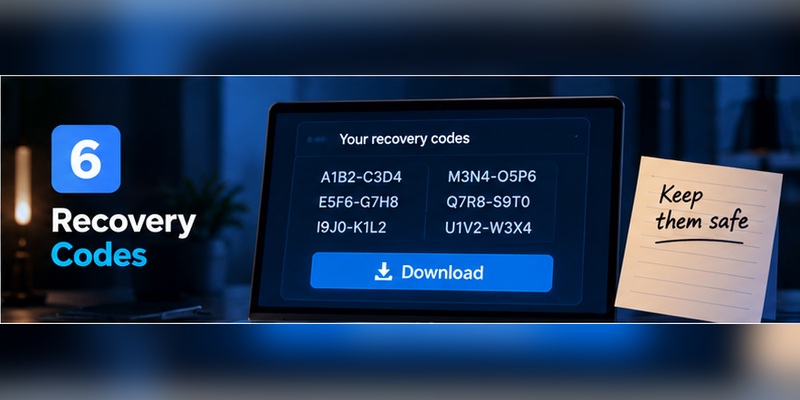
GitHub recovery codes are one-time credentials that can help you regain access if your normal 2FA method becomes unavailable.
They are a critical part of GitHub account security.
Where to Find GitHub Recovery Codes
If you are already signed in:
- Open your GitHub profile menu.
- Select Settings.
- Open Password and authentication.
- Find Recovery codes.
- Select View.
- Follow GitHub’s instructions to download, print, or copy the codes.
Store them securely.
GitHub’s default downloaded recovery-code filename is commonly github-recovery-codes.txt.
How to Use a GitHub Recovery Code
If you cannot access your authenticator:
- Visit GitHub’s official sign-in page.
- Enter your credentials.
- At the 2FA prompt, select More options.
- Choose 2FA recovery code.
- Enter an unused recovery code.
- Complete the sign-in process.
A recovery code cannot be reused after it has been consumed.
How Many GitHub Recovery Codes Do You Get?
GitHub provides a set of 16 recovery codes.
If you generate a new set, the previously issued codes become invalid.
Update any securely stored copies when regenerating recovery codes.
What Other Recovery Methods Does GitHub Support?
Depending on your account configuration and previously registered credentials, GitHub may support recovery using:
- A passkey.
- A registered security key.
- A verified device.
- An eligible SSH key.
- An eligible personal access token.
- Saved recovery codes.
Some recovery options involve additional verification and are not guaranteed to restore access immediately.
Configure supported recovery methods before an emergency occurs.
What Happens if You Lose Every 2FA Method?
If you lose your authenticator and all supported recovery methods, you may permanently lose access to your GitHub account.
GitHub Support cannot simply bypass 2FA on request.
That is why saving recovery codes and registering additional methods should be part of your initial setup.
For general authenticator recovery practices, read our lost authenticator guide.
How to Change GitHub Authenticator or Move to a New Phone
You can replace your GitHub authenticator without necessarily disabling two-factor authentication.
This is safer than removing 2FA and starting over.
Method 1: Transfer Your Existing TOTP Credentials
If your authenticator supports synchronization or manual export:
- Prepare the new phone.
- Install the authenticator.
- Restore or transfer the existing GitHub TOTP credential.
- Confirm that the GitHub entry appears.
- Test a sign-in.
- Keep the old device until verification succeeds.
Transfer methods differ by authenticator app.
For general migration instructions, see our authenticator transfer guide.

Method 2: Change the GitHub Authenticator App
GitHub allows users to reconfigure their TOTP method without disabling 2FA.
To change it:
- Sign in to GitHub.
- Open Settings → Password and authentication.
- Find your existing authenticator method.
- Select Edit.
- Follow the new TOTP setup process.
- Scan the new QR code with your replacement app.
- Enter the verification code.
- Confirm that the new method works.
GitHub documents that changing the authenticator through this flow does not require disabling 2FA entirely.
Should You Disable GitHub 2FA Before Changing Phones?
No, not as a routine migration step.
Disabling 2FA removes an important security control and may affect access to organizations that require it.
Use the supported transfer or authenticator-change process instead.
Checklist Before Replacing Your Phone
Before erasing the old device:
- Confirm that the new authenticator generates GitHub codes.
- Test a GitHub sign-in.
- Verify that recovery codes are stored securely.
- Confirm that a backup authentication method works.
- Check any other accounts registered in the old authenticator.
Only remove the old credentials after successful verification.
📖 Read More Guides: Google Authenticator Website Login: How to Sign In on a Computer
GitHub 2FA Not Working: Troubleshooting
GitHub two-factor authentication may fail because of an expired code, incorrect device time, missing credentials, or a changed authentication method.
GitHub Says the Authentication Code Is Invalid
Try the following:
- Confirm that you selected the correct GitHub entry.
- Enable automatic date and time on your device.
- Check the time zone.
- Wait for a new code.
- Enter the code promptly.
- Verify that the authenticator registration has not changed.
If the problem continues, use a previously configured alternative method or recovery code.
GitHub 2FA Code Is Missing
If you cannot find the GitHub entry:
- Check whether you are using the correct authenticator.
- Check another phone or device where the code may be stored.
- Review your authenticator’s synchronization settings.
- Restore from a supported backup if available.
- Use GitHub’s official recovery options.
Do not uninstall your authenticator before confirming that your codes can be restored.
GitHub Two-Factor Authentication Failed After Changing Phones
Your new phone may not contain the original GitHub TOTP secret.
Restore it using your authenticator’s supported migration method, or use GitHub’s account settings to reconfigure the TOTP method if you can still sign in.
If you are locked out, use an available recovery method.
GitHub Is Asking to Verify Recently Configured 2FA
GitHub has a 28-day check-up process following enrollment.
If GitHub requests verification, use the authentication method you configured.
Follow the official on-screen instructions if the method needs to be reconfigured.
GitHub Recovery Code Is Not Working
A recovery code may fail if it:
- Was already used.
- Came from an older, invalidated set.
- Was entered incorrectly.
- Belongs to a different GitHub account.
Check your stored codes carefully and use GitHub’s official recovery documentation if none work.
What if Your GitHub Authenticator Is Lost?
Try, in order:
- Another registered authentication method.
- An unused GitHub recovery code.
- A previously configured passkey or security key.
- Other GitHub-supported recovery mechanisms.
Avoid websites or services claiming they can bypass GitHub 2FA.
GitHub 2FA for Developers: SSH, HTTPS, and Passkeys
GitHub 2FA protects interactive account authentication, but it is important to understand how it relates to Git operations and developer credentials.
Does GitHub 2FA Affect Git Over SSH?
Git over SSH normally authenticates using an SSH key, not a six-digit TOTP code for each push or pull.
Enabling GitHub 2FA does not mean you must type an authenticator code for every SSH operation.
Protect your SSH private keys with appropriate access controls and passphrases.
Do You Need a GitHub 2FA Code for HTTPS Git Operations?
No. GitHub does not use your ordinary six-digit authenticator code as the password for Git operations over HTTPS.
Use supported credentials such as a personal access token or an approved credential manager flow.
Treat access tokens as sensitive credentials and grant only the permissions needed.
What Is the Difference Between a GitHub Passkey and an Authenticator App?
An authenticator app generates time-based verification codes.
A passkey uses public-key cryptography and can support phishing-resistant authentication.
GitHub passkeys may satisfy both password and 2FA requirements, depending on how they are configured and used.
Security keys are also WebAuthn credentials, but GitHub distinguishes some security-key registrations from passkeys.
Follow GitHub’s current setup guidance for the specific method.
Which GitHub 2FA Setup Is Best for Developers?
A practical approach is:
- Enable GitHub 2FA with a trusted authenticator.
- Save recovery codes in a secure location.
- Add a passkey or security key where supported.
- Configure additional recovery methods.
- Secure your primary email account.
- Protect SSH keys and personal access tokens.
- Periodically verify that your recovery methods still work.
This reduces dependence on a single phone or authentication method.
Frequently Asked Questions
Does GitHub require two-factor authentication?
Yes. GitHub requires users who contribute code on GitHub.com to enable 2FA.
How do I enable two-factor authentication on GitHub?
Open GitHub Settings, select Password and authentication, click Enable two-factor authentication, configure a supported method, and save recovery codes.
What is a GitHub 2FA authenticator?
It is a compatible authentication application that generates temporary verification codes for GitHub using TOTP.
Can I use Google Authenticator with GitHub?
Yes. Google Authenticator supports the TOTP method used by GitHub.
Can I use Microsoft Authenticator for GitHub?
Yes. Microsoft Authenticator can generate standard TOTP codes for GitHub.
How do I find my GitHub authentication code?
Open the authenticator app registered with GitHub and find the entry associated with your GitHub account.
How often does a GitHub 2FA code change?
GitHub’s standard TOTP configuration uses a 30-second code period.
Why is GitHub rejecting my authenticator code?
Possible causes include incorrect device time, an expired code, selecting the wrong account, or a changed TOTP registration.
Where can I find GitHub recovery codes?
While signed in, open Settings, select Password and authentication, and locate Recovery codes.
How many recovery codes does GitHub provide?
GitHub provides 16 recovery codes. Each code is intended for one-time use.
Can I change my GitHub authenticator without disabling 2FA?
Yes. GitHub supports changing an existing TOTP authenticator method without disabling 2FA entirely.
Can I transfer GitHub 2FA to a new phone?
Yes. Use a supported authenticator transfer method or reconfigure the TOTP app through GitHub settings while you still have access.
What if I lose my phone and recovery codes?
You may be able to use another previously configured authentication or recovery method. Without any usable recovery path, permanent account loss is possible.
Does GitHub 2FA apply to Git push over SSH?
You do not normally enter a TOTP code for every SSH-based Git operation. SSH authentication uses SSH keys.
Can I use a passkey for GitHub?
Yes. GitHub supports passkeys, which can provide phishing-resistant authentication and may satisfy both password and 2FA requirements.