
Google Authenticator Website Login: Can You Use It Online?
Published September 7, 2026 · Updated October 6, 2026
Google Authenticator does not have an official website where you sign in to view or generate your authentication codes. Your codes are generated inside the Google Authenticator app on a supported device.
You can use those codes to log in to compatible websites on a phone or computer. You can also sign Google Authenticator into your Google Account to synchronize supported Authenticator codes between devices.
But Google Account sync does not create a Google Authenticator web dashboard where your TOTP codes can be viewed in a browser.
Quick answer: Open the website you want to access, enter your username and password, and when it asks for an authenticator code, open Google Authenticator on your phone and enter the current code shown for that website.
Is There a Google Authenticator Website Login?
No. Google does not currently provide an official Google Authenticator website where users can sign in and view their TOTP codes in a browser.
This is an important distinction because the phrase “Google Authenticator login” can refer to several different actions.
| What you want to do | Supported? |
|---|---|
| Use Google Authenticator to log in to a website | Yes |
| Generate configured TOTP codes in the mobile app | Yes |
| Generate configured codes while the phone is offline | Yes |
| Sign Authenticator into a Google Account for supported sync | Yes |
| Use Google Authenticator without signing into Google | Yes |
| Open an official Google Authenticator web dashboard to view codes | No |
| Generate your Google Authenticator TOTP codes on a Google website | No |
If you are searching for a “Google Authenticator website,” be careful with websites claiming to be an online version of Google Authenticator.
Do not enter private authenticator setup keys or scan sensitive 2FA QR codes into an untrusted website.
Download Authenticator App
Secure your accounts with fast, reliable two-factor authentication. Download now and protect your login in seconds.
How to Use Google Authenticator Codes for a Website Login
Google Authenticator is commonly used as the second step after entering your password.
A typical login works like this.
Step 1: Open the website
Navigate directly to the legitimate website or app you want to access.
Enter your username, email address, or other account identifier.
Step 2: Enter your password
Submit your normal account password.
If two-factor authentication is enabled with an authenticator app, the service may then ask for a temporary verification code.
Step 3: Open Google Authenticator
Open the Google Authenticator app on your phone.
Find the entry associated with the website or account you are trying to access.
If you have many accounts, verify the account name carefully.
Step 4: Read the current code
Google Authenticator displays a temporary verification code.
The code changes periodically.
If the current code is close to expiring, wait for a new one.
Step 5: Enter the code on the website
Return to the legitimate login page and enter the current Google Authenticator code.
Submit it before the code expires.
If the password and second factor are valid, the website can complete the login.
The website verifies the code. Google Authenticator does not need to send that individual TOTP code to the website over the internet.

💡 Discover Helpful Guides: App Authenticator: Complete Guide to 2FA, OTP Codes, Setup & Recovery
Does Google Authenticator Need Internet for Website Login?
The Google Authenticator app does not need internet access to generate an already-configured TOTP code.
Those codes are generated on the device.
For example:
- Your laptop is connected to Wi-Fi.
- You open a website on the laptop.
- Your phone is in Airplane Mode.
- Google Authenticator is already configured for the account.
- The website asks for an authenticator code.
You can open Google Authenticator on the offline phone, read the current code, and type it into the website on the laptop.
The website still needs connectivity to process the login, but the phone does not need to download each new TOTP code.
This makes authenticator codes useful in situations where your phone has:
- No cellular signal
- No mobile data
- No Wi-Fi
- No roaming service
Your device time still needs to be accurate because TOTP authentication depends on time.
🗺️ Browse How-To Guides: Best Authenticator App Android: 6 Free Apps Reviewed and Setup Guide
Can You Sign In to Google Authenticator With a Google Account?
Yes.
Current Google Authenticator versions support signing in with a Google Account so compatible Authenticator codes can be synchronized.
This can make moving between devices easier.
However, this is not the same thing as logging into an Authenticator website.
Signing the app into your Google Account can provide synchronization between supported Authenticator installations.
It does not mean you can open a browser, visit a Google Authenticator dashboard, and view all of your TOTP codes there.
Google Authenticator Website Login on a PC
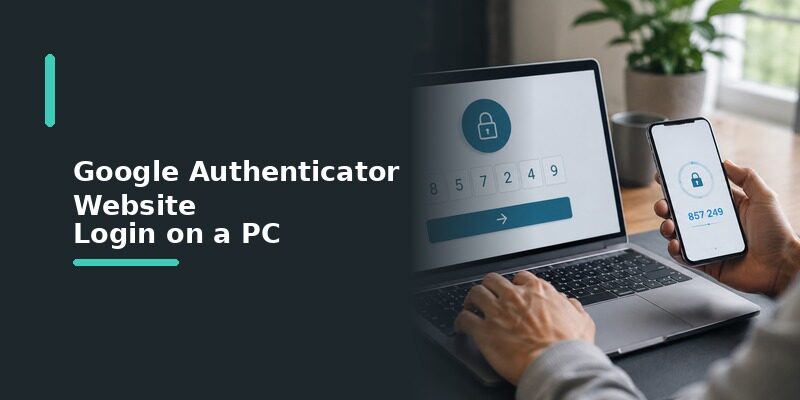
Using Your Phone Alongside the PC
On a PC, you keep your phone nearby to read the code while you type it into the website on your computer, since the app has no desktop version you sign into on Windows.
For most people this two-device routine is quick once it’s familiar, taking only a few seconds to glance at the phone and type the code.
Alternatives for Desktop Users
People who dislike reaching for their phone during a Google Authenticator website login sometimes use a different authenticator that offers a desktop app or browser extension, which can show codes on the computer itself.
This is a matter of convenience rather than security, since the underlying codes work the same way regardless of which device displays them.
So the choice between a phone-only app and a desktop-capable one comes down entirely to how you prefer to work, not to how protected your accounts are.
What to Do If You Can’t Reach the App
Using Backup Codes
If your phone is unavailable, the backup codes generated when you set up two-factor authentication let you complete the website login without the app at all.
Storing those codes somewhere off your phone, such as a printout or a password manager, is what makes them useful in exactly this situation.
Using Account Recovery
Without backup codes either, the website’s own account-recovery process is the remaining path back in, handled through that specific service rather than Google Authenticator.
This process varies by service and can take anywhere from minutes to several days, which is why a saved backup method is so much faster when it exists.
Setting up backup codes takes only a minute at the time you enable two-factor, and it’s the single best insurance against this slower recovery route.
💡 Discover Helpful Guides: Authenticator App Desktop: Safe Ways to Use 2FA on Windows and Laptops
Common Google Authenticator Website Login Problems
| Symptom | Likely Cause | Fix |
|---|---|---|
| Code rejected | Phone clock out of sync | Turn on automatic date and time on the phone |
| Code expires before you type it | Reading slowly digit by digit | Read the full code, then type it quickly |
| Can’t find the account in the app | Wrong entry or long list | Use the app’s search or scroll carefully |
The Code Is Always Rejected
A phone clock out of sync is the most common cause, since the code depends on matching time between your phone and the website’s server; enabling automatic date and time resolves it.
This is especially common after traveling across time zones or manually setting the clock, which is exactly when a device’s time is most likely to drift.
The Code Expires Too Fast
Codes rotate roughly every 30 seconds, so read the whole code first and type it in one go rather than glancing back and forth, which is what usually causes it to expire mid-entry.
If a code does expire as you type, simply wait for the next one to appear and enter that instead, rather than reusing the expired digits.
Website Login vs Signing Into the App Itself
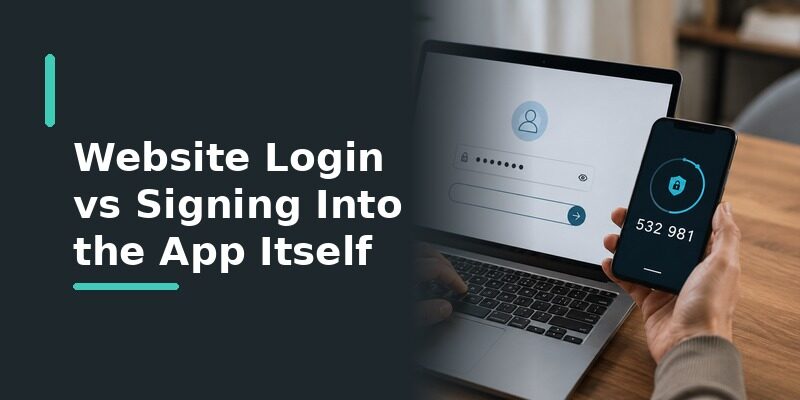
Part of what makes a Google Authenticator website login confusing is the difference between logging into a website and the idea of logging into the app. This comparison makes the distinction clear.
| Action | Does It Exist? | What Actually Happens |
|---|---|---|
| Log into a website using its code | Yes | Enter password, then the app’s code |
| Log into Google Authenticator online | No | The app has no website or account |
| See codes in a browser | Not with this app | Requires a separate browser extension |
Once this is clear, the searches people make around a web login mostly resolve to the same simple answer: use the phone code on the site.
Whether the query is about Chrome, a PC, or an online portal, the mechanics of a Google Authenticator website login are identical underneath.
💡 Discover Helpful Guides: Why Is My Authenticator App Not Opening? 7 Fixes That Actually Work
Google Authenticator Website Login on a New Phone
Transferring Your Accounts
Before switching phones, use Google Authenticator’s export or account-transfer feature to move your codes, so website logins keep working on the new device without interruption.
Doing this before wiping the old phone, rather than after, avoids the awkward gap where you need a code from an app that’s no longer accessible.
If You Already Switched Without Transferring
If you changed phones without moving your codes, each website’s own recovery or backup codes restore access, after which you can set up the Google Authenticator website login again on the new phone.
Start with your most important accounts, email especially, since regaining those often makes recovering the rest much easier.
📘 Find the Right Guide: How to Download TCS Authenticator App on iPhone: Step-by-Step Guide
Can Authenticator App Show Codes on Your Computer?

Because Google Authenticator has no desktop version, anyone who wants codes available directly on their computer during a website login may prefer a cross-platform option; Authenticator App keeps the same codes accessible across a phone and a browser session.
For people who spend most of their day at a computer, having codes on the same device they’re signing in from removes a small but frequent bit of friction.
It won’t matter much to someone who only occasionally signs in, but for heavy desktop users those saved seconds add up over a day.
This removes the need to reach for a phone during every desktop sign-in, while still keeping the accounts synced and consistent everywhere you use them.
💡 Discover Helpful Guides: Authenticator App Is Not Showing Code: How to Fix Missing Verification Codes
Frequently Asked Questions About Google Authenticator Website Login
Can I log into Google Authenticator on a website?
No. Google Authenticator has no website or online account; it only generates codes on your phone, which you then use to log into other websites on your computer.
This is the single most common question about it, and the answer is consistently the same: there’s nothing to log into for the app itself.
Does Google Authenticator work in a browser?
The app itself doesn’t run in a browser; you read the code from your phone and enter it into the website open in your browser.
If you specifically want codes inside your browser, a dedicated browser-extension authenticator is a separate tool that can do that.
How do I log in on my computer if the app is on my phone?
Keep your phone nearby, open the app to read the current code, and type it into the verification field on the website on your computer.
This is the intended workflow for the app, so needing your phone during a desktop sign-in is normal rather than a sign that something is set up wrong.
What if my code keeps getting rejected on the website?
This is almost always a phone clock issue. Turning on automatic date and time syncs the clock and fixes rejected codes in the large majority of cases.
If it still fails after that, double-check you’re entering the code for the exact account shown on the website, since a mismatched entry looks identical to a wrong code.
Can I see my Google Authenticator codes on a PC?
Not with Google Authenticator itself, since it has no desktop version. A cross-platform authenticator with a desktop app or browser extension can show codes on a PC instead.
Switching to such an app is optional and purely about convenience, since Google Authenticator on your phone protects your accounts just as effectively.
Final Thoughts
A Google Authenticator website login simply means entering your password on a website and then a code from the phone app, since Google Authenticator has no web portal of its own to sign into.
Most trouble comes down to a phone clock out of sync or a code that expires while typing, both quick to fix, and keeping backup codes ready ensures a missing phone never fully blocks a sign-in.
Want your codes available right on your computer instead of only your phone? Download and keep them synced across every device.
Download Authenticator App
Secure your accounts with fast, reliable two-factor authentication. Download now and protect your login in seconds.
