
Microsoft Authenticator: Download, Setup & 2FA Guide
Published August 10, 2026 · Updated October 20, 2026
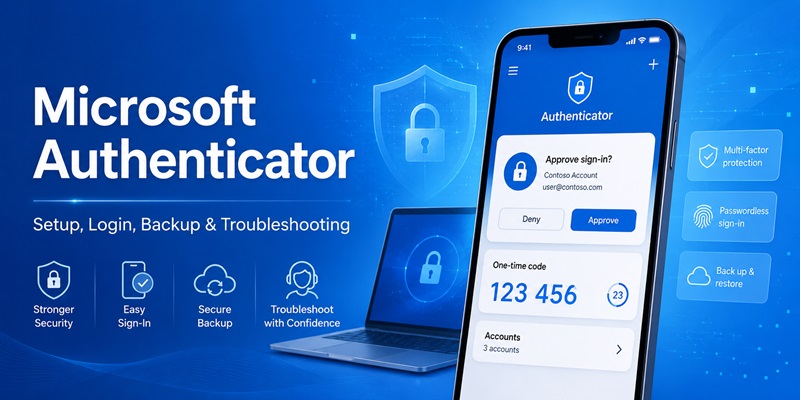
Microsoft Authenticator is a free mobile authentication app that helps protect your online accounts through two-factor authentication (2FA), verification codes, sign-in approvals, and supported passwordless authentication methods.
You can use Microsoft Authenticator with personal Microsoft accounts, Microsoft 365 work or school accounts, and many third-party services that support standard authenticator codes.
Quick Answer: To use Microsoft Authenticator, install the official app on your Android phone or iPhone, open the security settings of the account you want to protect, and add Microsoft Authenticator as a verification method. Scan the setup QR code or follow the supported registration process, then verify the first sign-in request or one-time code. Set up backup and recovery options before replacing your phone.
This guide explains how to download Microsoft Authenticator, enable Microsoft 2FA, scan QR codes, approve sign-ins, restore accounts, and fix common authentication problems.
What Is Microsoft Authenticator?
Microsoft Authenticator is a mobile application developed by Microsoft to verify account sign-ins.
It supports several authentication experiences, depending on the service and account configuration.
What Does Microsoft Authenticator Do?
The app can help you:
- Generate temporary one-time verification codes.
- Approve Microsoft account sign-in requests.
- Complete number-matching challenges.
- Use supported passwordless phone sign-in.
- Authenticate to work or school services.
- Generate TOTP codes for compatible third-party accounts.
- Use supported passkey experiences.
- Protect authentication information with App Lock.
Not every feature is available for every account.
For example, a third-party website that supports standard TOTP may display a six-digit code in Microsoft Authenticator but will not necessarily support Microsoft’s push approval system.
How Does Microsoft 2FA Authenticator Work?
A Microsoft 2FA authenticator provides another verification step beyond your password.
There are several common methods:
TOTP verification codes: The app generates temporary codes based on a secret registered with a website.
Push approval: A Microsoft service sends a sign-in request to the registered phone.
Number matching: The sign-in screen displays a number that you must match in the Authenticator app.
Passwordless sign-in: Eligible Microsoft accounts can use supported Authenticator approval methods instead of entering a traditional password.
These methods should not be confused with one another.
Is Microsoft Authenticator Free?
Yes. The official Microsoft Authenticator mobile app is free.
Some work or school authentication features depend on your organization’s Microsoft identity configuration and security policies.
Is Microsoft Authenticator a Password Manager?
No. Microsoft Authenticator should not be treated as a current password manager.
Microsoft discontinued Authenticator’s autofill feature in 2025, and stored passwords are no longer accessible through the Authenticator app.
Microsoft directs users to Microsoft Edge for supported password management features.
Download Authenticator App
Secure your accounts with fast, reliable two-factor authentication. Download now and protect your login in seconds.
How to Download and Set Up Microsoft Authenticator
Microsoft Authenticator is officially available for supported Android and iOS devices.
Microsoft Authenticator Download for Android
- Open Google Play.
- Search for Microsoft Authenticator.
- Confirm that Microsoft Corporation is the publisher.
- Install the official application.
- Open the app.
- Allow necessary permissions for the authentication methods you intend to use.
- Add your first account.
You can also follow the download links provided on Microsoft’s official website.
Microsoft Authenticator Download for iPhone
- Open the App Store.
- Search for Microsoft Authenticator.
- Verify the official Microsoft listing.
- Install the app.
- Open it and complete the initial setup.
- Add your account using the appropriate account type.
For iOS-specific setup instructions, see our Microsoft Authenticator for iPhone guide.
How to Set Up Microsoft Authenticator for a Personal Microsoft Account
If you use Outlook.com, Hotmail, OneDrive, Xbox, or another personal Microsoft service:
- Visit Microsoft Account Security.
- Sign in to your Microsoft account.
- Select Manage how I sign in.
- Choose the option to add a new sign-in or verification method.
- Select the authenticator app option.
- Follow the instructions to display a setup QR code or supported registration prompt.
- Open Microsoft Authenticator.
- Tap + to add an account.
- Select Personal account.
- Scan the QR code or follow the supported sign-in process.
- Complete the verification step.
The exact screens depend on your Microsoft account’s existing security methods.
Do not assume that simply adding an account to the app automatically enables every 2FA option.
How to Set Up Microsoft Authenticator for Work or School
For Microsoft 365 or Microsoft Entra work and school accounts, your organization may control the registration process.
To add an account:
- Visit Microsoft Security Info.
- Sign in with your work or school credentials.
- Select Add sign-in method.
- Choose Microsoft Authenticator.
- Follow the setup instructions until the QR code appears.
- Open Microsoft Authenticator on your phone.
- Tap +.
- Select Work or school account.
- Choose Scan a QR code.
- Scan the displayed QR code.
- Complete the test notification or verification step.
Your administrator may require additional registration or device compliance steps.
If the method is unavailable, contact your IT administrator.
For detailed business scenarios, see our Microsoft Authenticator for business guide.
How to Add a Non-Microsoft Account
Microsoft Authenticator can also generate standard TOTP codes for compatible websites.
To add one:
- Sign in to the website you want to protect.
- Open its account security settings.
- Enable authenticator-based two-factor authentication.
- Display its setup QR code.
- Open Microsoft Authenticator.
- Tap +.
- Select Other account.
- Scan the QR code.
- Enter the generated code on the website to complete setup.
- Save any recovery codes provided by the website.
This method can work with compatible Google, Facebook, Instagram, Amazon, and other accounts.
For a detailed explanation of QR enrollment, see our Microsoft Authenticator QR code guide.
What If You Cannot Scan the QR Code?
Check whether the account provider offers manual setup.
For a standard TOTP account, a manual setup key may be available.
For Microsoft work or school accounts, the security registration page may offer a Can’t scan the image option.
Use only the manual configuration details supplied by the official account provider.
Never share a setup QR code or secret key.
How to Use Microsoft Authenticator for 2FA and Passwordless Sign-In
Once your account is registered, Microsoft Authenticator can verify sign-ins using the method supported by that account.
How to Approve a Microsoft Authenticator Sign-In Request
When a Microsoft service requests approval:
- Start signing in on the legitimate Microsoft website or application.
- Enter your account credentials if requested.
- Check the notification on your registered phone.
- Open Microsoft Authenticator.
- Review the sign-in request.
- Complete number matching if prompted.
- Confirm using your device PIN or biometrics when required.
- Approve only if you initiated the sign-in.
If you receive an unexpected request, deny it.
Repeated unexpected approvals can indicate that someone is attempting to access your account.
How Does Number Matching Work?
Number matching helps prevent accidental approval of fraudulent sign-in requests.
During a supported sign-in:
- A number appears on the sign-in screen.
- Microsoft Authenticator displays an approval challenge.
- You enter or select the corresponding number.
- You complete any required device verification.
- The sign-in proceeds only after successful approval.
The exact interaction can vary by account and app version.
How to Find Your Microsoft Authenticator Verification Code
For an account configured with TOTP:
- Open Microsoft Authenticator.
- Select the relevant account.
- Find the current verification code.
- Enter it on the website requesting the code.
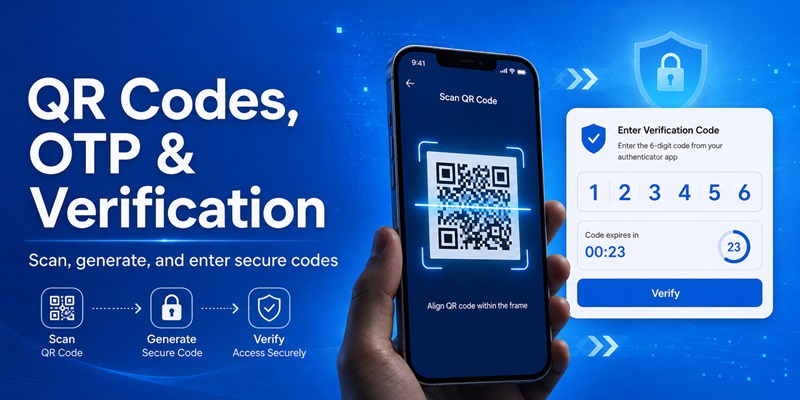
Standard TOTP codes commonly refresh every 30 seconds.
Not every Microsoft account displays a usable TOTP code for every authentication scenario.
Does Microsoft Authenticator Work Without Internet?
Standard TOTP codes can be generated offline after setup.
However, push approvals, account registration, cloud backup, and some passwordless authentication flows require connectivity.
If a website requests a push approval, a locally generated TOTP code may not be an accepted substitute.
How to Use Microsoft Authenticator for Passwordless Sign-In
Eligible personal Microsoft accounts can use Microsoft Authenticator for passwordless authentication.
The general process is:
- Sign in to your Microsoft account security settings.
- Open Manage how I sign in.
- Find the passwordless account option.
- Follow the enrollment instructions.
- Confirm the setup through Microsoft Authenticator.
- Test the new sign-in method.
For work or school accounts, passwordless phone sign-in must be permitted by your organization’s policies.
For a deeper explanation, read our Microsoft Authenticator passwordless sign-in guide.
Can Microsoft Authenticator Store Passkeys?
Microsoft Authenticator supports certain passkey scenarios, subject to device, operating system, account, and service requirements.
A passkey is different from a six-digit TOTP code.
Passkeys use public-key cryptography and can provide phishing-resistant authentication.
For details, see our Microsoft Authenticator passkeys guide.
How to Back Up and Restore Microsoft Authenticator
Backup is important because replacing or losing your phone may interrupt access to your accounts.
However, Microsoft Authenticator does not restore every account type in the same way.
How Microsoft Authenticator Backup Works
Microsoft Authenticator supports backup and recovery of eligible account information.
The recovery process differs by platform.
| Account type | What may be restored | Additional action |
|---|---|---|
| Personal Microsoft account using only TOTP | Supported one-time code credentials | Verify restored codes |
| Personal Microsoft account with passwordless sign-in | Account name and certain information | Sign in and re-register supported authentication |
| Work or school account | Account name | Reauthentication or re-registration generally required |
| Third-party TOTP account | Supported one-time code credentials | Test sign-in after recovery |
Microsoft’s documentation states that backup and restore are supported only within the same device type: Android to Android or iOS to iOS.
How to Back Up Microsoft Authenticator on Android
For the backup process documented by Microsoft in 2026:
- Open Microsoft Authenticator.
- Open the app menu.
- Select Settings.
- Find Cloud Backup.
- Enable backup.
- Select a personal Microsoft account as the recovery account when prompted.
- Confirm that backup is configured.
Upcoming change: Microsoft has announced that beginning in January 2027, Android backup will transition to Google One backup rather than using a personal Microsoft account for backup activation. Check the current Microsoft documentation before following older instructions.
How to Back Up Microsoft Authenticator on iPhone
On supported iOS versions:
- Open your iPhone settings.
- Review iCloud Drive and iCloud Keychain settings.
- Enable the relevant iCloud backup options.
- Make sure Microsoft Authenticator is included in the supported backup configuration.
- Open Authenticator and review its backup status.
Follow Microsoft’s current iOS backup instructions, as exact settings can change with iOS updates.
How to Restore Microsoft Authenticator From Backup
On a compatible replacement device:
- Install Microsoft Authenticator.
- Open the app.
- Choose Restore from backup or Begin recovery when available.
- Sign in using the appropriate recovery account.
- Follow the recovery instructions.
- Review the restored accounts.
- Reauthenticate accounts that require additional registration.
- Test important sign-ins before removing the old device.
If the restore option is missing, check Microsoft’s official instructions before removing or signing out of accounts.
Can You Restore Microsoft Authenticator From Android to iPhone?
Microsoft’s documented Authenticator backup does not support cross-platform restore between Android and iOS.
If you switch operating systems, plan to reconfigure the affected authentication methods.
Do not erase your old device until your new authentication methods work.
For additional details, read our Microsoft Authenticator recovery guide.
How to Move Microsoft Authenticator to a New Phone
Moving Microsoft Authenticator requires more than installing the app again.
Some TOTP credentials may restore from backup, while push approval and organization-managed accounts may need fresh registration.
Step 1: Prepare Your Old Phone
Before replacing the phone:
- Confirm that your current authenticator works.
- Review the backup settings.
- Save recovery codes for important third-party accounts.
- Check whether you have an alternative Microsoft verification method.
- Keep your old device available during migration.
Step 2: Install Microsoft Authenticator on the New Phone
Download the official application from the relevant app store.
If you are restoring to the same operating system, follow the supported backup recovery process.
Step 3: Re-Register Accounts That Require It
For a personal Microsoft account, sign in to the account security page and review the registered authentication methods.
For a work or school account, open your organization’s Security info page and follow its re-registration instructions.
Your IT administrator may need to reset the existing authentication method if you no longer have access to the old device.
Step 4: Test Every Important Account
Before deleting the app from your old phone:
- Test personal Microsoft account sign-in.
- Test work or school authentication.
- Check third-party TOTP codes.
- Confirm that backup recovery methods are available.
- Remove obsolete registered devices only after successful testing.
For a dedicated migration walkthrough, see our Microsoft Authenticator change phone guide.
What If You Lost Your Old Phone?
Try another registered sign-in method, a valid recovery method, or the official account recovery process.
For work or school accounts, contact your administrator if you cannot re-register.
Do not trust services claiming to bypass Microsoft MFA or recover secret codes without legitimate credentials.
Microsoft Authenticator Not Working: Common Fixes
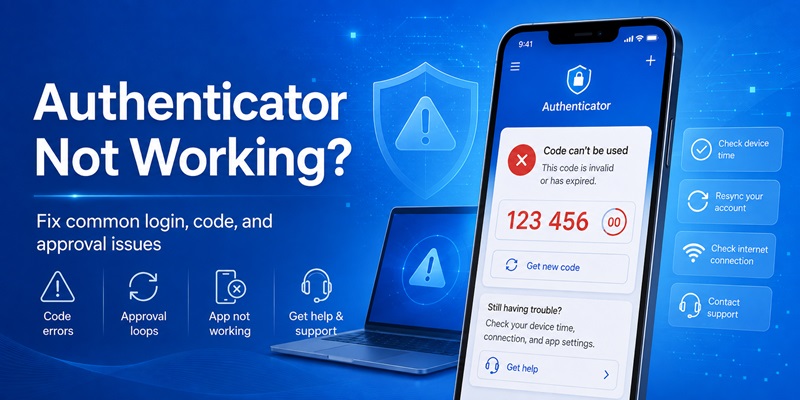
If Microsoft Authenticator is not working, identify whether the problem involves a TOTP code, push approval, QR code, or account registration.
Microsoft Authenticator Is Not Showing a Code
Some Microsoft account entries use approval-based authentication rather than displaying a standard six-digit code for every sign-in.
If a code should be available:
- Open the correct account.
- Check whether the entry is configured for TOTP.
- Verify that the registration is still active.
- Check whether the account was restored incompletely.
- Use another registered method if necessary.
See our Microsoft Authenticator OTP guide for more information.
Microsoft Authenticator Code Is Invalid
Try the following:
- Confirm that you selected the correct account.
- Enable automatic date and time.
- Wait for a new code.
- Enter the code promptly.
- Check whether the authenticator registration has changed.
Do not repeatedly reset MFA without a working recovery method.
Microsoft Authenticator Notifications Are Not Arriving
If you are expecting a push approval:
- Check internet connectivity.
- Review notification permissions.
- Open the app manually.
- Check battery optimization restrictions.
- Verify that the correct account is registered.
- Look for another permitted verification method.
For work accounts, organizational policies may affect notifications and registration.
Microsoft Authenticator QR Code Is Not Working
If the QR code cannot be scanned:
- Confirm that it was generated by the correct account security page.
- Allow camera access.
- Check screen brightness and visibility.
- Use a supported manual setup option if available.
- Restart the enrollment process if the setup session expired.
Do not upload security QR codes to untrusted third-party tools.
Microsoft Authenticator Is Asking for a Number
This is often part of number-matching authentication.
Only complete the challenge when you initiated the sign-in.
If you receive an unexpected request, deny it and review your account security.
Microsoft Authenticator Stopped Working After Changing Phones
A restored account name does not always mean its push authentication registration has been restored.
Re-register the relevant method through your Microsoft account security settings or your organization’s Security info page.
For detailed troubleshooting, read our Microsoft Authenticator not showing code guide.
Microsoft Authenticator vs Other Authenticator Apps
Microsoft Authenticator, Google Authenticator, and other TOTP apps can all protect compatible accounts.
Their capabilities differ beyond basic verification codes.
| Feature | Microsoft Authenticator | Google Authenticator | Proton Authenticator |
|---|---|---|---|
| Standard TOTP codes | Yes | Yes | Yes |
| Android and iOS | Yes | Yes | Yes |
| Offline TOTP generation | Yes | Yes | Yes |
| Microsoft push approvals | Yes, for supported accounts | No | No |
| Microsoft passwordless phone sign-in | Supported configurations | No | No |
| Backup or sync | Platform- and account-dependent | Optional Google Account sync | Optional encrypted sync |
| Native desktop TOTP app | No general-purpose desktop app | No official desktop app | Yes |
Microsoft Authenticator vs Google Authenticator
Google Authenticator focuses primarily on standard verification codes.
Microsoft Authenticator additionally supports Microsoft-specific approval and passwordless experiences.
If you use Microsoft 365 at work, your organization may require Microsoft Authenticator.
For a full comparison, read our Google Authenticator vs Microsoft Authenticator guide.
Is Microsoft Authenticator Better Than SMS?
For supported accounts, authenticator-generated codes and approval methods avoid some risks associated with SMS, including SIM-swapping attacks.
However, standard TOTP codes remain vulnerable to phishing.
Passkeys and FIDO2 security keys can provide stronger phishing resistance when available.
Who Should Use Microsoft Authenticator?
Microsoft Authenticator is particularly useful for:
- Personal Microsoft account holders.
- Outlook.com and OneDrive users.
- Microsoft 365 employees.
- Organizations using Microsoft Entra ID.
- Users who want standard TOTP codes for compatible third-party services.
For broader options, explore our best authenticator app comparison.
Frequently Asked Questions
What is Microsoft Authenticator?
Microsoft Authenticator is a mobile application that supports two-factor authentication, verification codes, Microsoft sign-in approvals, and supported passwordless authentication.
Is Microsoft Authenticator free?
Yes. The official mobile app is free.
How do I download Microsoft Authenticator?
Download the official app through Google Play, the App Store, or the links on Microsoft’s website.
How do I set up Microsoft Authenticator?
Open the account provider’s security settings, choose the authenticator method, add the appropriate account type in the app, and complete the verification process.
Can Microsoft Authenticator be used for non-Microsoft accounts?
Yes. It can generate standard TOTP codes for compatible third-party websites.
How do I find the Microsoft Authenticator QR code?
The QR code is generated by the account provider’s official security registration page, not by a general search inside the app.
How do I get a six-digit Microsoft Authenticator code?
Open a registered account that supports TOTP and use the current code shown in the app.
Why is Microsoft Authenticator not showing a code?
The account may use push approval instead of TOTP, or its authentication registration may be missing or incomplete.
Does Microsoft Authenticator work without internet?
Standard TOTP codes work offline after setup. Push approvals and other connected features may require internet access.
Can I use Microsoft Authenticator on Windows?
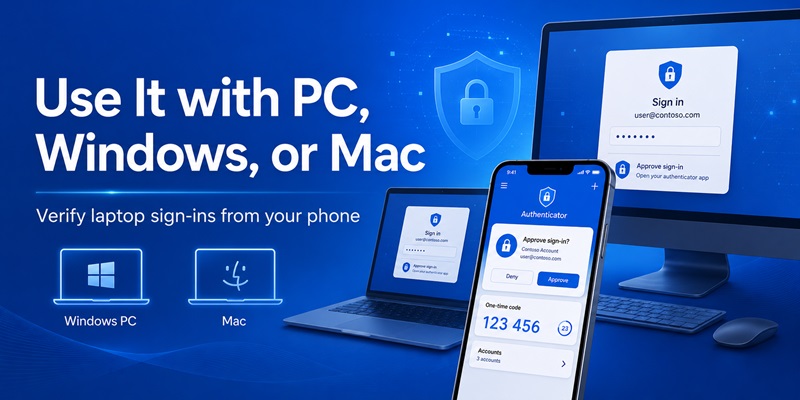
You can use codes generated on your phone when signing in on a Windows computer, but Microsoft does not provide a general-purpose native desktop version of the Authenticator mobile app.
Can I back up Microsoft Authenticator?
Yes, for supported accounts and platforms. Some account types require reauthentication after recovery.
Can I restore Microsoft Authenticator from Android to iPhone?
Microsoft’s documented Authenticator backup does not support cross-platform restoration between Android and iOS.
How do I transfer Microsoft Authenticator to a new phone?
Use supported backup recovery, then re-register any accounts that require it. Verify every important account before erasing the old phone.
What if I lose my phone with Microsoft Authenticator?
Try another registered authentication method or the provider’s official recovery process. For a work or school account, contact your administrator if necessary.
Can Microsoft Authenticator replace my password?
Supported personal Microsoft accounts can use passwordless sign-in. Availability for work or school accounts depends on organizational configuration.
Does Microsoft Authenticator still autofill passwords?
No. Microsoft discontinued Authenticator password autofill in 2025.
Is Microsoft Authenticator better than Google Authenticator?
Microsoft Authenticator offers additional Microsoft-specific authentication features. Google Authenticator may be sufficient for users who mainly need standard TOTP codes.
Can I remove an account from Microsoft Authenticator?
Yes, but removing it from the app does not necessarily disable 2FA at the account provider. Confirm an alternative authentication method first.
What should I do if Microsoft Authenticator keeps requesting approval?
Approve only sign-ins you initiated. Deny unexpected requests and review your account security if they continue.
Conclusion
Microsoft Authenticator is a practical solution for protecting personal, business, and third-party accounts with additional verification.
To use the Microsoft 2FA authenticator, install the official mobile app, register the appropriate account type, complete QR code or sign-in setup, and test the authentication method.
For long-term security, configure backup and recovery options, maintain an alternative verification method, and review your registered devices.
Remember that Microsoft Authenticator backup does not restore every account type automatically, and Microsoft-specific push approvals differ from ordinary TOTP codes.
For further guidance, explore our Microsoft Authenticator recovery tutorial, Microsoft Authenticator passwordless guide, and two-factor authentication app guide.
