
2Factor Login for the Log2X Dashboard and OTP Troubleshooting
Published November 17, 2026
By the Authenticator App Team
For the 2Factor login to the Log2X Technologies dashboard, open the official app.2factor.in domain and choose its sign-in page. The page identifies Log2X Technologies Pvt Ltd and asks for a username and password. Enter the credentials issued for your organization or use the password recovery option shown on the page. Keep this dashboard separate from a verification screen in a website or app that uses 2Factor to deliver a code.
If a shopping, banking, or workplace service asked you for an OTP, enter it only in the official service that requested it. That flow can use 2Factor behind the scenes without giving you a Log2X dashboard account. The steps below help you find the correct 2Factor login, work out who can fix the problem, and avoid changing production settings when only a browser session or user challenge is affected.
Complete the 2Factor Login for a Dashboard Account
Verify the Domain and the Form
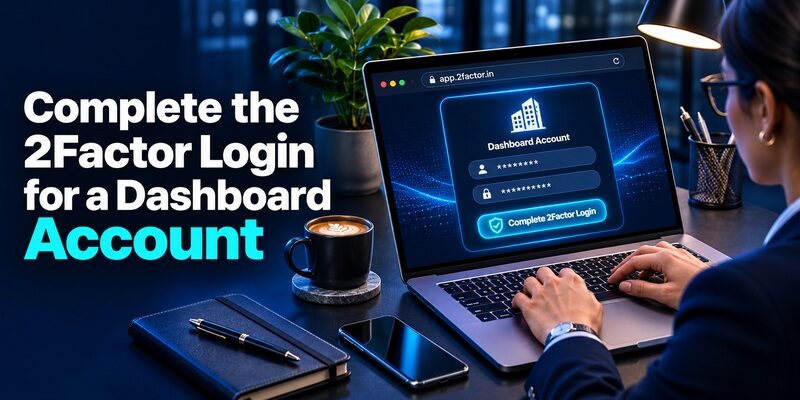
Start with the dashboard address your organization approved or navigate from the vendor’s official site. Inspect the address bar and confirm the host is app.2factor.in. A similar name in a page title or logo can appear on other sites. The official 2Factor login page identifies Log2X and displays username and password fields along with a password recovery option.
Use your own issued credentials if that is how your organization grants dashboard access. If the vendor provisions a single account owner for your plan, use the access arrangement your organization approved and ask the owner to handle changes that require it. Keep credentials and API secrets in the approved storage location and avoid putting them into a group chat.
Enter the Username Assigned to Your Account
Check whether your username matches the email address or is a separate value issued at registration. The official form labels the field as a username. If a colleague invited you, compare their instructions with what the vendor actually sent. A company billing email may receive messages without being the same as the 2Factor login username.
When a browser fills the form, verify that it selected the credential for the official host and the intended team. Remove a stray space if you pasted the username. Preserve the password as issued or saved. If the form rejects a known credential, try once through a clean supported browser session before starting recovery.
Keep This Checklist Beside Your First Sign-In
– Use the official domain or a trusted bookmark created after verifying it.
– Match the organization and username before submitting the form.
– Use a private device or an approved managed browser.
– Verify the dashboard account name or other nonsecret identifiers after signing in.
– If the organization has more than one account, select the intended one before looking at configuration or billing.
– Record the internal owner and support route where the team can find them.
If the 2Factor login asks whether to remember the session, use the option only in line with your device policy. On a shared workstation, skip it and end the session when finished. A browser profile that still has a vendor session can mislead the next person into believing their own credentials are working.
Work Out Which Prompt You Have
| Your screen | The system that controls it | The next action |
|---|---|---|
| Log2X dashboard username and password form | The 2Factor vendor dashboard | Use the assigned dashboard credential or its recovery option |
| Verification code prompt in a customer app | The service that started the challenge | Submit the code in that app or use its sign-in help |
| HTTP or API error in application logs | Your application and its 2Factor integration | Check the failed operation and provider response |
| Workplace sign-in or app approval | The organization that configured the identity provider | Follow the approved workplace instructions |
If You Are the Person Receiving a Code
Stay in the official site or app where you started. An SMS may identify a delivery vendor or include a sender associated with the service, depending on the configuration. The code belongs to the current challenge in the service. The 2Factor login dashboard is for the organization that operates the integration.
If a code arrived even though you did not start a sign-in, leave it unused and check the affected account from your usual trusted entry point. A person calling or messaging you about a pending OTP has no need for the code. Use the account’s own security settings and official support if you suspect someone has access.
If You Administer the Service Sending Codes
Check whether the reported issue affects the 2Factor login dashboard or the application your customers use. An administrator can be unable to open the dashboard while a configured integration still works. Likewise, a dashboard session can be healthy while the application uses an expired configuration, sends to a bad number, or mishandles a verification result.
Ask for the environment, action, time, and affected scope. Determine whether one customer, a particular country, or every user sees the same result. Capture the nonsecret error details before changing anything. A test from an approved account can reproduce the issue without exposing a customer’s credentials.
Recover Dashboard Access Without Losing the Working Session

Start With the Recovery Option Shown by Log2X
Open the official 2Factor login form and follow its password recovery option. The official recovery page asks for the username and says a new password will be emailed to the registered email address. Confirm that the authorized account owner can access that mailbox before submitting. If you are unsure which address is registered, check your internal account record or ask the account owner.
If an original session is open, keep it available while you confirm ownership, registered contact details, and any upcoming operational deadlines. The recovery process may close sessions depending on the service behavior. Coordinate with your team when one vendor account administers a production integration.
Resolve a Missing Recovery Message
Check the address used when the account was registered, filtered folders, and any mail gateway operated by your organization. If the old mailbox is inaccessible, find the approved account owner and contact Log2X through the vendor’s official support route. Use a known contact path from the vendor site or your organization’s agreement. Avoid numbers copied from unrelated search results.
Give support the registered company name, the approximate time of the attempt, the masked username if applicable, and the error wording. If the 2Factor login account belongs to a previous employee, follow your internal process for proving ownership and restoring administrative access. Keep passwords, recovery codes, and API keys out of the support message.
Verify the New Credential in a Separate Session
After completing the recovery flow, open a supported browser session and sign in with the replacement credential. Verify the correct company and account. Check whether other approved operators can still do their work. If account ownership or the recovery mailbox changed, update your internal record and any authorized credential storage.
Treat an unexpected password reset as a security incident. Confirm what happened through the official vendor account and ask the appropriate account owner to check sessions and changes. If your team identifies an exposed API key as part of that incident, coordinate credential replacement separately from the 2Factor login password recovery.
Diagnose a Dashboard Page That Will Not Open

Separate a Form Error From a Browser Error
If the browser cannot reach the site, check the host, normal network access, and whether an approved browser on another trusted network sees the same problem. If the official form loads and rejects credentials, check the displayed error and your account record. These symptoms point to different teams and actions.
A 2Factor login screen can be stuck on an old session or filled by a credential for a different account. A clean browser session can help isolate that. Use only supported device and privacy settings. If your company blocks access, ask the authorized administrator to review the policy rather than disabling controls.
Check Which Account and Environment You Reached
If the page opens but you cannot find the expected team or settings, confirm the username and account owner. Compare available identifiers with the record your organization maintains. An operator who can view an account may have different authority from the person who can make changes. Contact the account owner if the intended action is missing.
Record whether a 2Factor login attempt reached the correct dashboard before troubleshooting API traffic. A successful dashboard session verifies access to the portal. It does not establish that the integration loads the expected key or that SMS is delivered. Likewise, production access may differ from a test environment.
Authenticator Website Options and How to Protect Your Setup Key
Troubleshoot an OTP in the Application That Requested It
| Symptom | What to check first | Who can act |
|---|---|---|
| No message arrives | Masked destination, current challenge, and delivery status | The end user and the application support team |
| Code arrives late or is rejected | Whether the pending challenge expired or a resend replaced it | The application support team |
| A server request fails before any send | Environment, approved credential source, and provider error | The integration owner |
| Sign-in succeeds but the desired action remains blocked | Session and application permissions | The application owner |
Start With the Actual Challenge
For a missing SMS, check the masked destination in the application, wait for its stated delivery window, and use its resend option if available. Keep the correct screen open so you know which challenge is active. If two messages arrive in a different order, follow the application’s directions on which value remains valid.
For a rejected code, consider whether you started the process in a different tab, changed the phone number, or let the request expire. Use the application’s own recovery route if you can no longer receive messages on that number. The 2Factor login dashboard is useful to the service operator. The user needs the app or website that owns the account.
Trace an Integration Problem From the Server
Use an authorized test account and a known destination. Record the request time, the integration environment, and the provider response. Inspect whether the application sent the request, how it handled the result, and whether it tied the code check to the current account and purpose. The person operating the integration should follow the current 2Factor documentation associated with the account.
Never place a live key or a customer code into a diagnostic screenshot. If your team has recently updated the integration, check the deployed secret reference and expected account. The 2Factor login account is used to manage vendor access. The credentials your application uses are governed by the integration and should be handled through your approved secret management process.
Keep Dashboard Access and Other Second Factors Distinct

Check Which Security Settings the Dashboard Actually Offers
The public 2Factor login form shows a username and password step. Follow any additional verification the official dashboard requests for your account. Ask the organization owner or vendor support which options apply before assuming that a third-party code app can enroll for the dashboard. The word 2Factor in the service name describes the vendor and does not identify a specific prompt in your session.
If an organization uses a separate identity provider for work accounts, follow its enrollment and device policy for those accounts. Keep the dashboard credentials assigned to the correct owner. Record which team should be contacted when an operator cannot open the dashboard during an integration incident.
Use Authenticator Apps for Accounts That Offer Code Enrollment
For a site that explicitly offers a standard authenticator QR or setup key, is an option to evaluate for storing rotating codes. Start from that site’s security settings and finish enrollment there. A text message from a verification service does not by itself create a rotating entry in an app.
Check your account’s recovery process before transferring app entries or replacing a phone. If the challenge says a code was sent to a phone number, look for that message. If it asks for a code from an enrolled app, open the entry for the correct site and account. This simple distinction resolves many requests that get described as 2Factor login problems.
Build a Short Runbook for the Account Owner
Record Who Owns the Portal and Who Owns Delivery
Write down who can use the 2Factor login, who controls the registered contact, and who owns the integration. Include the trusted dashboard bookmark, the ordinary support route, and the approved emergency process. Separate the person who can recover a dashboard account from the person who can safely change application configuration.
Before a staff change, test whether an authorized owner can reach the portal and access the current records. If a personal mailbox or phone is involved in recovery, handle its replacement with the account owner before access is removed. Avoid copying secrets into the runbook. Point to the approved credential location where appropriate.
Practice One Account Recovery and One Delivery Incident
Use a controlled account or a vendor-approved test flow to check password recovery, dashboard access, and contact ownership. In a separate exercise, reproduce a failed customer challenge and confirm that support can distinguish an API error from delivery delay. Keep both exercises distinct so the team knows which evidence belongs to each workflow.
For each exercise, record the result and the next person responsible. A 2Factor login recovery ends when the intended owner reaches the correct dashboard. A delivery incident ends when users can complete the actual application challenge again and the team knows what caused the failure.
Passwordless Multi Factor Authentication With Passkeys and Security Keys
Prepare the Right Evidence for Vendor Support

If the team can reproduce a dashboard problem, record the date and time with the time zone, the address of the official page, and the exact error without including credentials. Confirm whether another authorized user reaches the same page. The vendor can use this evidence to distinguish an account access issue from an interruption affecting the dashboard itself.
For an integration report, say whether you are testing initiation, delivery, or verification. Provide your application’s internal request identifier and the vendor’s nonsecret correlation information when the official support channel asks for it. The 2Factor Developer Portal describes an API for issuing SMS verification codes and managing code validation. Use the documentation version applicable to your integration rather than copying an example from a similarly named vendor.
A time-limited registration or sign-in flow can create a second support problem if a customer keeps retrying during an outage. Tell the affected person whether to keep the existing challenge open or restart through your app. The service operator can follow the 2Factor login recovery steps separately if access to vendor tools is also affected.
After support resolves the issue, reproduce the original attempt in the relevant environment and check that users can finish. For an account issue, make sure the intended person can sign in using an approved device. For a verification issue, check the application result as well as delivery. Close the incident with a timestamp and outcome so the next operator can compare it against a new report.
Final Thoughts
Use the official 2Factor login for your Log2X dashboard and follow its own recovery option if the assigned credentials fail. For a code sent during a customer sign-in, stay in the application that asked for it and use that application’s support route.
When troubleshooting as an administrator, separate portal access, provider delivery, and application verification. A record of the affected account, request time, and nonsecret error details helps the right owner resolve the issue without exposing passwords or codes.
Download Authenticator App
Secure your accounts with fast, reliable two-factor authentication. Download now and protect your login in seconds.
