
Why Is My Microsoft Authenticator Not Working? 10 Fixes
Published August 14, 2026 · Updated October 27, 2026
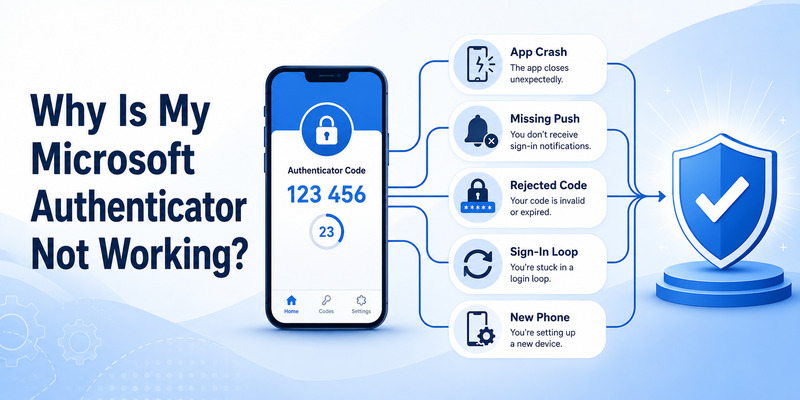
Why is my Microsoft Authenticator not working? The most common causes include disabled notifications, an unstable internet connection, incorrect phone time, an outdated app, an old device registration, or a verification method that is no longer linked to your account.
Microsoft Authenticator supports different sign-in methods, including push notifications, number matching, time-based one-time passwords (TOTP), and certain passwordless experiences. The correct solution depends on which method is failing.
Quick Answer: If Microsoft Authenticator is not working, first check your internet connection, enable notifications, update the app, set your phone’s date and time to automatic, and restart your device. If you recently changed phones, check whether sign-in requests are still being sent to your old device. If you cannot access your account, use another registered verification method or contact your organization’s IT administrator.
Important: Do not uninstall Microsoft Authenticator, delete an account, or reset your phone until you have confirmed that another sign-in or recovery method works. Removing your only working authentication method may lock you out.
This guide explains why Microsoft Authenticator stops working and how to fix notifications, verification codes, QR code errors, new phone issues, and Microsoft 365 sign-in problems.
Why Is Microsoft Authenticator Not Working?
Microsoft Authenticator can stop working for several reasons, and each problem requires a different solution.
Common Microsoft Authenticator Problems
| Symptom | Possible cause | First action |
|---|---|---|
| No sign-in notification | Notifications disabled, network issue, old device registration | Open the app and check notifications |
| Verification code rejected | Incorrect time, expired code, wrong account | Enable automatic date and time |
| No six-digit code visible | Account uses push approval or registration is incomplete | Check the configured authentication method |
| Number matching fails | Expired request, connectivity issue, wrong sign-in | Start a fresh sign-in |
| QR code will not scan | Camera permission, expired QR code, outdated app | Update the app and restart enrollment |
| App stopped working after phone change | MFA still registered to the old phone | Use another method and re-register |
| Work account sign-in fails | Organization policy or device registration issue | Check Security info or contact IT |
| Backup restored but approval fails | Account needs reauthentication | Complete the required registration |
| App crashes or freezes | Outdated software or device issue | Update and restart |
| Sign-in denied | Security policy, device compliance, or location discrepancy | Review the error and contact support if necessary |
Understand Which Authentication Method Is Failing
Before troubleshooting, identify the sign-in method.
Push notification: Microsoft sends an approval request to your phone.
Number matching: The sign-in page displays a number that you must enter or match in Microsoft Authenticator.
TOTP code: The app generates a temporary code, usually six digits, for a registered account.
Passwordless authentication: A supported account uses Authenticator approval instead of a traditional password.
These methods are not interchangeable.
For example, if your Microsoft 365 account requires push approval, entering a code from an unrelated TOTP entry may not complete the sign-in.
For a general introduction, read our Microsoft Authenticator setup and usage guide.
Secure your accounts with fast, reliable two-factor authentication. Download now and protect your login in seconds.Download Authenticator App
How to Fix Microsoft Authenticator Not Working: 10 Steps
Try these solutions in order, beginning with changes that do not risk removing your authentication credentials.
Fix 1: Check Your Internet Connection
Microsoft Authenticator push notifications require a working connection.
To troubleshoot:
- Turn off Airplane Mode.
- Check whether Wi-Fi or mobile data is connected.
- Open a website to confirm connectivity.
- Switch from Wi-Fi to mobile data, or vice versa.
- Retry the sign-in request.
If you use a VPN, temporarily disconnect it to see whether it is interfering with the authentication flow.
Note: Standard TOTP codes can be generated offline, so a network issue does not necessarily explain an invalid six-digit code.
Fix 2: Enable Microsoft Authenticator Notifications
If Microsoft Authenticator is not sending notifications, check both your phone settings and the app settings.
On Android:
- Open Settings.
- Select Apps.
- Choose Microsoft Authenticator.
- Open Notifications.
- Allow notifications.
- Review battery restrictions and background activity settings.
On iPhone:
- Open Settings.
- Select Notifications.
- Find Microsoft Authenticator.
- Enable Allow Notifications.
- Review Focus or Do Not Disturb settings.
Also open Microsoft Authenticator and check its notification settings.
The exact menu labels depend on your operating system.
Fix 3: Set Date and Time to Automatic
Incorrect phone time can cause verification codes or approval requests to fail.
On Android: Open Settings and find the date and time controls under System or General Management. Enable automatic time and time zone.
On iPhone: Open Settings → General → Date & Time and enable Set Automatically.
Restart your phone after correcting the clock, then try again.
Fix 4: Update Microsoft Authenticator
Older app versions may contain bugs or lose compatibility with current authentication requirements.
To update:
- Open Google Play or the App Store.
- Search for Microsoft Authenticator.
- Install any available official update.
- Reopen the app.
- Retry your sign-in.
Microsoft states that Authenticator versions more than 12 months old are not supported.
Avoid installing unofficial modified versions.
Fix 5: Restart Your Phone
Restarting can resolve temporary problems involving background services, notifications, or app processes.
- Close Microsoft Authenticator.
- Restart your phone.
- Unlock the device.
- Open Authenticator.
- Start a new sign-in request.
Do not confuse restarting the phone with resetting it to factory settings.
Fix 6: Disable Battery Restrictions That Block Notifications
Aggressive battery optimization may prevent push requests from arriving reliably.
On Android, review battery optimization and background activity permissions for Microsoft Authenticator.
Microsoft also provides a battery optimization setting in supported versions of the app.
On iPhone, review Low Power Mode and notification settings if alerts are delayed.
Use the least restrictive settings necessary for reliable authentication.
Fix 7: Check Whether the Request Went to Another Device
If you previously used Microsoft Authenticator on another phone, the account may still be registered to that device.
To investigate:
- Check whether the old phone still receives notifications.
- Open Authenticator on the old device if available.
- Use another permitted verification method if needed.
- Sign in to your account’s security settings.
- Register the new phone.
- Remove obsolete registrations only after testing the replacement.
Installing Authenticator on a new phone does not automatically transfer every push approval registration.
Fix 8: Unlock Microsoft Authenticator
App Lock can require a device PIN, fingerprint, or face authentication before approving a sign-in.
If an approval seems stuck:
- Open Microsoft Authenticator manually.
- Complete the required device unlock.
- Review the pending request.
- Start a new sign-in if the original request expired.
If your phone’s biometric authentication recently changed, review its device security settings.
Fix 9: Review Work or School Device Requirements
Microsoft 365 work and school accounts may require additional device registration or compliance checks.
Depending on your organization, the following may matter:
- Microsoft Entra authentication policies.
- Intune Company Portal.
- Google Play Services on Android.
- Device PIN or biometric security.
- Device registration status.
- Supported operating system versions.
- Rooted or jailbroken device restrictions.
If you see a compliance or device registration error, contact your IT administrator rather than attempting to bypass the security requirement.
Fix 10: Use a Backup Sign-In Method
If the app still does not work, choose Sign in another way, Other ways to sign in, or a similar option when the service provides it.
Available alternatives may include:
- A passkey.
- A security key.
- A registered backup phone.
- A recovery code for a third-party service.
- Another authentication method approved by your organization.
The available choices depend on the account.
If no alternative is registered, use the official account recovery process.
Do not delete the existing Authenticator registration until another method is confirmed to work.
Microsoft Authenticator Not Sending Notifications
Missing notifications are one of the most common Microsoft Authenticator problems.
This is especially frustrating when a Microsoft 365 sign-in requires approval rather than a verification code.
Why Am I Not Getting Microsoft Authenticator Notifications?
Possible reasons include:
- Notifications are disabled.
- Your phone has no internet connection.
- Do Not Disturb or Focus is suppressing alerts.
- Battery optimization is restricting background activity.
- The sign-in request was sent to an old device.
- The app is outdated.
- Your account registration is incomplete.
- An organization policy is preventing authentication.
How to Fix Microsoft Authenticator Push Notifications
Follow this sequence:
- Open Authenticator manually.
- Check your network connection.
- Enable notifications in device settings.
- Check the app’s notification settings.
- Disable restrictive battery optimization.
- Restart your phone.
- Start a fresh sign-in.
- Check the old phone if you recently switched devices.
If notifications work for one account but not another, the problem may be specific to the affected account registration.
Microsoft Authenticator Notification Expired
A sign-in request may expire before you approve it.
If this happens:
- Set your phone time automatically.
- Restart the device if necessary.
- Begin a new sign-in.
- Open Authenticator promptly.
- Complete number matching or approval.
Do not approve an expired or unexpected sign-in request.
Microsoft Authenticator Number Matching Not Working
Number matching is a security feature, not a code-generation error.
If the number does not match:
- Confirm you initiated the sign-in.
- Check the number on the legitimate sign-in screen.
- Start a new request if the previous one expired.
- Make sure the phone is connected.
- Unlock Authenticator before responding.
If you did not initiate the sign-in, deny the request.
Why Does Authenticator Show the Wrong Location?
Push notifications may show an approximate location based on device or network information.
The displayed location is not always exact.
However, an unfamiliar sign-in location combined with an unexpected request should be treated as suspicious.
Deny the request and review your account security.
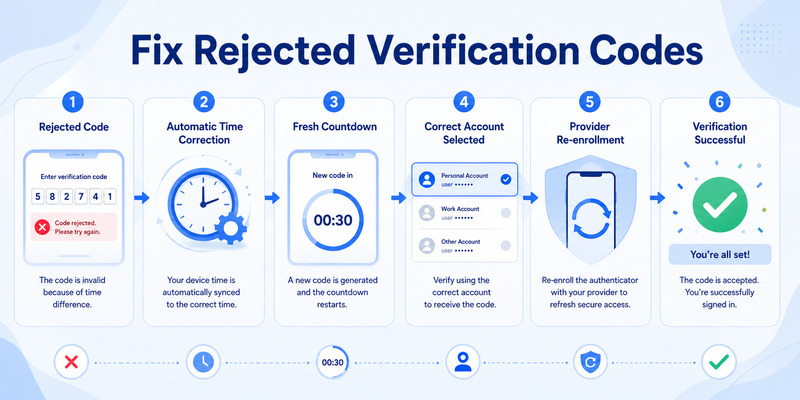
Microsoft Authenticator Code Not Working or Not Showing
A missing or invalid verification code is different from a missing push notification.
Standard TOTP codes are generated from a registered secret and the device’s time.
Why Is My Microsoft Authenticator Code Not Working?
Common causes include:
- Incorrect device time.
- Expired verification code.
- Selecting the wrong account.
- Entering a code for a different service.
- A replaced or invalidated authenticator registration.
- An incomplete account restore.
To fix the problem:
- Enable automatic date and time.
- Select the correct account in Authenticator.
- Wait for a new code.
- Enter it promptly.
- Verify that the website still uses the same registered authenticator.
If the service offers another sign-in method, use it before changing your authentication setup.
Microsoft Authenticator Not Showing a Six-Digit Code
Some accounts are configured for push approvals rather than standard TOTP.
If no code appears:
- Open the relevant account entry.
- Check whether it is configured for verification codes.
- Review the sign-in method requested by the website.
- Confirm that account setup completed successfully.
- Check whether the entry requires reauthentication.
A missing code does not necessarily mean the entire Authenticator app is broken.
For additional details, read our Microsoft Authenticator not showing code guide.
Microsoft Authenticator Code Keeps Expiring
Standard TOTP codes commonly refresh every 30 seconds.
If a code expires while you enter it:
- Wait for a fresh code.
- Enter it immediately.
- Check automatic time settings.
- Avoid switching between several similarly named account entries.
For a dedicated explanation, see our Microsoft Authenticator OTP guide.
Does Microsoft Authenticator Work Offline?
Yes, for standard TOTP code generation after setup.
Push approvals, registration, cloud recovery, and some passwordless authentication methods require connectivity.
If your code is rejected while offline, check the clock and account registration rather than assuming that internet access is required to generate the code.
Microsoft Authenticator Not Working After Changing Phones
Changing phones is a common reason Microsoft Authenticator suddenly stops working.
A backup may restore some information, but not every account or authentication method becomes usable automatically.
Why Does Microsoft Authenticator Stop Working on a New Phone?
Possible reasons include:
- The new phone has not been registered for push approval.
- The old phone is still the active authentication device.
- Backup recovery was not completed.
- A work or school account requires reauthentication.
- The new phone uses a different operating system.
- The account provider requires a fresh authenticator setup.
How to Restore Microsoft Authenticator on a New Phone
If you have a supported backup:
- Install Microsoft Authenticator on the replacement phone.
- Select Restore from backup or Begin recovery when available.
- Use the appropriate recovery account.
- Follow the restoration instructions.
- Review each account.
- Complete any required sign-in or re-registration.
- Test important authentication methods.
Microsoft supports backup and restore only between the same device types, such as Android to Android or iOS to iOS.
Why Are Restored Accounts Still Asking Me to Sign In?
Restored account names do not always mean their authentication credentials are fully restored.
Microsoft documents that:
- Eligible third-party TOTP accounts can restore their codes.
- Personal Microsoft accounts using passwordless sign-in may require signing in again.
- Work or school accounts generally require reauthentication or registration.
Follow the account’s recovery prompt.
What If Notifications Still Go to My Old Phone?
Use the old device if it is still available, or choose another permitted verification method.
After signing in:
- Open your account security settings.
- Register Microsoft Authenticator on the new phone.
- Test the new registration.
- Remove the obsolete device.
Can I Transfer Microsoft Authenticator From Android to iPhone?
Microsoft’s documented cloud backup cannot be restored across Android and iOS.
If you change operating systems, prepare to register your authentication methods again.
For a complete migration process, see our Microsoft Authenticator change phone guide.
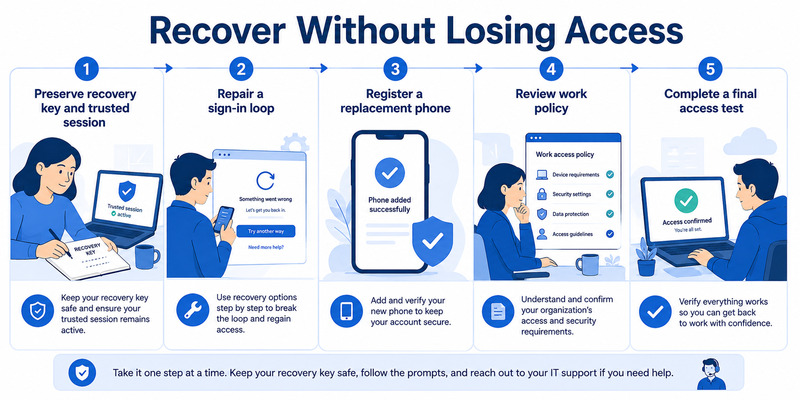
Microsoft Authenticator QR Code and Work Account Errors
Some Microsoft Authenticator issues occur during account enrollment rather than daily sign-in.
Microsoft Authenticator QR Code Not Working
If Authenticator cannot scan a QR code:
- Update the app.
- Enable camera permission.
- Check the QR code is fully visible.
- Increase screen brightness if needed.
- Generate a new setup QR code if the original session expired.
- Use the official manual setup option when available.
For Microsoft work or school accounts, the registration page may provide an alternative to scanning the image.
Do not upload authentication QR codes to third-party scanning websites.
For more details, see our Microsoft Authenticator QR code setup guide.
Microsoft Authenticator Says Setup Was Only Partially Completed
This can occur when device registration, push notifications, or other required services are unavailable.
On Android, Microsoft recommends checking Google Play Services, notifications, device PIN or biometrics, and applicable device registration requirements.
If your account belongs to an organization, contact your administrator if setup cannot be completed.
Microsoft Authenticator Work Account Not Working
A Microsoft 365 or Entra ID account may be affected by organizational requirements that do not apply to personal accounts.
Potential causes include:
- Conditional Access policies.
- Device compliance requirements.
- A disabled or outdated authentication method.
- Incorrect registration.
- An unsupported device configuration.
- A required Microsoft Authenticator update.
Use your organization’s approved recovery process.
Microsoft Authenticator Says Sign-In Denied
Do not assume this message is only a connectivity problem.
Microsoft may deny authentication because of security checks, including certain device or location discrepancies.
Review the full error message and contact support or your administrator when required.
Microsoft Authenticator Not Working on a Rooted or Jailbroken Phone
Microsoft has introduced security restrictions affecting work or school Entra credentials on rooted or jailbroken devices.
If the device is flagged, the supported solution may require a compliant device.
Do not attempt to bypass organization security controls.
How to Recover Access When Authenticator Does Not Work
If you cannot sign in because Microsoft Authenticator is unavailable, the recovery path depends on the account.
Personal Microsoft Account Recovery
For a personal Microsoft account:
- Visit the official Microsoft sign-in page.
- Select another sign-in method if available.
- Use a previously registered passkey, security key, or other verification method.
- Review your security information after regaining access.
- Register a replacement Authenticator device.
If you cannot access any registered verification method, use Microsoft’s official account recovery guidance.
Recovery is not guaranteed when required security information is unavailable.
Work or School Account Recovery
If you are locked out of a Microsoft 365 work or school account:
- Try another method offered by your organization.
- Contact your IT help desk.
- Explain that your registered Authenticator method is unavailable.
- Ask whether your authentication methods can be reset or re-registered.
- Follow the administrator-approved process.
An administrator may be able to reset the registration or provide a temporary access method under organizational policy.
Do not try to bypass MFA requirements.
Third-Party Account Recovery
If Microsoft Authenticator was generating codes for another website:
- Open that website’s official sign-in page.
- Select a supported recovery method.
- Use an unused recovery code if available.
- Restore the authenticator credential from a valid backup if possible.
- Reconfigure 2FA after regaining access.
Microsoft cannot reset the 2FA settings of an unrelated third-party service.
When Should You Contact Support?
Contact the appropriate support team when:
- All available sign-in methods fail.
- Your work or school account requires administrative re-registration.
- You see a device compliance or security policy error.
- Authenticator continues failing after safe troubleshooting.
- You cannot restore an eligible backup.
Microsoft recommends using the app’s Send feedback option to provide diagnostic information for unresolved problems.
Never share verification codes, recovery codes, or setup secrets with someone claiming to provide support.
Frequently Asked Questions
Why is my Microsoft Authenticator not working?
Common causes include disabled notifications, incorrect phone time, network problems, outdated software, incomplete account registration, or authentication requests being sent to an old device.
Why doesn’t Microsoft Authenticator work on my phone?
The issue may involve your phone’s notification settings, network connection, date and time, operating system, or account registration.
How do I fix Microsoft Authenticator quickly?
Check connectivity, enable notifications, set automatic time, update the app, restart the phone, and try signing in again.
Why am I not getting Microsoft Authenticator notifications?
Notifications may be disabled, blocked by battery restrictions, delayed by network issues, or sent to another registered device.
Why is my Microsoft Authenticator code invalid?
The code may have expired, your device time may be incorrect, or you may be using the wrong account entry.
Why is Microsoft Authenticator not showing a code?
The account may be configured for push approval instead of TOTP, or its registration may be incomplete.
Why is Microsoft Authenticator asking for a number?
Number matching is a Microsoft authentication security feature. Complete it only when you initiated the sign-in.
Why is Microsoft Authenticator not working after changing phones?
The new phone may not be registered for approval requests, or restored accounts may need reauthentication.
Can I restore Microsoft Authenticator without my old phone?
You may be able to restore eligible accounts from a supported backup or use another registered verification method. Some accounts require re-registration.
Can I restore Microsoft Authenticator from Android to iPhone?
Microsoft’s documented Authenticator backup does not support cross-platform restoration.
Why is Microsoft Authenticator QR code scanning not working?
Possible causes include camera permissions, an expired setup QR code, an outdated app, or an unsupported registration method.
Does Microsoft Authenticator need internet access?
Push approvals and connected sign-in flows require connectivity. Standard TOTP codes can be generated offline after setup.
Should I uninstall Microsoft Authenticator if it stops working?
Not until you confirm that your accounts can be recovered. Uninstalling may remove your only usable authentication method.
Why is Microsoft Authenticator not working for my work account?
Your organization may require device compliance, specific authentication methods, or administrator-managed registration.
What if I cannot access Microsoft Authenticator or any backup method?
Use the account provider’s official recovery process. For work or school accounts, contact your IT administrator.
Can Microsoft support bypass two-factor authentication?
You should not assume support can bypass account security requirements. Recovery depends on the account type, registered methods, and applicable policies.
Conclusion
If you are wondering why Microsoft Authenticator is not working, begin with safe troubleshooting: check your internet connection, notifications, device time, app version, and account registration.
If Microsoft Authenticator is not sending notifications, verify that requests are reaching the correct phone. If verification codes are invalid, check the correct account and automatic time settings.
For problems after changing phones, remember that restoring account information does not always restore push approvals or work-account registration.
Most importantly, do not delete your only working authentication method before securing another way to sign in.
For further help, explore our Microsoft Authenticator troubleshooting guide for missing codes, Microsoft Authenticator recovery tutorial, and Microsoft Authenticator setup guide.
